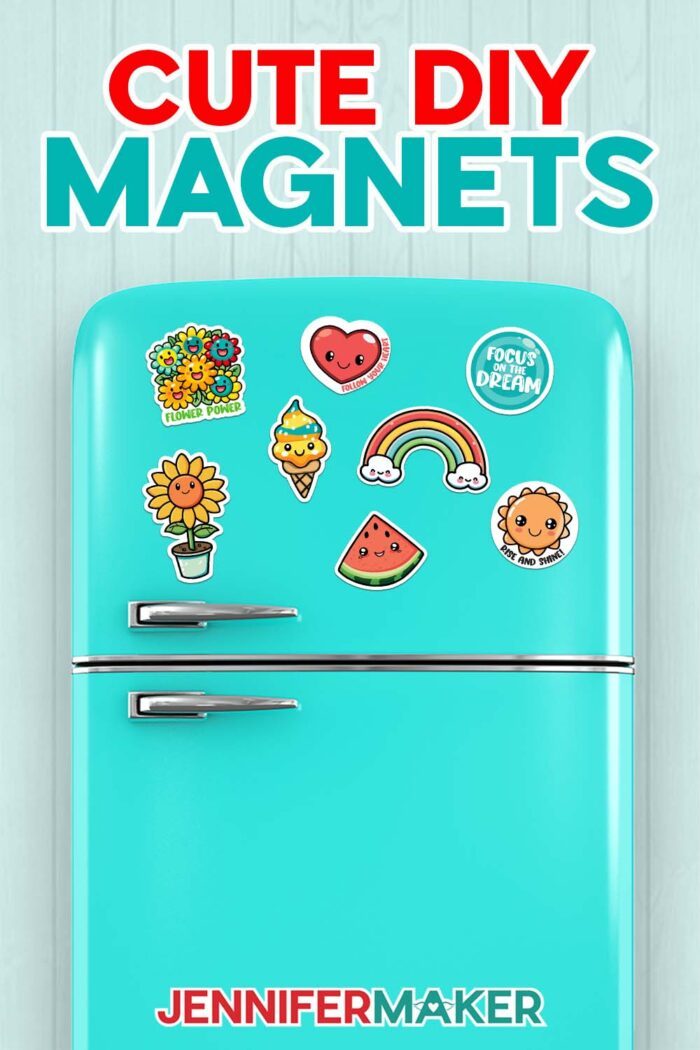
Learn how to make Happy Summer Magnets with cute, uplifting characters!
Along your crafting journey, you’ll pick up new skills with each type of project you try. And sometimes you’ll find a project that combines multiple methods to really show off what you’ve learned! Mixing and matching skills, materials, and tools is one of my favorite joys of crafting, and it makes me feel so accomplished. It’s so rewarding to work some crafting magic to make something really unique — like my new collection of Happy Summer Magnets!
“

These fridge magnets are the perfect example of mixing skills. Have you ever used your Cricut’s “Print Then Cut” feature? Or cut adhesive vinyl? Or made stickers with your Cricut?
If the answer to any of these questions is yes, you’ve already got a head start! If you said yes to ALL of these questions … well, I’ve got a project you’re going to love. And some of the steps will probably look pretty familiar to you!
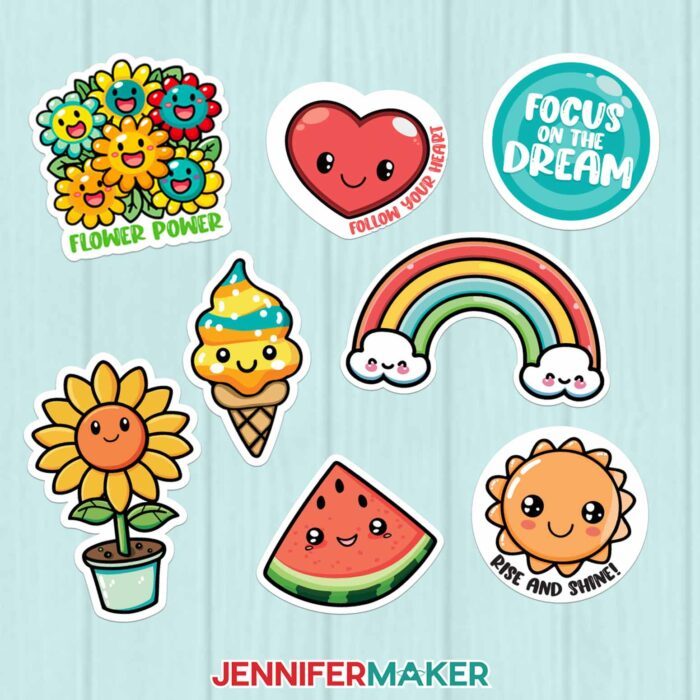
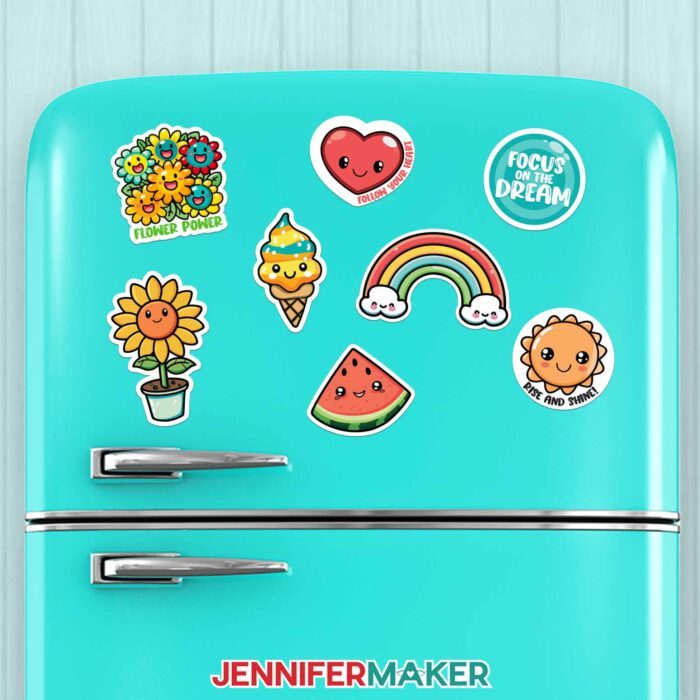
I really loved making magnets the first time around, so now I’m back with a new design bundle just in time for summer. These happy summer magnets come with sweet and positive quotes, and aren’t they adorable? You have your choice of free designs including these in my library.
If you haven’t used your Cricut’s Print then Cut feature recently (or it’s a new skill you haven’t learned yet), you should calibrate your Cricut so your cuts end up exactly in the right spots. It only takes a few minutes and is totally worth it to cut down on wasted materials with imperfect cuts. It only takes some regular printer paper, too! Scroll down for calibration directions.
The biggest difference between stickers and magnets (besides the obvious) is how you cut them. With stickers, you have a choice of cutting out the stickers’ shapes while leaving them on a backing sheet (kiss cut), OR cutting them all apart through the sticker material (die cut). For magnets, though, you want to always cut all the way through the material.
Speaking of stickers, you can take these designs and turn them into a DIY sticker sheet instead with my sticker tutorial!
When I made my first batch of magnets, I was still trying out materials. I tested two material combinations that use different tools to cut carefully through the DIY fridge magnets’ layers:
- Printable magnet sheets with a standard Cricut Fine-Point Blade
- Printable vinyl applied to a magnet sheet with a Cricut Deep-Point Blade
There are a few more tools you’ll need to create your DIY happy summer magnets. You’ll need a color inkjet printer, a computer or device with Cricut Design Space, brayer, scraper, ruler, and Cricut trimmer.
Depending on the method you choose, you’ll need a certain machine mat and Cricut blade — check the video tutorial and materials list below to make sure you’ve got the right stuff.
Once you’ve got your method down, you can make your own magnetic work of art using your own design or photo! I loved making these happy magnets to decorate my fridge, but they also make great gifts or functional accent magnets for memo boards! Enlist your family as your production team and have a fun afternoon creating decorative art for your fridge!
Let me show you how easy it is to make happy summer magnets! This post contains some affiliate links for your convenience (which means if you make a purchase after clicking a link I will earn a small commission but it won’t cost you a penny more)! Read my full disclosure policy.
Materials to Make Happy Summer Magnets
View my Amazon shopping list with the exact items we used on the original project
For the Printable Magnet Sheet method, you will need:
For the Printable Vinyl on an Adhesive Magnet Sheet method, you will need:
- One (1) Sheet Printable Vinyl Sticker Paper
- One (1) 8″ x 10″ Magnetic Adhesive Sheet
- Cricut StrongGrip Mat (12″ x 12″)
- Cricut Deep Point Blade with Housing
To make either version, you will also need:
- One (1) 9″ x 12″ Self-Laminating Sheet per sheet of magnets
- Color Inkjet Printer – I used the HP Envy 7155 but you can also use an Epson EcoTank
- Several sheets 8.5″ x 11″ white printer paper and a Cricut LightGrip Mat (12″ x 12″) – for Print then Cut calibration
- A way to cut your materials, I used the amazing Cricut Maker 3 but you can also use the Cricut Maker or the Cricut Explore machines with a Fine-Point Blade.
- Tools including a Brayer, Scraper, Ruler, and Paper Trimmer
-
- Design #615 (My free PNG design files are available in my free resource library – get the password by filling out the form at the bottom of this page)
How to Make Your Own Happy Summer Magnets
DIY Fridge Magnets with Cricut
Learn how to make cute DIY fridge magnets with Cricut in two ways!
Materials
- One (1) Sheet Matte Printable Magnet -OR-
- One (1) Sheet Printable Vinyl Sticker Paper -AND-
- One (1) 8" x 10" Magnetic Adhesive Sheet
- One (1) 9" x 12" Self-Laminating Sheet per sheet of magnets
- Several sheets 8.5" x 11" white printer paper
- Design #396 (My free PNG design files are available in my free resource library - get the password by filling out the form at the bottom of this page)
Tools
- A way to cut your materials, I used the amazing Cricut Maker 3 but you can also use the Cricut Maker or the Cricut Explore machines with a Fine-Point Blade for the Printable Magnet Sheet or a Deep-Cut Blade for the Printable Vinyl on Magnetic Sheet.
- Color Inkjet Printer - I used an Epson EcoTank 2700
- Cricut LightGrip Mat (12" x 12") - For Calibration
- Cricut StandardGrip Mat (12" x 12") - For Printable Magnet Sheets
- Cricut StrongGrip Mat (12" x 12") - For Printable Vinyl on Magnet Sheets
- Cricut Deep Point Blade with Housing - For Adhesive Magnet Sheets
- Cricut Brayer
- Ruler
- Cricut Trimmer
- Scaper
Instructions
STEP 1: PREPARE TO PRINT THEN CUT
When you're working with a new material or process, calibrating your machine's settings will save you time and money in the long run.
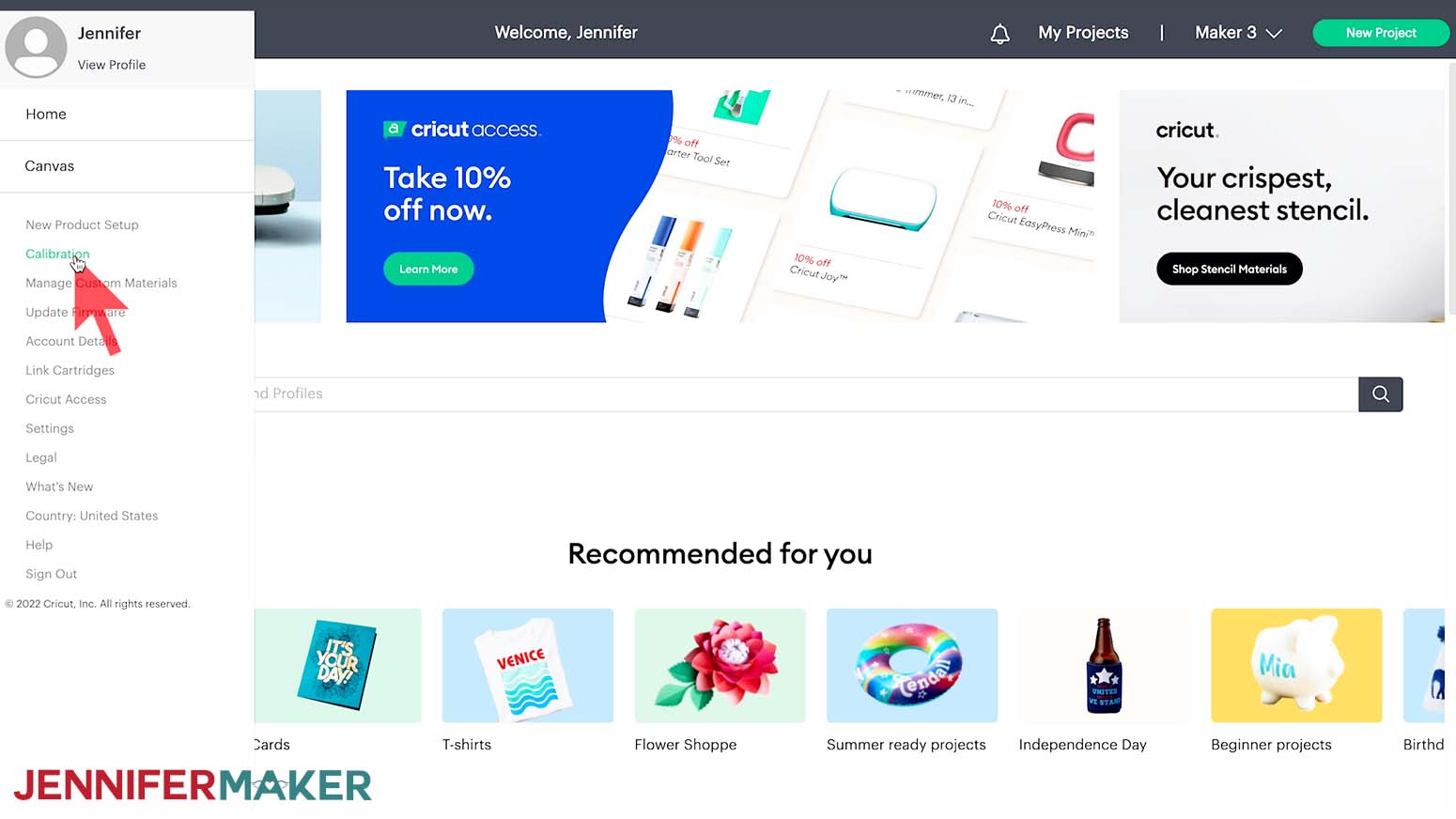
In a new Cricut Design Space window, click the three lines in the upper left corner, then select Calibration.
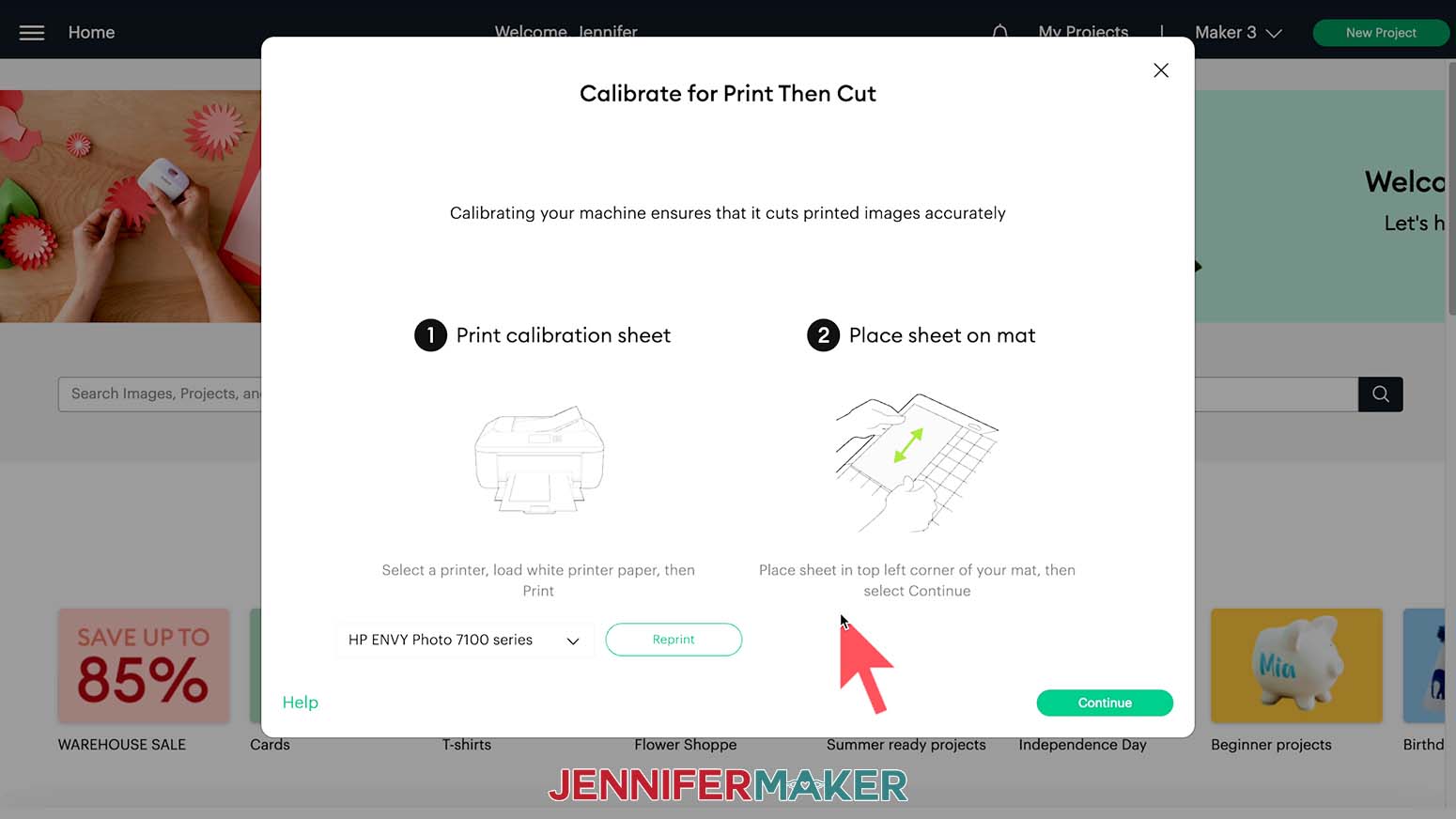
Select Print Then Cut. Then follow the prompts to select your printer and print a test sheet.
Follow the directions to place the test sheet on your LightGrip cutting mat and load it into your Cricut.
Your Cricut will perform many cuts that may or may not line up with the numbered lines.
IMPORTANT: Do NOT unload your mat until the Calibration test is complete.
Answer the questions in Design Space about the cut results. If the calibration was off, you may be asked to print another test sheet and check the settings once more. Once your Calibration is successful, your Cricut is ready!
Next, clean the print heads on your inkjet printer for the best print quality. Consult the printer's manual for the specific steps as they vary.
STEP 2: GET MY FREE DIY FRIDGE MAGNET DESIGNS
Next, download my free DIY Fridge Magnets PNG files, Design #396, from my free resource library. One file has the full collection sized to fit on one Print then Cut sheet. The folder has all ten designs in individual files so you can work with them individually.
I will show you how to make the file with all of the designs using two different material processes. The upload process for Print then Cut is different than a SVG.
Upload the image as normal until you reach a screen with the PNG on the left.
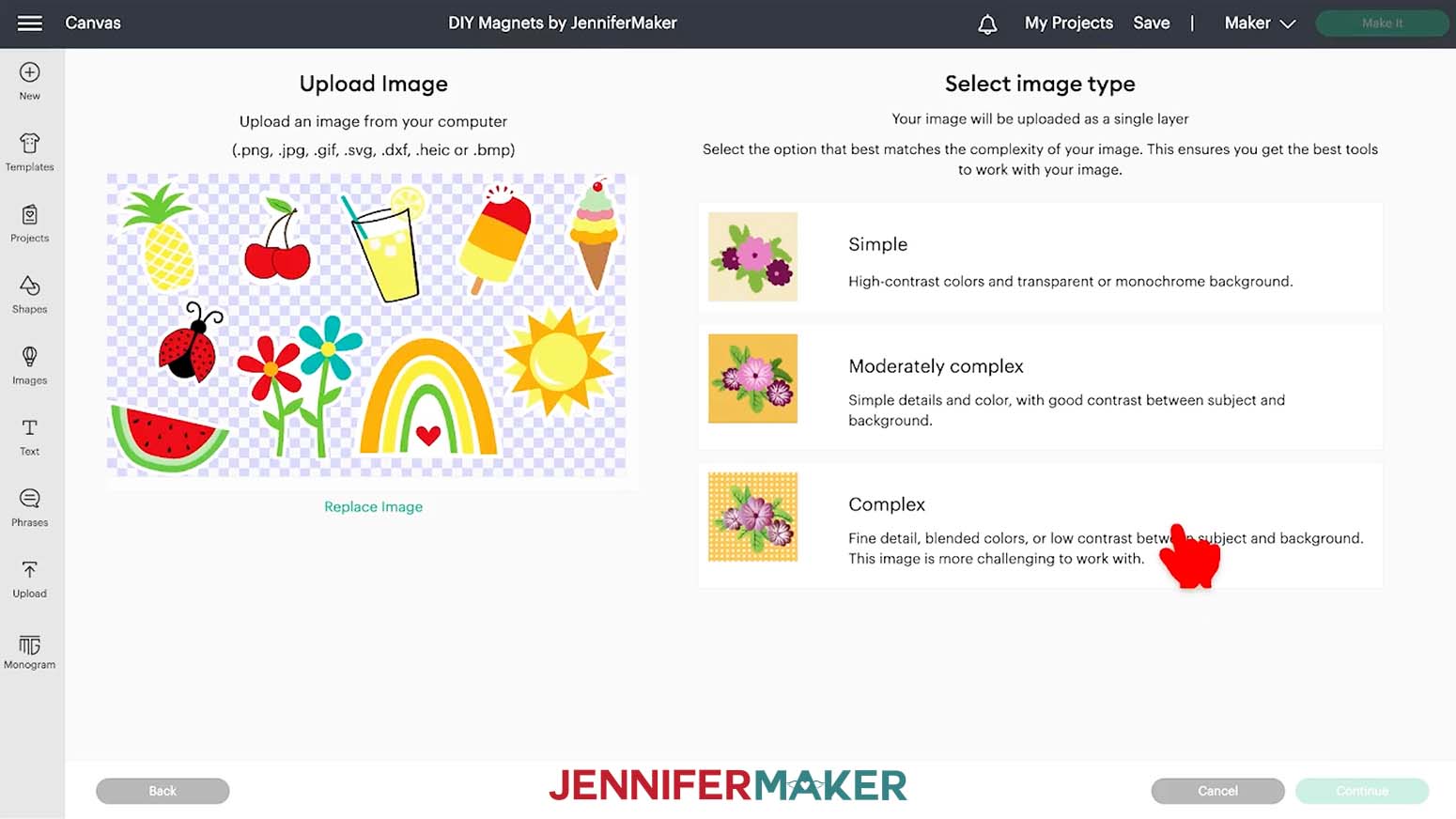
Select Complex for the image type and then click Continue in the lower right corner.
You do not need to do anything on the next screen, so click Apply & Continue.
For Upload Type, select Print Then Cut and click Upload.
You should now see your fridge magnet designs collection in your Recent Uploads. Select it and click Add to Canvas.
STEP 3: PRINT THEN CUT YOUR DIY FRIDGE MAGNETS
This is what the DIY Fridge Magnets collection looks like on my Canvas.
You can zoom out to see all of the design by clicking on the minus (-) sign on the lower left.
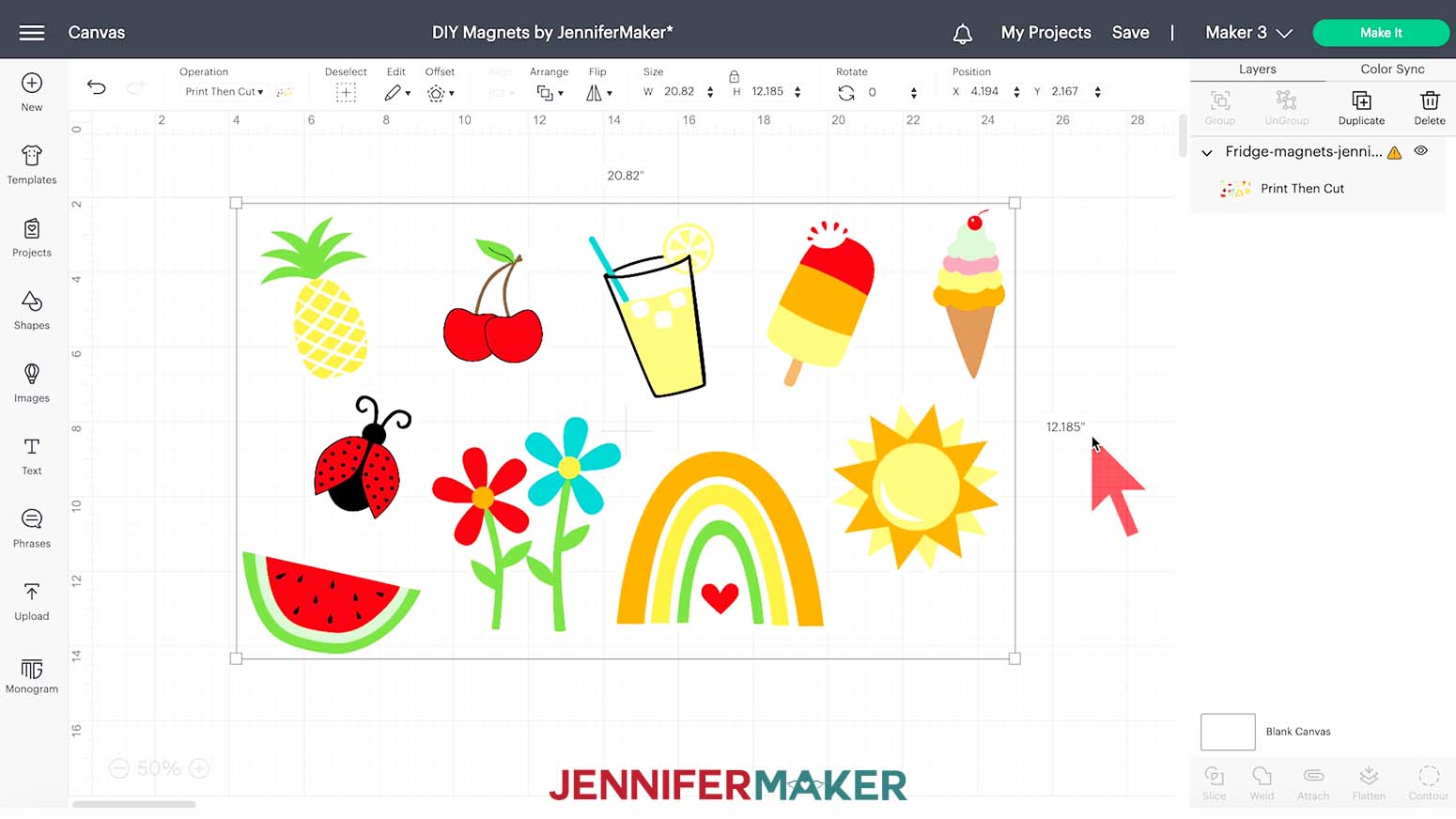
I have sized the PNG to be ready to cut on a single sheet. As of July 2022, the maximum Print then Cut size is 9.25" x 6.75". If you'd like to make your magnets smaller, click and drag the resize handle. If you'd like for the magnets to be larger and you get an error because of the print size, upload the designs as individual PNGs so that you can print them on multiple sheets.
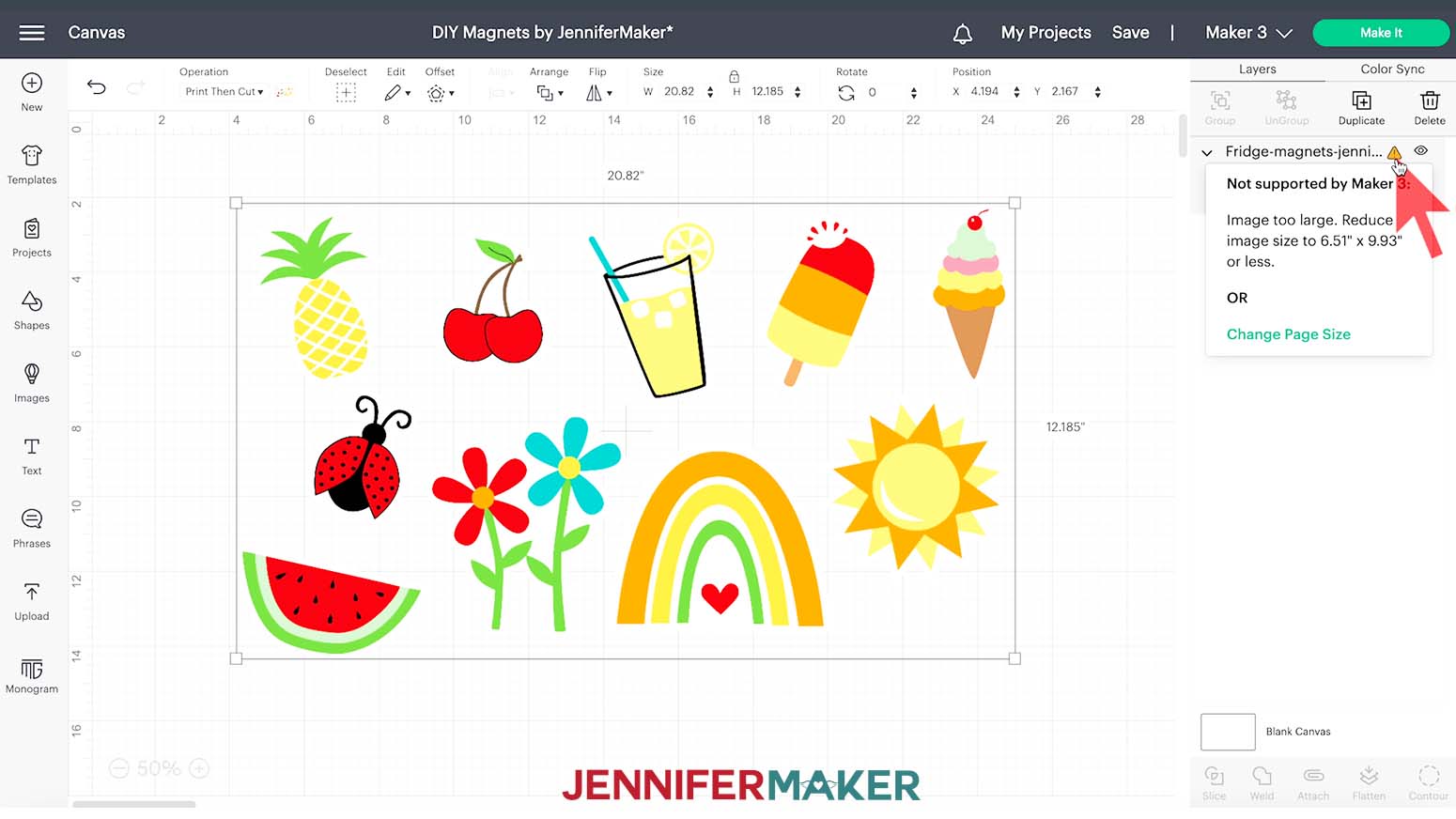
They're ready to cut!
Make sure the correct machine is selected, then click "Make It" in the upper right corner.
There is nothing to change on the Prepare screen, so click Continue.
Some of the settings are different depending on the magnet materials you're using.
Click the green Send to Printer button to open the Print Setup window. Make sure your printer is listed and the sliders next to "Add Bleed" (a small border around each image that allows for more precise cutting) and "Use System Dialog" are green. Then click Print.
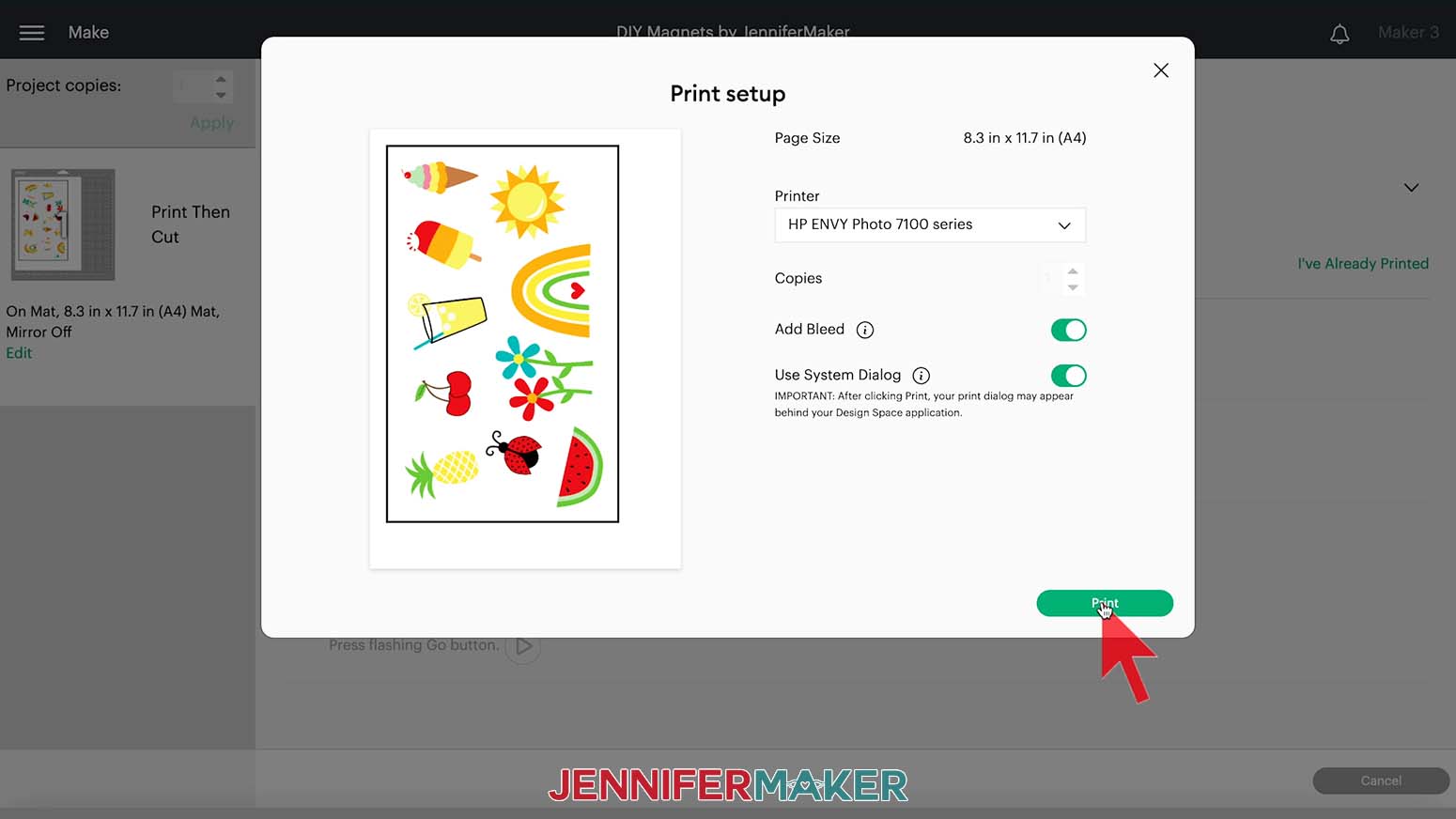
The print screen for your printer will appear, but it might be hidden behind Design Space. Minimize your Cricut window to see the print settings window.
Your window will look different depending on your computer and printer. Make sure your printer is listed in the window. For either material, set the paper type to "glossy photo" and print quality to "Best."
Since the materials we're using for the magnets are thicker and a different composition than traditional printer paper, I've had better results using the manual feed tray. Change the paper source if necessary.
After your magnet designs have printed, set them aside until the ink is completely dry to avoid any smears during the cutting process.
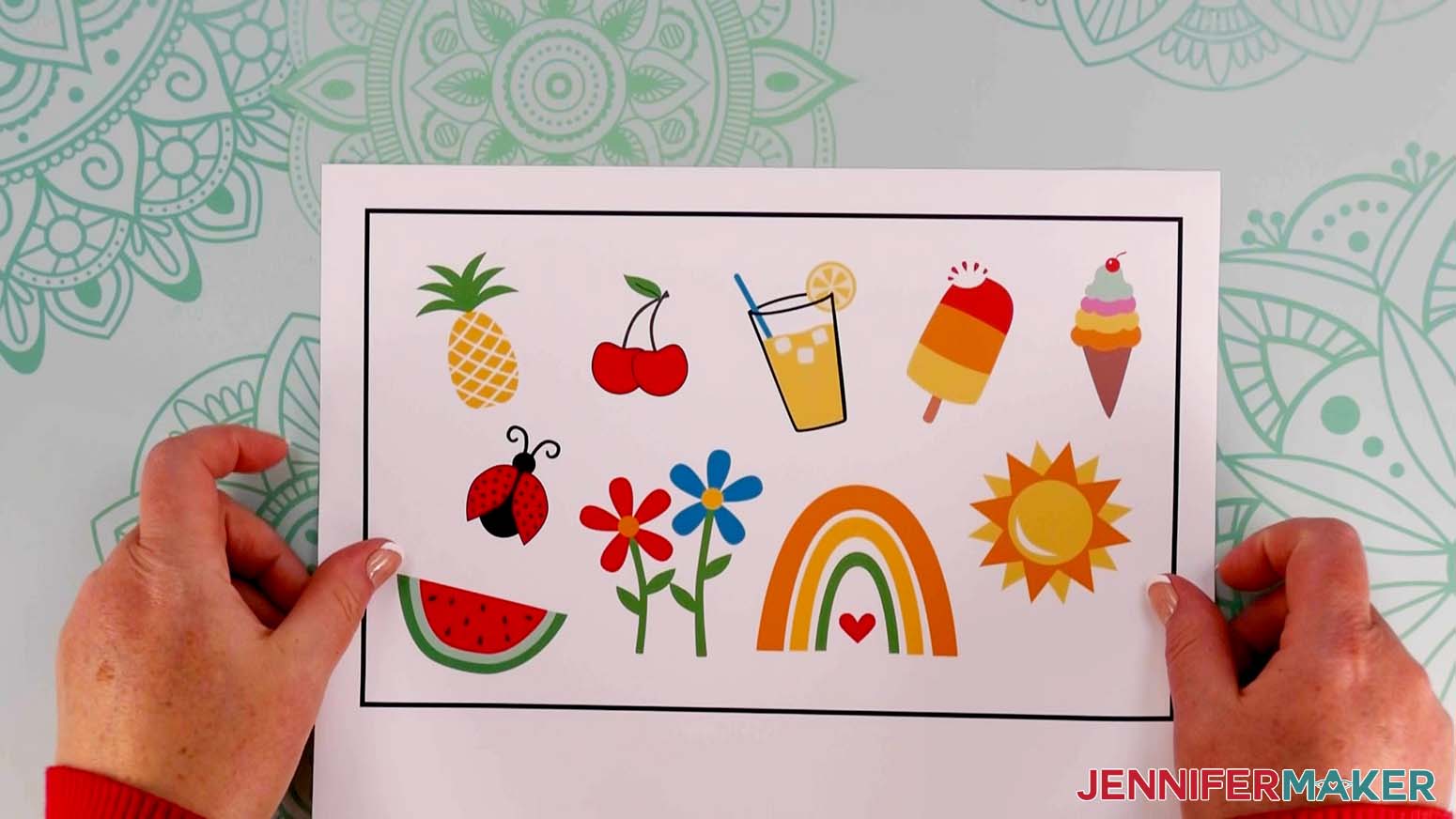
This is what my printed vinyl sheet looks like.
And this is what my printed magnetic sheet looks like.
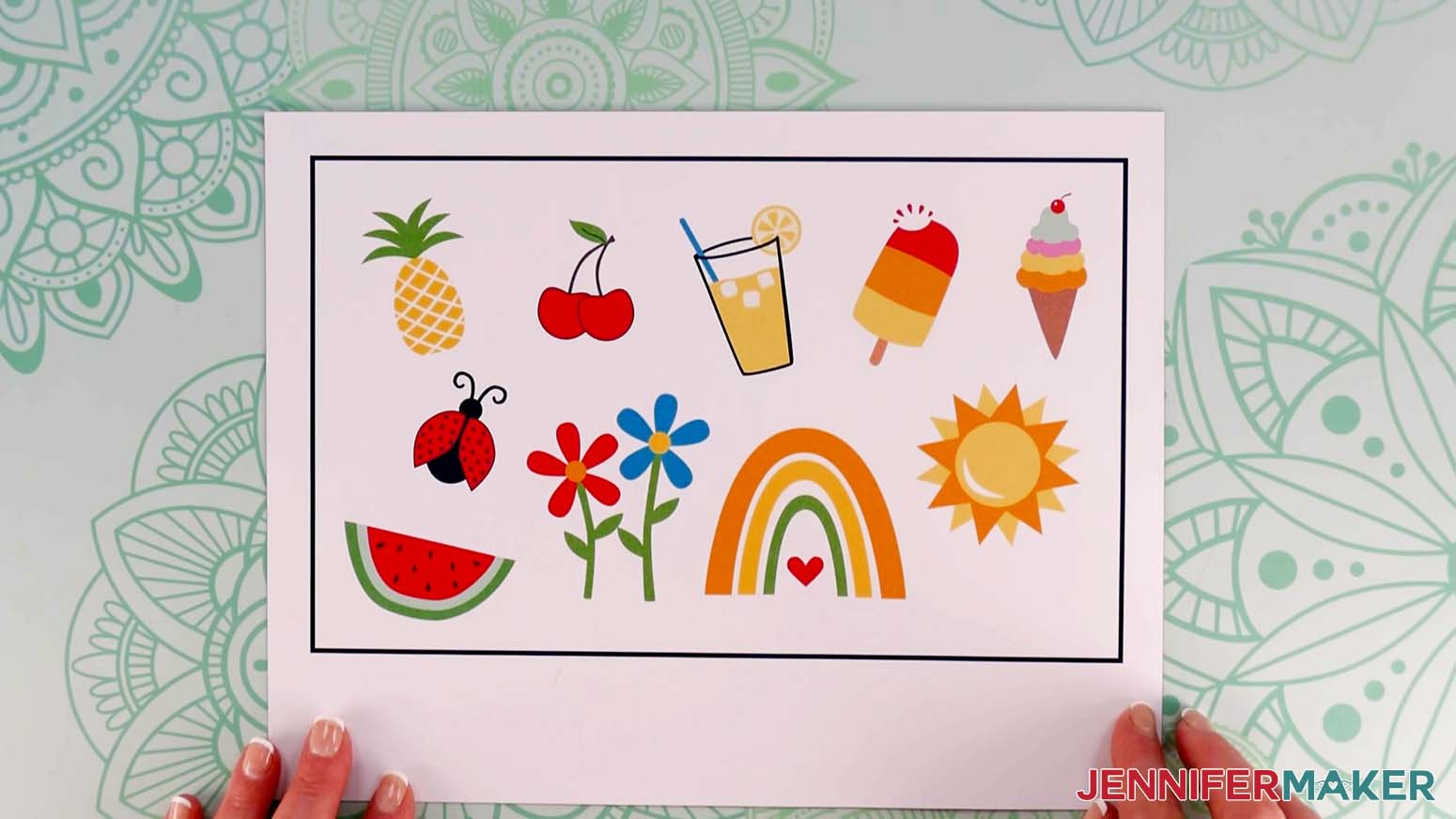
See the black box around my designs? This is called a registration box and is used by your Cricut cutting machine to tell it exactly where to cut your project.
Now, we need to apply the printable vinyl to a thicker magnet sheet. The printable vinyl sheet is larger than the magnet, so placement is important.
Remove the backing from the printable vinyl and lay it design-side down on your table. Remove the adhesive protective sheet from the magnet. Center the magnet over the back of the printable vinyl so that it will cover all of the designs. Press the sticky side of the magnet to the back side of the printable vinyl.
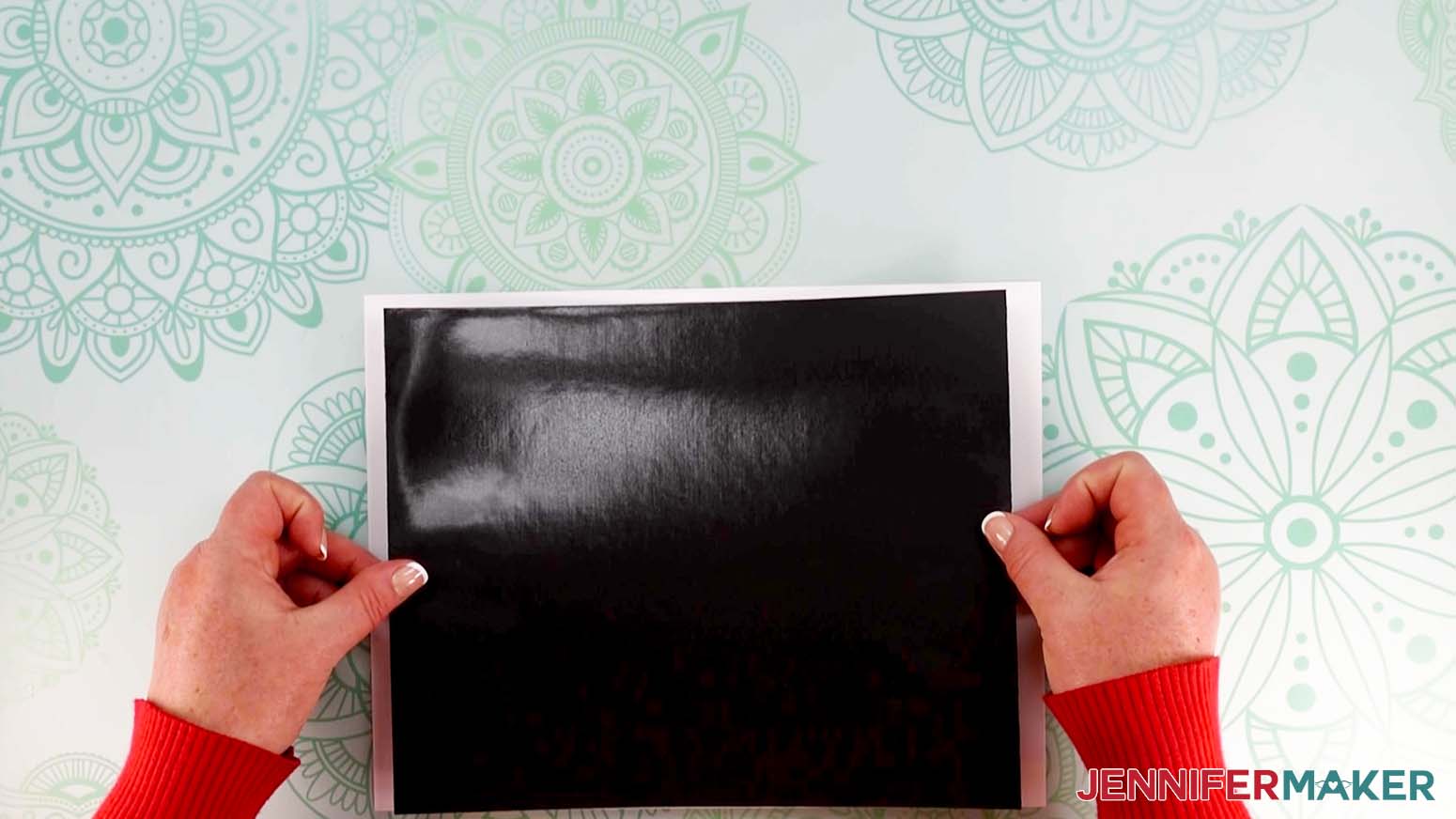
Flip over the layers and gently smooth out any bubbles.
You can cut either material as they are, or you can apply laminate to add a glossy finish and more strength. It also helps protect them from water!
I found it easiest to apply the laminate sheet with the magnets already placed on the machine mats. The printable vinyl on a magnet sheet goes on a StrongGrip Machine Mat and the printable magnet goes on a StrandardGrip Machine Mat.
Place the printed sheet on the correct mat, lining up the top left corner. We need to trim the laminate so that it doesn't cover the registration marks. The Cricut uses the registration marks to determine where to cut. If the laminate covers the registration marks it can interfere with that which might cause the cut to be way off.
Use a ruler to measure inside the registration box. The laminate just needs to cover the designs so I'm going to cut mine to 9.5" by about 5.75".
Remove the backing of the self laminate. Just like transfer tape, fold the edges up like a taco and place the bottom curve along the center of the magnet sheet. Gently let the sides down and use your scraper to smooth out any bubbles.
TIP: If you have any tricky bubbles, it is okay if they aren't completely gone, just make sure they are in an open white area and not over a design.
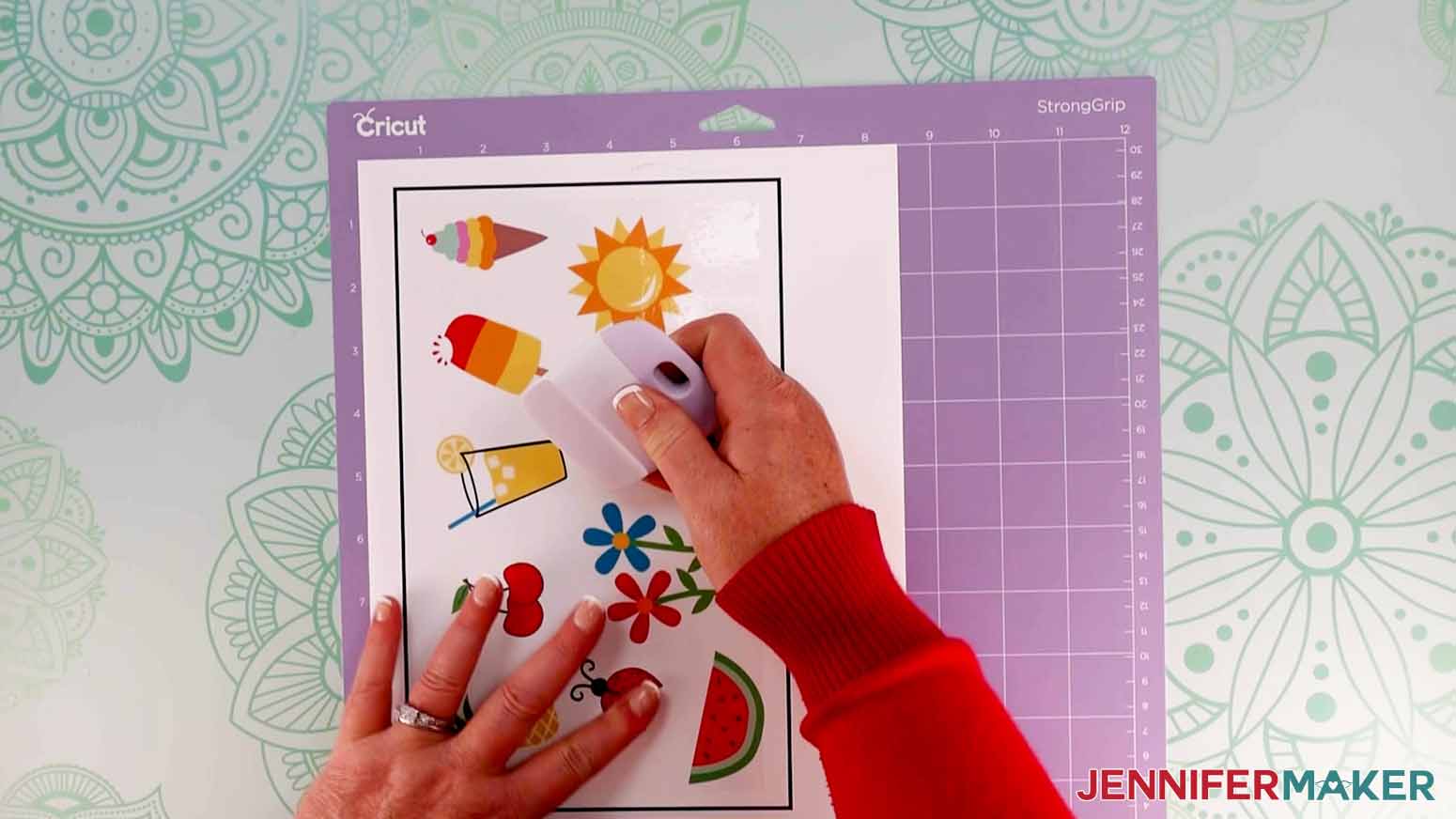
Use a brayer to make sure your sheet is really stuck well to the mat.
Now, they're ready to be cut by the machine. The settings and tools are different depending on which type of magnet you used.
Cutting Printable Magnets
Click "Browse All Materials” and select "Printable Magnet." Also, set the Pressure to "More."
Insert your Fine-Point Blade and press the flashing arrows to load your mat into your Cricut. Press the middle flashing button to cut the designs.
Cutting Printable Vinyl on Magnet Sheets
Click "Browse All Materials” and select "Magnetic Sheet 0.6mm." Also, set the Pressure to "More."
For this cut, you'll need the Deep-Point Blade in Clamp B. Press the flashing arrows to load your mat into your Cricut. Press the middle flashing button to cut the designs.
IMPORTANT: BEFORE unloading your mat, gently lift the edge of the magnet sheet to check the cut. If the design doesn't easily separate from the excess magnet, click the middle button on the Cricut to cut the material a second time. You may need to do this one or two times depending on the sharpness of your blade. As long as you don't unload the mat, the cut will be identical for each pass.
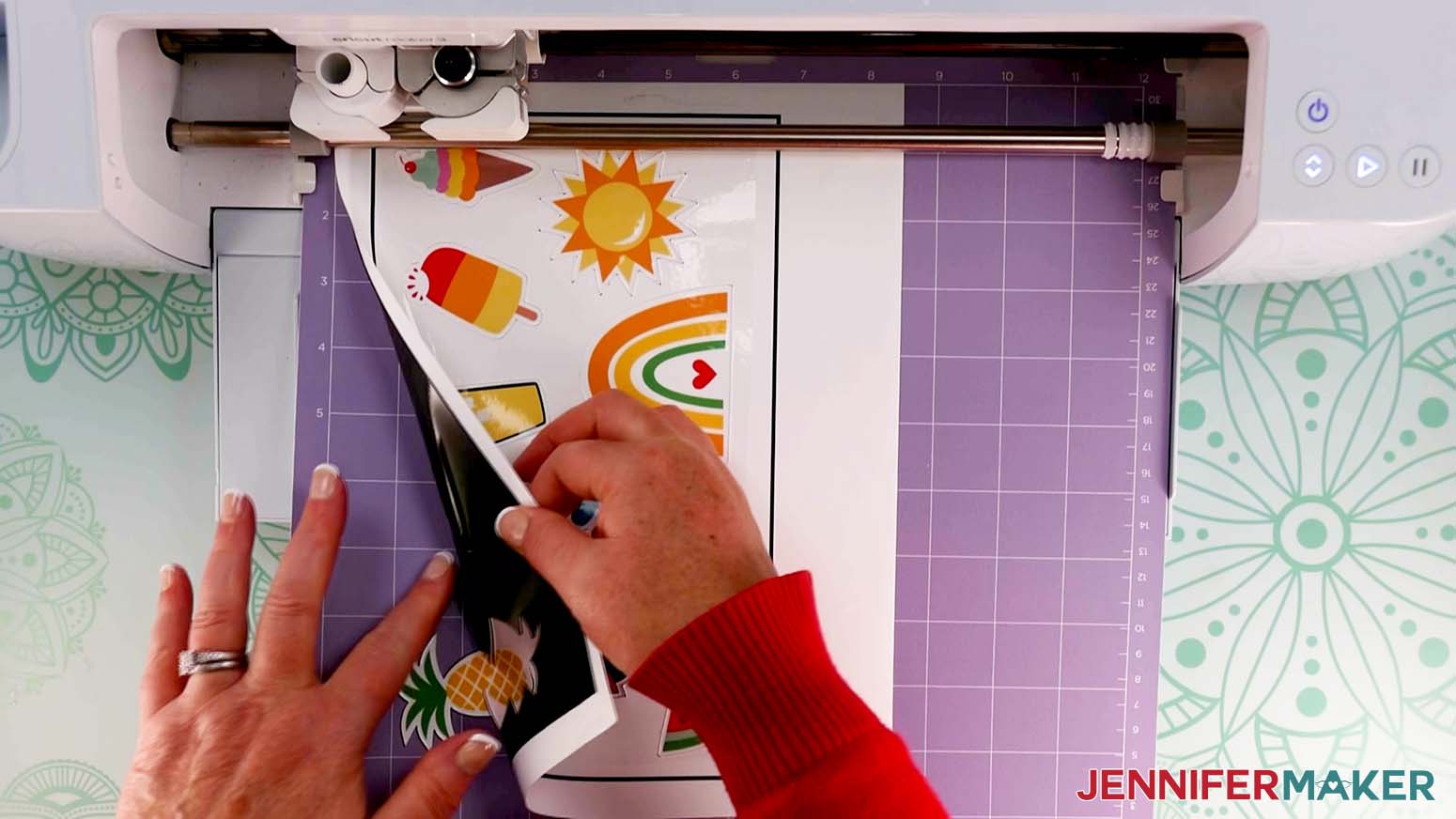
Once you're sure the magnets have cut all the way through, press the flashing arrows to unload your mat. Remove the magnets and excess magnet material from the mat. You're all done!
STEP 4: SHOW THEM OFF
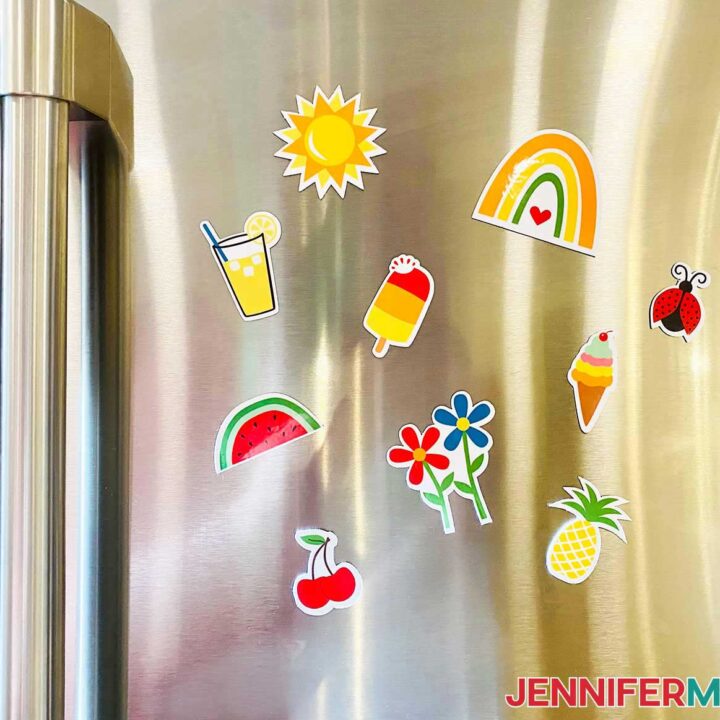
Aren't they adorable! Remember, you can make the magnets larger by using the solo files, like I did with the flowers and glass.

Notes
These magnets can hold thinner paper items quite easily. If they get damp, wipe them off with a towel promptly.
Answers to Your Questions About Making Happy Summer Magnets
Q: Can you make fridge magnets with a Cricut?
A: Yes! There are so many different ways to get a final creation you’ll love. I show you two different magnet-making methods in this tutorial, but these are only Print Then Cut options. You can tweak other projects and use glue to attach magnets to the back of cardstock, bows, sublimated acrylic, faux leather, vinyl-decorated acrylic, or even just transfer stickers directly to magnets for a quick and easy craft!
Q: Do I need a Cricut to make magnets?
A: Nope! Check out my DIY Marble Magnets tutorial for a hands-on magnet project you don’t need a Cricut to create!
Q: Why are my magnets not sticking to my fridge?
A: If your fridge is stainless steel, your magnets may not stick. Different types of stainless steel contain different amounts of nickel. The more nickel, the less magnetic the fridge. Hint: Try sticking magnets to the side of your fridge — it may be made with different, more magnetic steel.
If that doesn’t work, use a magnetic dry erase board, display them in a school locker, stick them to a filing cabinet, or attach a mountable piece of sheet metal to a wall and display them that way!
Q: Can you show me how to make fridge magnets with photos?
A: You can use any Print Then Cut sticker tutorial to make your own refrigerator magnets with photos — including this one! Just upload your photo instead of my designs, follow the same steps, and voila!
Q: What are the fonts that you used?
A: I used Splash (free alternative: Brighly Crush).
.Q: Can I use these designs for other projects?
A: Absolutely! You can use these designs (and all others in my free library) for any project you’d like! These designs would make great stickers, Print Then Cut projects, printable vinyl T-shirt designs, clear vinyl sticker designs, a car sticker, sublimation designs, and more.
Q: Are your free SVGs and PNGs just for personal use or also commercial use?
A: First thing, I’m honored that you’d ask! Yes, you can sell completed projects using these designs (with limitations) along with other designs in my free library — please read about licenses here so you know what you can and cannot do. If you use them, please share photos with us! We love to see them.
Always ask permission from independent artists before using their work in your crafts, especially those you plan to sell.
Q: What is a collector of refrigerator magnets called?
A: A collector of fridge magnets is called a memomagnetist. You learn something new every day!
Q: Where can I buy supplies to make my own magnets?
A: All of the materials used in this project are listed in my Materials and Tools above — with links where I buy them! I like shopping with Amazon because they usually have next day or 2-day express delivery options and a super smooth checkout process.
Q: Do you have other Print Then Cut ideas?
A: I sure do! Strengthen your Print Then Cut skills with these fun projects:
- Stained Glass Cards
- DIY Money Holders
- Sublimated Cardstock Cake Toppers
- Light Painting Shadow Box
- Acrylic Photo Keychains
- Bobble Head Cards
- Sublimate Dark Shirts & Cotton
Q: I want to make stickers! What sticker tutorials do you have?
A: I have lots! Check out these fun sticker projects:
- Return Address Labels & Planner Stickers
- Printable Vinyl “Squish” Stickers
- Easy Print Then Cut Succulent Stickers
- Sublimation Stickers with Positive Quotes
- Holographic Stickers
- Custom Mason Jar Labels
- Vinyl Car Decals
Get my free SVG files to create happy summer magnets!
I love seeing what you make with my designs and how you use them! Please share a photo of your Happy Summer Magnets in our Facebook group or tag me on social media with #jennifermaker.
Love,

Want to remember this? Save this Happy Summer Magnets tutorial to your favorite Pinterest Board!