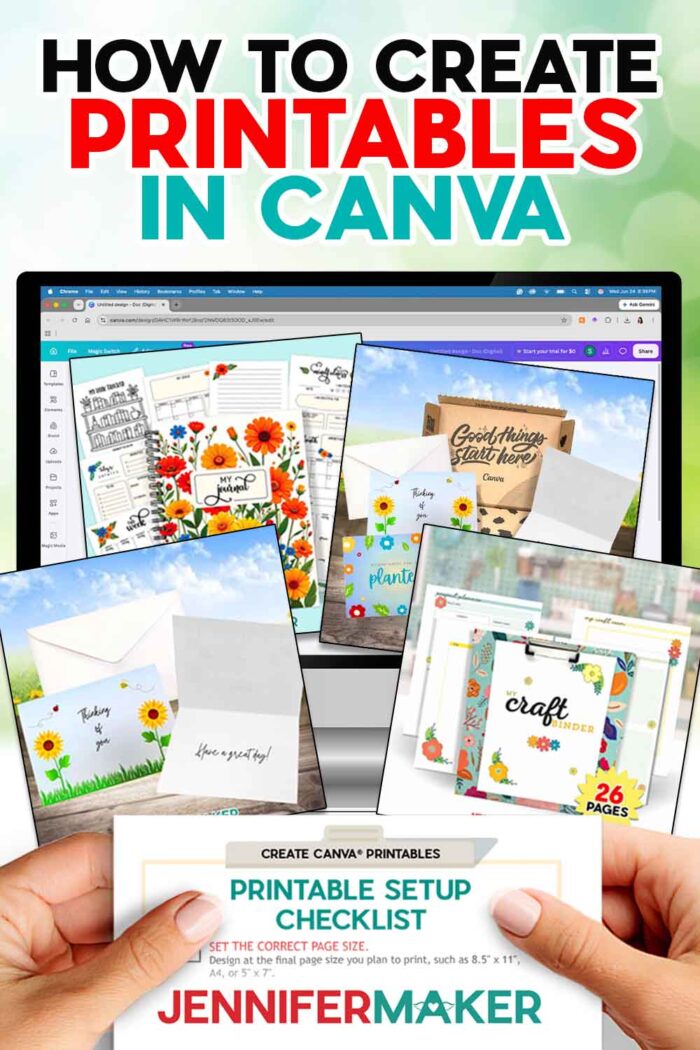
Learn how to make printables in Canva for personal or small business use!
If you’ve ever wanted to make your own planner pages, checklists, wall art, cards, labels, worksheets, party signs, stickers, journals, or other printable projects, Canva is a wonderful place to start. You don’t need to be a graphic designer, and you don’t need to know every Canva tool before you begin. I’ll keep this simple and focus on the settings that matter most for a printable that actually prints the way you expect.
A printable is simply a digital design made to be printed. It might be a one-page checklist, a pretty quote for your craft room wall, a set of gift tags, or a planner page you use again and again. Once you understand a few simple setup steps, Canva printables become much easier to make, share, and print correctly.
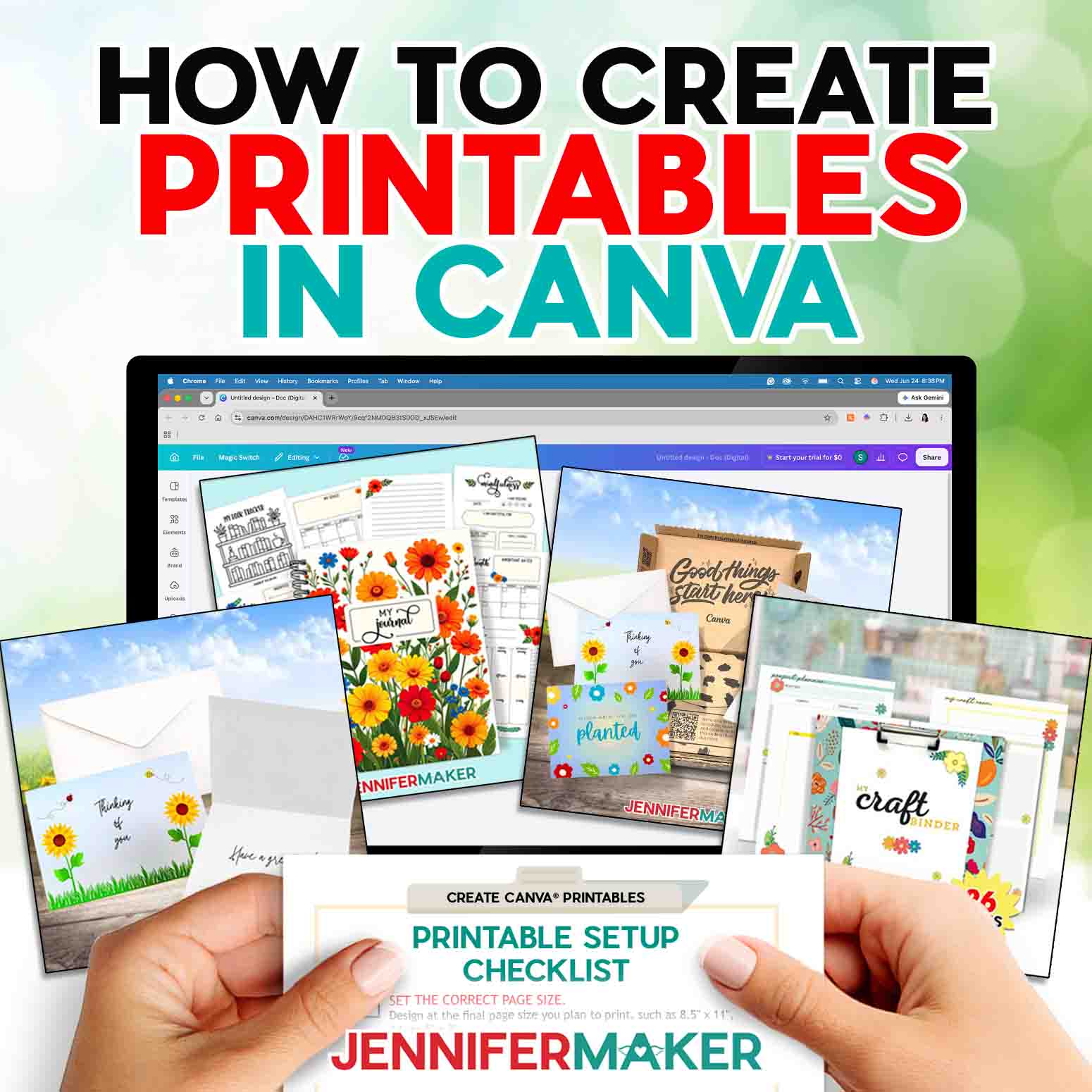
Here are the basic steps to create printables in Canva:
- Choose your printable type.
- Set the correct page size.
- Turn on margins, rulers, and bleed if needed.
- Add your text, graphics, and writing space.
- Check spelling, spacing, and contrast.
- Download your design as a PDF Print file.
- Print a test copy.
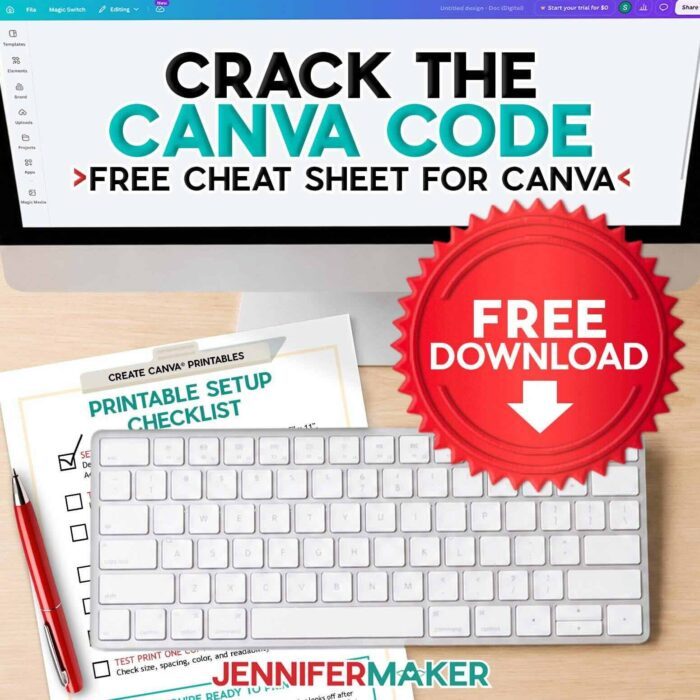
Want a simple guide to keep handy while you design? Sign up for my free library and get my Canva Printable Setup Checklist so you can check your size, settings, file type, and test-print steps before you download. I’ve even included some example printables to inspire your own ideas!
Ready to create printables in Canva? This beginner guide will cover the basics! This post contains some affiliate links for your convenience, which means if you make a purchase after clicking a link I may earn a small commission, but it won’t cost you a penny more! Read my full disclosure policy.
What Can You Make as a Canva Printable?
Canva is a great tool for printable projects because it lets you combine text, shapes, graphics, photos, and templates in one place. You can make practical pages, pretty decorative designs, or craft-friendly files that pair with other tools like a home printer or Cricut machine.
Some popular Canva printable ideas include:
- Planner pages
- Habit trackers
- Cleaning checklists
- Recipe cards
- Wall art
- Greeting cards
- Gift tags
- Party signs
- Stickers
- Worksheets
- Labels
- Photo books
- Craft room signs
Canva Pro unlocks additional templates, graphics, and photos but the free account version includes plenty to help you create beautiful printables.
If you’re brand new to Canva, start with my guide on How to Use Canva for Beginners. It walks through the basic tools so the printable setup feels much less intimidating.
How Do You Create Printables in Canva?
To create a printable in Canva, first decide what size you want the finished project to be. This is one of the most important steps because your canvas size affects how your design prints. Plus, you can’t adjust the canvas size once you start if you’re on a free Canva account.
For example, use 8.5″ x 11″ for a standard letter-size printable, 5″ x 7″ for a small sign or flat card, 4″ x 6″ for a recipe card or photo-size printable, and A4 if your audience uses international paper sizes.
In Canva, you can choose a template or create a custom-size design. Templates are helpful when you want a quick starting point, but custom-size designs give you more control. For printables, I like to start with the exact finished size so I can see how much space I really have.
A finished printable is meant to be downloaded and printed, while a Canva template is meant to be edited by someone else first. That matters if you plan to share or sell your design, because the setup steps and usage rules may be different. I have a tutorial on How To Make Canva Templates to help you get started, too.
After you open your canvas or template, turn on your rulers, guides, margins, and print bleed if needed. These little setup tools help you create polished, professional-looking printables.
Margins show you the safe area where important words and graphics should stay. This helps prevent text from getting too close to the edge of the paper. Bleed adds extra design space beyond the edge of the page, which is important if your background color, pattern, or artwork should print all the way to the edge. You don’t want white edges, especially if you’re making a Print Then Cut Cricut project like stickers.
Now we get to the fun part: designing! Add your title, headings, boxes, lines, icons, photos, or decorative elements. Keep your design easy to read. Use clear typfaces, strong contrast, and enough white space so the page doesn’t feel crowded.
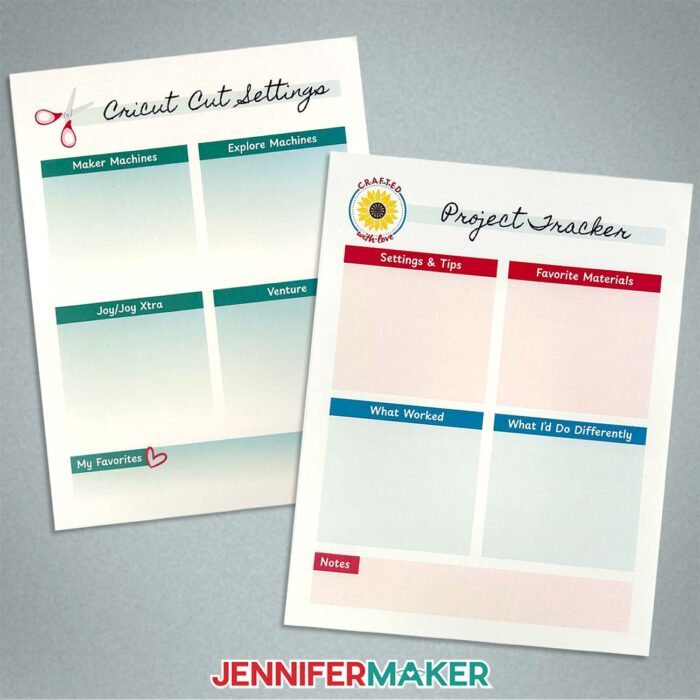
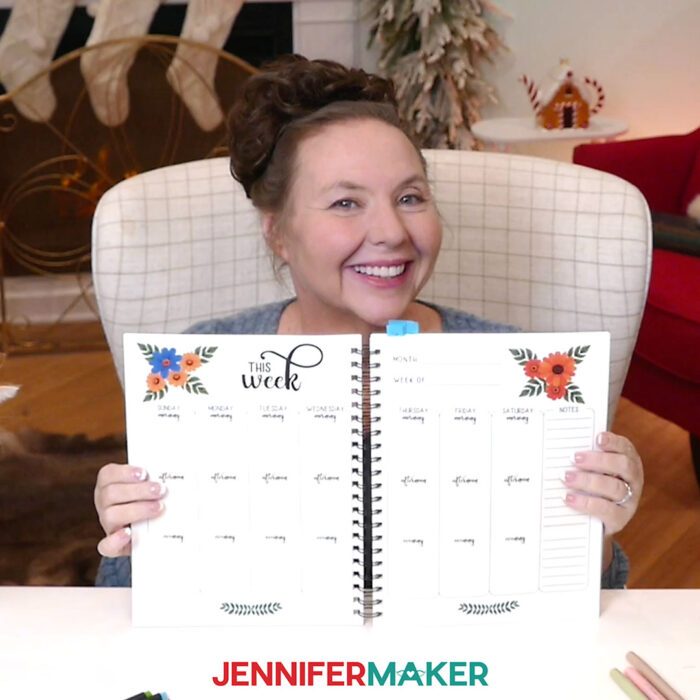
If your printable is meant to be written on — like a checklist, worksheet, planner page, or tracker — leave plenty of blank space. It’s very easy to make a design look pretty on screen and then realize there isn’t enough room to actually use it once it’s printed. I like to zoom out and look at the whole page at once. If it feels busy from a distance, it may feel even busier on paper. Text really matters in printables, so if you struggle with typeface choice or layout, check out my Typography Tips!

Best Canva Settings for Printables
Before you download your Canva printable, check these details:
- File type: Download as PDF Print for most printable projects.
- Crop marks: Use these if your design includes bleed and will be trimmed.
- Color and contrast: Make sure the text is easy to read and test print because colors can look different on paper than they do on your screen.
- Print scale: Print at actual size or 100% scale when you need the finished printable to stay true to size.
This is also a good time to check spelling, alignment, and spacing. Read every word, even the tiny ones. I know it’s tempting to skip this part when you’re excited to print, but this is where you can catch the little things that are much easier to fix now than after printing.
What File Type Should You Use for Canva Printables?
For most Canva printables, choose PDF Print when downloading. PDF Print is designed for higher-quality printing and is the best choice for most printable pages, signs, cards, and worksheets. If you want the elements’ colors to be editable, try the PNG format and test uploading it to see your options.
Then print one test page. This is one of my favorite beginner tips because it saves so much frustration. Check that the text is large enough, the colors look good, and nothing is too close to the edge. If something feels off, go back to Canva, make a quick adjustment, and try again.
Can You Sell Printables Made in Canva?
Yes, you can sell finished printables made in Canva, but your own designs should be original. Canva’s rules don’t allow you to sell Canva content by itself, such as a standalone graphic, photo, or element. Your printable should combine your own layout, text, styling, and creative choices into a finished design. Not sure where to start? Check out my video on my favorite Canva Business Tools!
A good way to think about it is this: you’re creating a complete printable product, not repackaging Canva elements. Add your own purpose, structure, instructions, wording, organization, and design decisions.
If you plan to sell printables, always review Canva’s current content license rules before listing your product, especially if you use Canva Pro content or want to offer editable templates. Rules can change, and it’s always better to check first than fix a problem later.
Common Canva Printable Mistakes to Avoid
The biggest Canva printable mistakes usually happen before you download the file. Here are a few to watch for:
- Starting with the wrong canvas size
- Placing text too close to the edge
- Forgetting bleed when the design goes to the edge
- Using typefaces that are too small to read when printed
- Making the page too crowded
- Downloading as a PNG or JPG when a PDF Print is better
- Printing at “fit to page” when the size needs to stay exact
- Skipping the test print
- Assuming every Canva design can be sold without checking the content rules
If you make one of these mistakes, please don’t worry. We’ve all printed something and not loved the first draft! That’s why the test print is so helpful. It gives you a chance to fix the design before you commit to the final version.
If you’re using your printable with a Cricut, you may also need to think about upload type, Print Then Cut size, and how the design will be used or cut after printing. For a craft-friendly Canva printable see my tutorial on How To Make Stickers in Canva.
More Canva Printable Project Ideas
Once you know how to create printables in Canva, you can get really creative!
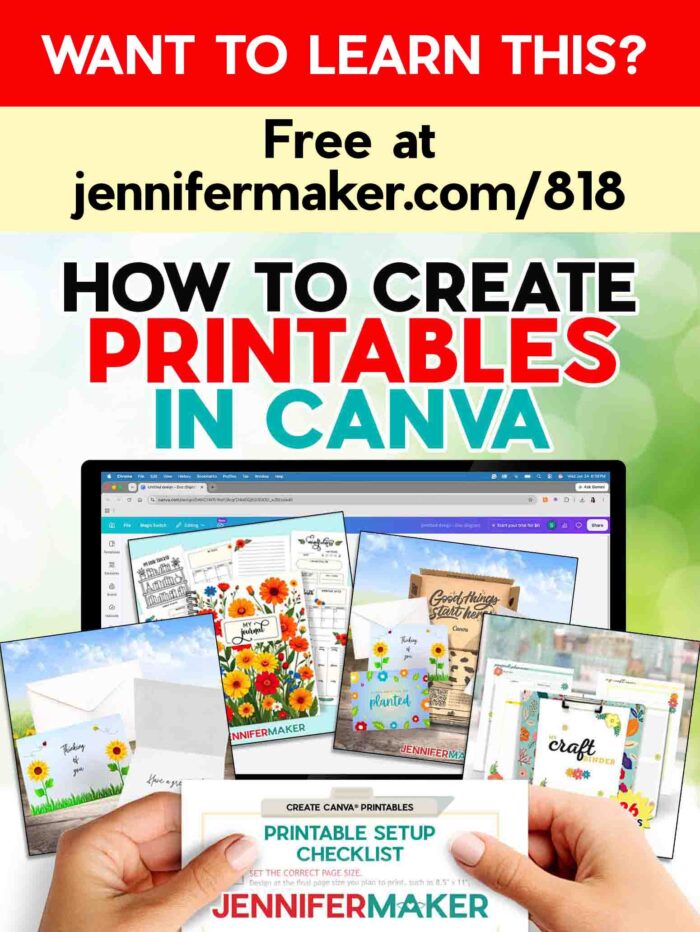
Some of the most popular Canva printables are planners like my Craft Inventory Binder.
If you want to make something you can fold and give, learn How To Make Cards in Canva with me.
Want to turn photos into a finished keepsake? See my easy tutorial on how to make a DIY Photo Book in Canva.
Excited to make your own custom paper? Use my Seamless Patterns in Canva tutorial.
And if you want to design faster, my Canva Keyboard Shortcuts guide can help you move around Canva with less clicking.
Creating printables in Canva gets easier every time you make one. Just remember: start with a simple page; keep your design readable; test print before making multiples; and save a copy so you can reuse your setup for the next project. And of course, have fun!
Have Canva Questions?
Canva offers a lot, but it can get overwhelming! If you ever need help, check out my JenniferMaker Canva Survival Guide. I’ve put all my best Canva troubleshooting processes and tips into one resource for you!
Frequently Asked Questions About Canva Printables
Q: What’s the easiest way to create printables in Canva?
A: The easiest way is to start with a custom-size design, turn on margins and bleed if needed, add your text and graphics, then download the finished file as a PDF Print or PNG. Test print one copy before printing multiples to ensure you have print-ready files.
Q: What size should I make a printable in Canva?
A: Common printable sizes include 8.5″ x 11″ for standard U.S. letter paper, A4 for international paper, 5″ x 7″ for small signs or cards, and 4″ x 6″ for recipe cards or photo-size designs.
Q: What file type is best for Canva printables?
A: PDF Print is usually the best file type for Canva printables because it creates a higher-quality file for printing. Picking PNG is better for detailed images. If you want the digital products to be editable, try my tips for making templates in Canva.
Q: Do I need Canva Pro to make printables?
A: No, you can make many printables with a free Canva account and design tools. Canva Pro gives you access to more templates, graphics, photos, and features for your digital files, but it’s not required for basic printable design. The free version has thousands of assets and tools for you to use.
Q: Should I use bleed for Canva printables?
A: Use bleed if your background, color, pattern, or artwork goes all the way to the edge of the page. Bleed gives the printer extra design area so you don’t end up with an unwanted white edge after trimming.
Q: Can I print Canva printables at home?
A: Yes, many Canva printables can be printed at home. Use the best quality print setting your printer allows, choose the right paper for your project, and test print one page before printing several copies.
Q: Why should I print at actual size or 100% scale?
A: Printing at actual size helps your printable stay the size you designed it. This matters for planner pages, cards, labels, stickers, and anything that needs to fit a specific space.
Q: Can I sell printables I make in Canva?
A: Yes, you can sell finished, original printable designs made in Canva, but you can’t sell Canva content by itself. Your design should include your own layout, text, organization, and creative choices. Always review the current content license rules on the Canva website before selling your own printables.
Q: What’s the difference between a Canva printable and a Canva template?
A: A Canva printable is usually downloaded as a file and printed. A Canva template is shared so another person can open and edit the design in Canva. If you plan to sell or share templates, check Canva’s current rules because template use can be different from finished printables.
Q: Why does my Canva printable look different when printed?
A: Printed colors can look different from screen colors because monitors and printers use different color systems, and paper type also affects the final result. It’s a good idea to make a test print to check color, contrast, and readability before printing more copies.
Q: Can I use your designs in my printables?
A: Membership in my Advance program includes a small business license to use included files. Please review my licensing page for more details.
Get My Free Canva Printables Cheat Sheet
Want to keep these Canva printables tips handy while you design? I made a free printable Canva Printables Cheat Sheet you can keep beside your computer.
Click below to get my free Canva Printables cheat sheet:
And once you start designing, I’d love to hear about the printables you create! Share your Canva projects in our Facebook group or tag me on social media with #jennifermaker so I can cheer you on.
Love,

Want to remember this? Save this Canva Printables Check List guide to your favorite Pinterest board!