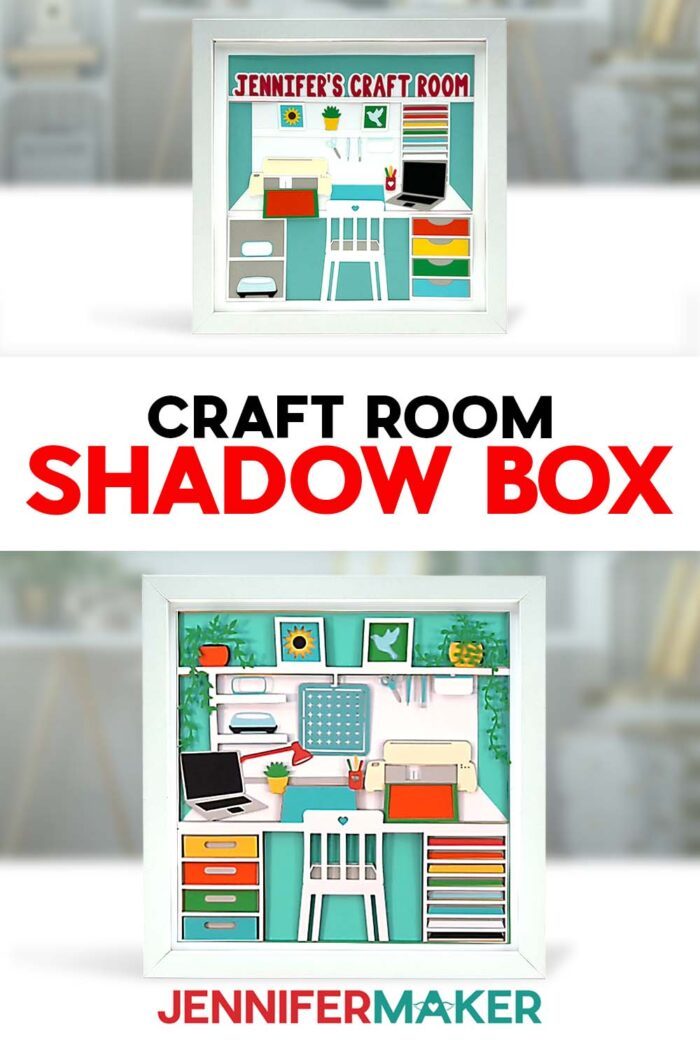
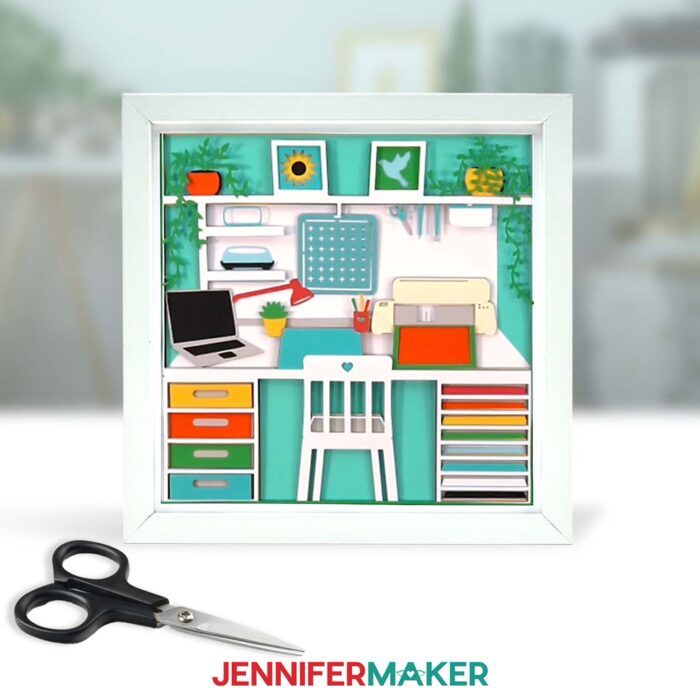
Learn how to make your own super-detailed craft room shadow box design!
The first time I saw a craft room shadow box design, I felt like I’d stumbled onto the cutest little secret world. Tiny tools, paper plants, and even a miniature Cricut perched on the cardstock desk. My heart just about melted! But I’ll be honest: the first thing that crossed my mind was, “That looks so complicated!” All those little bits and delicate details seemed like they would take forever to cut and line up. Still, I couldn’t stop thinking about it.
I wanted to create a version that had the same wow factor but without the frustration, so I designed a craft room shadow box project that’s full of charm, beginner-friendly, and oh-so-satisfying to display! Whether it becomes an interpretation of your real craft room, an imaginary creative nook, or even a space you’ve always wished for, this shadow box is a beautiful little way to celebrate your love of making.
Watch the full step-by-step tutorial on how to make a craft room shadow box:

Shadow boxes are some of my favorite projects because they let you tell a unique story with simple layers of paper and a little imagination. Every time you add a layer, the scene grows, until suddenly you’re peeking into a whole new world! This one celebrates one of my happy places: the craft room.
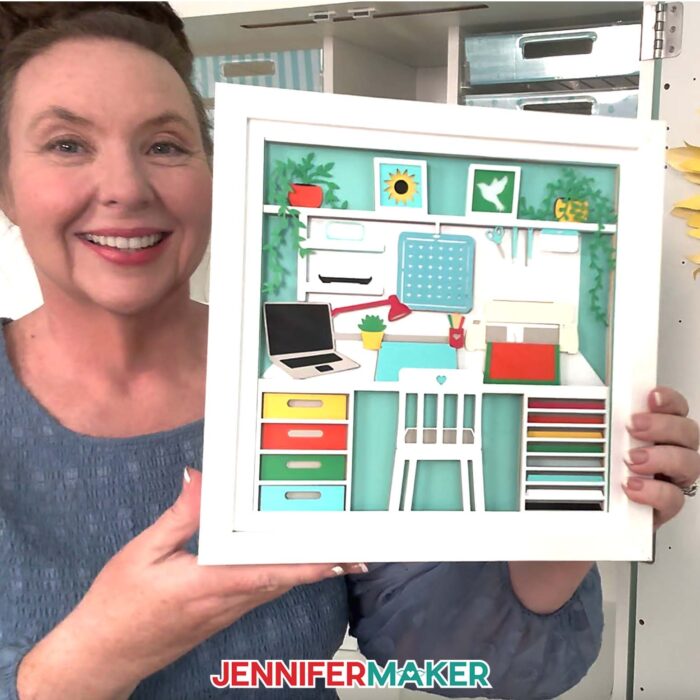
When I sat down to design it, I thought about the tools and supplies that make me smile every day: colorful paper, cute tools, my Cricut cutting machine, houseplants, and a comfy chair for crafting, of course. Seeing them in miniature just makes me grin! And it’s easy to make one of your own at home with the right materials and a little guidance from my step-by-step guide and tutorial video.
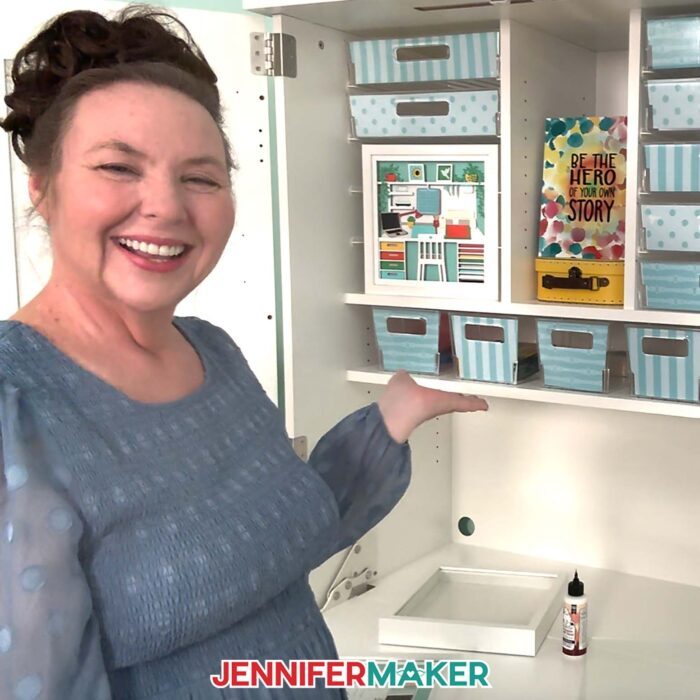
When making my craft room shadow box project, I cut sixteen layers of solid core cardstock using my trusty Cricut Maker 4. Don’t let that number of layers scare you! Everything is laid out in the SVG files, and once you see the file in Cricut Design Space, it all makes sense. Each piece behind the border is labeled in the lower right corner with a number to make stacking easy, and the layers are sized perfectly for a 10” by 10” shadow box frame.
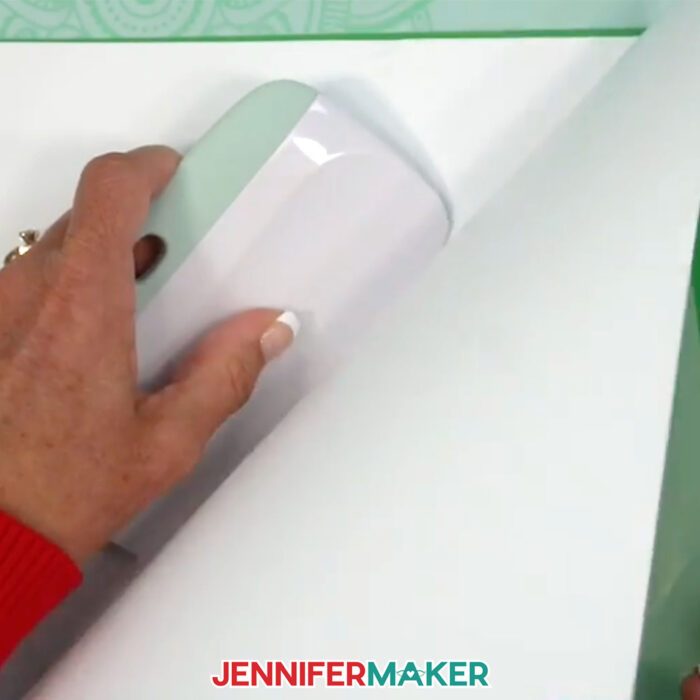
With a cutting machine doing the hard work, you just need to place your cardstock on a green StandardGrip machine mat, smooth it down, and set your Cricut Design Space settings to cut your material. I like to use the “Medium Cardstock” setting with more pressure for cleaner cuts on 65 pound cardstock, especially when the design has those intricate cuts that can be tricky. And if you ever find your cuts don’t go all the way through (I’ll show you how to check), you can simply press the button again to repeat the cut. It’s a lifesaver!
One of my favorite tricks in this project is for delicate areas, like the green leaves that dangle down in front of the shelf. Instead of fighting with paper that wants to tear, I add a layer of adhesive vinyl to the back of the cardstock before cutting. Then, I place it vinyl-side down on the mat, select the “Cardstock for intricate cuts” material setting in Cricut Design Space, and let the machine work its magic. The vinyl backing gives fragile areas the strength they need to cut without tearing.
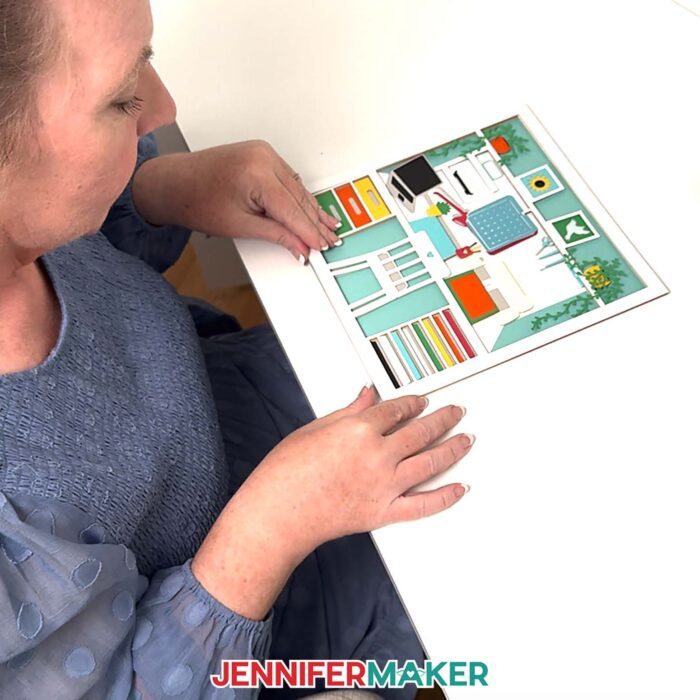
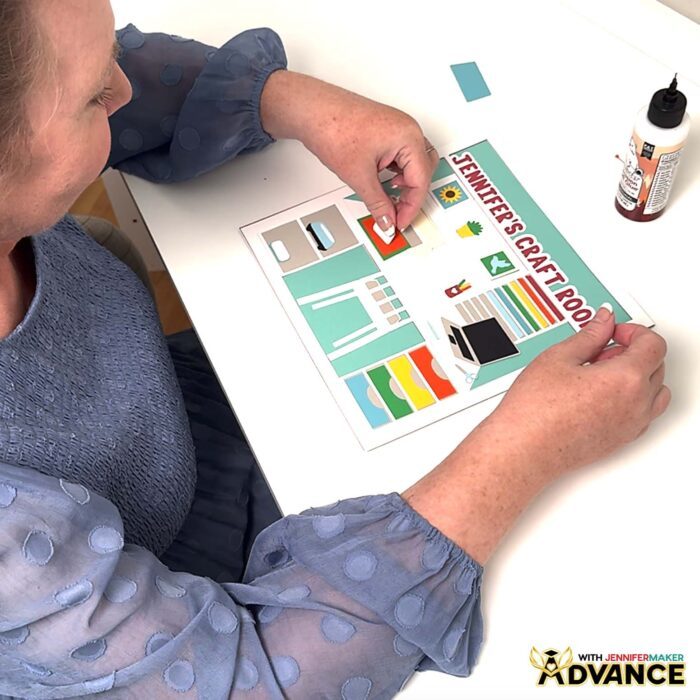
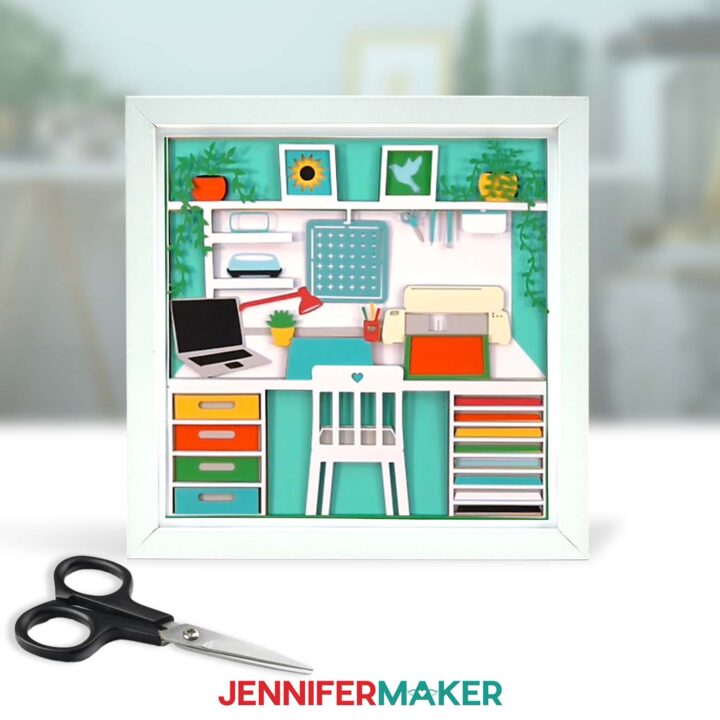
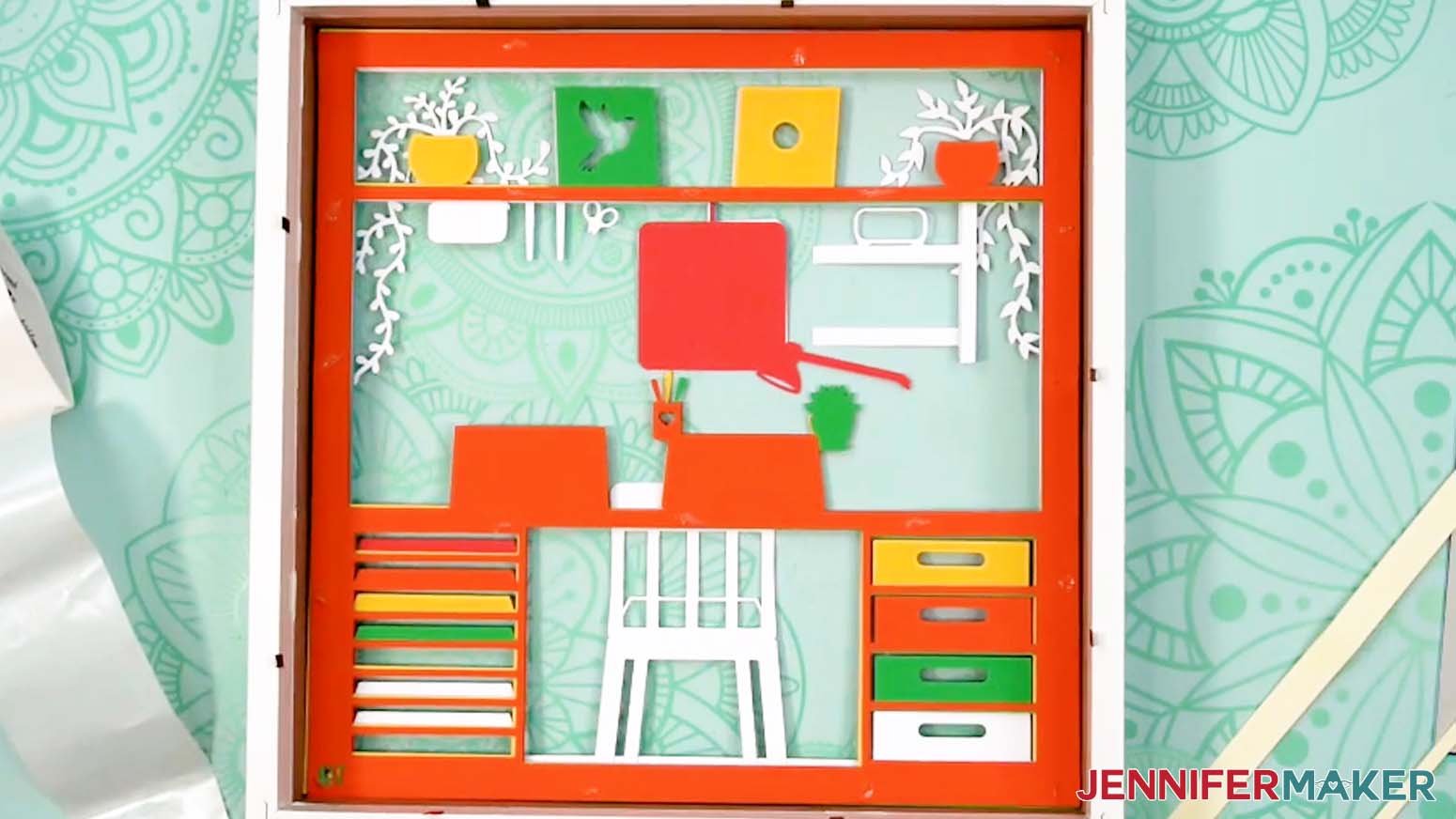
When all your layers are cut and stacked in front of you, the real fun begins. It’s time to bring your craft room shadow box design to life! The first layer is your border, and each one after that adds something special: the trailing leaves, the shelves, the mini cutting mat, the little Cricut machine, and more. I never get tired of seeing how flat pieces of cut cardstock transform when they’re stacked together! To keep everything in place, I used glue dots. They’re an easy way to hold paper layers together without any sticky mess or added bulk, since we’re already using so many layers.
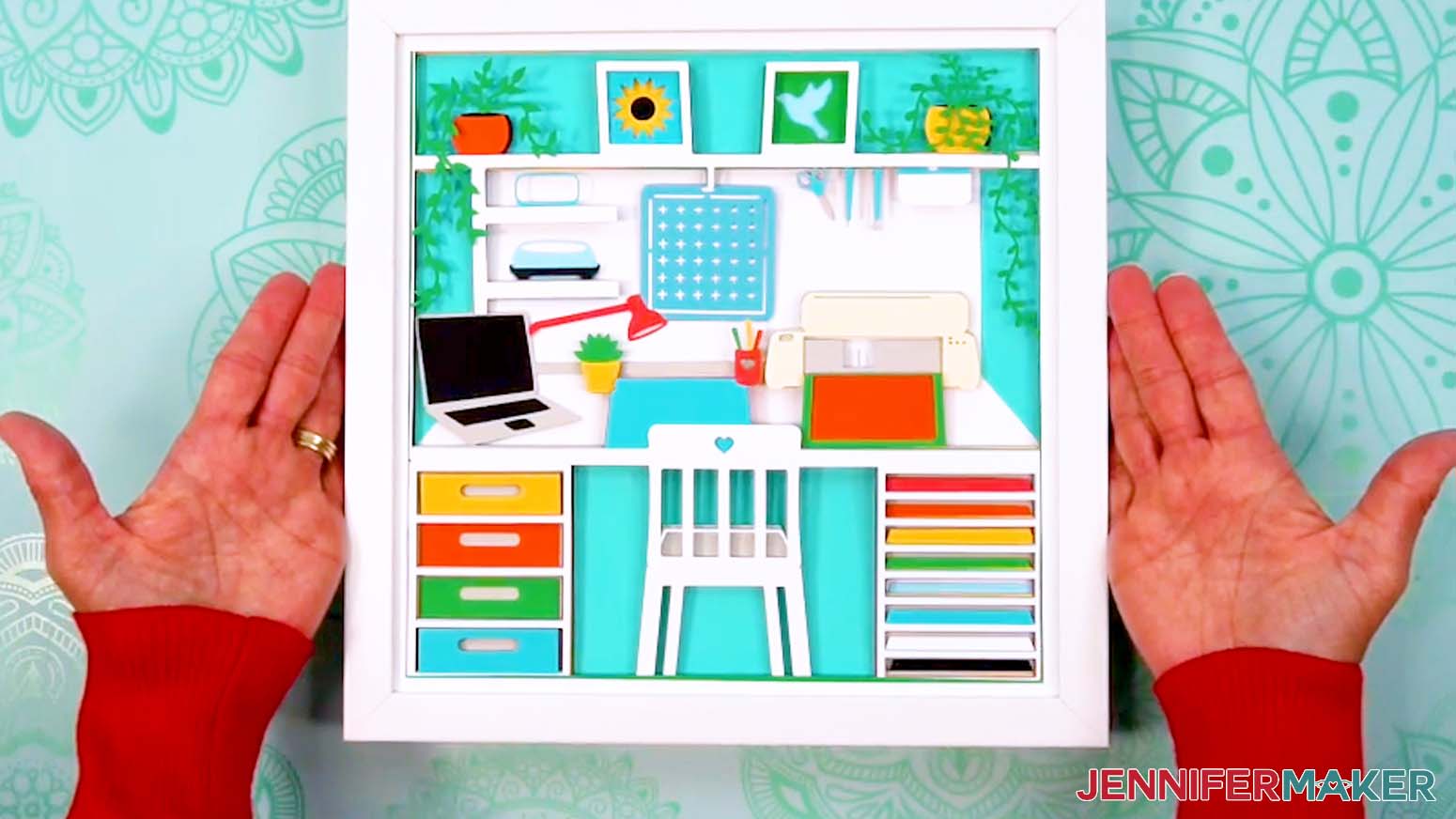
As you build, you’ll notice how every piece has its place. Once you add the last layers, place the back back on the frame, and flip it over. Ta-da! You’ve made a slice of super impressive craft room wall art.
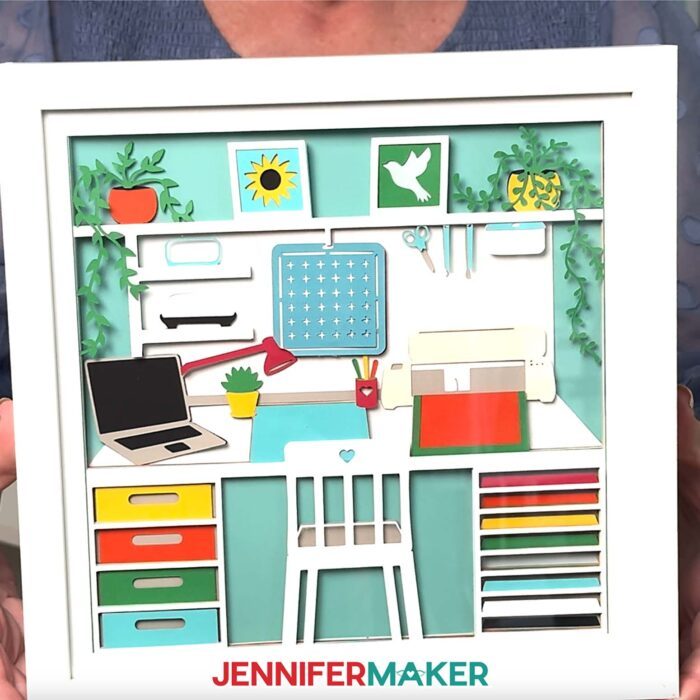
Of course, the joy of shadow box ideas is that you don’t have to stop here. You can swap in a different color scheme or even play with different patterns and types of cardstock. That’s the beauty of working with cut files. Just Ungroup the SVG files in Cricut Design Space, recolor layers using the Color Box at the top to imagine your craft room shadow box design, and truly make the project your own.
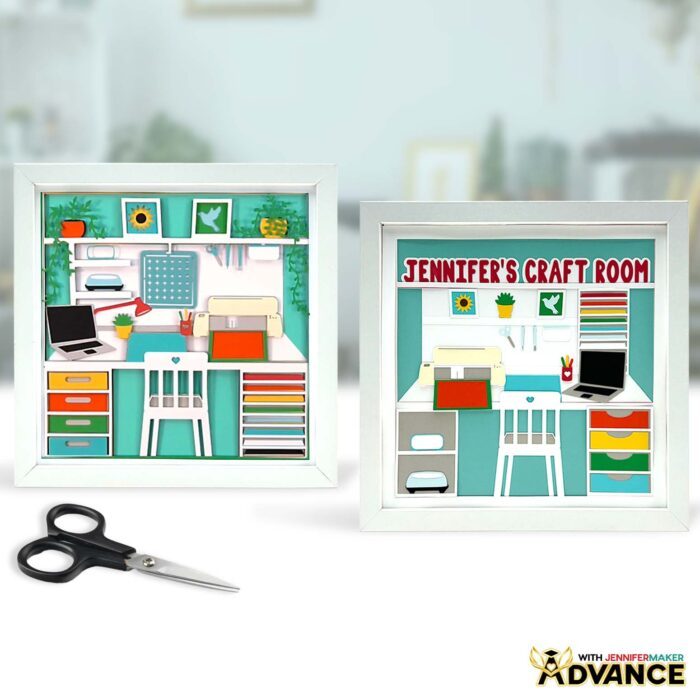
Want to take your craft room shadow box to the next level? Inside ADVANCE with JenniferMaker, I’ll show you how to design your very own custom craft room shadow box using Cricut Design Space. You’ll learn how to add text and even move furniture or tools to match your real creative space, or the craft room of your dreams! It’s a fun and hands-on way to transform a simple project into something meaningful, memorable, and unmistakably yours. Click here to learn more about the Advance program!
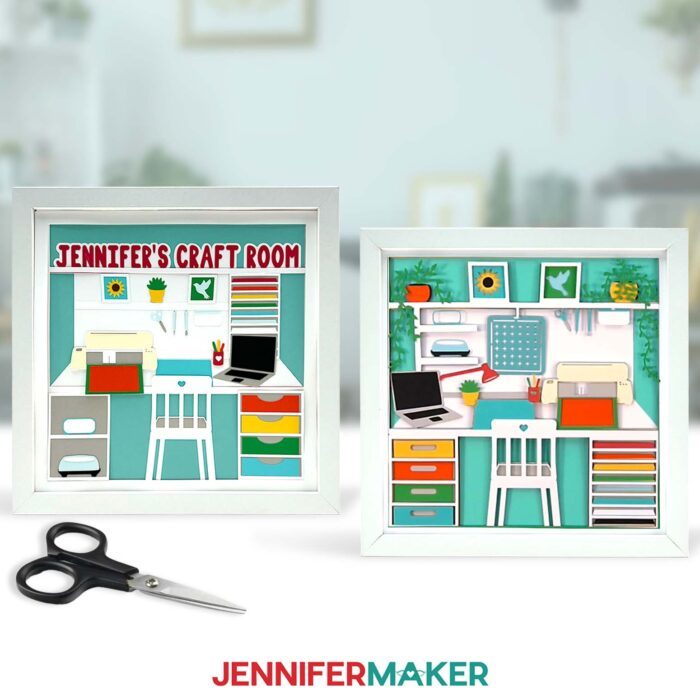
If you’ve never made a shadow box project before, this is a great place to start. My easy tutorial teaches you how to handle multiple cardstock layers, how to support thin areas, and how to use your cutting machine to cut detailed designs with confidence. You’ll also discover how satisfying it is to see those intricate cuts fit together, creating a scene that feels full of life. Shadow boxes are a lovely way to decorate your home or create a heartfelt gift, and this one just happens to celebrate the space where creativity blooms … the craft room itself!
Follow along with my step-by-step guide, download the SVG folder from my free resource library, and get excited as your craft room shadow box project takes shape. When you see it hanging on your wall, you’ll be reminded of the joy and magic that happens when you take a little time to craft a life you love!
So, want to learn how to make your own craft room shadow box? Let me show you how fun and easy it is with my craft room shadow box design! This post contains some affiliate links for your convenience (which means if you make a purchase after clicking a link I will earn a small commission but it won’t cost you a penny more)! Read my full disclosure policy.
Materials to Make a Craft Room Shadow Box
View my Amazon shopping list with the exact items I used.
- One (1) 10″ x 10″ Shadow Box
- Sixteen (16) Sheets of 12” x 12” 65 lb. Solid Core Cardstock (alternative)
- Small 3/16” Glue Dots
- Adhesive Foam Squares (optional to add behind design for display)
- Craft Glue, if you make layered elements in my Advance workshop (I used Bearly Art Precision Craft Glue)
- White Permanent Vinyl (optional to support delicate cut layers)
- A way to cut your materials – I’m using the Cricut Maker 4, but you can also use any Cricut Maker series machine, a Cricut Explore Series machine, or even the Cricut Venture
- Cricut Green StandardGrip Machine Mat 12″ x 12”
- Brayer
- Spatula
- XL Scraper
- Weeding Tool
- Tweezers
- Scissors
- Paper Trimmer
- Isopropyl Alcohol -AND-
- Lint-Free Cloth (for cleaning the shadow box’s glass)
- Design #762 (My free SVG/DXF/PDF design files are available in my free library – get the password by filling out the form at the bottom of this page)
How to Make a Craft Room Shadow Box Design
Craft Room Shadow Box Design
Learn how to make a detailed craft room shadow box design using cardstock and a special trick to support delicate cuts!
Materials
- One (1) 10" x 10" Shadow Box
- Sixteen (16) Sheets of 12” x 12” 65 lb. Solid Core Cardstock
- Small 3/16” Glue Dots
- Adhesive Foam Squares (Optional to add behind design for display)
- White Permanent Vinyl (Optional to support delicate cut layers)
- Design #762 (My free SVG/PDF/DXF design files are available in my free resource library - get the password by filling out the form at the bottom of this page)
Tools
- A way to cut your materials - I’m using the Cricut Maker 4, but you can also use any Cricut Maker series machine, a Cricut Explore Series machine, or even the Cricut Venture
- Cricut Green StandardGrip Machine Mat 12" x 12”
- Brayer
- Spatula
- XL Scraper
- Weeding Tool
- Tweezers
- Scissors
- Paper Trimmer
- Isopropyl Alcohol -AND-
- Lint-Free Cloth (for cleaning the shadow box’s glass)
Instructions
STEP 1: GET MY FREE CRAFT ROOM SHADOW BOX DESIGN
First, download my Craft Room Shadow Box Design files from my free library – look for Design #762. Alternatively, you can use the Save This Project form near the top of this post and the design link will be emailed to you.
In the SVG folder, you’ll find my craft room shadow box design to cut on a cutting machine. There is also a DXF folder with cut files, and a PDF folder with smaller versions you can print and cut by hand.
TIP: If you’re not sure how to upload, go to jennifermaker.com/svgs to learn how to unzip and upload SVG files.
STEP 2: PREPARE AND CUT YOUR CRAFT ROOM DESIGN
CRICUT DESIGN SPACE
- In Cricut Design Space, open a blank Canvas. NOTE: If you’re new to using Cricut Design Space, go to cricutkickoff.com for my introductory tutorial on Design Space basics.
- Click “Upload” and then “Upload Image.”
- Click “Browse.”
- Select the “craft room” SVG file.
- Click “Open,” and then “Continue.”
- Click “Upload” to add the design to your Canvas, then use the small arrow to close the side panel.
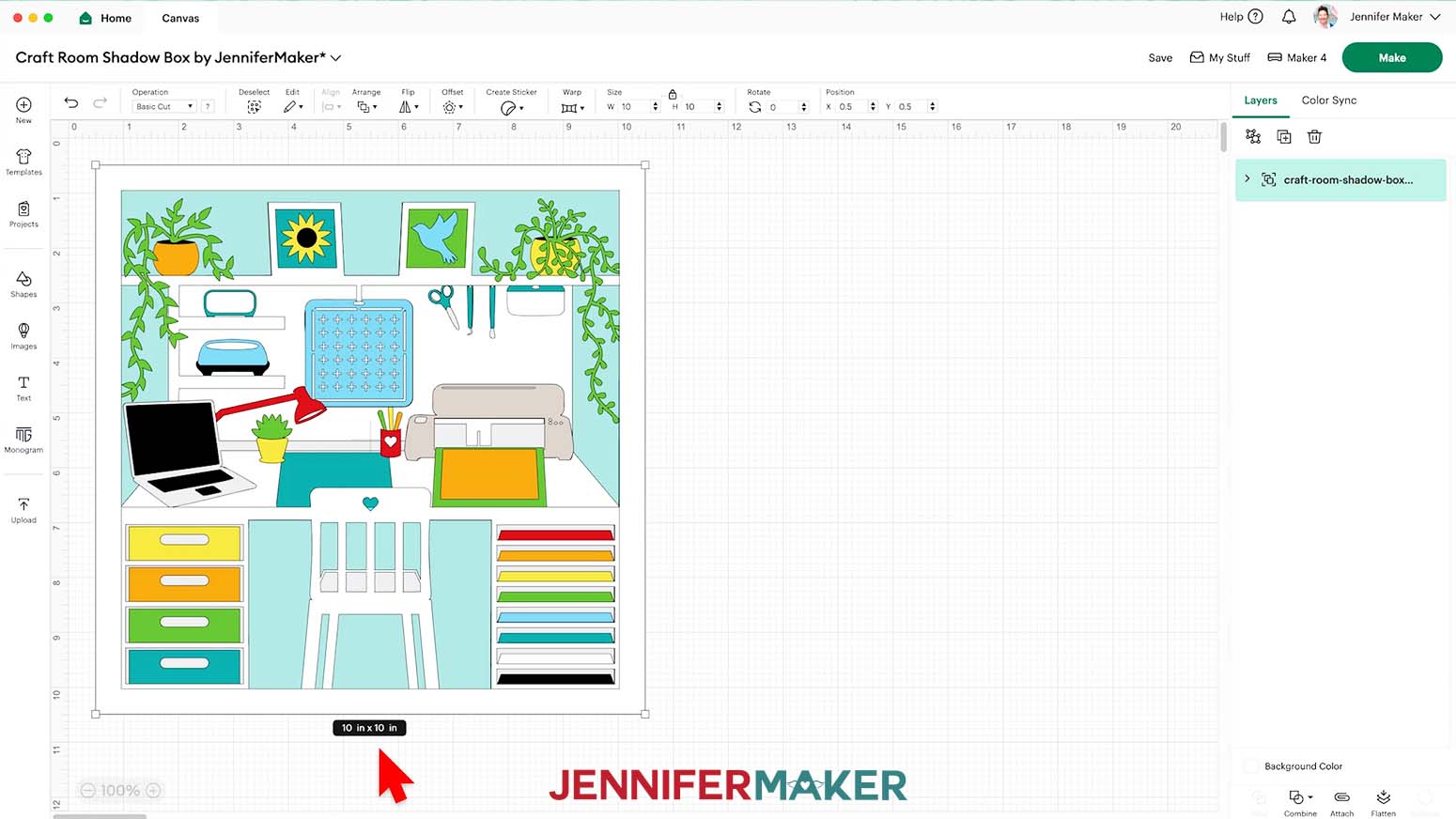
NOTE: There are 16 total layers stacked on your Canvas.

- Click “Save” and give your project a name.
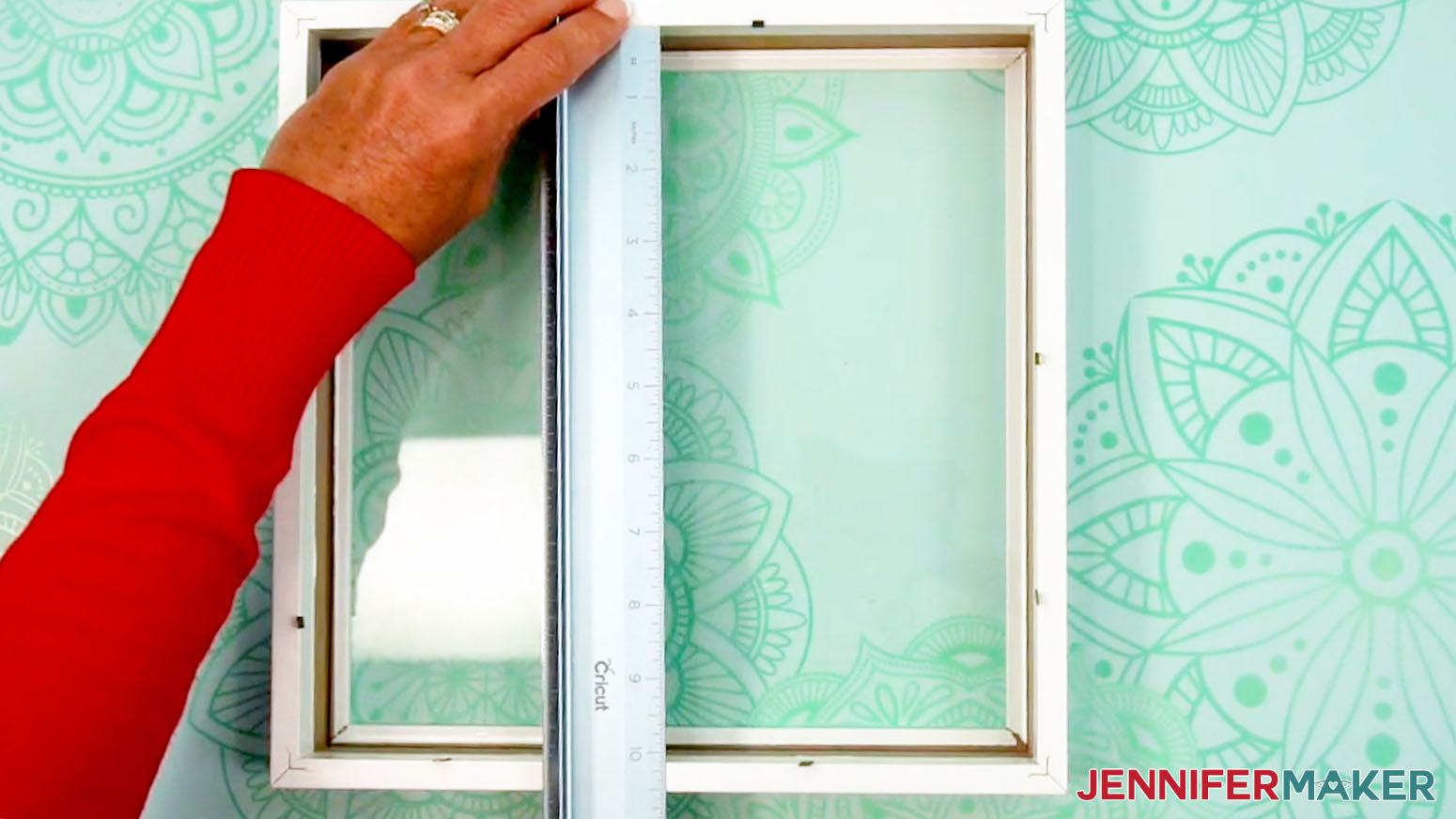
- Your project is designed to fit the 10” x 10” shadow box in my materials list, but most shadow box display areas are smaller than the advertised dimensions. So use a tape measure or ruler to measure the inside of your shadow box.
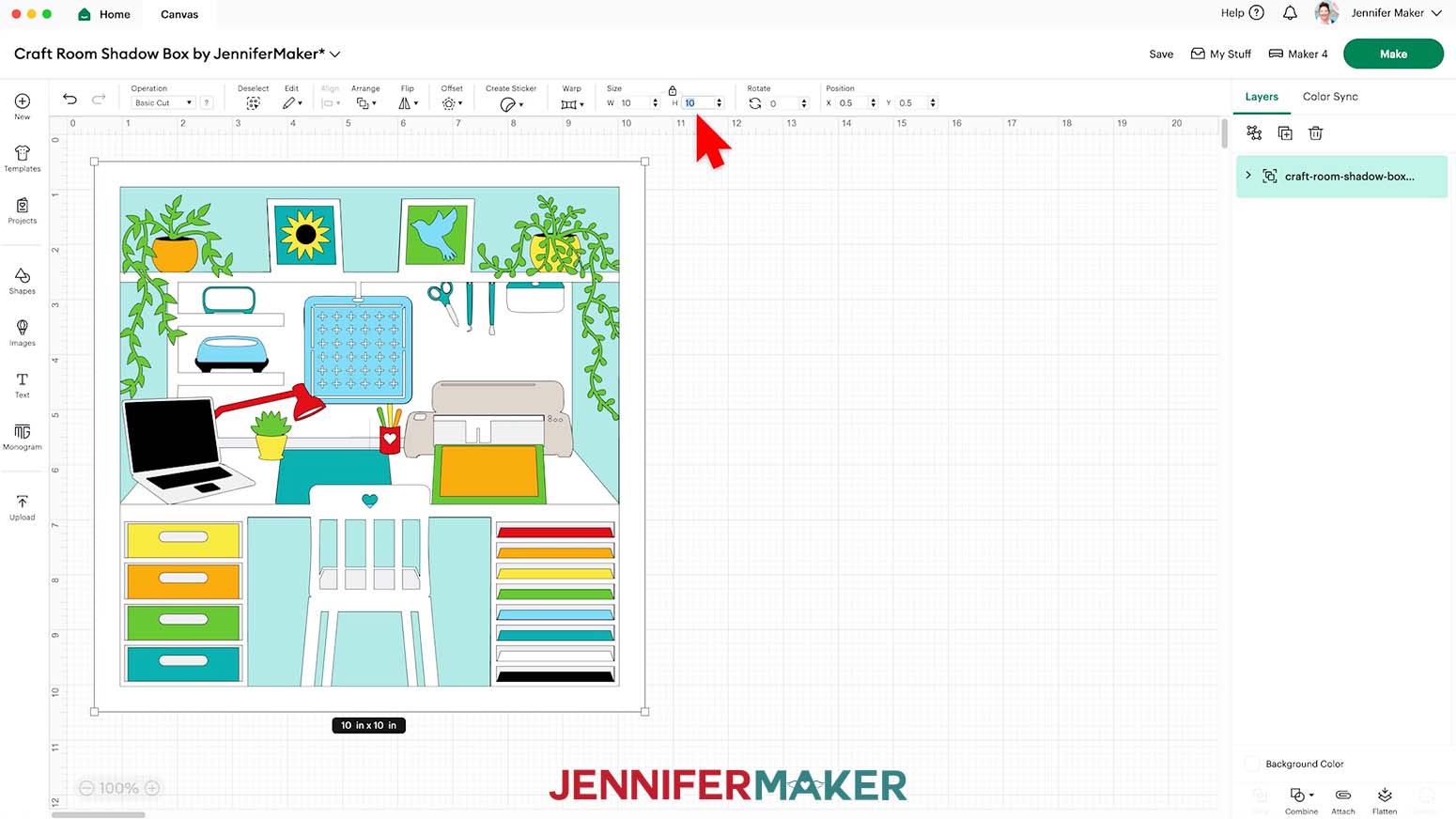
- If you need to resize the design to fit a larger shadow box, select it and make sure the “Lock” icon is closed to maintain the design’s proportions. NOTE: I don’t recommend resizing for a smaller shadow box, as many of the pieces are very intricate and won’t cut well at a smaller size.
- Enter the correct height measurement in the “Height (H)” field, and the “Width (W)” will automatically adjust to match it.
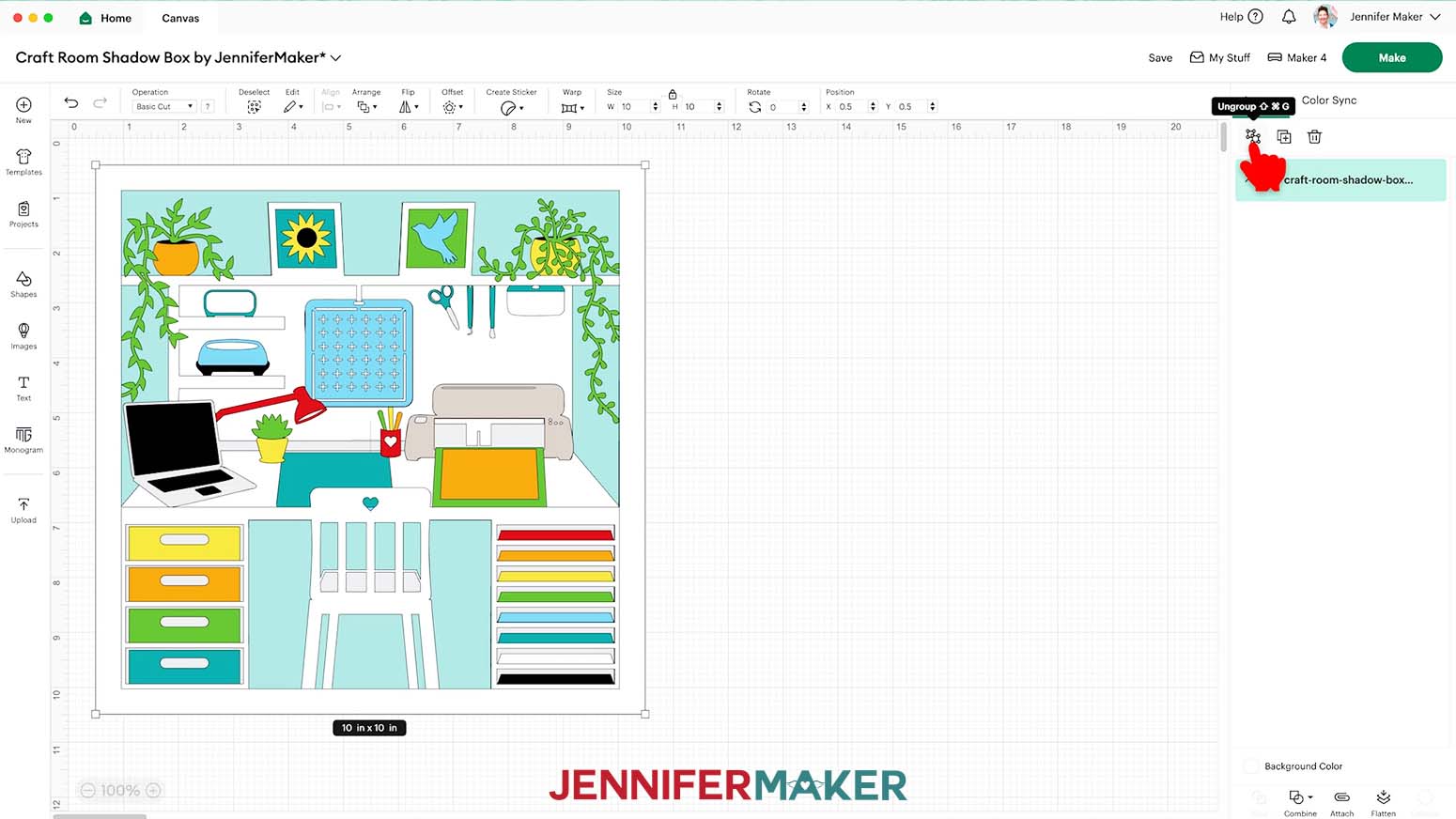
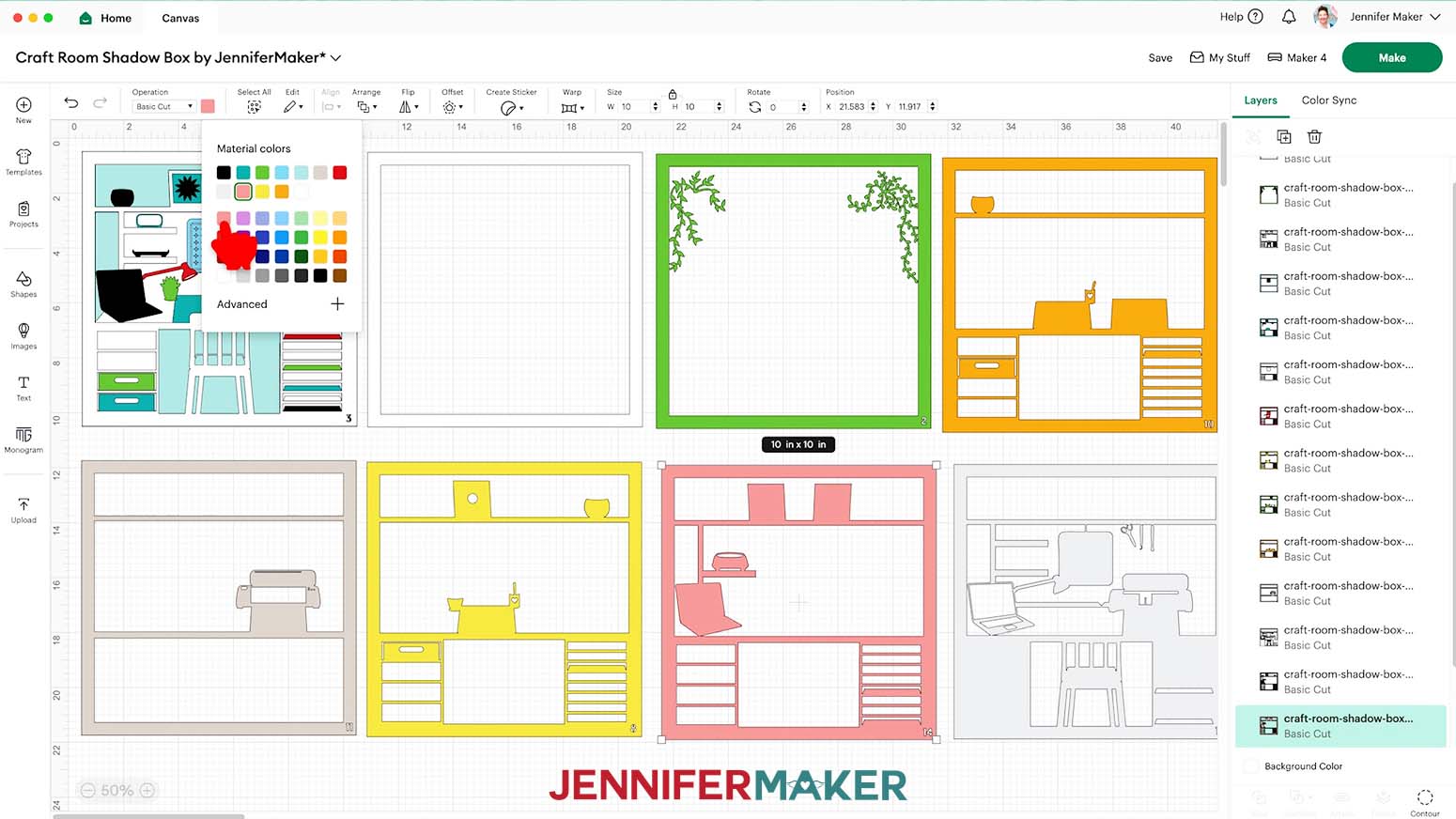
- To change the color of any pieces to match the cardstock you’ll cut them from, first “Ungroup” the design and spread out the layers.
NOTE: The small number cutouts in the corners are to help with assembly order and won’t be visible in the final view.
- Click the “Minus (-)” icon in the lower left corner to zoom out and see everything on your Canvas.
- Select the layer you want to change, then click the Color Box next to “Operation” and choose a new option.
NOTE: Because of the way the layers are designed, changing any layer’s color changes the color of all parts of the design connected to that layer. For example, if you change the EasyPress layer from light blue to pink, you’ll also change the bird in the picture and the paper tower’s fifth slot from light blue to pink.
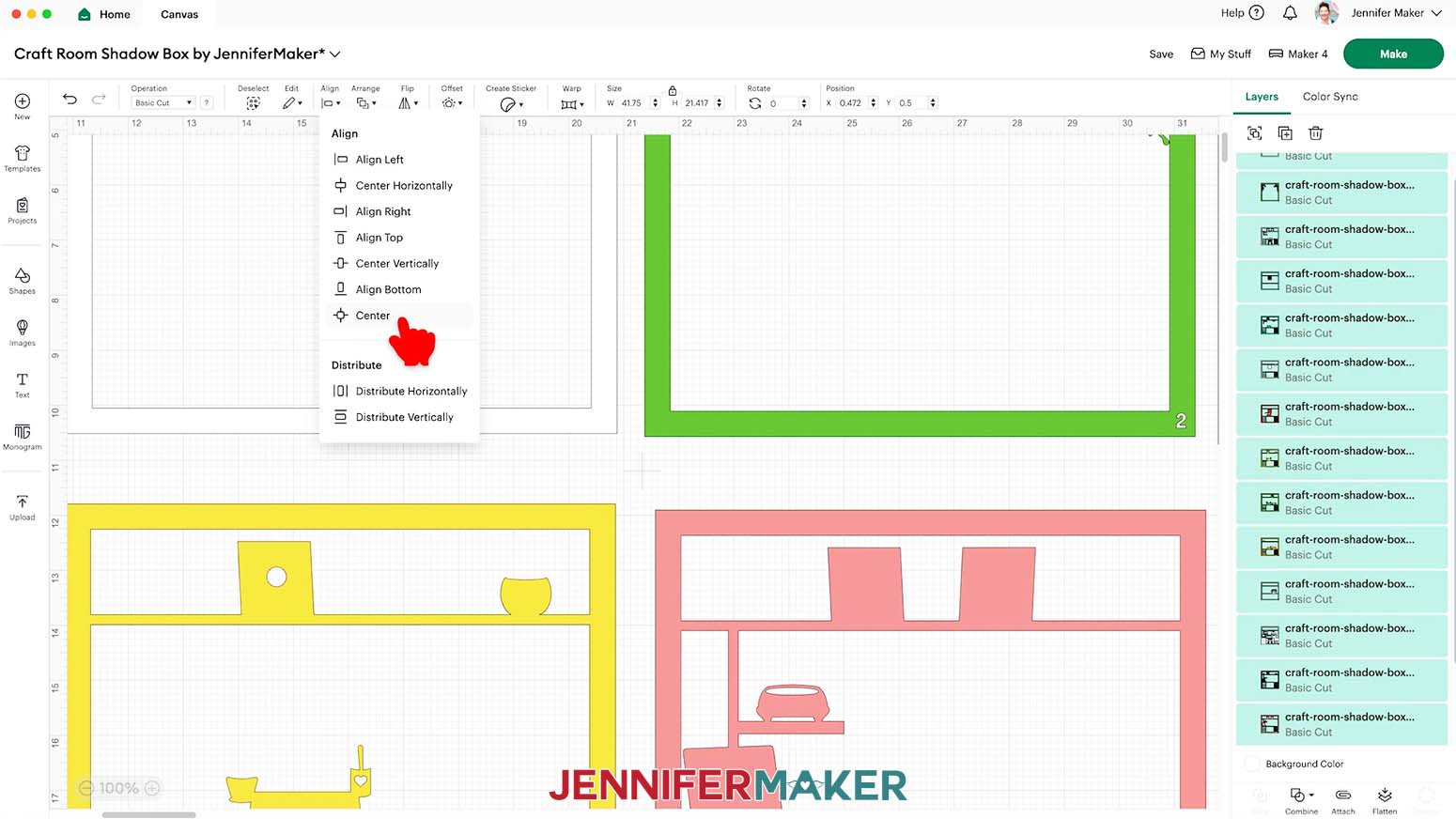
- To preview how your shadow box will look with the color changes, click the “Select All” button, then click “Align” and “Center” to restack your layers.
- And now your layers are ready to cut!
CUTTING
- Make sure the correct machine is selected in the top right.
- Click “Make.”
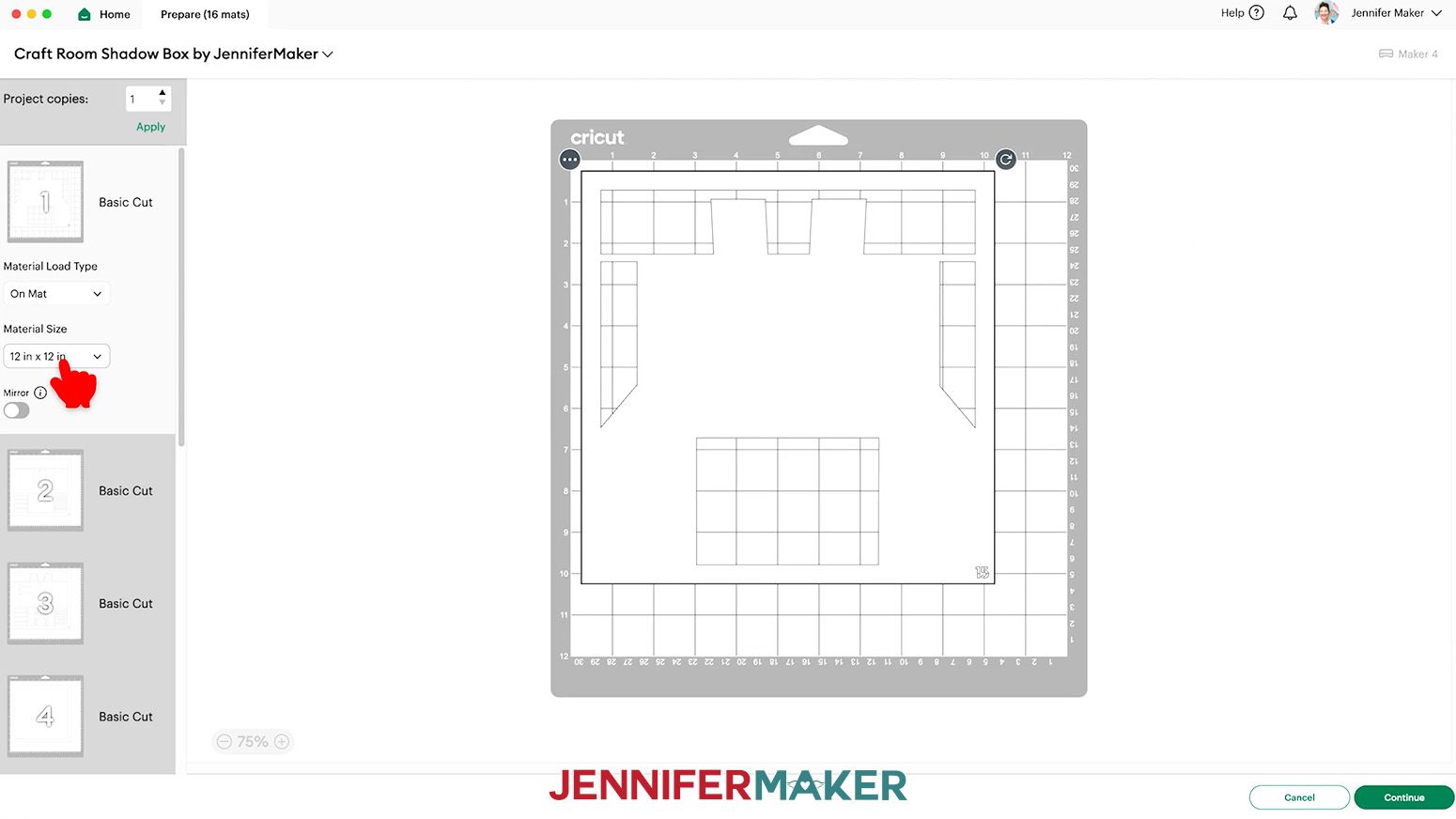
- On the Prepare screen, make sure the correct Material Size is selected for your mats.
NOTE: I’ll keep the “12 in x 12 in” size for all my mats.
- Once you are satisfied with your mat layouts, select the first mat again and click “Continue.”
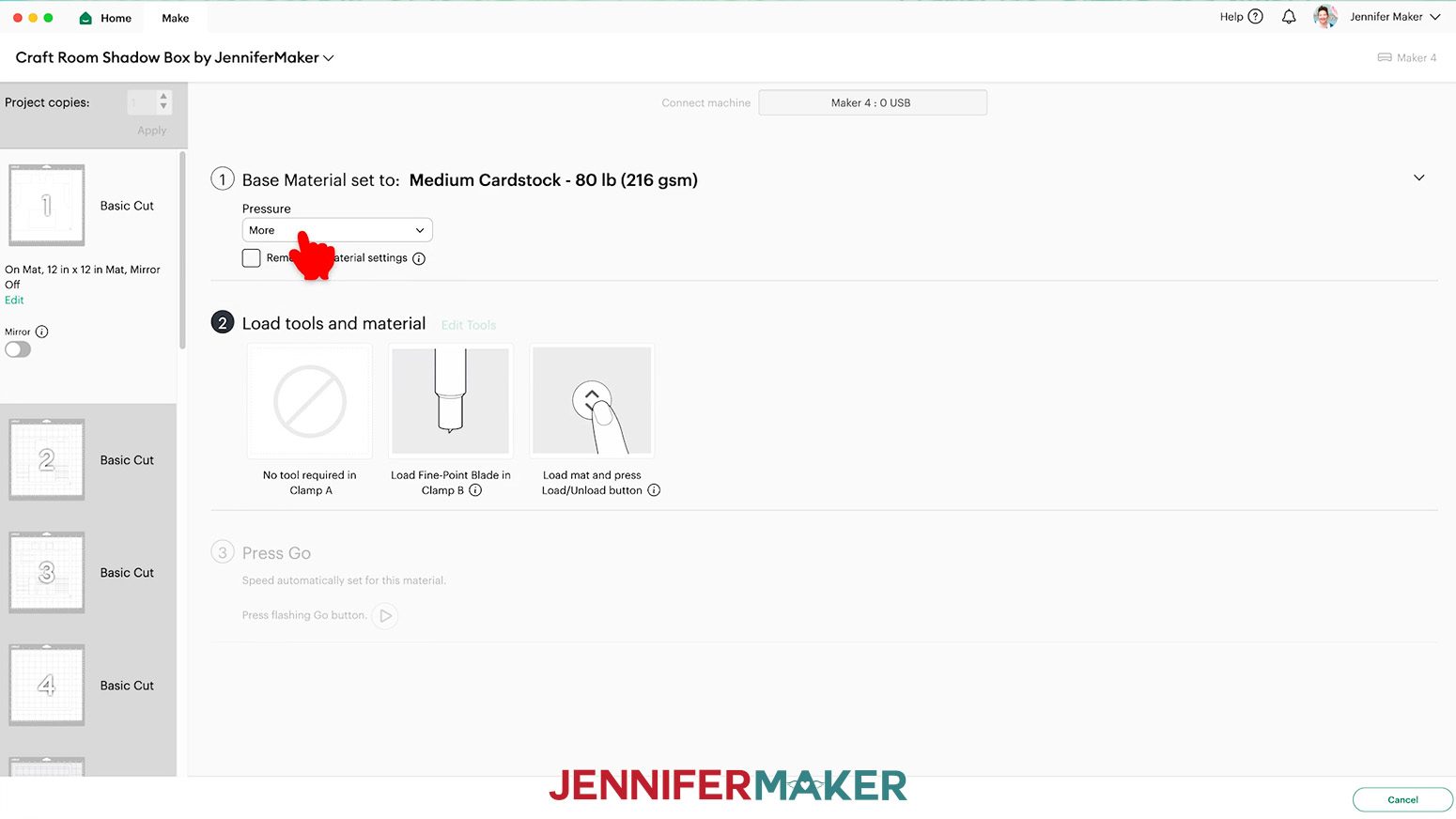
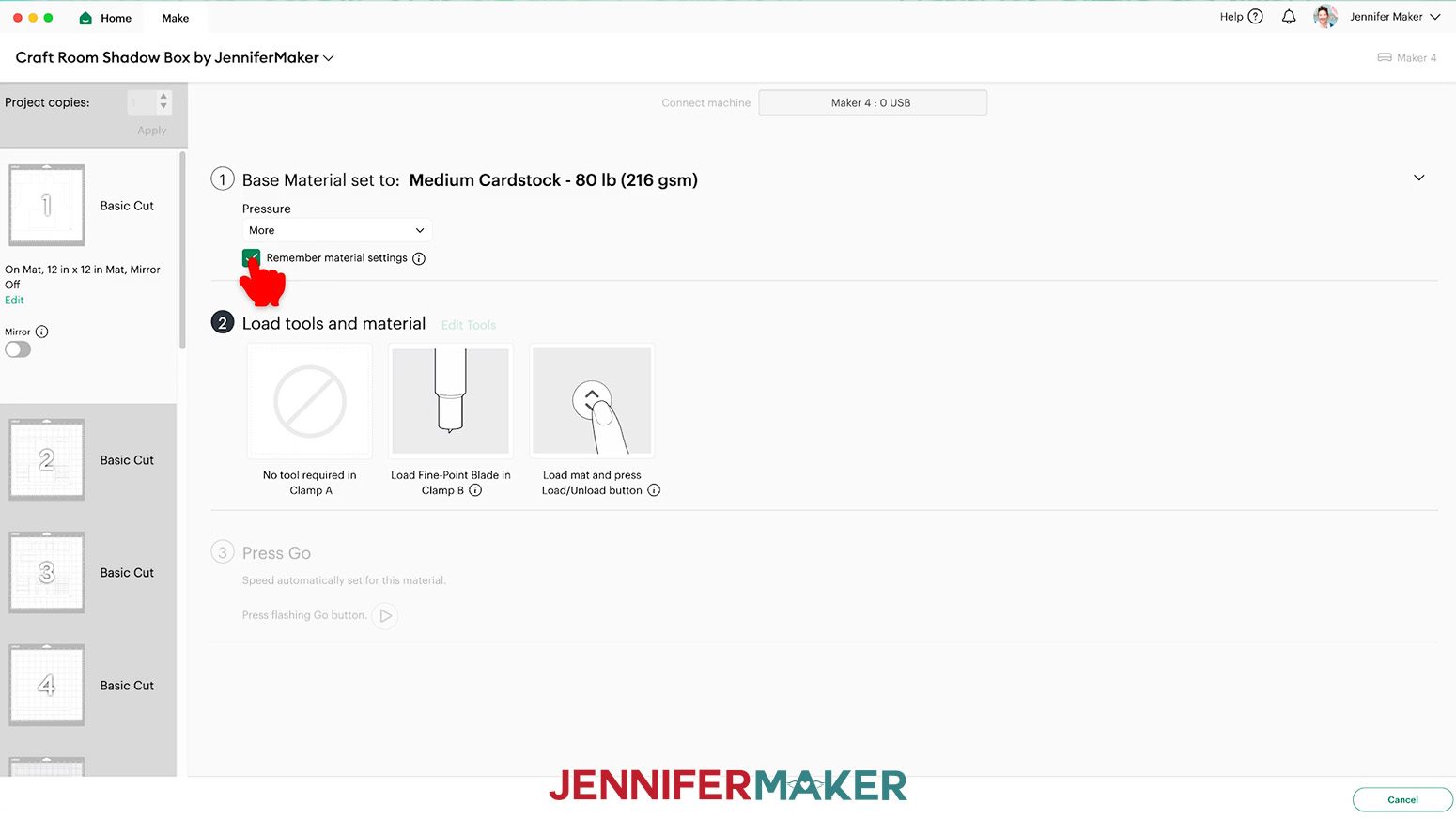
- On the Make screen, set the Base Material for your first cardstock mat. I’m using the “Medium Cardstock - 80 lb (216 gsm)” setting.
- Change the Pressure to “More” for cleaner cuts.
- Then, check the box next to “Remember material settings” to save time between mats.
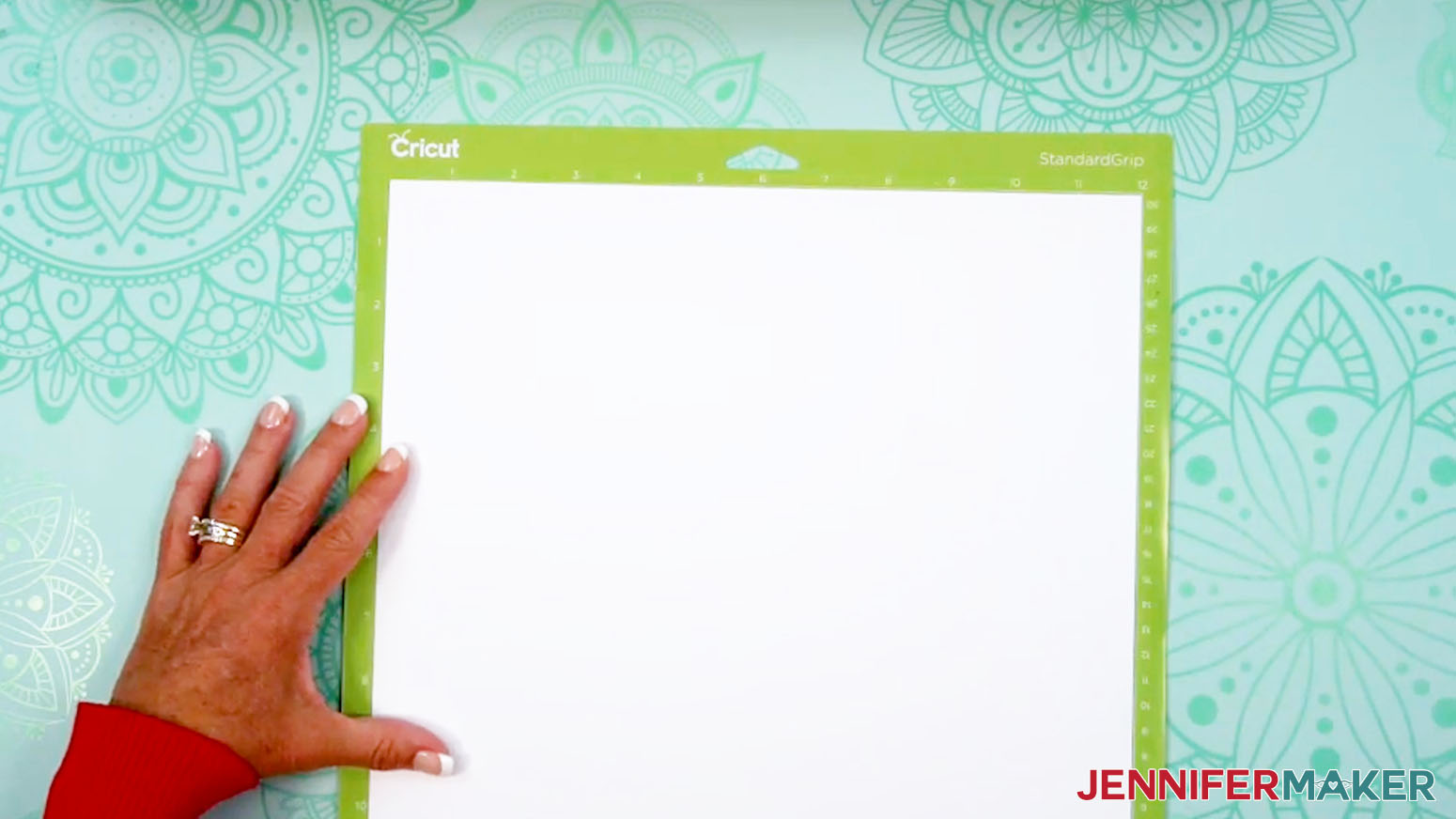
- Place your cardstock face up on a green StandardGrip machine mat.
- Use a brayer to make sure it’s fully adhered.
- Check that your Premium Fine-Point Blade is clean and in the clamp.
- Press the flashing “Load/Unload” button to load the prepared mat into your Cricut.
- Press the flashing middle button to begin cutting.
- When it has finished cutting, don’t unload the mat right away. Gently lift a corner of the material to make sure the cuts went all the way through the material. If not, press the middle button again to make a second pass of cuts in the same spots. TIP: If you have any issues with your cuts, go to jennifermaker.com/cleaner-cuts.
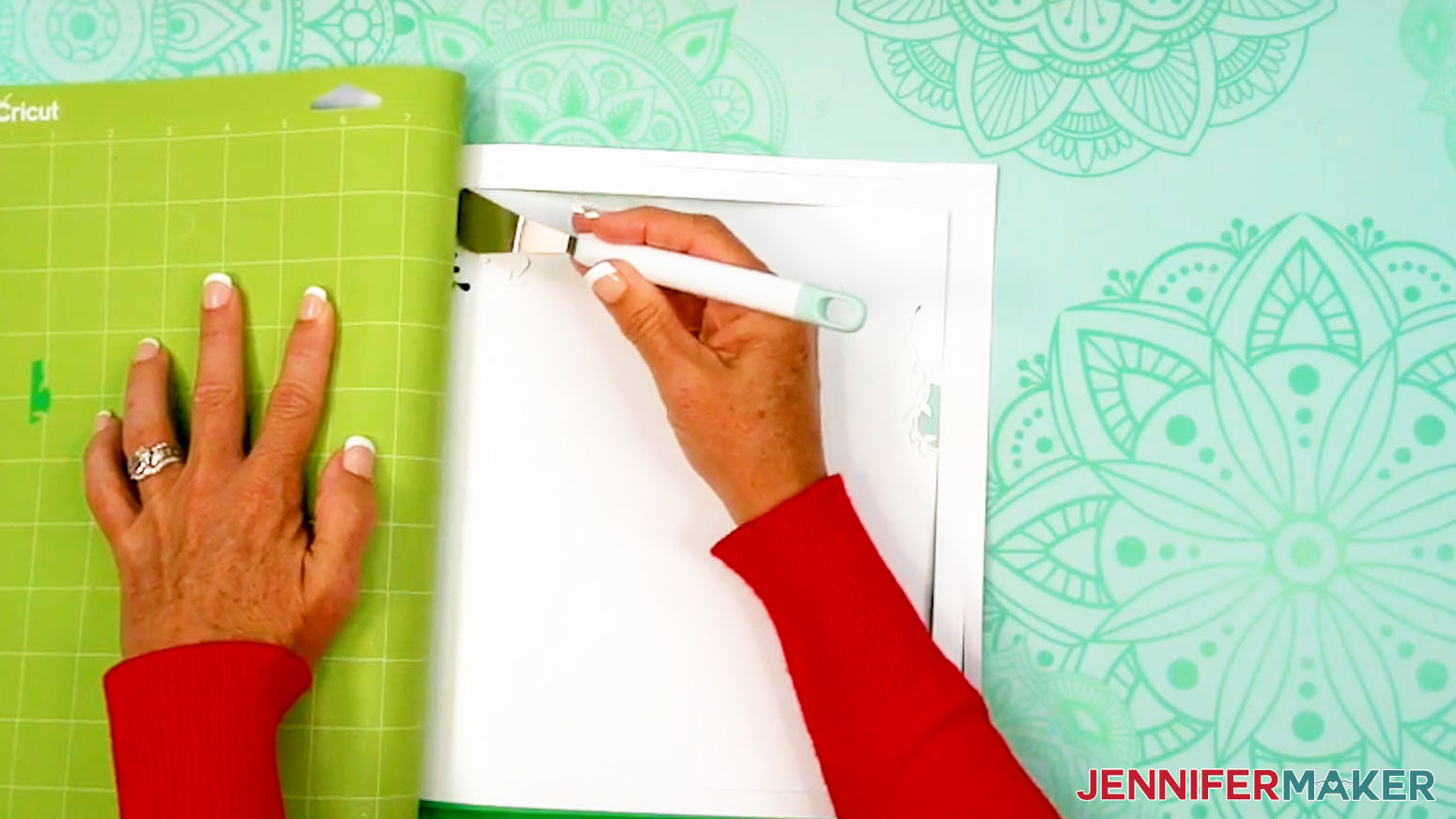
- When the cuts are complete, unload the mat, flip it over onto your work surface, and roll it back to release the cardstock.
TIP: Use the spatula to help lift delicate parts, and the weeding tool to poke out small bits of cardstock that are still attached to your cut pieces.
- Use a scraper tool to remove the small bits of cardstock left on your mat after you remove the cut pieces.
- To support layers with delicate cuts, you can apply permanent vinyl to the back of the cardstock before cutting. I’ll do this for Layers 2 and 5. NOTE: If any other layers give you trouble during cutting, you can try cutting them again using the vinyl trick.
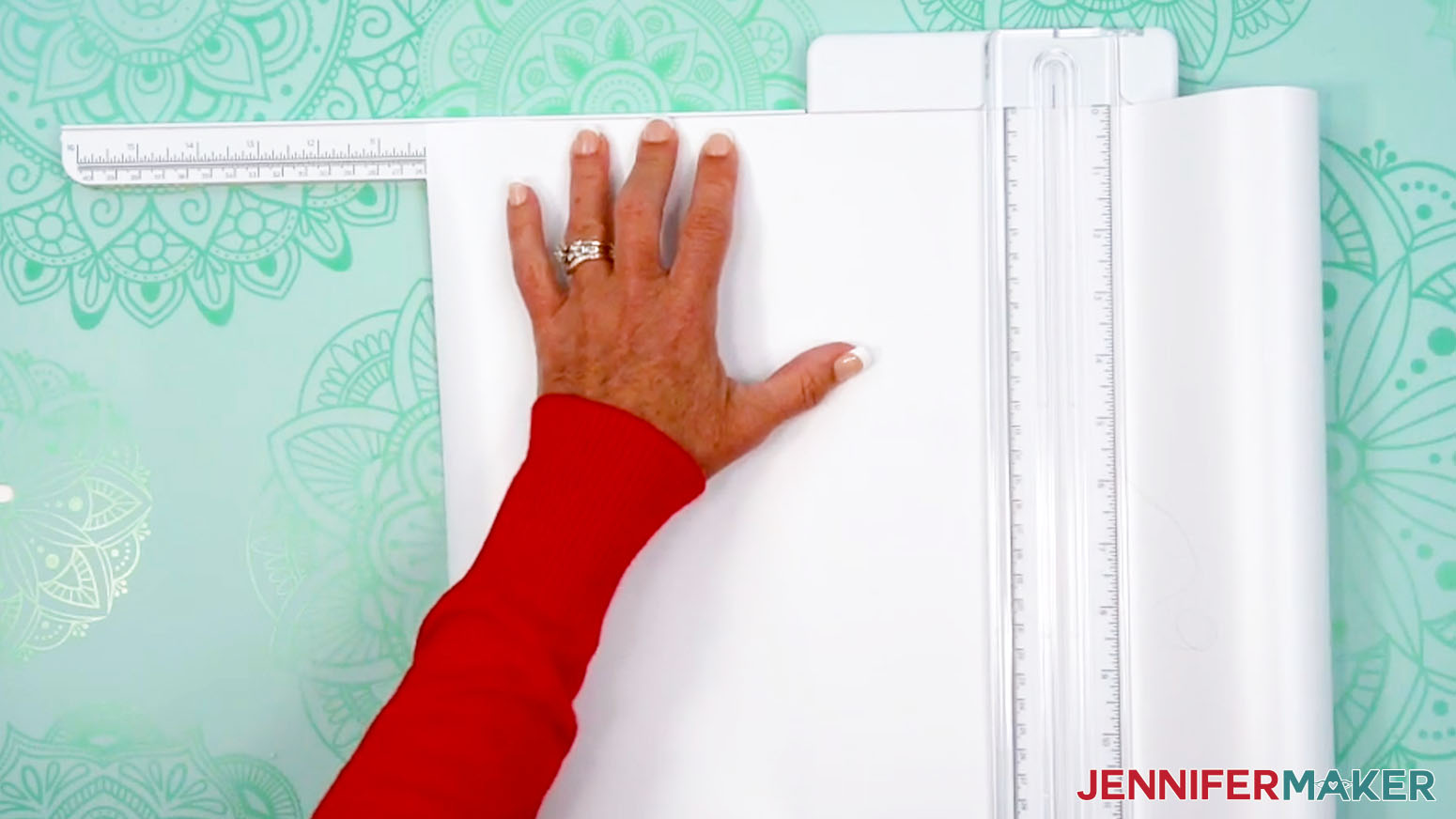
- Using a paper trimmer or scissors, cut a piece of vinyl down to 10.25” square (or just a little bigger than your shadow box layers).
- Place your cardstock face down on your work surface.
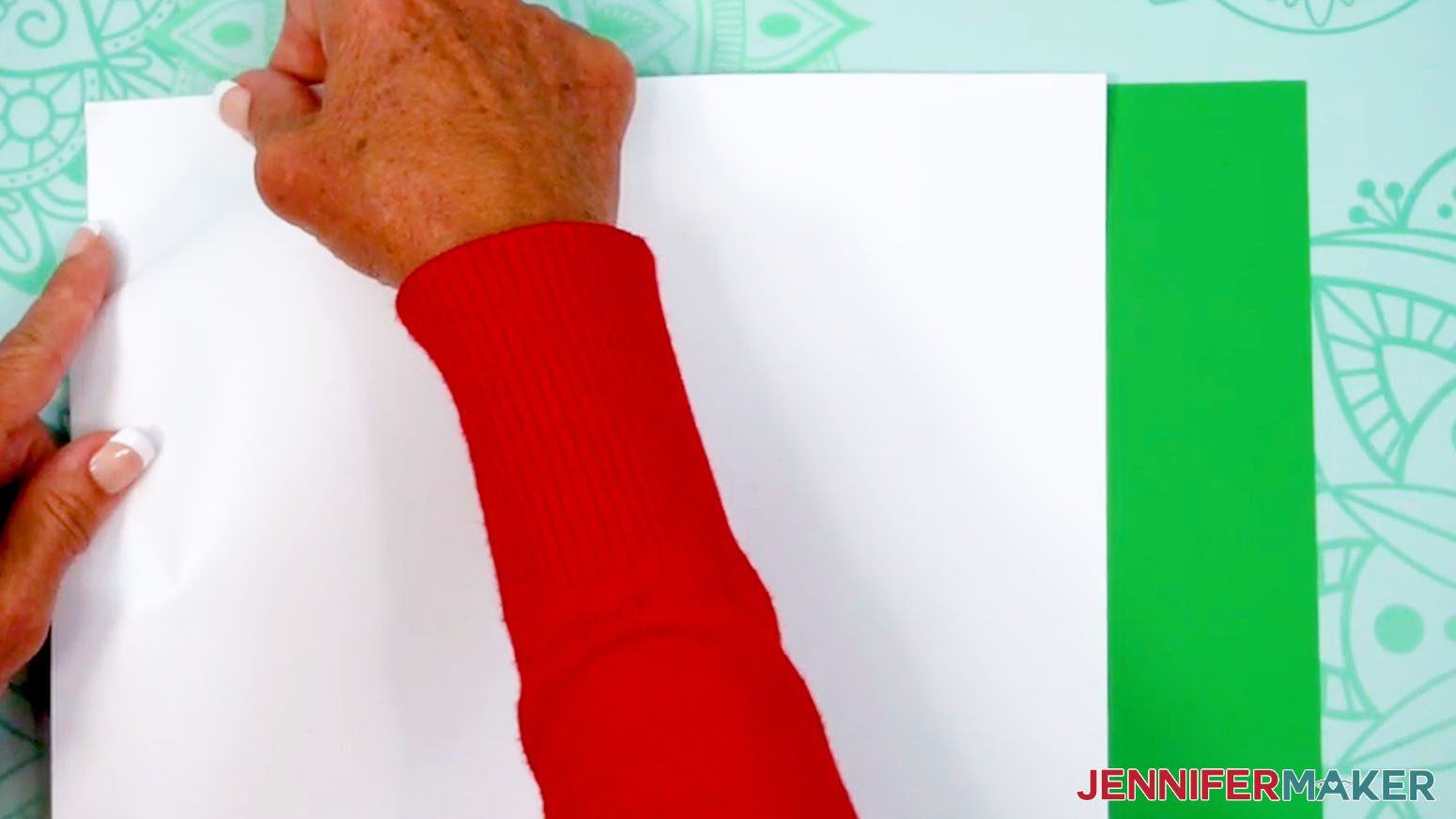
- Peel back about an inch of backing from one end of the vinyl sheet.
NOTE: It’s OK if you get some fingerprints on the exposed vinyl. It will be on the back of the cardstock and not noticeable.
- Apply the exposed end of the vinyl to one edge of the cardstock, making sure the left corners line up.
- Use the XL scraper to adhere the vinyl to the cardstock. TIP: Be very careful not to let the exposed section of vinyl touch the cardstock until you’re sure it’s where you want it.
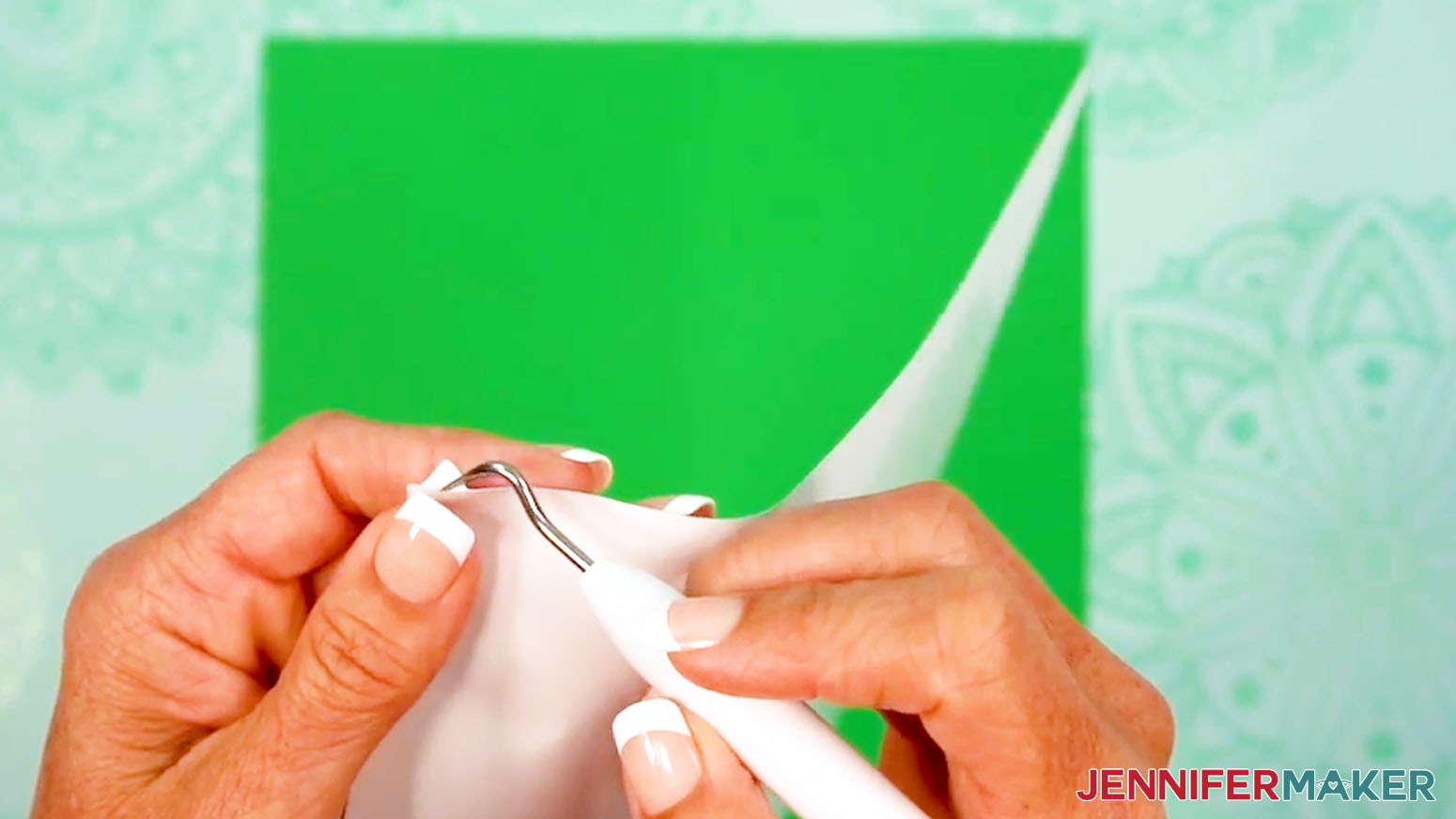
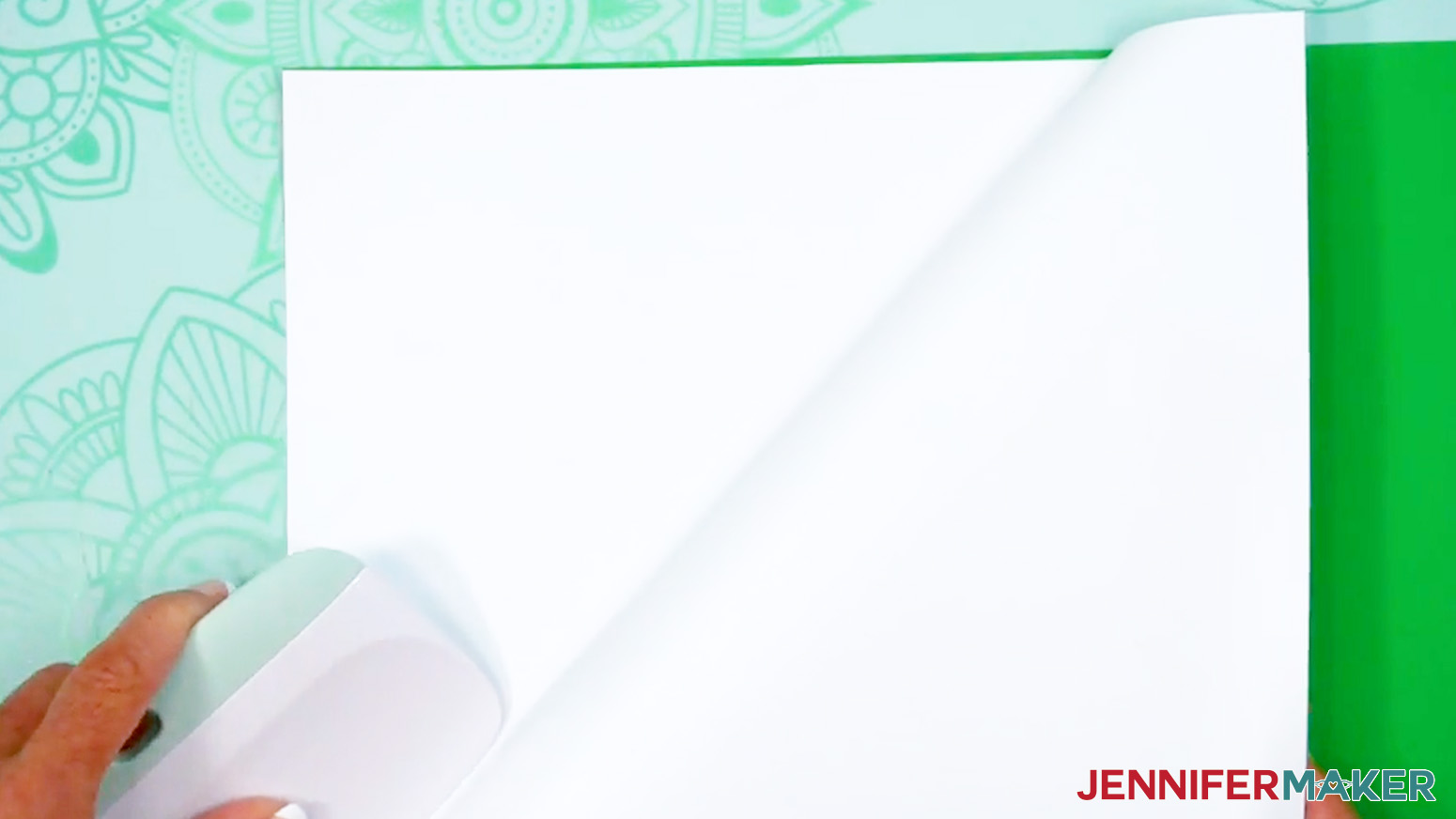
- With one hand, reach underneath the vinyl sheet, between the vinyl and cardstock, and pull a small section of the backing off, away from the edge you just secured.
- With your other hand, use the XL scraper to press the vinyl down onto the cardstock in small sections or strips at a time, peeling the backing off from underneath as you go. Work slowly and make sure to smooth out any wrinkles before peeling off more backing!
- When you’re finished applying the entire vinyl sheet to the cardstock, cut off any excess vinyl from around the cardstock edges.
- Then place your cardstock vinyl-side down on a green StandardGrip machine mat, with the vinyl-covered area in the top left corner of your mat.
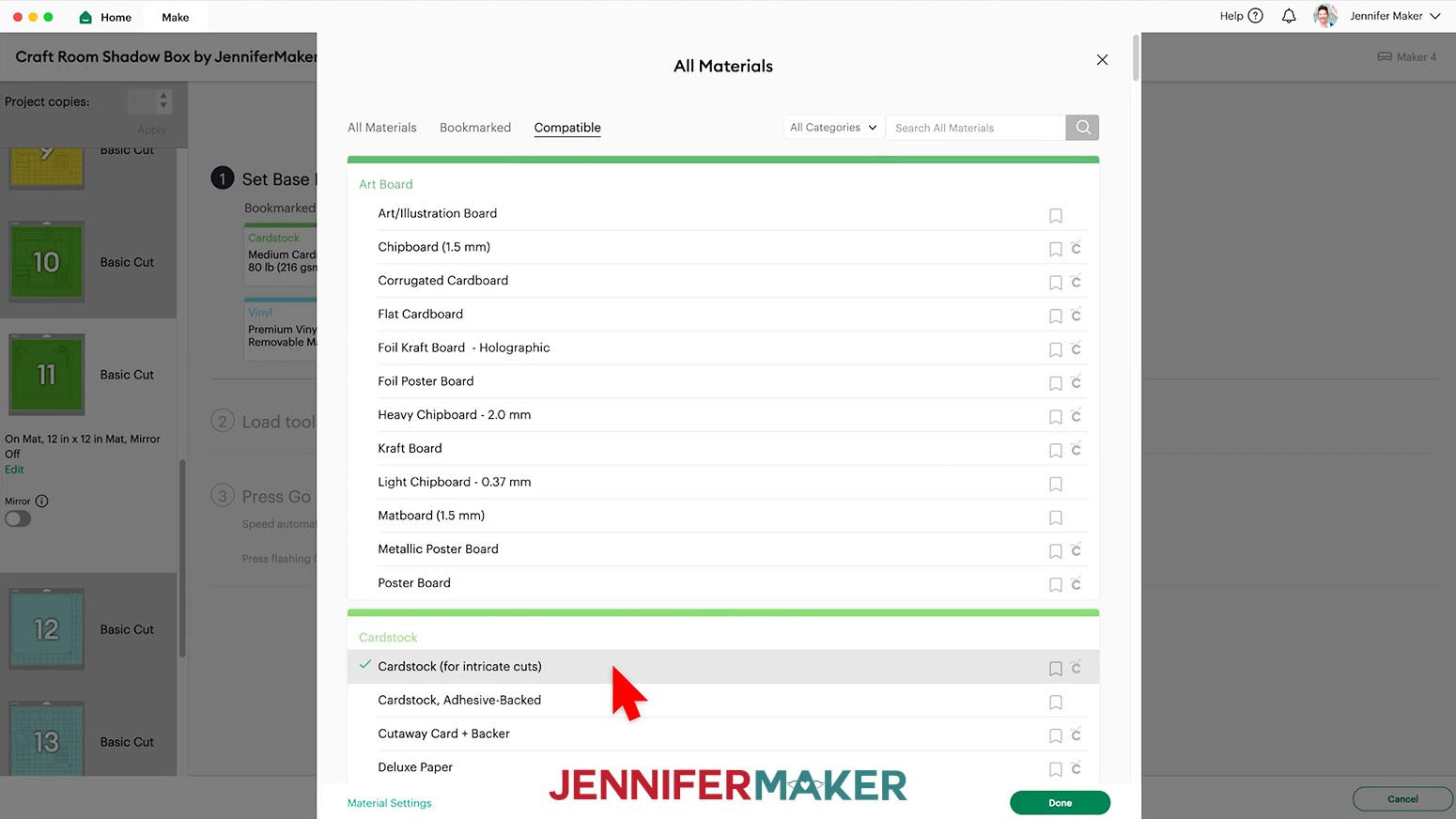
- Change the cut settings to “Cardstock (for intricate cuts)” with “More” pressure.
- Then repeat Steps 9-15 to cut the vinyl-backed mats.
- After removing your cut layers from the mat, you may need to peel away the excess around the cut area and use a weeding tool to poke out the inner pieces, as the vinyl will make the pieces “stick” in place.
- Once your layers are cut, lay them out face up.
TIP: Refer to the Design Space screen if you’re not sure about some pieces’ orientation.
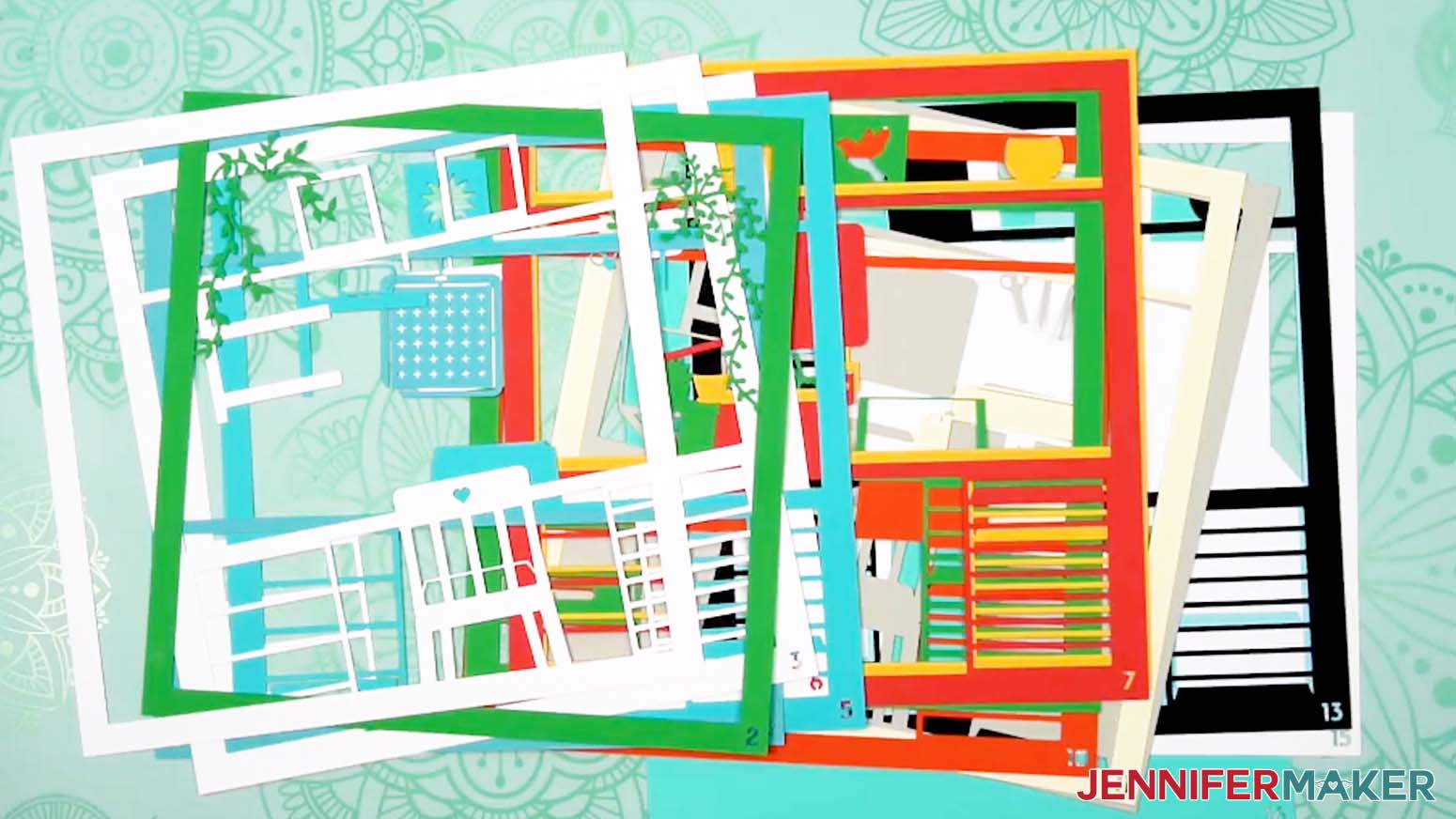
STEP 3: ASSEMBLE YOUR CRAFT ROOM SHADOW BOX
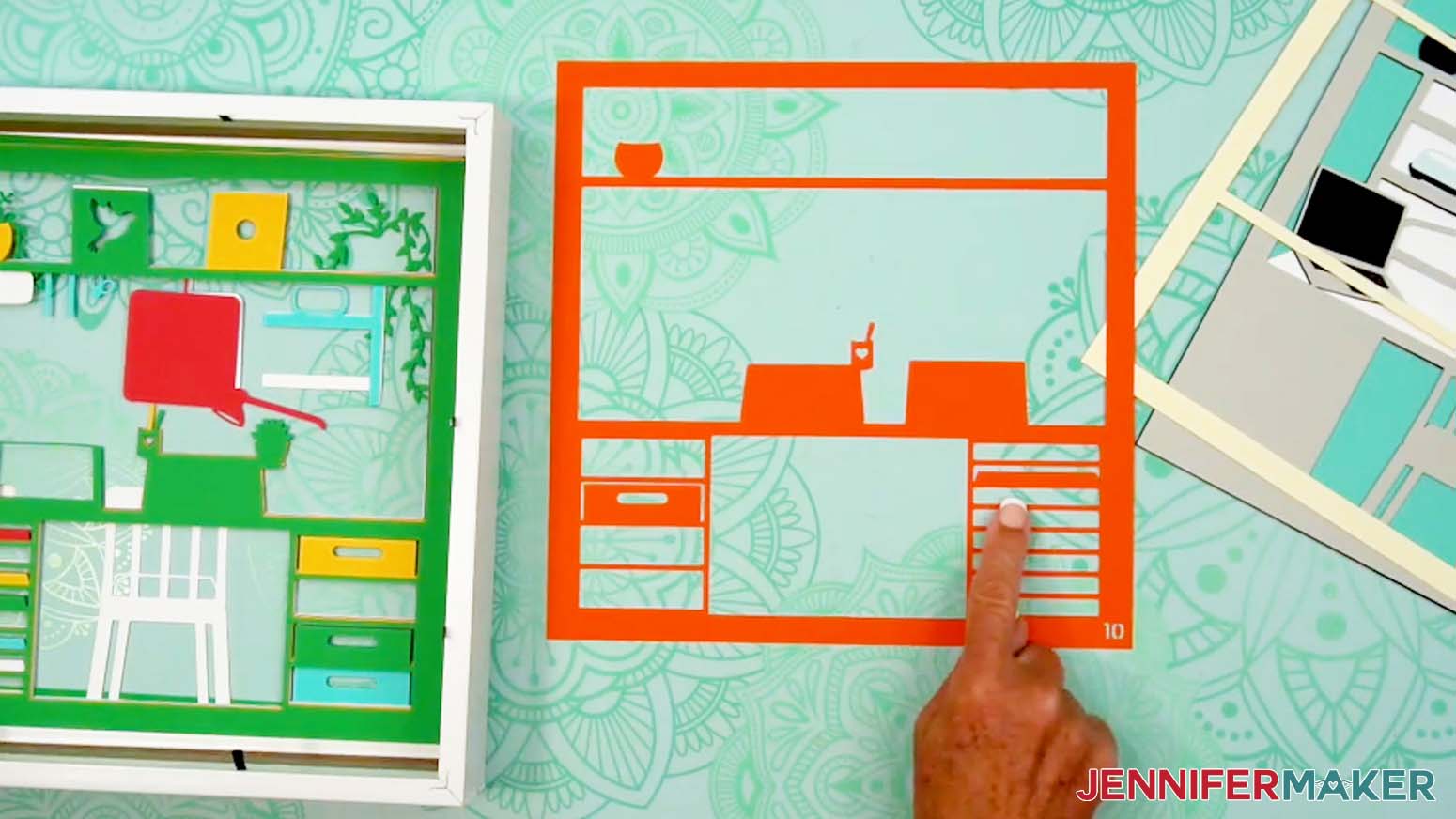
- Stack your layers face up in the order they’ll fit in the frame using the numbers in the corners. Layer 1 does not have a number.
- Grab your shadow box frame.
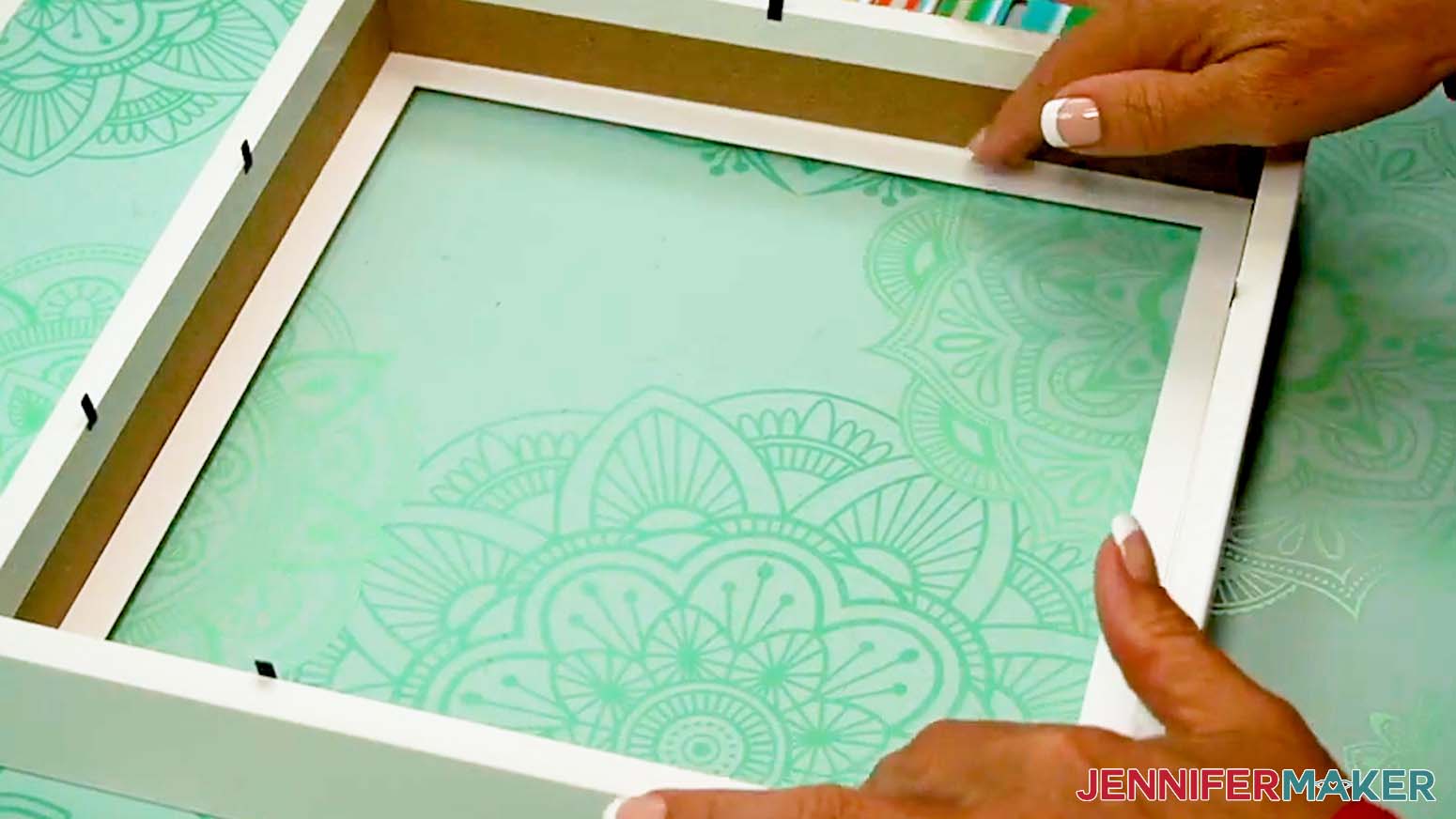
- Remove the backing and inner spacer piece, then set them aside for now.
- Clean the glass with isopropyl alcohol and a lint-free cloth.
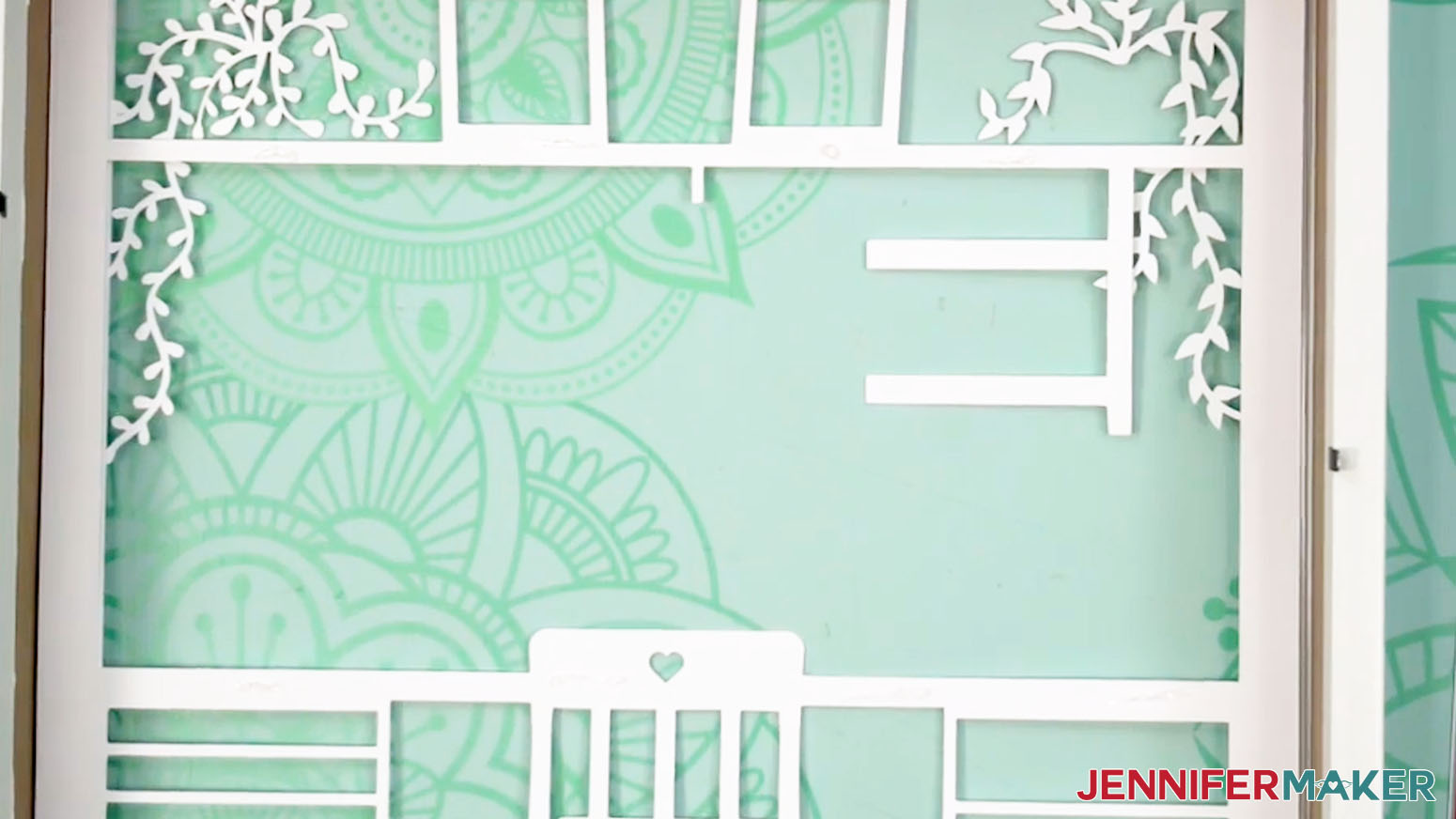
- Take Layer 1, flip it over, and put it face down inside the shadow box frame.
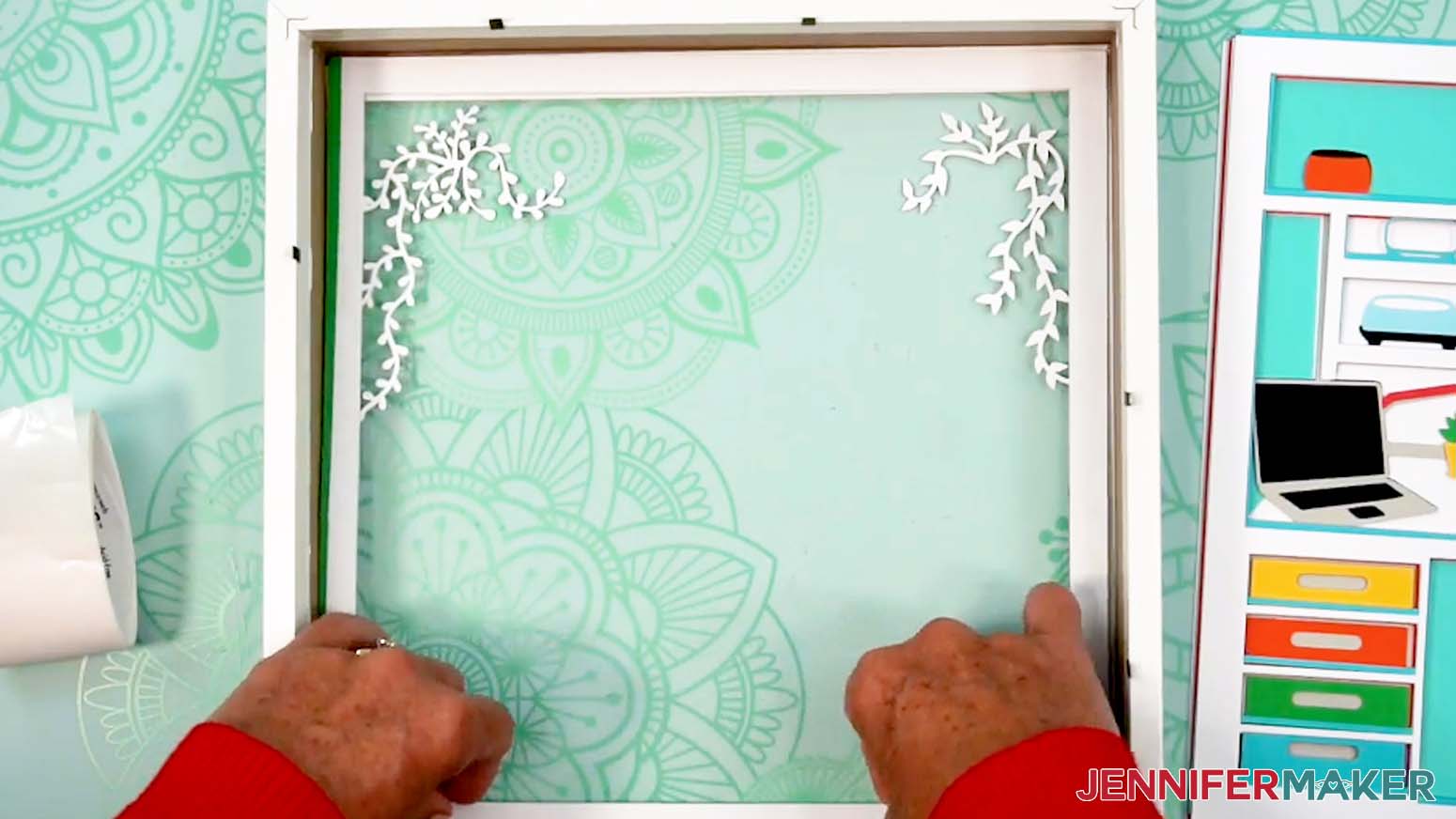
- Place small glue dots on the back of Layer 1. Make sure the dots are spaced around the edge of the paper to ensure even coverage, and avoid placing them in the cutout areas.
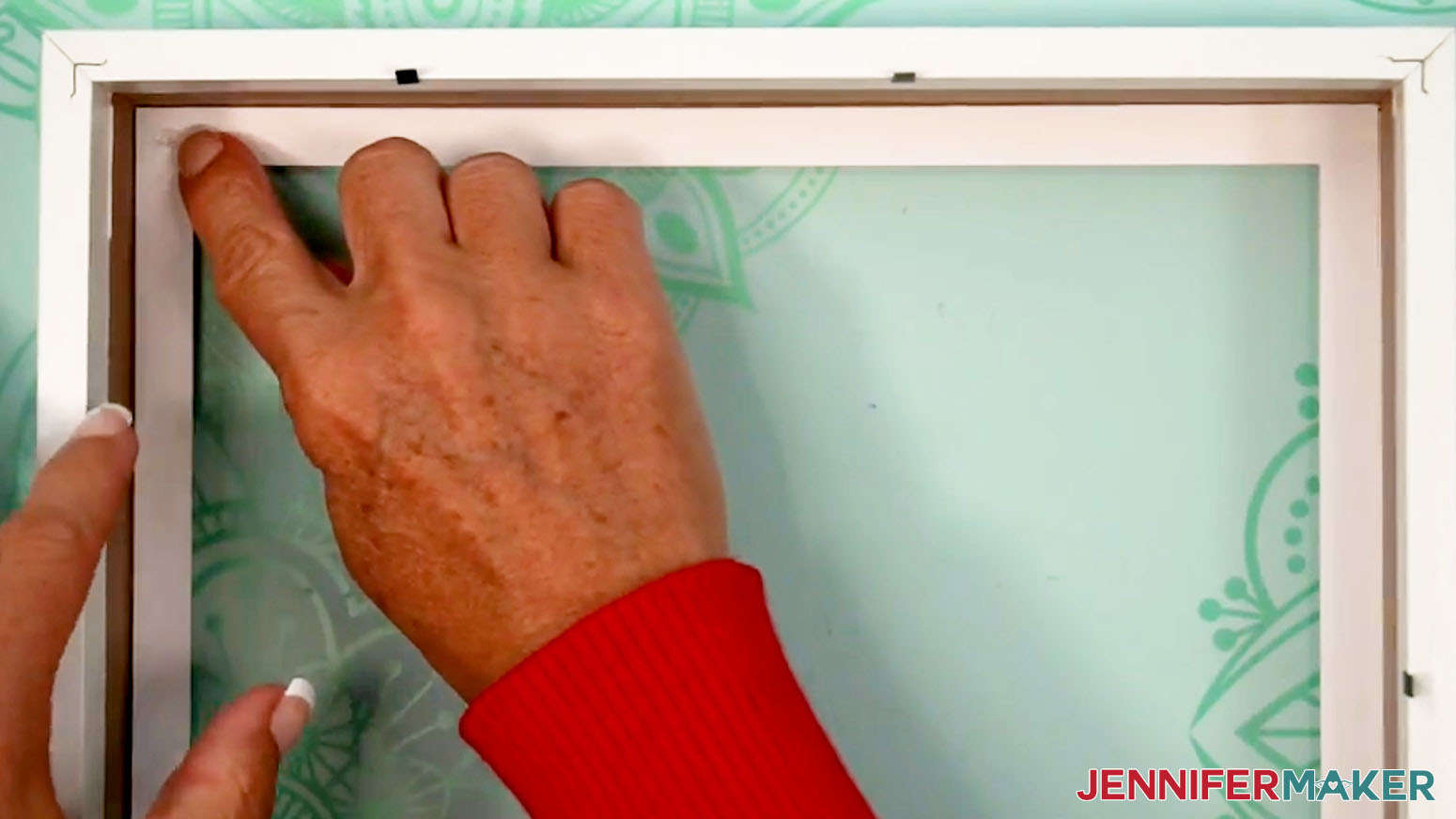
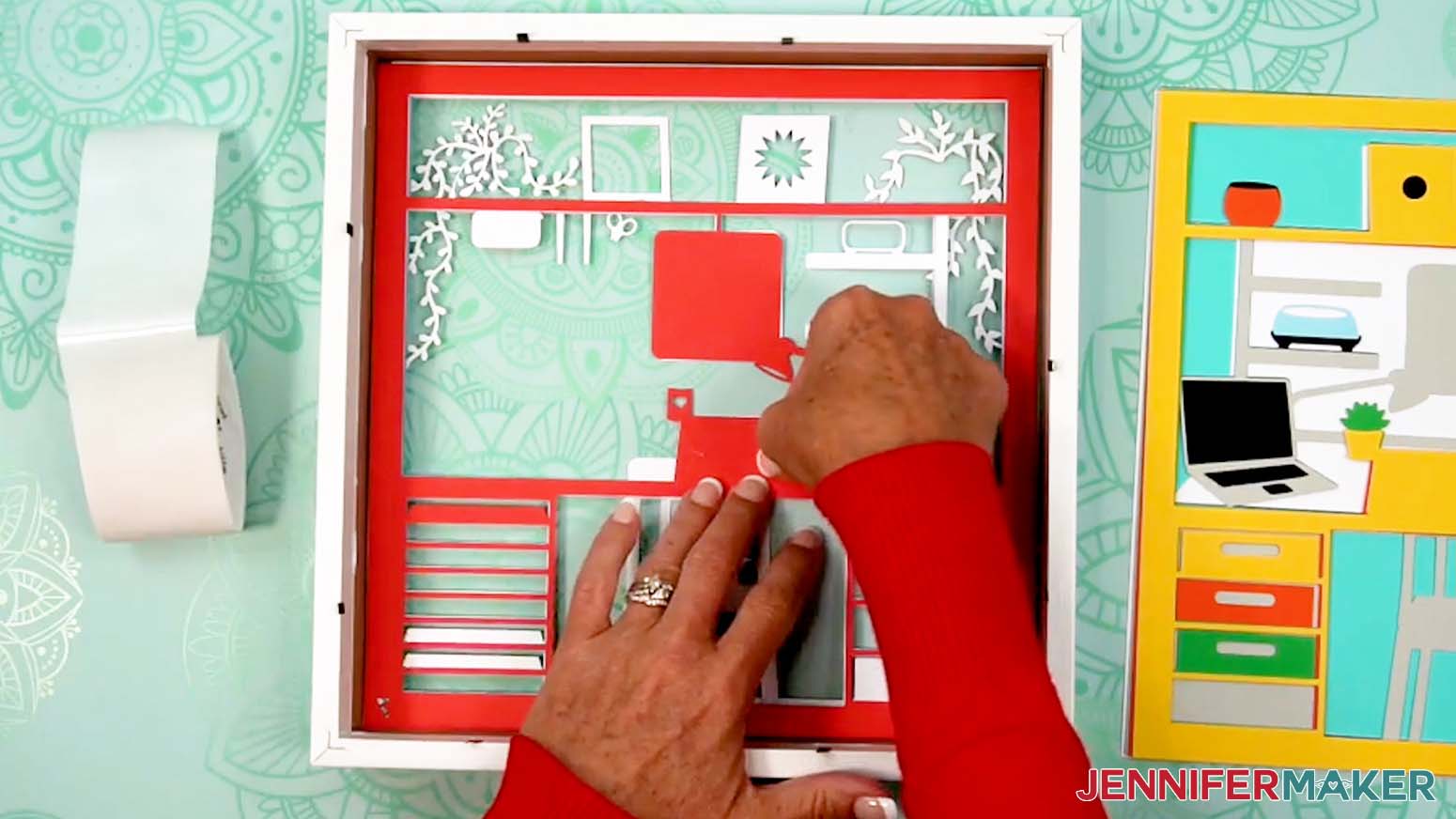
- Flip Layer 2 over and gently lower it face down into the shadow box, directly above Layer 1. NOTE: Use the sides of the shadow box to help with alignment.
- Once you’re sure the second layer is centered properly, press down around the edges to adhere it to the glue dots underneath.
- Repeat Steps 6-8 to add the remaining layers to your shadow box, placing your glue dots in the same position on the back of each layer to make sure the papers are adequately spaced and supported.
TIP: Use glue dots to hold delicate areas in place, and stretch them into lines for thin areas!
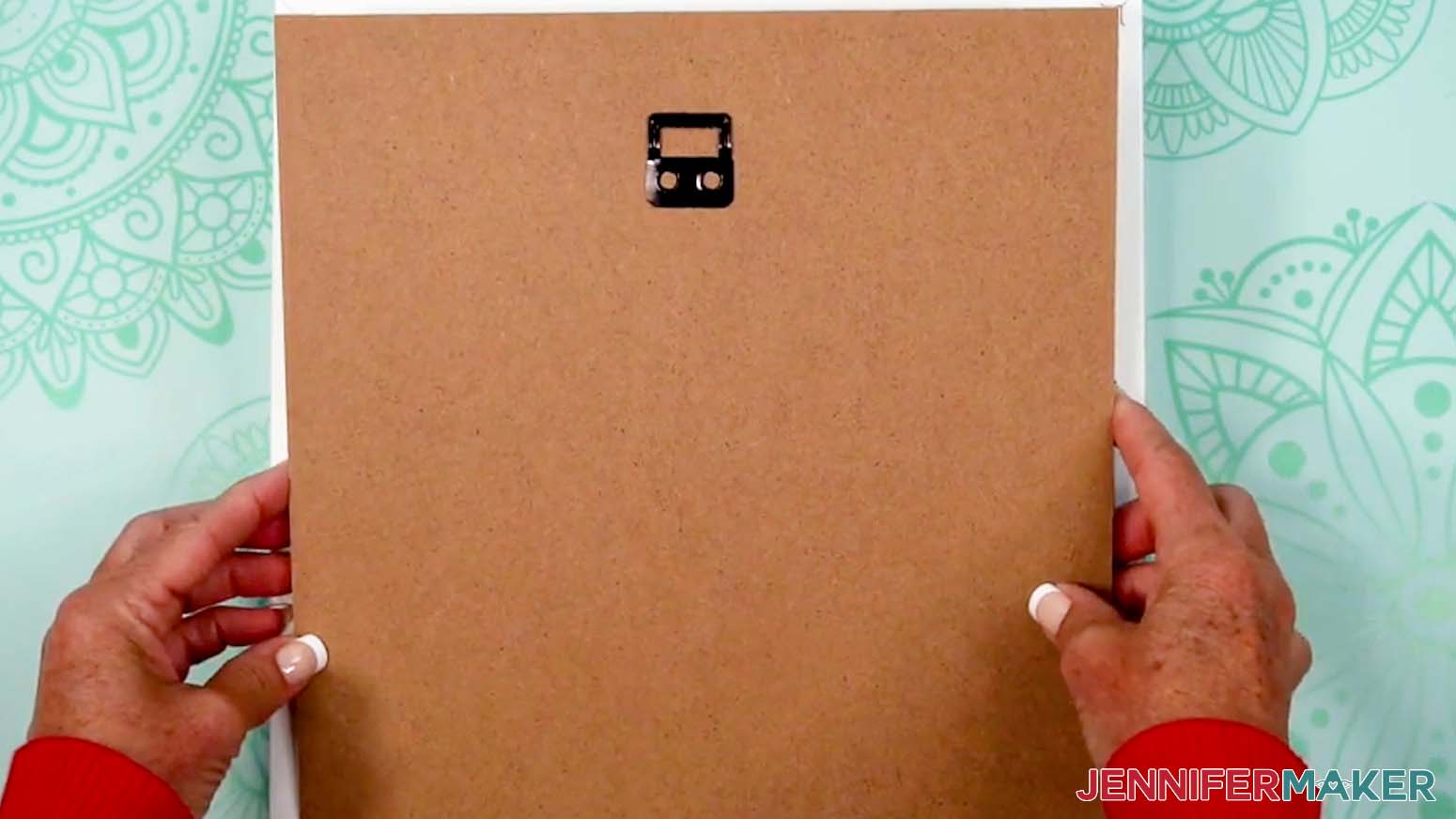
- Once Layer 16 is in place, place the shadow box’s spacer against the back cardstock layer.
- Then place the shadow box’s backing board on top of the spacer with the hanger positioned at the top.
- Press down the metal tabs on all four sides to secure the backing board.
- Flip your project over.
STEP 4: SHOW IT OFF
You now have your very own Craft Room Shadow Box!
Notes
Finished Size Design Layers: 10” x 10"
Answers to Your Questions About Making Craft Room Shadow Box
Q: Is there a way to create a custom craft room shadow box design?
A: You can learn how to design your own customized craft room shadow box design in my ADVANCE program. Learn more about ADVANCE here!
Q: Is it hard to learn how to layout shadow boxes?
A: Not at all! Once you follow the step-by-step guide in the tutorial, you’ll see how easy it is to stack the layers in order. Each piece is numbered and designed to line up perfectly, so you can focus on the fun of watching your shadow box scene come together.
Q: What do you put between layers in a shadow box?
A: We often use foam spacers for shadow box projects, but for this shadow box, I used Zots glue dots. They’re a cleaner, easier option that keeps the layers flat and secure without the mess or bulk, so even the tiniest details line up beautifully for the best results. Liquid craft glue might help in a few extra delicate spots, just wipe away the extra!
Q: What paper should I use?
A: I used 65 lb solid core cardstock for the layers in my craft room shadow box, but you can experiment with patterned cardstock, metallic foil or glitter cardstock, or other types of paper altogether. Have fun, and make it uniquely yours!
Q: Can I use a custom frame to display the design?
A: Absolutely! As long as it’s both the right size and the correct depth to fit the layers, you can use any frame or box you want to display your craft room shadow box design. You don’t have to use the one recommended in my shopping list.
Q: What’s the difference between a shadow box and a floating frame?
A: Shadow boxes use space inside the frame to create depth and dimension, whereas floating frames use space between the object and the frame to make the displayed object look like it’s floating. This project uses a shadow box frame, so be sure to have the right materials on hand before beginning your project.
Q: Do you have any other layered paper shadow box projects like this?
A: I sure do! Here are some of my favorites for you to try:
- Gnome Shadow Box
- Cardinal Shadow Box
- Scenic Mandala Shadow Box
- Farm Shadow Box with Floating Layers
- Sea Animal Shadow Boxes
- “Kind,” “Love,” and “Home” Shadow Boxes
- Woodland Animal Shadow Box
- Heart Shadow Box
Q: Help! My Cricut Design Space screen looks different from yours!
A: If you’re using the latest version of Cricut Design Space, your screen may have slight variations from the screen you see on the video tutorial. Good news! All of the same functions are there, they may just be in different spots or have new icons. Pause the video if you need, or follow along with the written tutorial. If you get stuck, ask for expert support in our Facebook group. Our group has become not just a help center, but also a vibrant community of real people and crafters! Plus, you can catch the latest news on JenniferMaker tutorials and more.
Q: Can I make and sell craft room shadow boxes?
A: If you want to use my craft room shadow box designs and projects for commercial use, please familiarize yourself with my important licensing information before selling your crafts.
Get my free SVG/DXF/PDF files to make your own easy craft room shadow box design!
(If you do not see the signup form above, click here.)
I absolutely love seeing your homemade shadow box projects! Once you’ve learned how to make a craft room shadow box, inspire others and share a photo of your project in our Facebook group or tag me on social media with #jennifermaker.
Love,

Want to remember this? Save this Craft Room Shadow Box Design Tutorial to your favorite Pinterest Board!