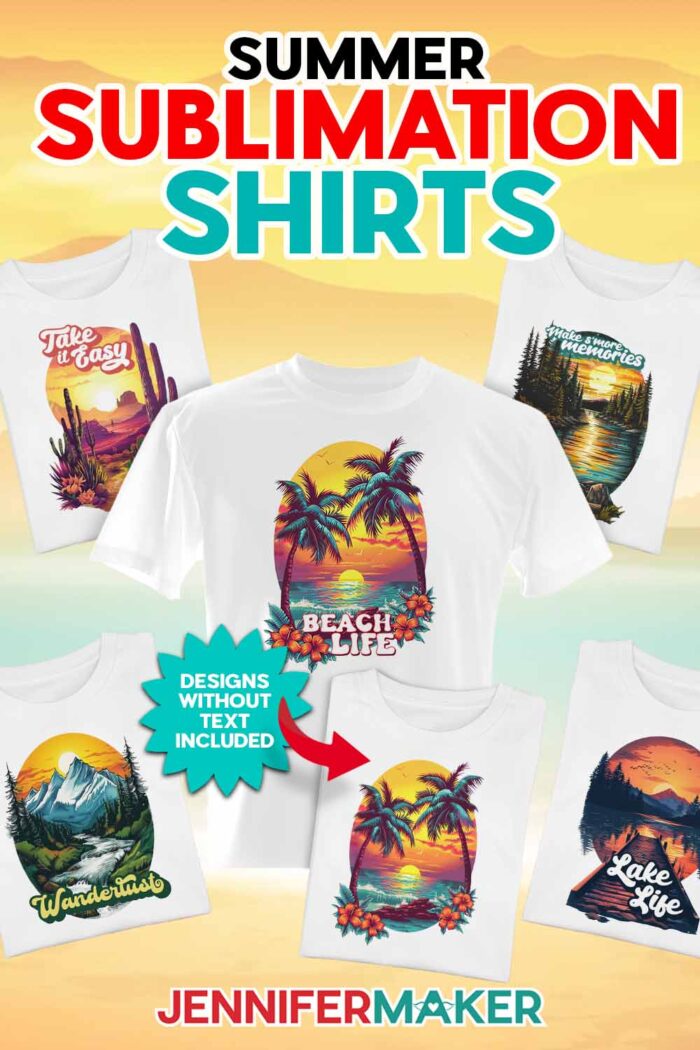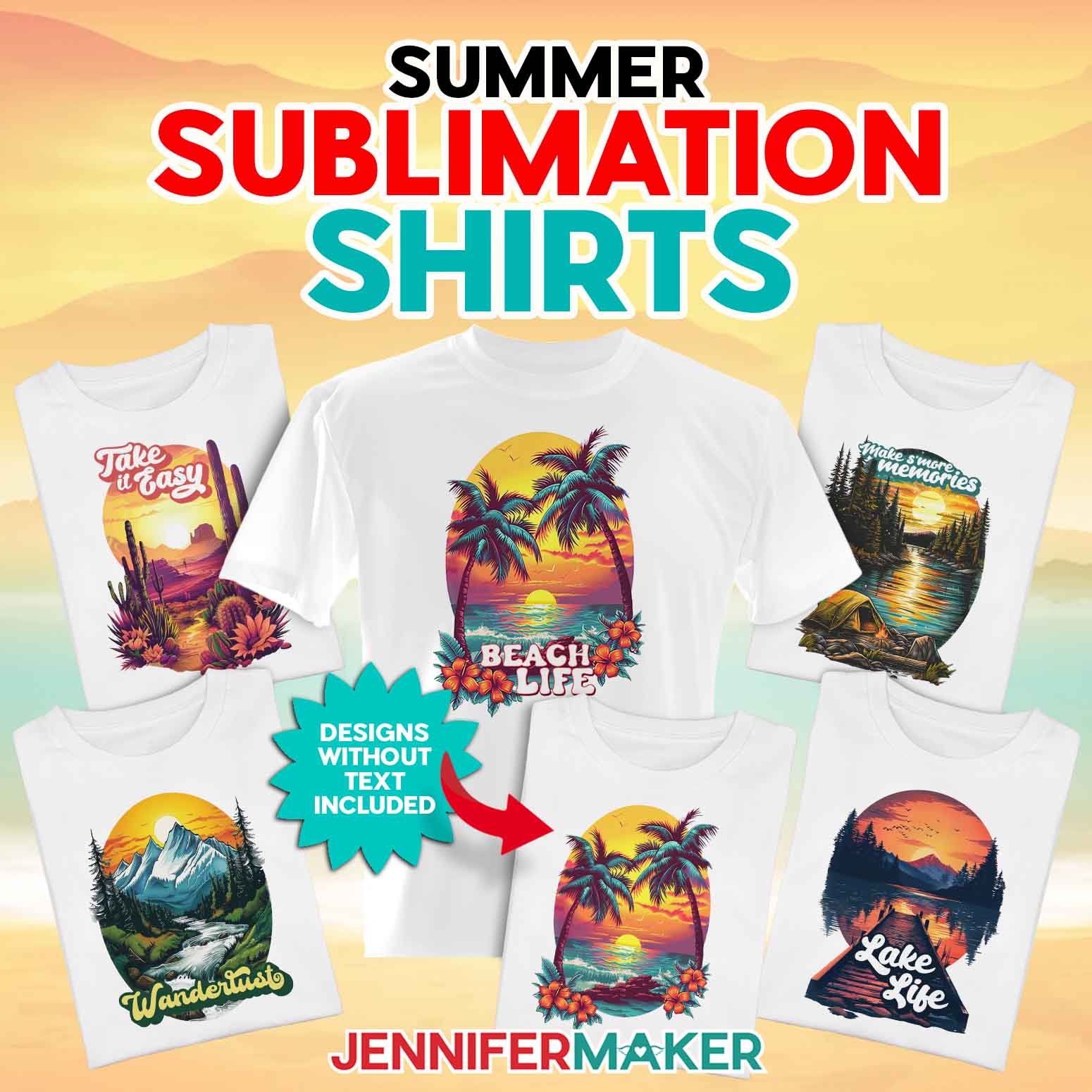
Learn how to make Summer Sublimation Shirts with destination designs!
Let’s bring in the summer vibes with five brand new digital design downloads for sublimation! New to sublimation? It’s is a fantastic way to decorate shirts with full-color designs without having to layer heat transfer vinyl. Learning sublimation takes some practice, but I’ve taken the guesswork out of it — you’ll be getting beautiful results in no time once you’ve learned the basics.

The T-shirt sublimation process involves applying heat to a special ink, turning it into a gaseous state which is then infused into a polymer surface — becoming part of a shirt’s actual fibers. It’s a pretty neat method, and can be done on polyester T-shirts — along with tons of other items, too! And while it sounds complicated and intimidating, it’s actually rather simple. Because sublimation transfers become a part of the surfaces (instead of just sitting on top like vinyl), you can’t feel the design, nor can it peel off over time. Pretty cool, right?
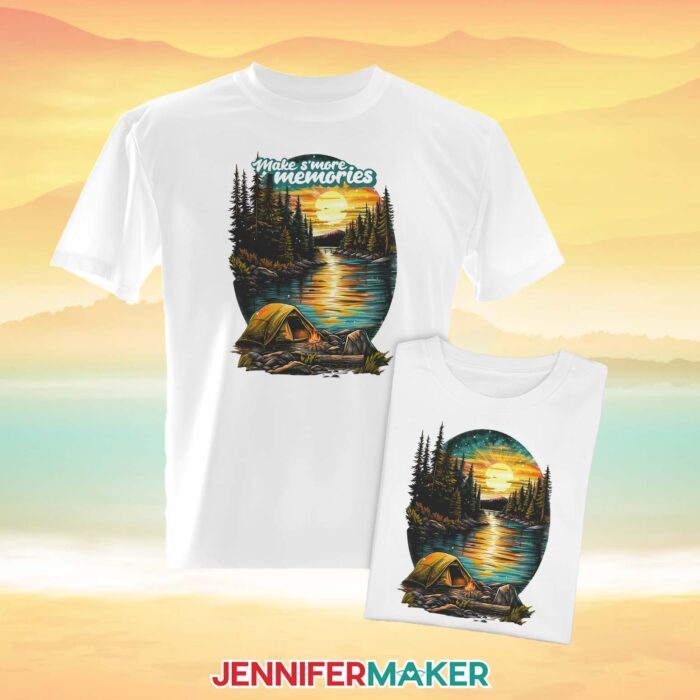
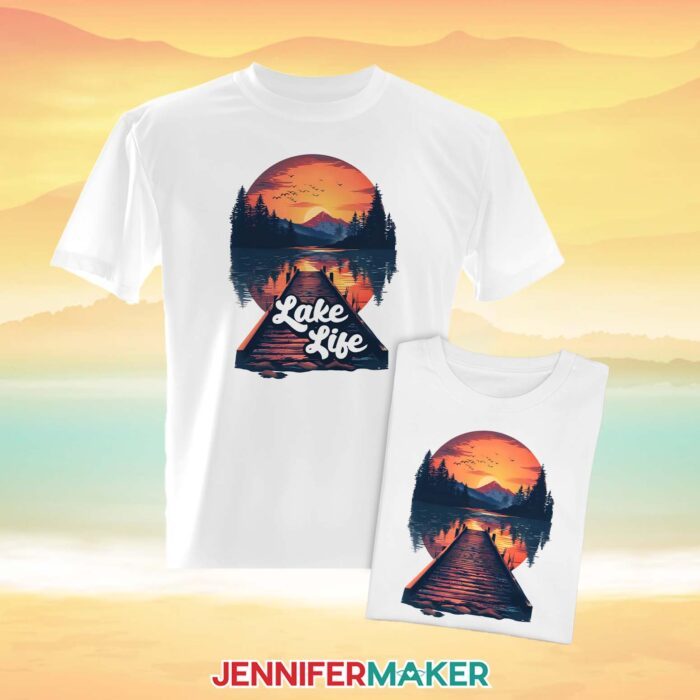
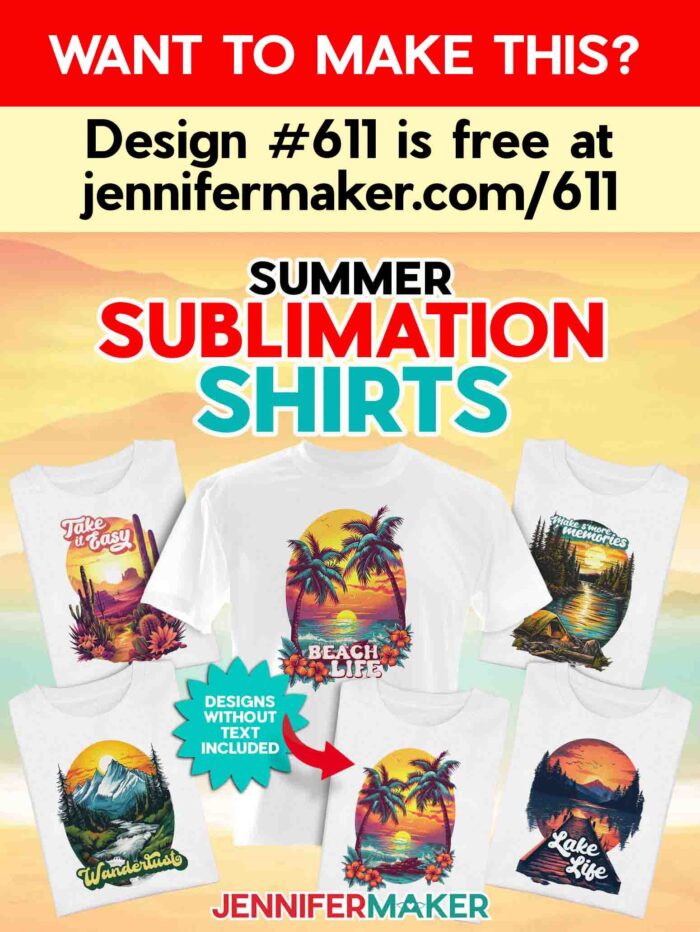
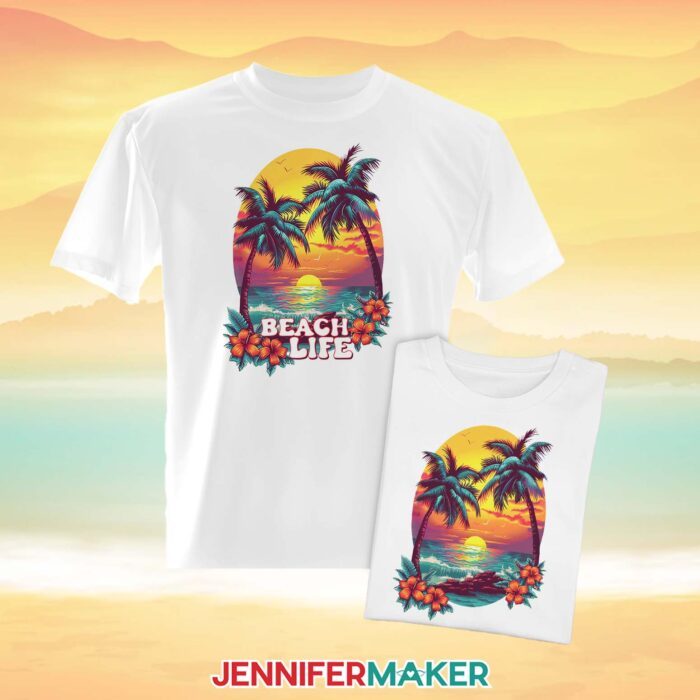
With T-shirt weather upon us and summer just around the corner, I had lots of fun creating a new set of summer sublimation shirts designs (specifically in the vacation category) for you to use with your own projects! Whether you’re heading out on a vacation, staycation, or dreaming of future travels this season, my summer shirt designs will bring exciting (or relaxing) adventures to mind!
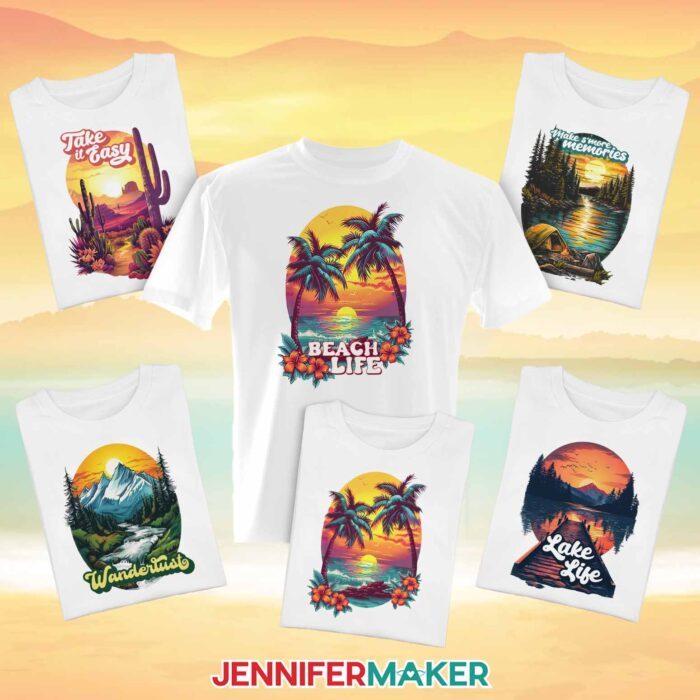
I created these summertime sublimation designs with the help of AI image generator, then tweaked and added text to them in Adobe Photoshop. They are inspired by different locations I’ve visited through the years, and I hope they remind you of good times like they do for me! Each design is a high resolution PNG file that you can use on T-shirts or any other sublimation blank you like. If you want to learn how to create your own one of a kind item using AI images, be sure to check out my AI Art Design Workshop.
A sublimation t-shirt takes the proper equipment and some special materials, some of which you may already have in your crafting toolbox. But if you’re new to sublimation, my Sublimation for Beginners tutorial is really useful to learn the basics!
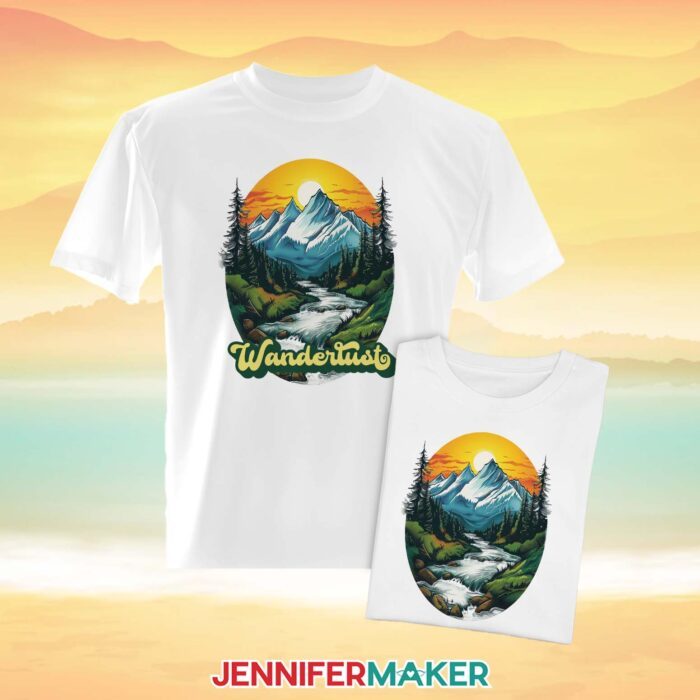
The first thing you’ll need is a shirt! But any regular T-shirt won’t do — it needs to be the right fabric, which means it has a high polyester content. Sublimation looks best on 100% polyester fabric, but you can still get good results with a more “vintage look” from cotton/poly blends (as long as the polyester makes up at least 65% of the blend).
The shirt also should be white or a very light color fabric, if you plan to sublimate directly onto it. However, you can sublimate different shirt colors, too — with some extra steps and materials! Check out my Sublimating Dark Shirts tutorial to learn more.
Want to try your hand at sublimating but are afraid to waste your pricier, high-quality materials while you learn? Sublimate on a piece of similar polyester fabric! This will allow you to get your techniques down before ruining a shirt while you’re still in practice mode.
To get the design onto your shirt, you’ll need to start with a sublimation printer with compatible ink and high quality sublimation paper. I typically like to use my converted Epson EcoTank ET-4760 for sublimation projects, but I’ve got lots of information on choosing the right sublimation printer for you in this post. I recommend using a computer with Google Docs, Hippo Ink, and 8.5″ x 11″ A-SUB sublimation paper.
Once your image is printed onto the sublimation paper, you may notice that the image colors look a bit duller or a different color than you expect. Don’t worry! Sublimation prints are not as vibrant when they’re on sublimation paper, but they come to life when pressed. That means that once the heat is applied to the design, you’ll see brighter colors that look like the image on your computer screen.
So, what creates the heat to infuse the printed image into the T-shirt? A heat press! You can use a Cricut EasyPress, a Cricut Autopress, or a traditional-style heat press machine. There are some machine differences to consider, so don’t forget to do your research to find the best heat press option for you. Just don’t try to sublimate with a household iron — sublimation ink activates at a minimum heat press temperature of 350°F (175°C) and irons don’t get that hot.
When you’re sublimating a project, the ink gets hot, too. It’s how the image infuses into the polymer or polyester surface of the blank! But it also means that the ink gets SO hot that it turns to vapor. Because this vapor can carry through the air and even transfer to nearby surfaces, it’s important to protect yourself and your project.
To protect the project, use white butcher paper, white cardstock, and heat-resistant tape to help prevent any undesired ink transfer onto parts of your shirt and your heat press.
But what about protecting you, your family, and pets while you’re sublimating? The vapors put out by sublimating shouldn’t be breathed in — that’s why it’s important to have a window open and a fan blowing to help the sublimation fumes dissipate more quickly. Avoid breathing in when you’re really close to the warm shirt, too!
Creating beautiful summer sublimation shirts is easy when you have the right tools, materials, and designs! I can’t wait to see the amazing shirts you make, and where you wear them on your summertime adventures!
Sublimation Startup
Need a little extra help understanding how to get started with sublimation? Join Sublimation Startup for a logical, step-by-step guide to getting setup for success with sublimation! You can ask questions and feel confident that you’ll get help! The Sublimation Startup mini-course is also great for those who enjoy learning from Jennifer Maker’s easy-to-understand, calm, and clear method of teaching. This is a no-fluff, no-mess, no-distraction workshop … it’s like sitting down with Jennifer in her craft room to learn directly from her! We work in logical steps to build your understanding and confidence with sublimation, and then provide support to keep helping you as you continue on your journey! Register now!
Let me show you how easy it is to make summer sublimation shirts! This post contains some affiliate links for your convenience (which means if you make a purchase after clicking a link I will earn a small commission but it won’t cost you a penny more)! Read my full disclosure policy.
Materials to Make Summer Sublimation Shirts
View my Amazon shopping list with the exact items we used on the original project
- Sublimation Shirt with at least 65% polyester – I used an adult Cricut T-Shirt Blank (alternative),
- Sublimation Paper – I used 8.5″ x 11″ A-SUB Sublimation Paper
- Sublimation Printer and ink – I used my Epson EcoTank ET-4760 converted to sublimation printing with Hiipoo sublimation ink
- Heat Press large enough for your design – I used the Cricut Autopress, but you could also use the Cricut EasyPress 12″ X 10″
- Protective Paper – I used white cardstock and white uncoated butcher paper
- Heat Resistant Tape, Lint Roller, and Scissors
- Laptop or Desktop running Mac or Windows
- Free Google account – to use Google Docs (free) for printing your sublimation design
- (Optional) Your ICC Printer Profiles for better color (here are the Hiipoo printer profiles)
- Design #611 – My free sublimation t-shirt design files (available in my free resource library – get the password by filling out the form at the bottom of this post)
How to Make Your Own Summer Sublimation Shirts
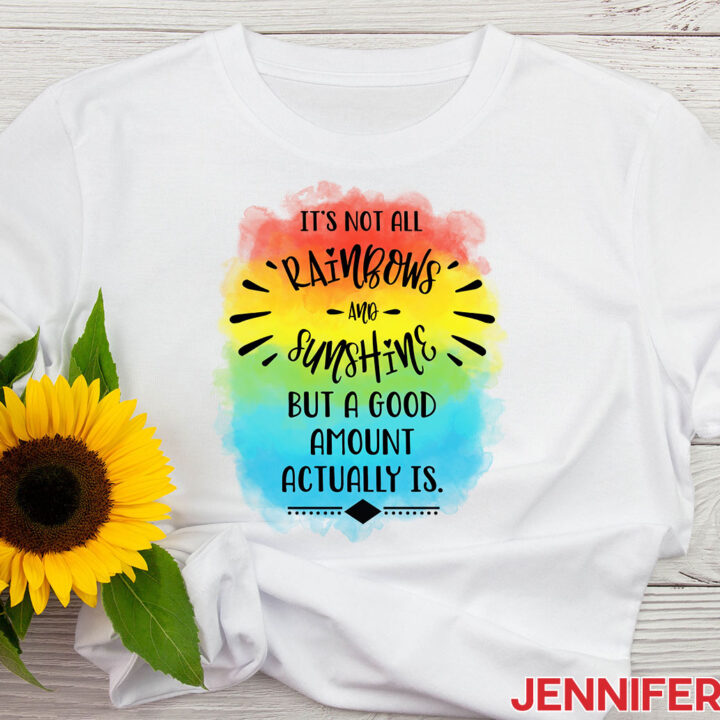
Beginner Sublimation T-Shirt
Learn how to make a beautiful sublimation T-shirt with easy techniques for flawless application!
Materials
- Sublimation T-Shirt - I used an adult large Cricut T-Shirt Blank
- Sublimation Paper - I used A-SUB Sublimation Paper
- Protective Paper - I used white Cardstock
- Uncoated White Butcher Paper
- Sublimation Ink for your printer - I used Hiipoo ink
- Design #394 — My free design files (available from my free resource library — get the password at the bottom of this post)
Tools
- Sublimation Printer - I used my Epson EcoTank ET-4760
- (Optional) Your ICC Printer Profiles here are the Hiipoo printer profiles
- Laptop or Desktop running Windows or Mac
- Google account - to use Docs for photo editing
- Heat Press large enough for your design - I used the Cricut Autopress
- Heat Resistant Tape
- Lint Roller
- Scissors
Instructions
STEP 1: GET OR PREPARE A SUBLIMATION DESIGN
You can use any of my Sublimation T-Shirt design files from my resource library, Design #394.
The four designs I’ve included have positive sayings with beautiful watercolor backgrounds.
I've also included the background designs without words if you'd like to add your own.
Today, I’m going to make the rainbows and sunshine design, but you can use these steps for any of the designs.
We'll print the design on a good-quality sublimation paper for the best results. I’m using A-SUB paper in my Epson EcoTank with Hiipoo ink. You can use another combination, of course.
You can use image editing software to prepare your design, but I'll show you my favorite way: Google Docs.
Go to Google Docs in the Google Chrome web browser on your computer. You can also download and open the Google Docs app on a phone or tablet, BUT be aware that you won't be able to install or access any printer profiles from a mobile device.
To begin, click on "Blank" to open a new document.
In the top File menu, select "Page Setup." Change your margins to 0 and change your Paper Size to match your sublimation paper size. I’ll use letter size, 8.5" x 11". Click OK.
Now click on the Insert menu at the top and select "Image." Then, select "Upload from Computer." Locate the sublimation design you want to use in the folder you downloaded from my library. I’ll use the Rainbows design. Then click "Open." The image will appear and fill your page!
We need to resize the design to fit our shirt. For an adult large, we can make the design up to 10.5" wide or 12" tall. But remember to stick to your paper size! I’m using letter size paper, so I won’t go taller than 11.5".
TIP: If you're using a different size shirt, here are the recommended design dimensions for several common styles:
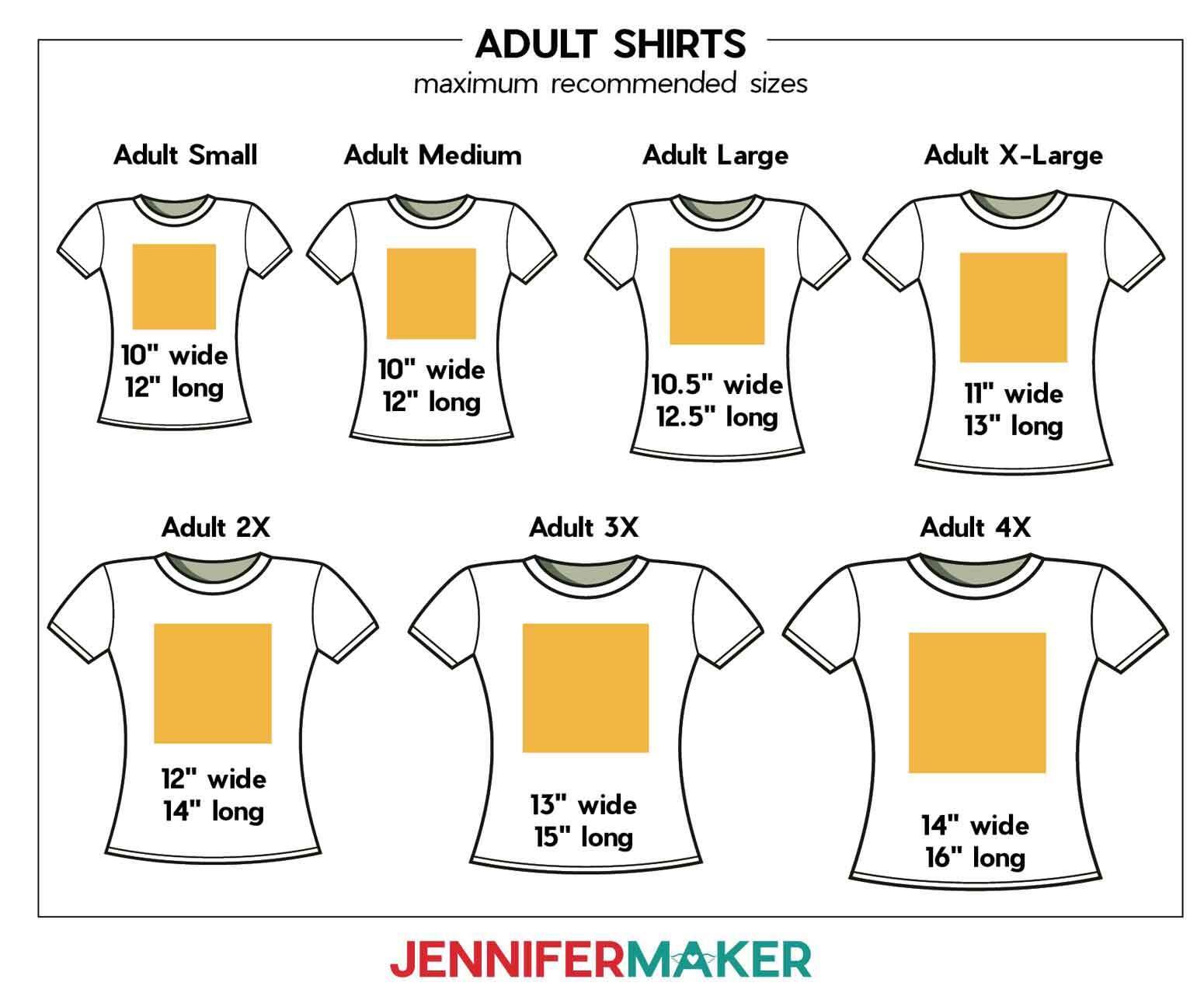
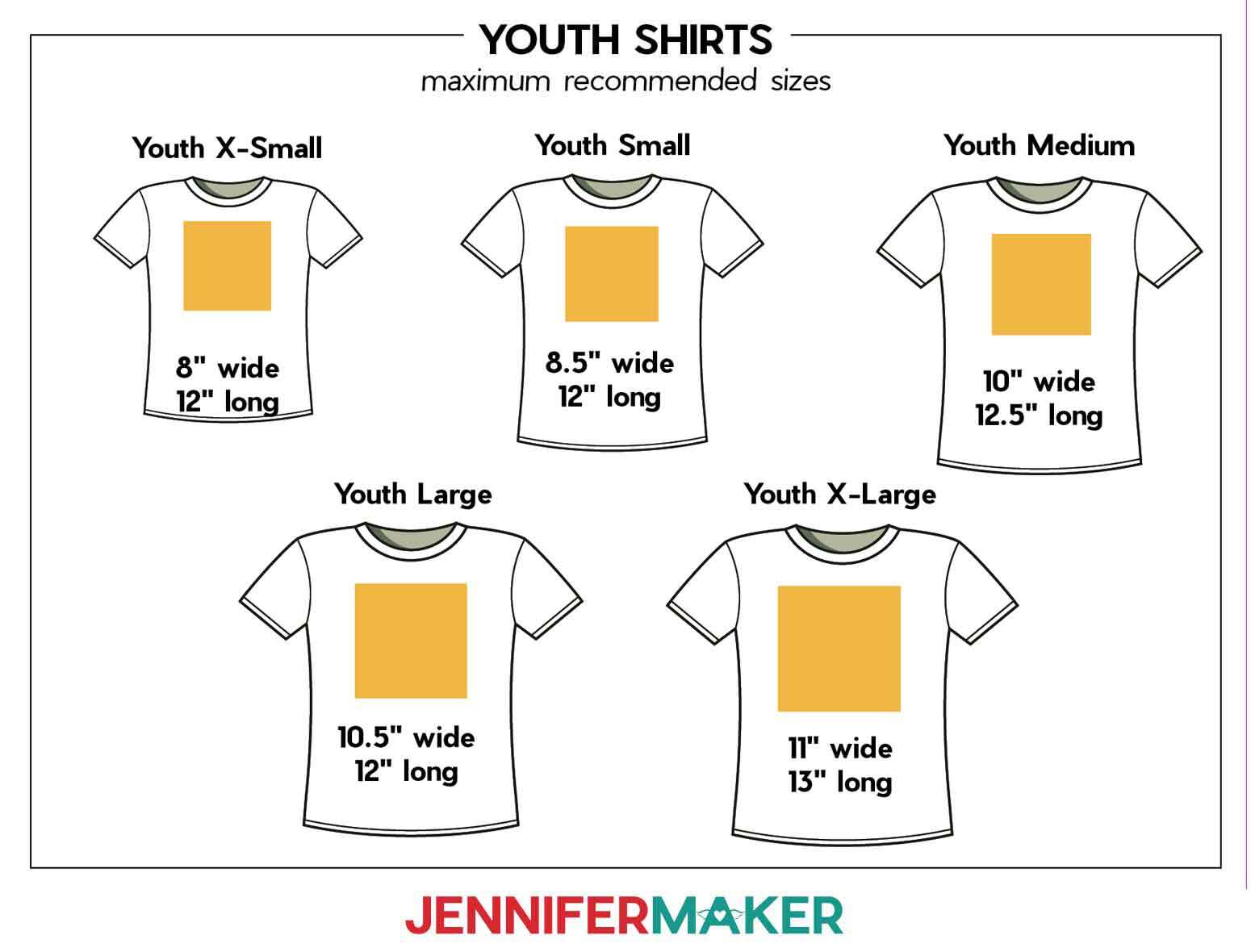
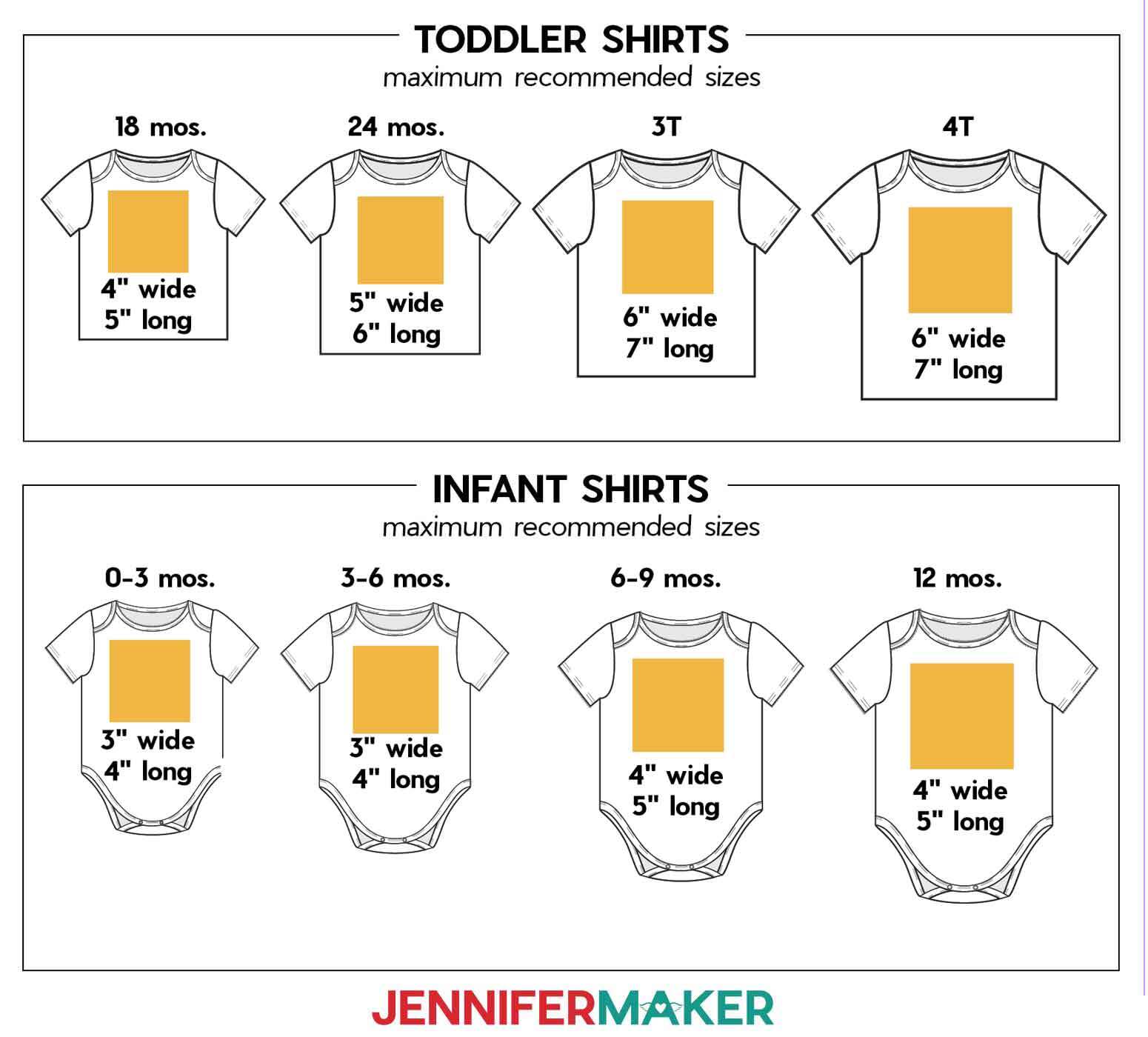
Maximum Recommended Design Sizes for Adult Shirts
Adult Small: 10" wide by 12" long
Adult Medium: 10" wide by 12" long
Adult Large: 10.5" wide by 12.5" long
Adult Extra Large: 11" wide by 13" long
Adult 2X: 12" wide by 14" long
Adult 3X: 13" wide by 15" long
Adult 4X: 14" wide by 16" long
Maximum Recommended Design Sizes for Youth Shirts
Youth Extra Small: 8" wide by 12" long
Youth Small: 8.5" wide by 12" long
Youth Medium: 10" wide by 12.5" long
Youth Large: 10.5" wide by 12" long
Youth Extra Large: 11" wide by 13" long
Maximum Recommended Design Sizes for Toddler Shirts
18 Months: 4" wide by 5" long
24 Months: 5" wide by 6" long
3T: 6" wide by 7" long
4T: 6" wide by 7" long
Maximum Recommended Design Sizes for Infant Shirts
0-3 Months: 3" wide by 4" long
3-6 Months: 3" wide by 4" long
6-9 Months: 4" wide by 5" long
12 Months: 4" wide by 5" long
To resize the design, select the image, then click and drag a corner until it fits the page. Or, you can right-click the image, select "Image Options," then "size and rotation," and change the size in the fields. 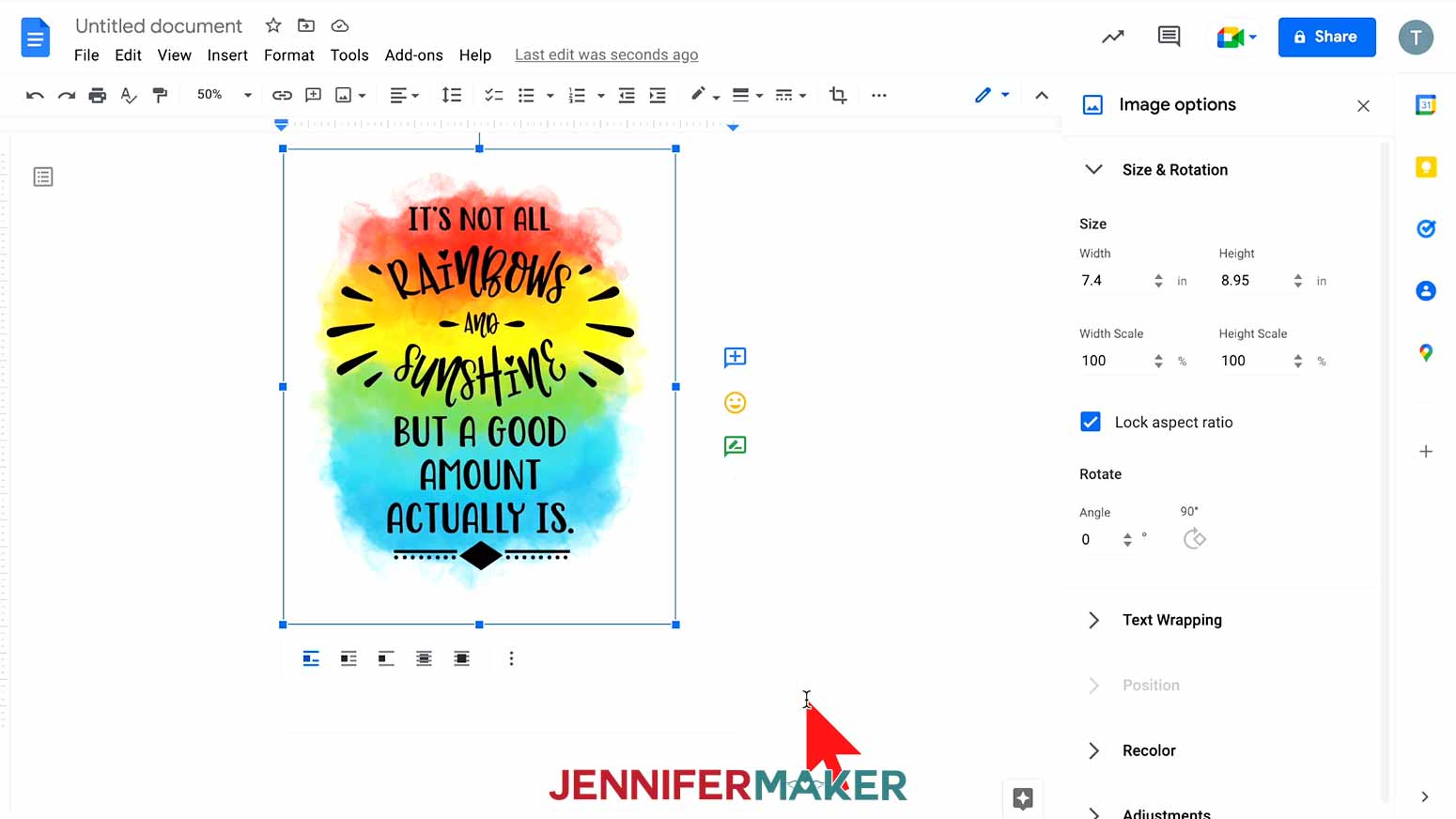
Next, let’s make sure the design will print in the right spot. To reposition the image, select it and then click on "Wrap text" from the menu that appears below. You might have to hover your cursor at the bottom of the image to bring up the menu.
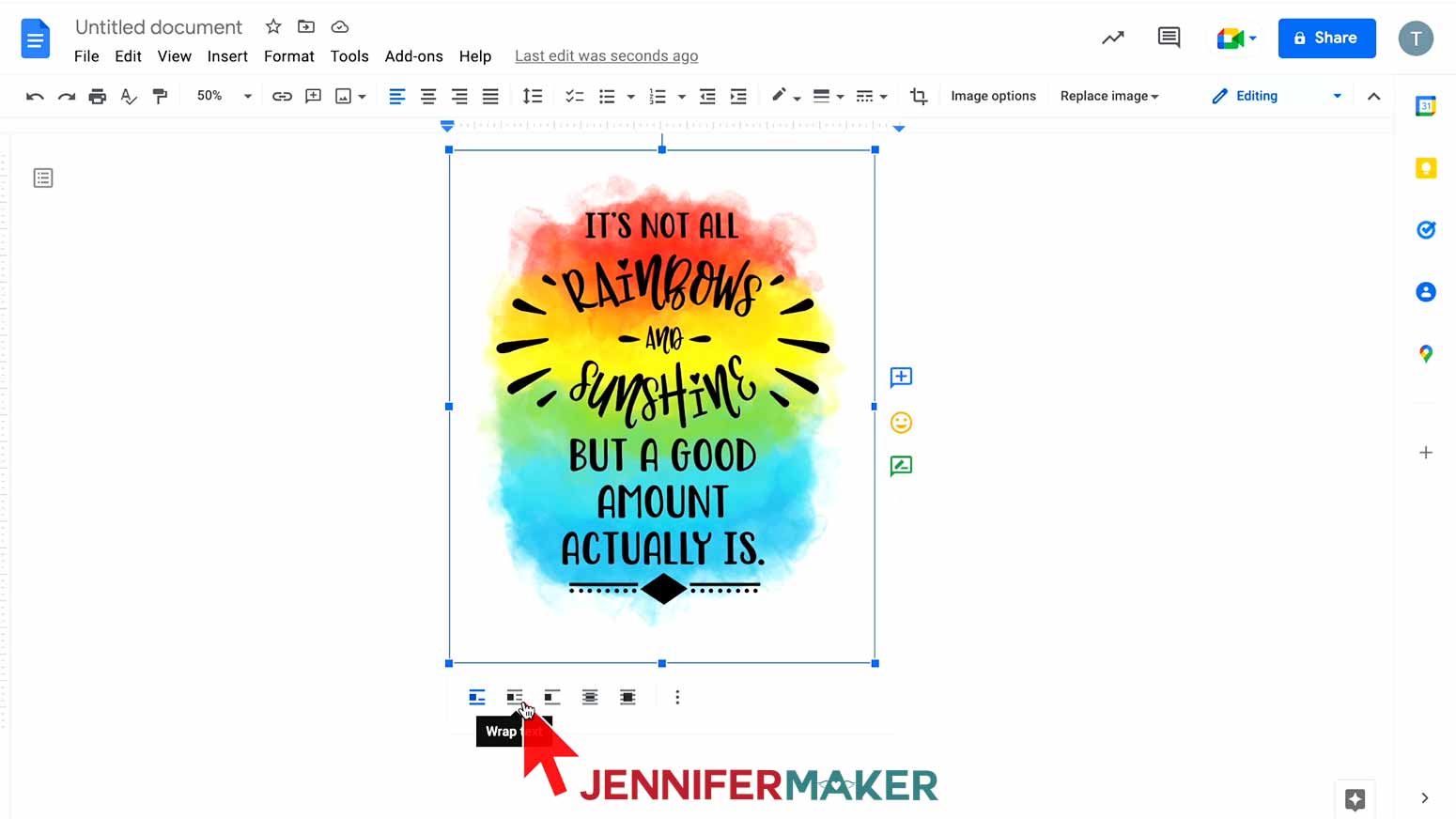
Now, you can click and drag the image anywhere on your page. I recommend putting your design in the center of your page, as that ensures it won't get cut off at the edges and you have plenty of space to feather the sides for a clean press. I’ll show you that trick when we get to the pressing stage!
Once you’re happy with the design, give it a name by clicking where you see “Untitled” in the top left field. Another great thing about Google Docs is the auto-saving feature!
Before printing, make sure your paper is loaded correctly. Check your printer manual and paper packaging for help identifying the right side to print on and how to load it. If you’re using A-SUB paper in an Eco Tank like me, place the paper facedown with the words “A-SUB” visible so that the design will print on the bright white side of the sublimation paper.
The printing settings and steps depend on the type of printer you're using. While printer settings vary, the main things we have to watch for are paper type and print quality.
Epson Print Method
If you have an Epson, go to the File menu and choose "Print."
Select your printer under "Destination." Then, click the arrow beside "More Settings" and click "Print Using System Dialog."
Make sure your sublimation printer is selected under "Printer." Then, under "Layout" click "Flip horizontally" to mirror your image. Most sublimation projects need to be mirrored, so remember that step!

Choose "Print Settings" and change your media type to "Premium Presentation Paper Matte" and Print Quality to "High Quality."
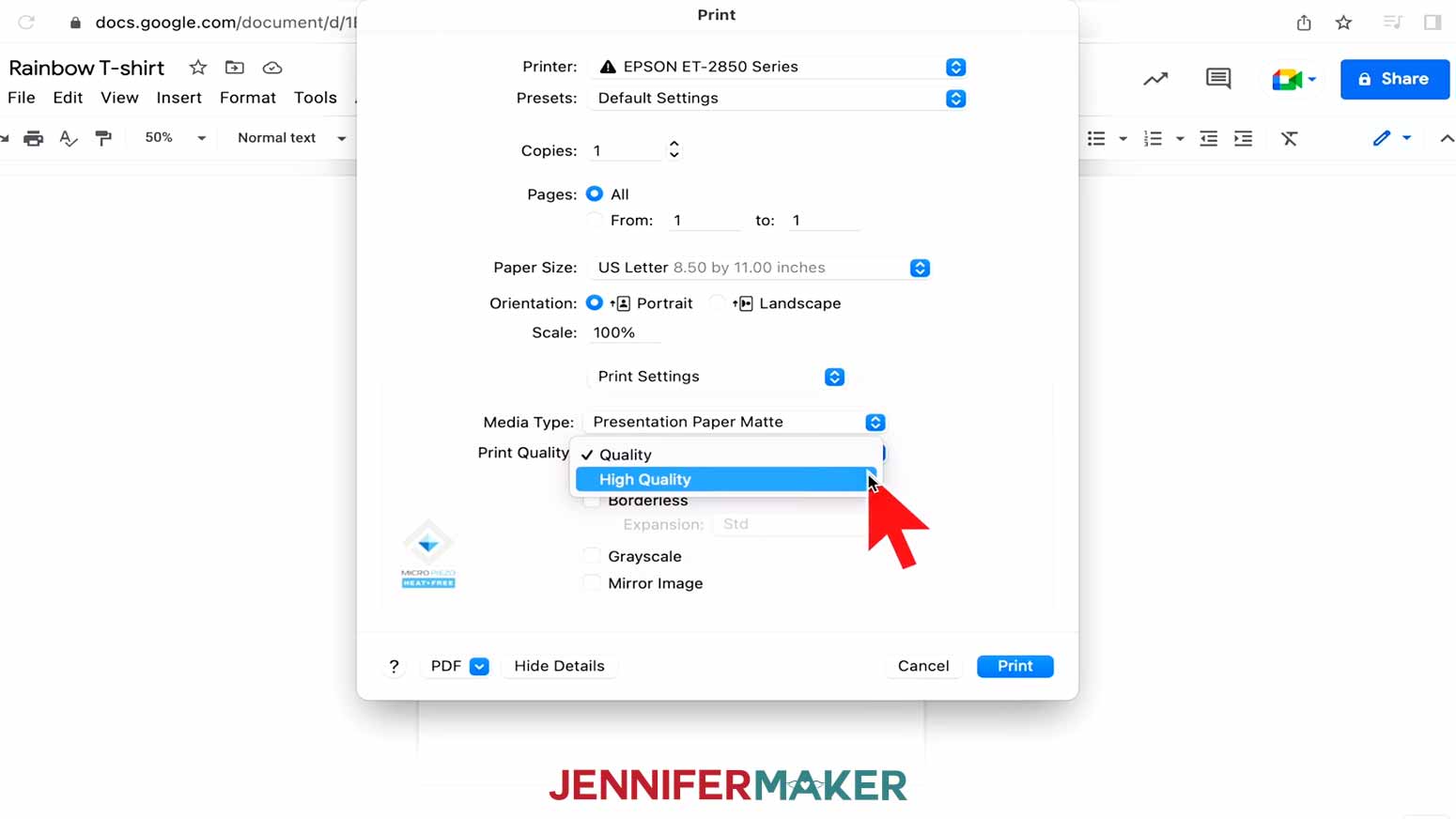
We already mirrored the image, so don’t click that. And don’t use high speed!
If you’ve installed an ICC printer profile for better colors, which I covered in my sublimation printer setup sublimation printer setup sublimation printer setup videos, you can select that here as well. Select "Color Matching" and choose your printer profile. If you’re on a Mac as I am, choose "Color Sync," click on the menu, select "Other Profiles," and select your printer profile from the list.
Once you’ve correctly adjusted your settings for your printer, click on "Presets" and choose "Save Current Settings as a Preset" and then you can choose that from now on!
Sawgrass Print Method
To print on a Sawgrass, go to the File menu, choose "Print," and select your printer under "Destination." Then, click the arrow beside "More Settings" and click "Print Using System Dialog."
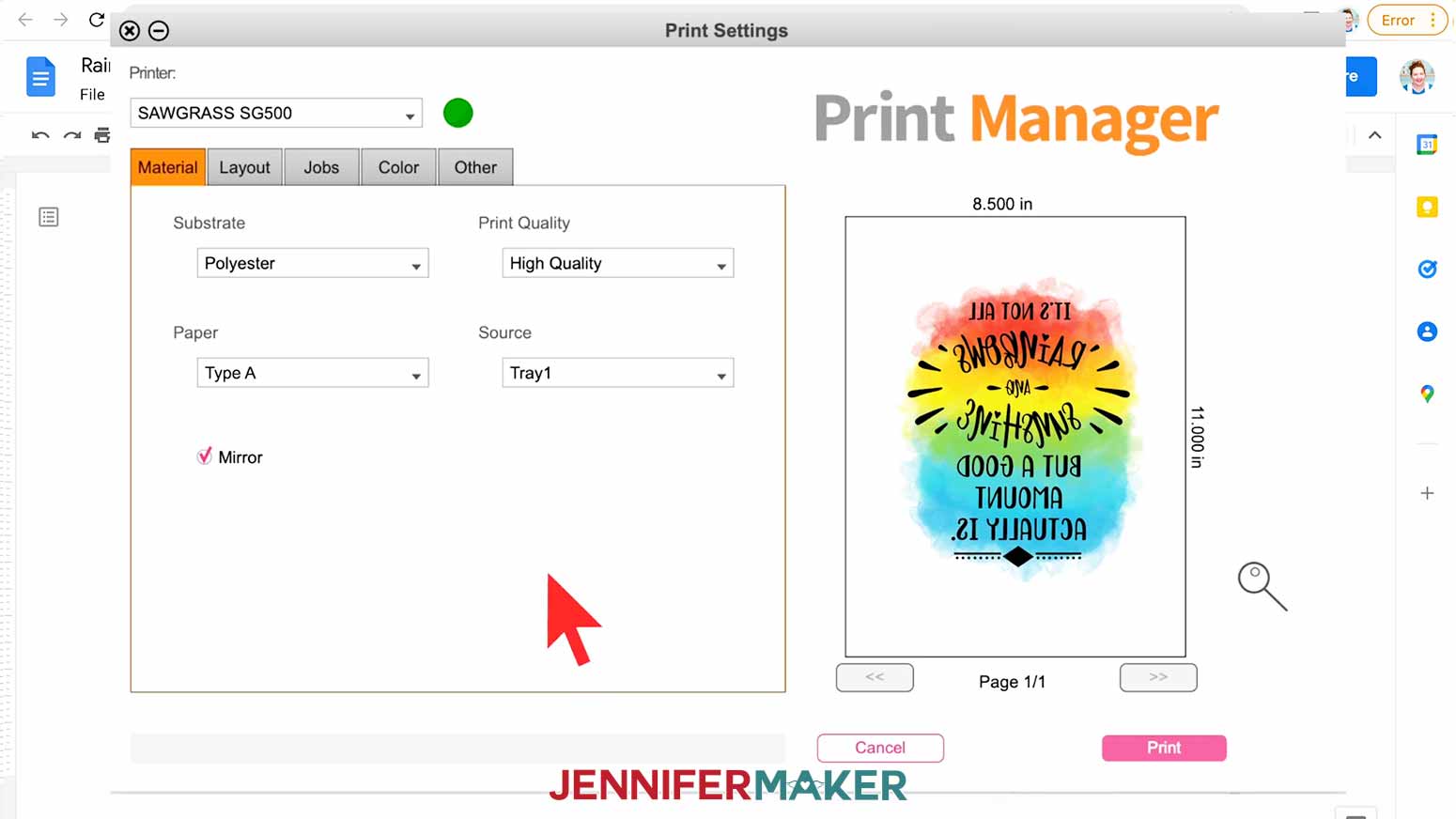
This is where the steps change. Select the PDF menu in the lower left corner and choose "Sawgrass Print Manager." If you’re having an issue finding this, look for your Print Options and select "Sawgrass Print Manager" as your printer. This is the only way to access the helpful ICC printer profiles that Sawgrass provides.
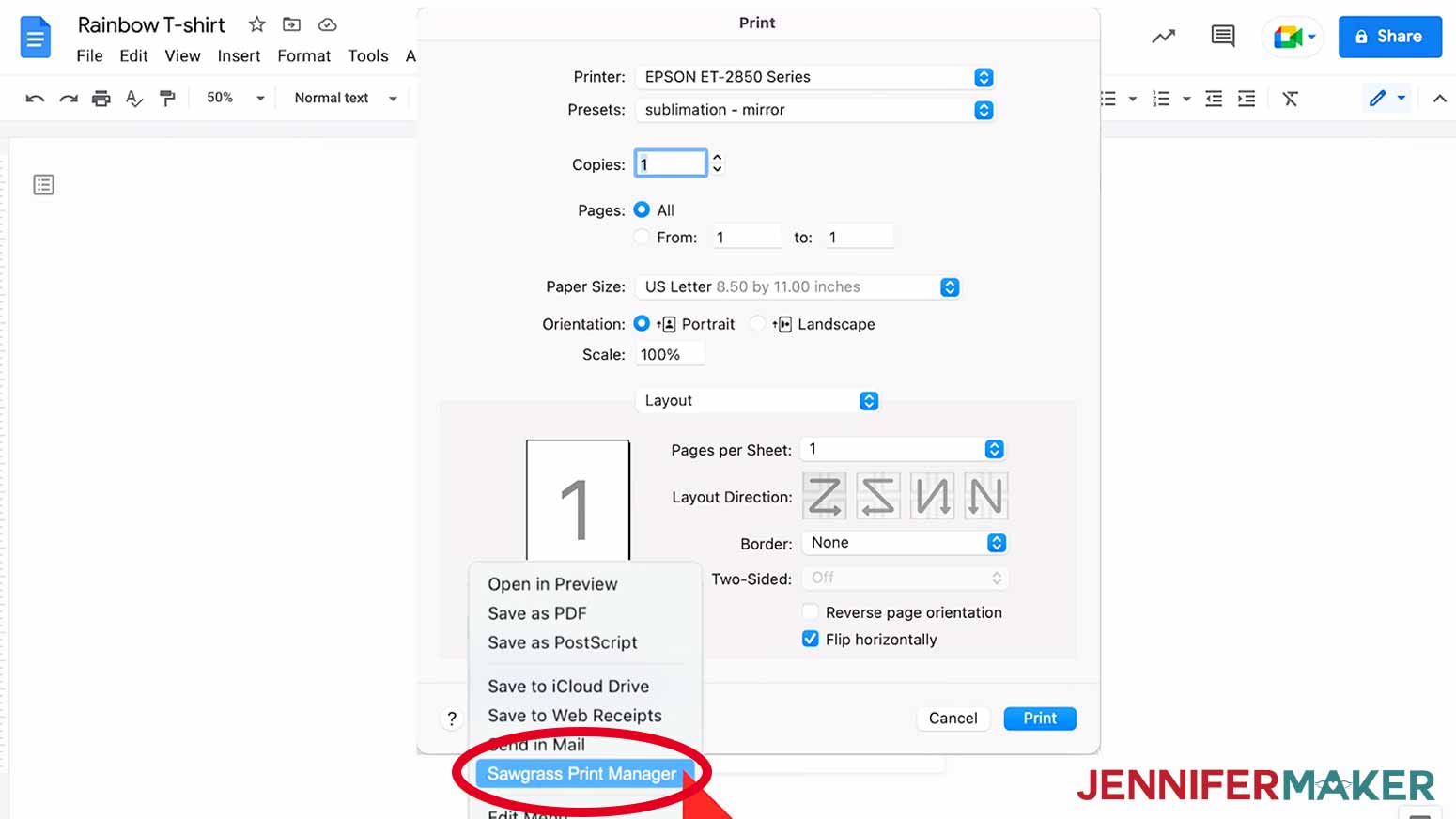
Your window might look different, but choose your settings that match your shirt. For mine, I’ll set the substrate – that means what we’re sublimating on to – to “Polyester” and paper to “Type A”. Again, I recommend High Quality over High Speed! Sawgrass automatically knows we want to mirror the design, so don’t uncheck that box by accident.
Then, look at the preview to the right and make sure your design looks correct. If not, hit "Cancel" and make any adjustments you need until you’re happy.
Finally, click the pink Print button and watch the magic happen!
STEP 2: PREPARE YOUR PRINT AND SHIRT FOR SUBLIMATION
Here's how my design looked printed on the Epson. The colors don't look like they did on the screen, but that will happen when we press it.
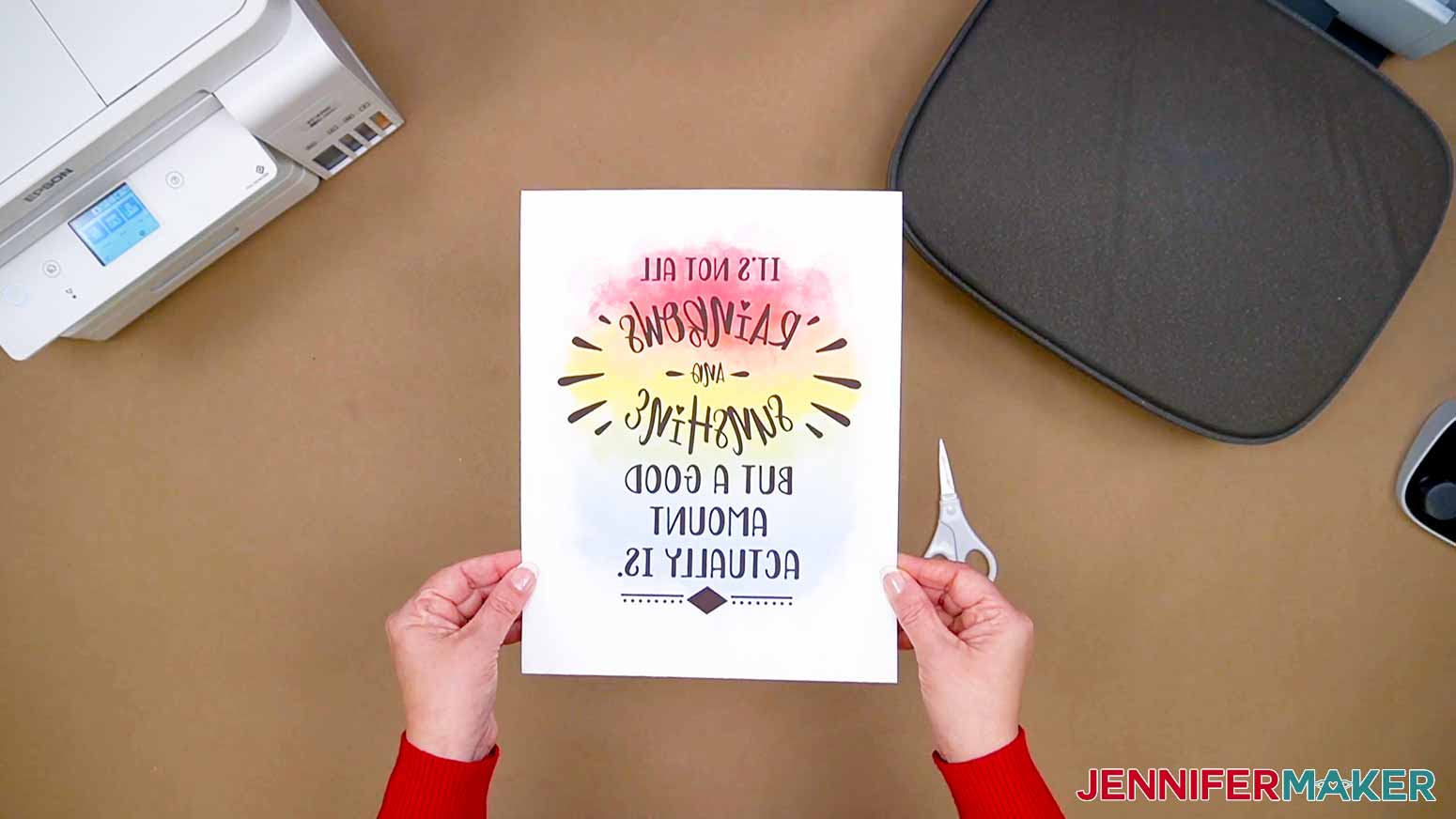
Trim the paper close to the design to avoid the lines at the edges transferring to your fabric. You can also gently tear the edges to smooth out the transition. Tearing also prevents any lines of sublimation ink that might have snuck onto the edge of your paper undetected.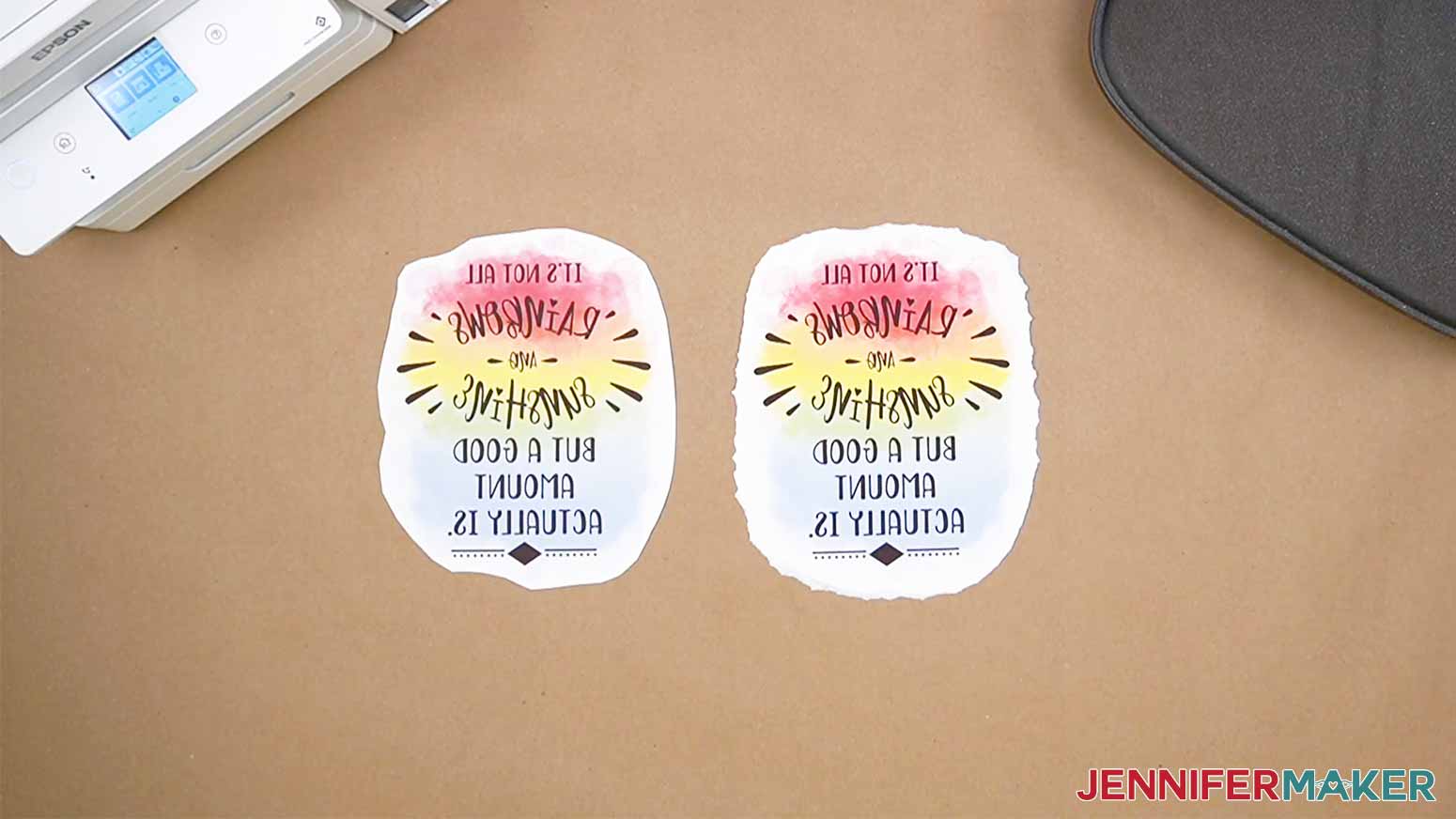
Now, set your heat press to a temperature between 385°F and 400°F which is 196°C to 204°C, to warm up. I’m using the Cricut AutoPress, and I find shirts work best at 400°F and with a time of 60 seconds.
You can also use a traditional heat press or a Cricut EasyPress! Do not use a household iron, however, as it will not get hot enough.
Since sublimation produces fumes, open your windows and turn on a fan to craft safely.
I'll show you how to press a design using a white 95% polyester shirt from Cricut. For this project, don’t use anything less than a 65% polyester shirt, or your ink will be faded and eventually mostly disappear in the wash.
You don't have to prewash your shirt if you don’t want to – my rule is I’ll pre-wash it if it’s for me or a family member, and I don’t pre-wash if I’m going to gift or sell it. Lint roll the shirt to remove any dust or hair, which can cause strange dots and marks to sublimate onto the surface.
We’ll add a vertical crease to help center the design.
Fold your shirt in half vertically and press it for 10 seconds along the crease. When you open it up, you have a center line! This also serves as the pre-heat, removing moisture and ensuring a good transfer. Pre-heating is important for a beautiful sublimation result!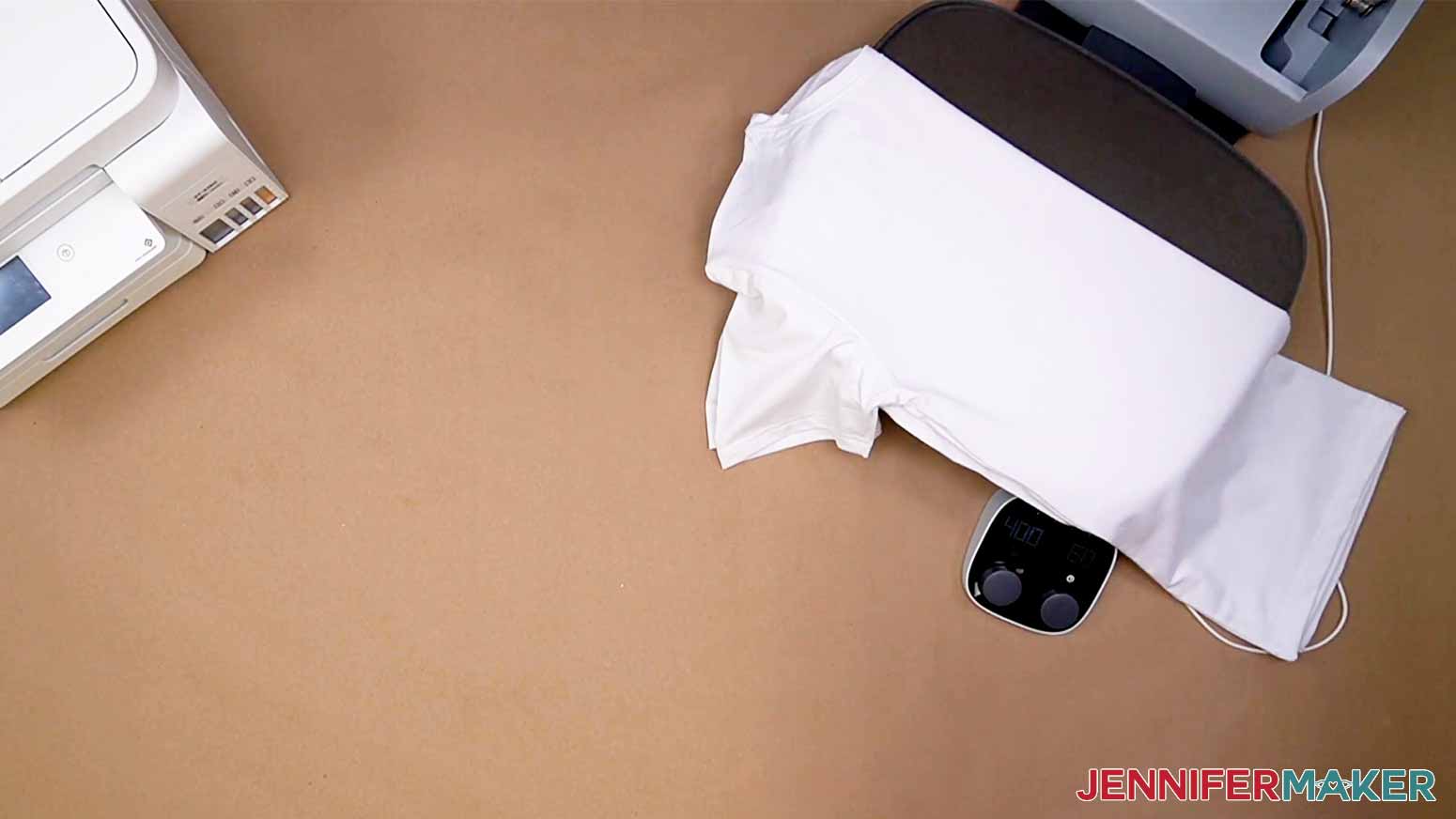
Unfold your shirt and lay it face up on the pressing area. Slide a piece of white cardstock inside the shirt under where your design will be. This will protect the back layer of your shirt and the pressing mat from any sublimation ink that may bleed through. 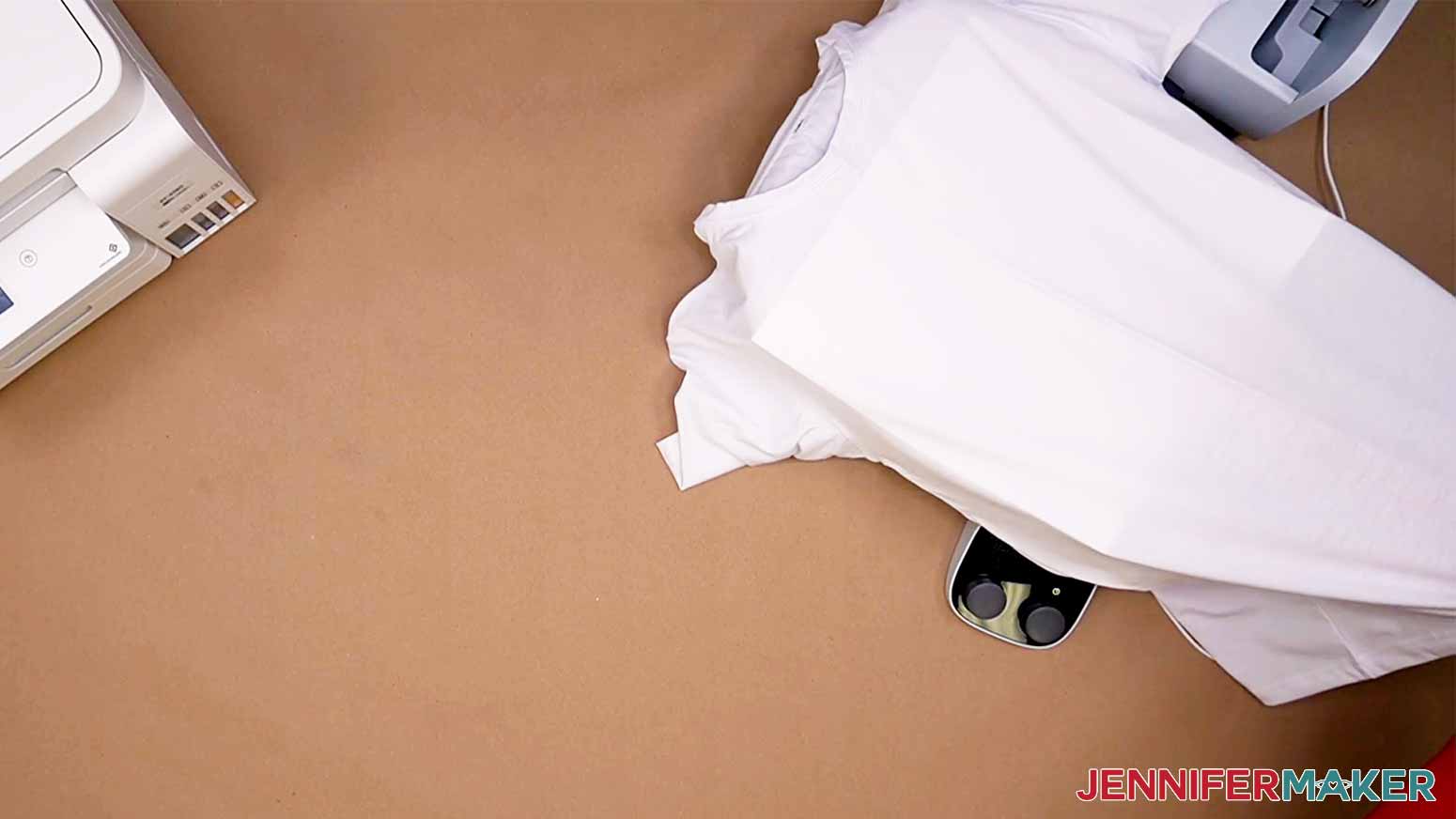
Gently fold your printed design the same way as the shirt, and crease it at the top and bottom of the paper. Don’t fold through any of the printed image!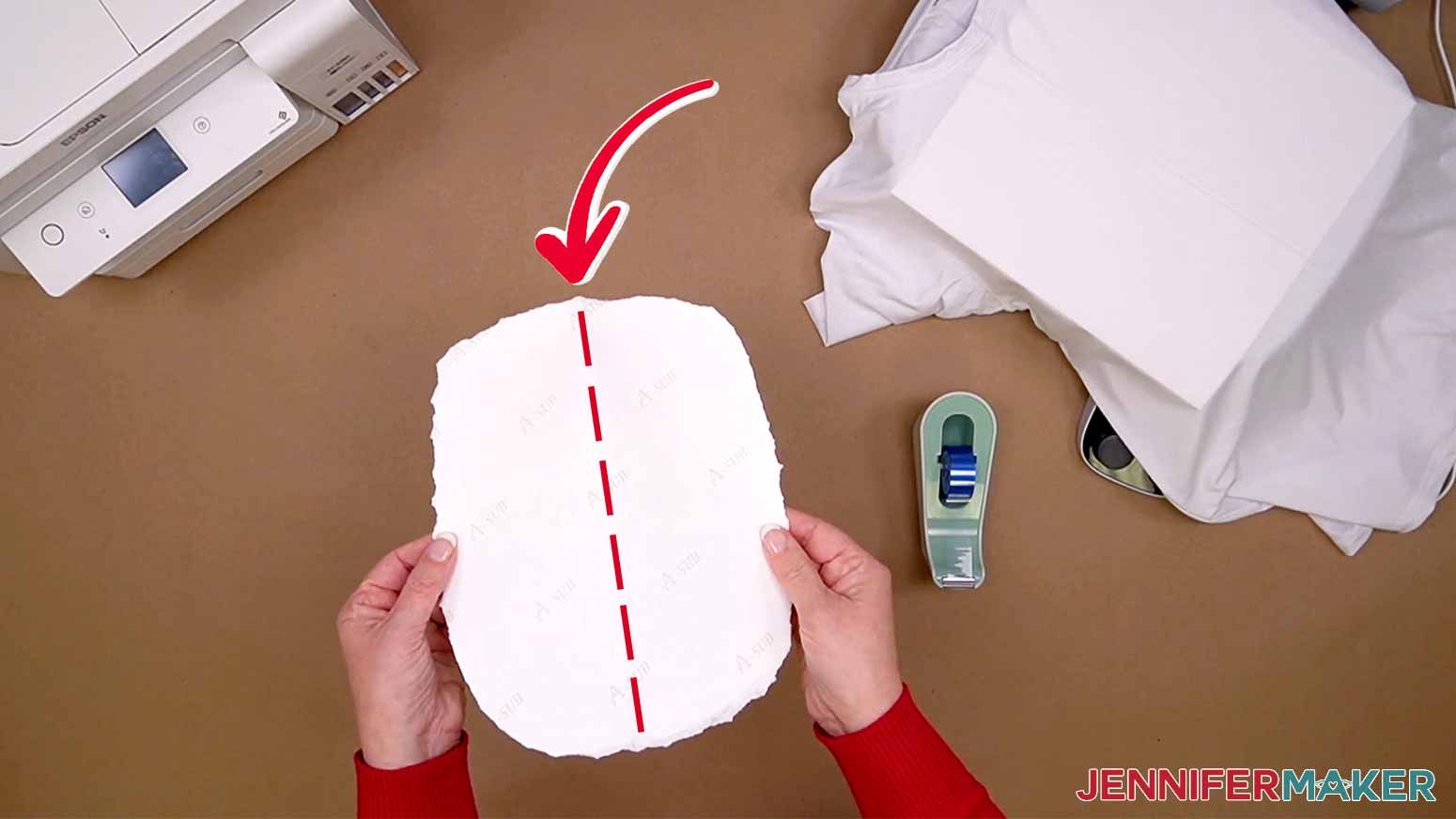
Since I’m making a crew t-shirt, the top of the design should start about 2" below the collar.
For a v-neck shirt, the top of the design should start about 1" below the collar.
Lightly place the design ink-side down on the pre-heated shirt, lining up the creases.
Secure the design with heat resistant tape on all four edges to keep it in place and prevent ghosting or fuzzy images. Do not skip over this step!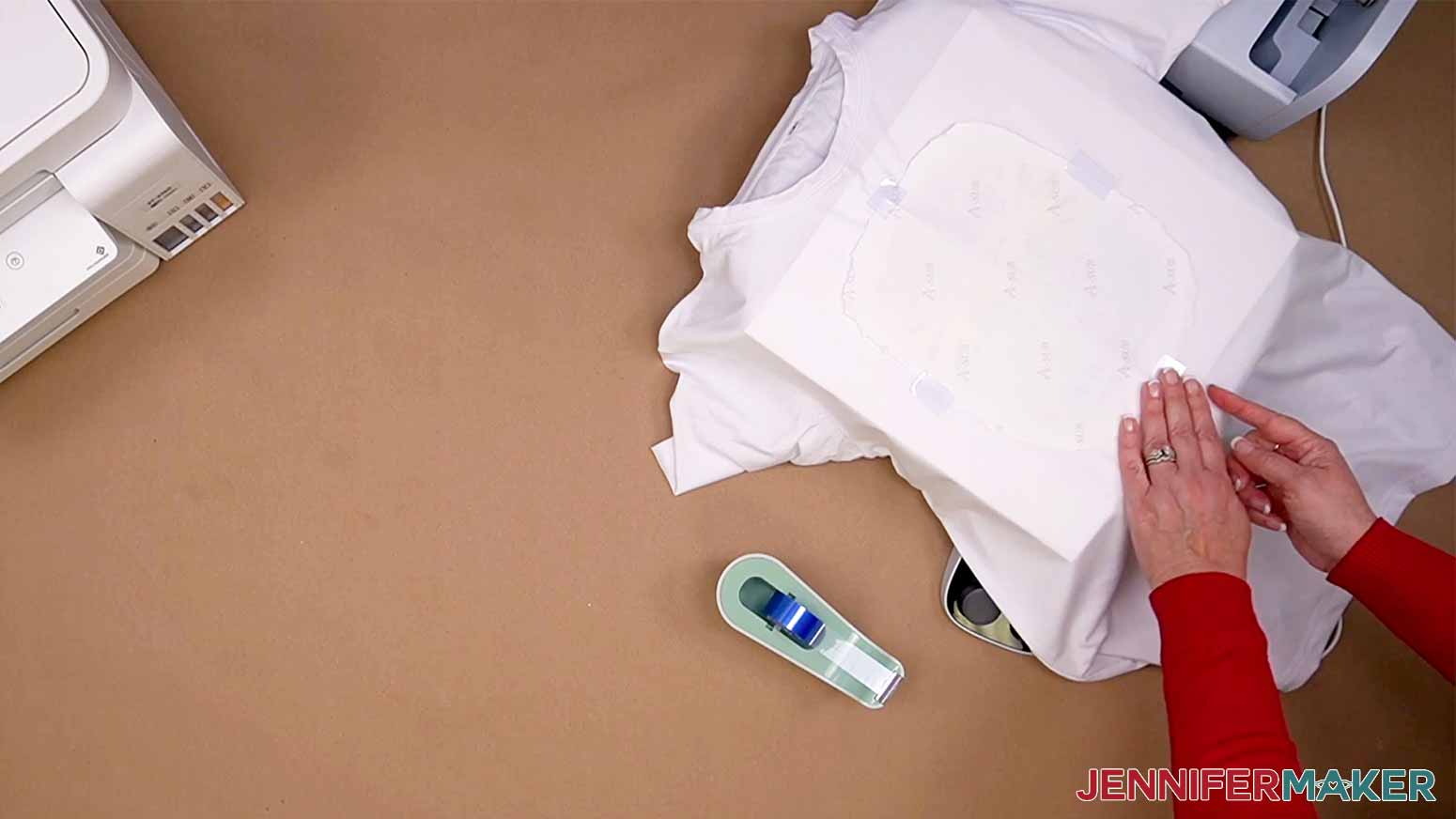
Place a piece of white uncoated butcher paper larger than your heat plate on top of the t-shirt. Do not use parchment paper, wax paper, freezer paper, or teflon paper as these will trap moisture and can produce fuzzy transfers. I also recommend you avoid colored butcher papers, as sometimes they are dyed and the color can transfer to your shirt.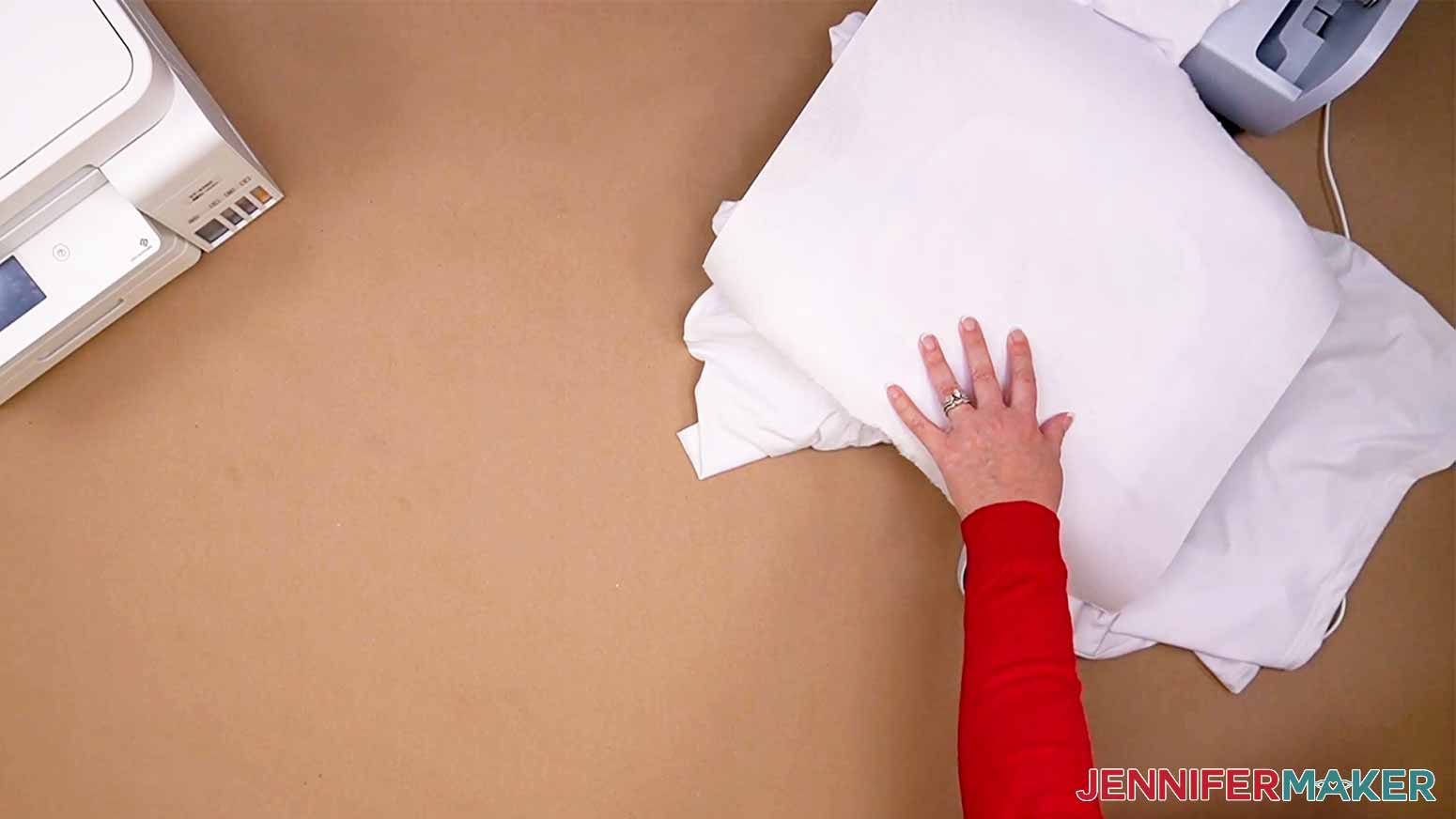
STEP 3: PRESS YOUR SUBLIMATION PRINT
Once your heat source reaches the right temperature, you’re ready to go!
If you’re using the Cricut Autopress as I am, the pressure is set for you automatically. If you’re using an EasyPress, you want light pressure, so press lightly with one hand. If you’re using a traditional heat press, you want light to medium pressure, about 40 PSI.
To avoid ghosting, press down as straight as possible and don't move the heat source.
Press your shirt for 45 to 60 seconds. If you’re not sure which to do, start with forty five seconds. Some experimentation is normal if you’re using a different shirt or press. If your transfer looks dull or washed out, that means you should press for longer. If your transfer has a brown or yellow hue, you pressed it too long.
If you’re using the Autopress, it will automatically open when its done. If you’re using the EasyPress, lift it up straight from your shirt. The pressing area and materials will still be hot, so be careful. You can remove the butcher paper but leave the t-shirt in place to cool down. The sublimation process is still taking place for 10-15 seconds, so moving the t-shirt immediately could make the image blurry.
When you are confident that your shirt has cooled down, remove the tape and paper. Step back and enjoy your gorgeous, full color sublimated t-shirt!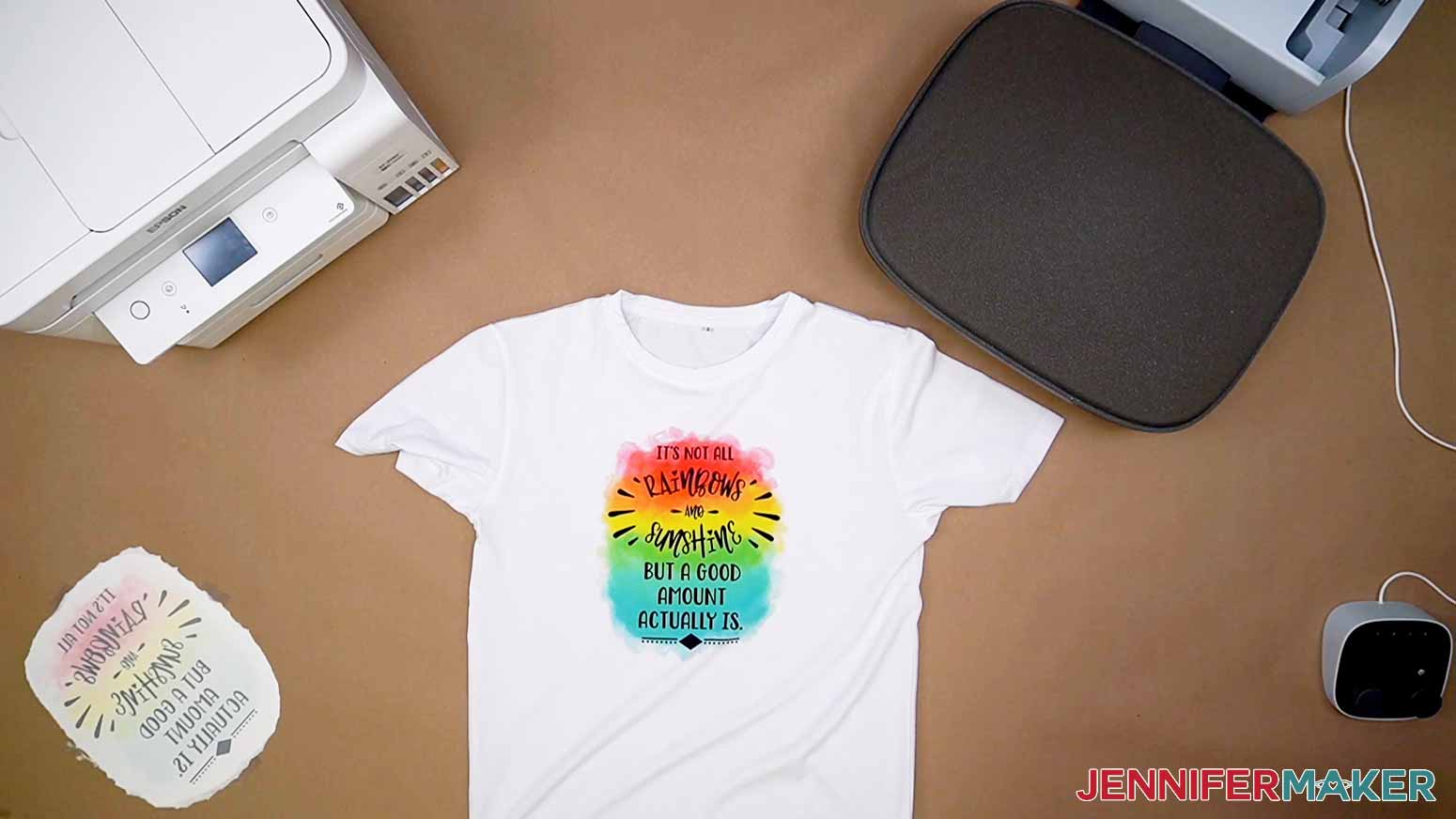
STEP 4: SHOW IT OFF!
With the right care, your shirt will last a long time! Here are a few tips for keeping it look its best:
- Turn your shirts inside out before washing them. That way, the front of the shirt won’t rub against other things in the machine.
- Use cold or warm water and a mild detergent to keep the design vibrant.
- If you’re using white shirts like these, don’t wash them with lots of other colors. Especially new items which can bleed excess dye.
- Take your sublimated shirts out of the wash right when they’re done. You don’t want them sitting crumpled up and wet.
- Then you'll want to AIR dry them, which you do either on a hanger or in a dryer set to air dry or low heat.
- The key is not to expose your sublimation shirts to super high heat again, as the ink might sublimate out. That said, your washer and dryer probably don't get up to 350°F to reactivate the sublimation ink, so you should be just fine.
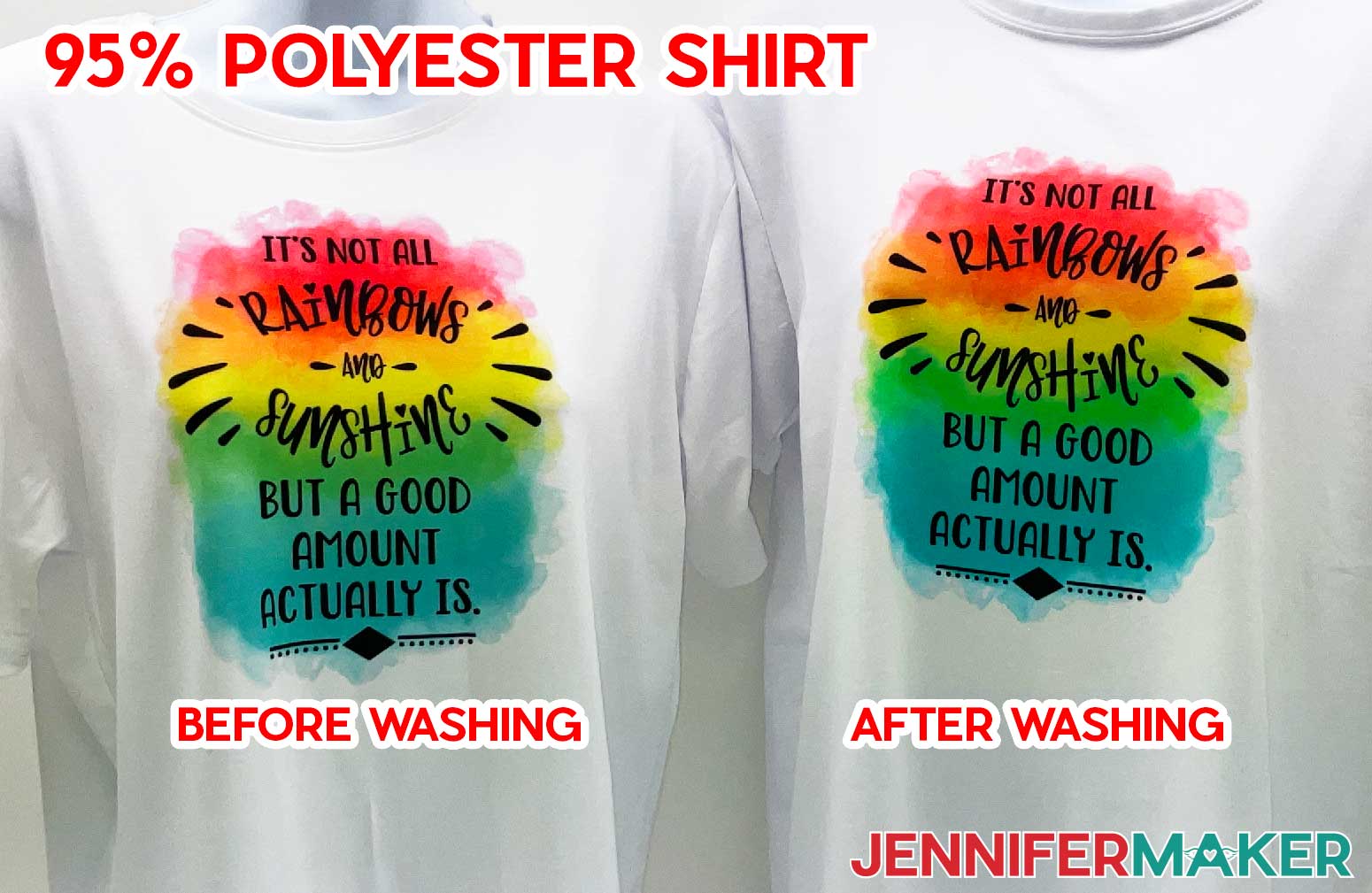
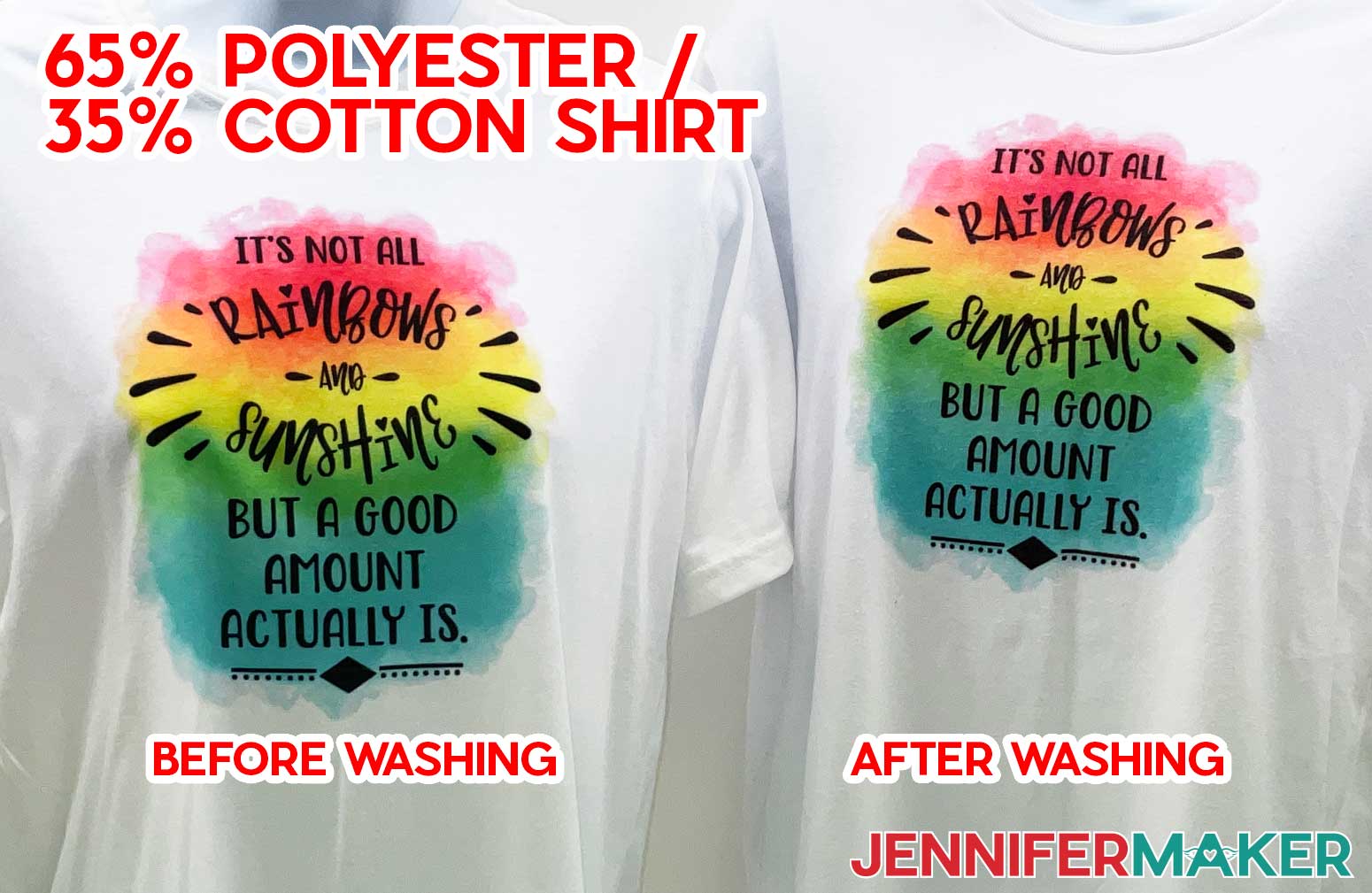
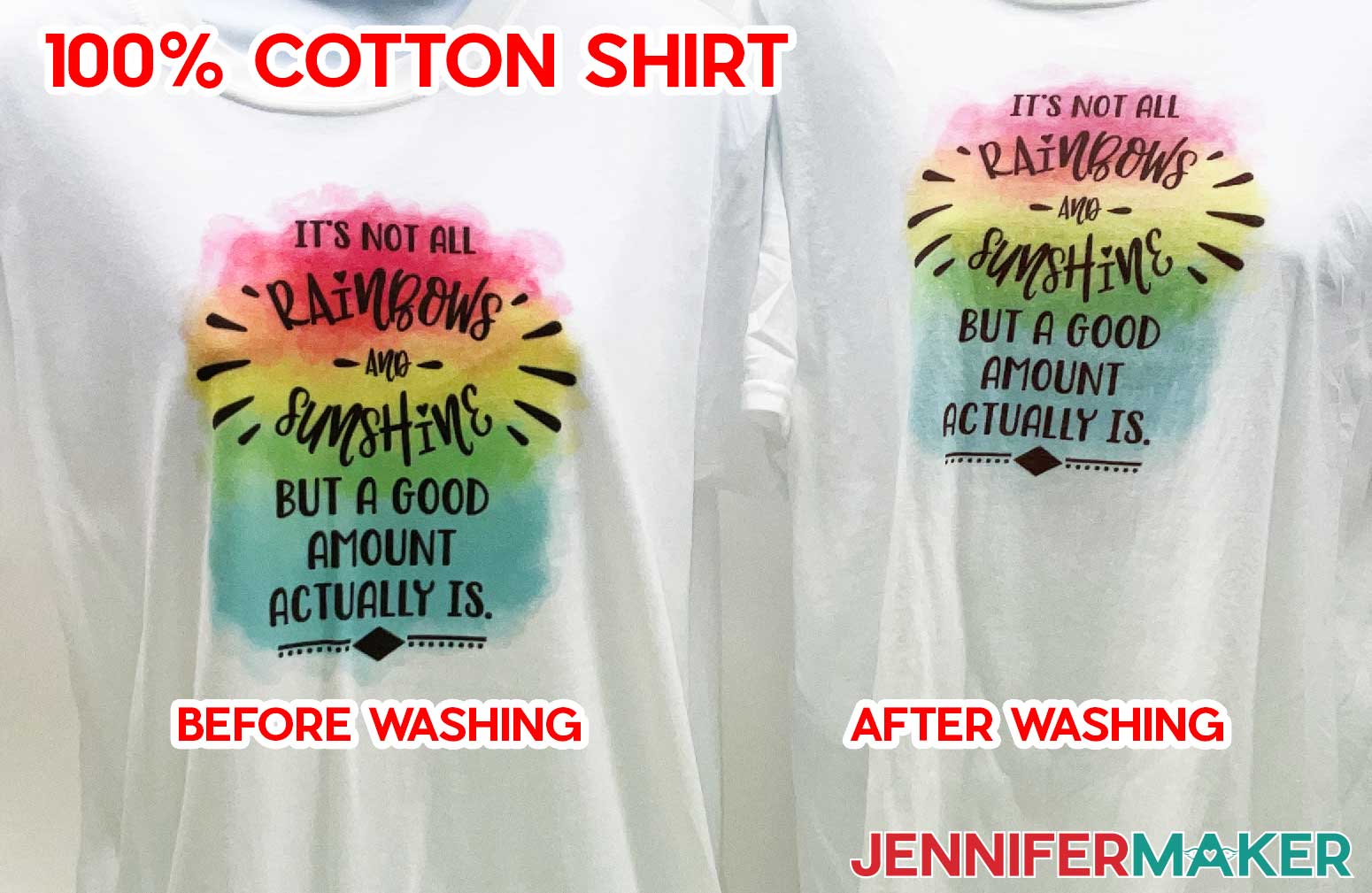
Here are the results of my wash tests! The main takeaway was that the higher the polyester content, the brighter the designs stayed after washing.
Recommended Products
As an Amazon Associate and member of other affiliate programs, I earn from qualifying purchases.
Answers to Your Questions About Sublimating Summer Shirts
Q: What type of shirt is best for sublimation?
A: Polyester shirts are the best for sublimation, but you can use blends that are at least 65% polyester with good results. Most standard apparel is 100% cotton or a fiber blend, so be sure to check the tags on your blank T-shirts before sublimating them. The color of the shirt matters, too. White shirts let the proper color of your design pop, but you can get good results from off-white and other light colored shirts as well.
Q: What happens if you sublimate on 100% cotton?
A: If the sublimation ink doesn’t have a polymer to bond to, the ink will simply wash out. A 100% cotton garment WILL sublimate, but it won’t be able to be washed without the image washing out.
Q: Can you show me how to create designs for sublimation?
A: I used an AI image generator and Photoshop to create the summer sublimation shirts designs in the digital download file for this project. To learn how to create your own AI images for sublimation projects, check out my AI Art Design Workshop. Be sure to print at a high quality resolution on high quality paper for best results. High quality print settings and materials make a huge difference!
Q: Can you sublimate on black shirts?
A: Not technically, but I found a workaround using sublimation heat-transfer vinyl! Learn how I did it in my Sublimating Dark Shirts tutorial.
Q: How long do you press sublimation shirts? Can you heat sublimation too long?
A: Press your shirt for 45 to 60 seconds. If you’re not sure which to do, start with forty five seconds. Some experimentation is normal if you’re using a different shirt or press. If your transfer looks dull or washed out, that means you should press for longer. If your transfer has a brown or yellow hue, you pressed it too long. For more information on pressing times, temperatures, and application instructions for tons of sublimation projects, check out my Sublimation Cookbook.
Q: What are the fonts that you used?
A: I used the Andala and Hippie Chick typefaces in this design collection.
Q: Are your free SVGs just for personal use or also commercial use?
A: First thing, I’m honored that you’d ask! Yes, you can sell completed projects using these designs (with limitations) along with other designs in my free library — please read about licenses here so you know what you can and cannot do, and how you can qualify for a commercial license. If you do sell projects using designs from JenniferMaker, please share photos with us! We love to see them.
Q: What is ghosting in sublimation?
A: Ghosting is when the sublimation print is moved while it’s still sublimating onto the blank. If a project is moved, knocked, or bumped while the sublimation paper is still warm and pressed up against the bank, a smeared or smudged-looking double image effect may occur. Unless directed otherwise, always leave your sublimation paper and project to cool before the print is removed.
Q: How many times can you reuse sublimation transfer?
A: Sublimation paper is only meant for single prints, so for best results only use your sublimation transfer once. While it may appear that there is still ink on your sublimation print, there is not enough left to produce a good quality image — for the best high quality designs, use a fresh printed sublimation image for each transfer.
Q: Why does my sublimation fade after one wash?
A: If your sublimation is fading after one wash, you likely chose a fabric that doesn’t have a high polyester content. Make sure your shirt is at least 65% polyester or your sublimated image will wash out.
Q: Do you have any other t-shirt projects I can make?
A: Yes! The easiest way to find them is to search “shirt” on my blog, or you can browse shirt projects in my resource library to find lots of shirt projects for all skill levels. Get the password by filling out the form at the bottom of this post.
Q: What kinds of things can you sublimate besides shirts?
A: You can sublimate a huge number of things! Shirts, socks, tumblers, special glasses, mugs, pens, garden flags, holiday ornaments, and tons more. There are so many great products for sublimation hitting the market every day! There are so many options out there for custom hand-made products for gifting or selling.
Just a reminder: If you’re new to sublimation, it’s important to know that flat items can be sublimated with a heat press, but for three-dimensional blanks, you’ll need a dedicated sublimation convection oven, or (depending on your project and budget) a specialty press like a mug or tumbler press. Be sure to read the materials list for each sublimation project you try … before you try it!
Get my free PNG files to create summer sublimation shirts!
(If you do not see the signup form above, click here.)
I love seeing what you make with my designs and how you use them! Please share a photo of your summer sublimation shirts or another method in our Facebook group or tag me on social media with #jennifermaker.
Love,

Want to remember this? Save this Summer Sublimation Shirts tutorial to your favorite Pinterest Board!