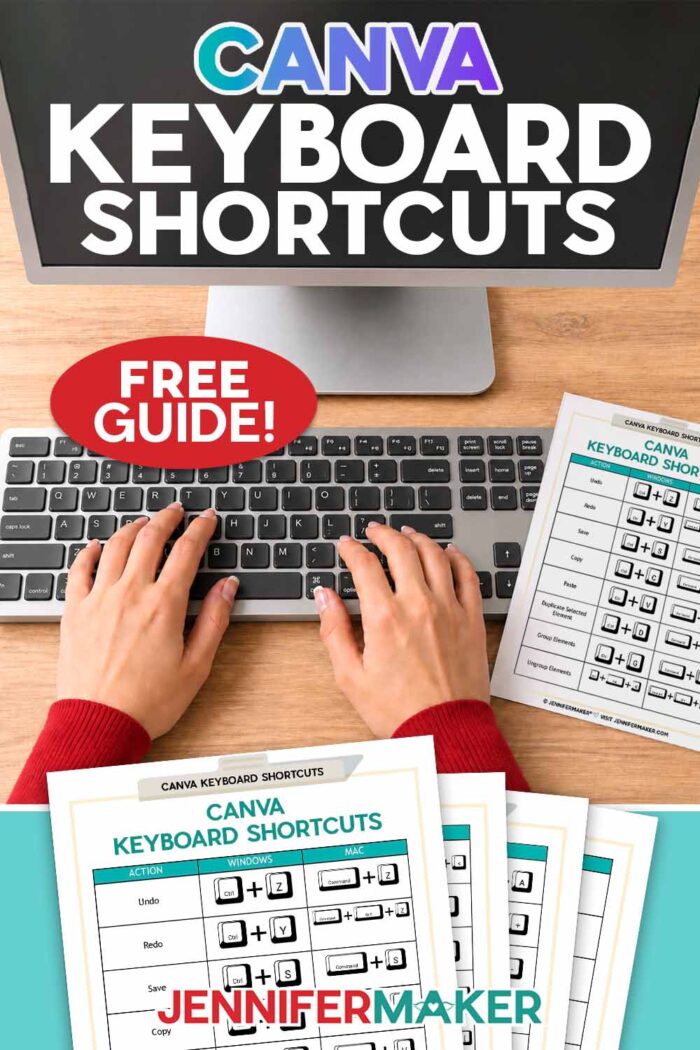
Learn the best Canva keyboard shortcuts to design faster, click less, and make your Canva projects so much easier!
I love a good Canva trick, especially when it keeps me from hunting through menus over and over again. That’s why I made this free printable Canva keyboard shortcuts cheat sheet, so you can keep the best shortcuts for Mac and Windows beside your computer while you design.
Because believe me, I know what it’s like when you’re trying to finish a sticker sheet, birthday card, or sublimation design, and one little menu option slows you down. The last thing you want is to lose your creative flow when you’re this close to finishing something fun.
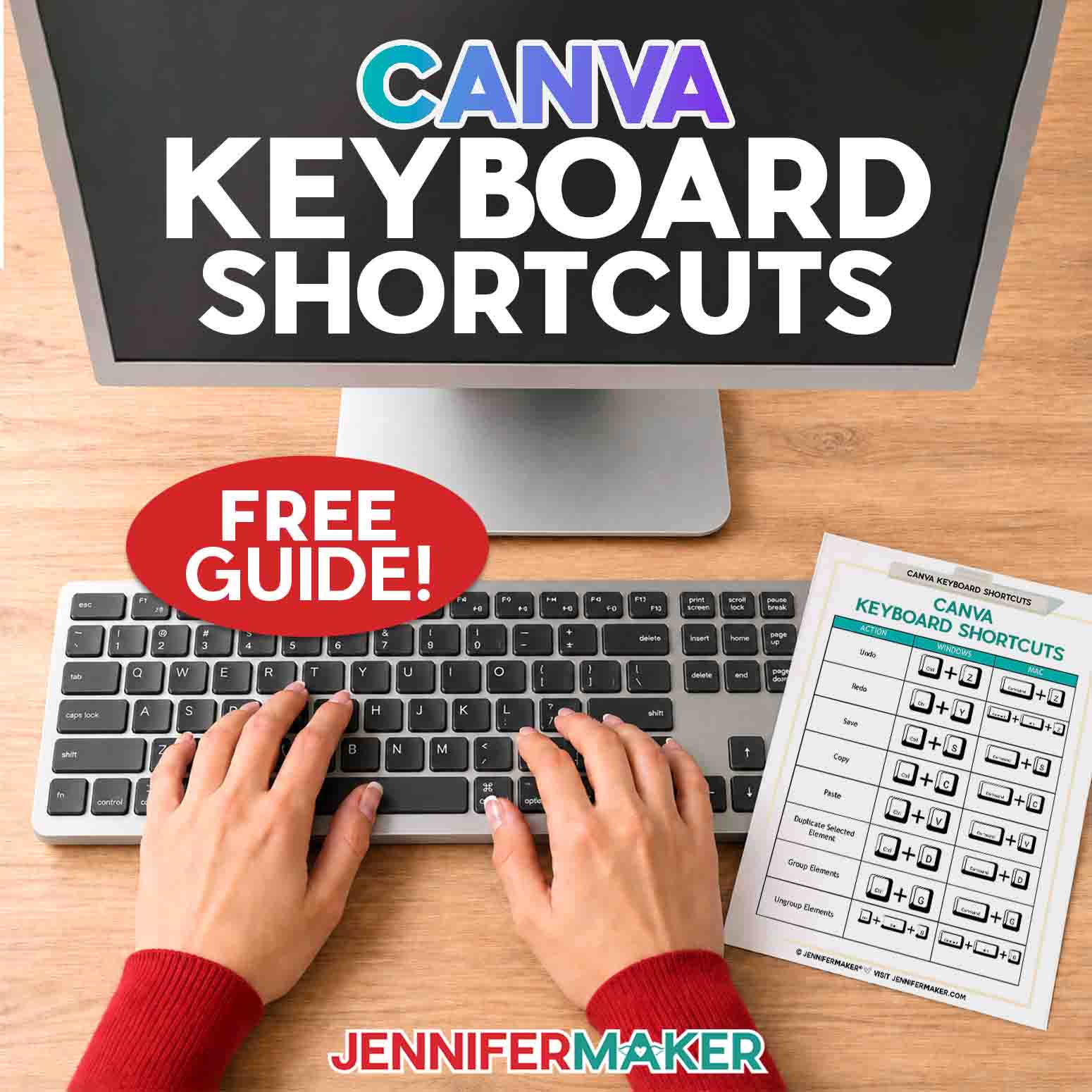
Canva keyboard shortcuts are simple key combinations that help you copy, paste, duplicate, group, zoom, add text, and find tools faster. You don’t need to be a professional designer to use these time-savers, and you definitely don’t need to memorize them all at once.
In this beginner-friendly guide, I’ll show you my favorite Canva keyboard shortcuts for Mac and Windows, how to use them, which ones to learn first, and what to do if a shortcut doesn’t work.
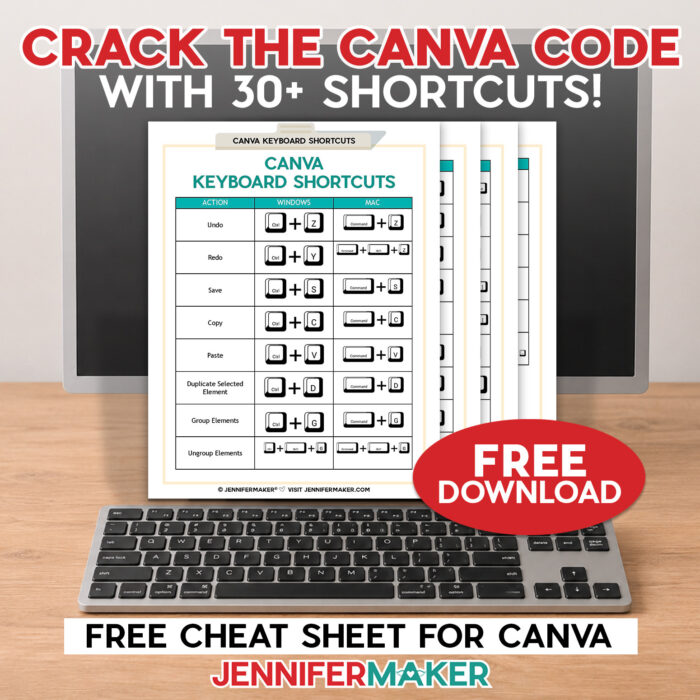
Ready to start learning Canva keyboard shortcuts? This beginner guide will introduce you to all the best shortcuts to make designing with Canva quick and easy so you can spend more time crafting! This post contains some affiliate links for your convenience, which means if you make a purchase after clicking a link I may earn a small commission, but it won’t cost you a penny more! Read my full disclosure policy.
Quick Answer: What Are the Most Useful Canva Keyboard Shortcuts?
The most useful Canva keyboard shortcuts are:
| Action | Mac Shortcut | Windows Shortcut |
|---|---|---|
| Copy | Command + C | Ctrl + C |
| Paste | Command + V | Ctrl + V |
| Duplicate | Command + D | Ctrl + D |
| Undo | Command + Z | Ctrl + Z |
| Add text box | T | T |
| Group elements | Command + G | Ctrl + G |
| Zoom in | Command + + | Ctrl + + |
| Zoom out | Command + – | Ctrl + – |
Don’t let this list of shortcuts scare you! Think of it like a little menu of helpful tricks, not a test you have to pass. If you only learn five shortcuts today, learn
- T for text
- Command/Ctrl + C to copy
- Command/Ctrl + V to paste
- Command/Ctrl + Z to undo
- Command/Ctrl + G to group
These five alone can save you a lot of time and make Canva feel much faster. And when you’re ready to move on, download my cheat sheet for even more helpful Canva keyboard shortcuts!
What Are Canva Keyboard Shortcuts?
Canva is an amazing graphic design tool with tons of functionality! But sometimes the action you need is nested three menus deep. Canva keyboard shortcuts are keys you press on your keyboard to perform common Canva actions faster. You can use shortcuts to add text, copy and paste elements, group items together, move layers forward or backward, zoom in and out, add comments to complex designs, and much more.
Canva has shortcuts for both Windows and Mac users to help make the design process as smooth as possible. The shortcut is usually the same idea on both systems, but the main key changes:
- On a Mac, you’ll usually use the Command key.
- On a Windows computer, you’ll usually use the Ctrl key.
So when you see Command/Ctrl + C, that means:
- Mac: Command + C
- Windows: Ctrl + C
Easy, right?
Mac vs. Windows Canva Keyboard Shortcuts
Before we jump into the list, let’s make sure you know which keys we’re talking about.
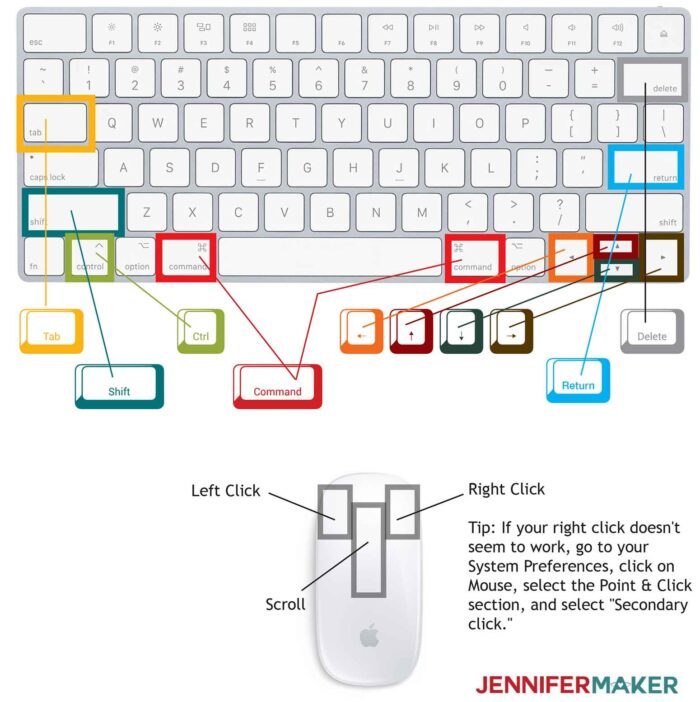
On a Mac, the most important shortcut keys are:
- Command
- Control
- Shift
- Return
- Delete
- Tab
- Arrow keys
On a Windows keyboard, the most important shortcut keys are:
- Ctrl
- Alt
- Shift
- Enter
- Backspace or Delete
- Tab
- Arrow keys
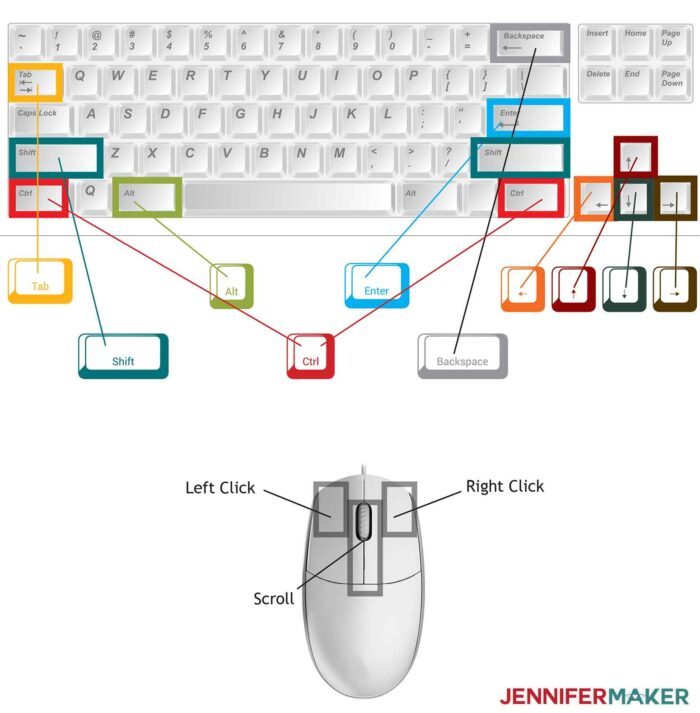
If your keyboard looks a little different, that’s okay. Laptop keyboards, compact keyboards, and wireless keyboards can all place keys in slightly different spots.
The shortcut should still work as long as your cursor is in the right place in Canva and the element you want to change is selected.
What Are the Best Canva Keyboard Shortcuts for Beginners?
If you are new to Canva, don’t start with a giant list. That gets overwhelming fast.
Start with these beginner-friendly Canva shortcuts first:
| Action | Mac Shortcut | Windows Shortcut | Why It Helps |
|---|---|---|---|
| Copy | Command + C | Ctrl + C | Copies selected items |
| Paste | Command + V | Ctrl + V | Pastes copied items |
| Duplicate | Command + D | Ctrl + D | akes a copy without copy/paste |
| Undo | Command + Z | Ctrl + Z | Fixes mistakes fast |
| Select multiple | Shift + Click | Shift + Click | Selects more than one element |
| Group | Command + G | Control + G | Keeps several items together |
Once those feel natural, learn a few more. My cheat sheet has loads more to point you in the right direction!
You don’t need to become a shortcut expert overnight. Just add one or two to your normal design routine, and with a little practice, your hands will remember them for you.
What Are the Basic Canva Keyboard Shortcuts?
These are the everyday Canva shortcuts you’ll probably use the most.
| Action | Mac Shortcut | Windows Shortcut |
|---|---|---|
| Copy | Command + C | Ctrl + C |
| Paste | Command + V | Ctrl + V |
| Duplicate | Command + D | Ctrl + D |
| Undo | Command + Z | Ctrl + Z |
| Redo | Command + Shift+ Z | Control + Shift + Z |
| Select All | Command + A | Ctrl + A |
| Deselect | Esc | Esc |
| Delete selected element | Delete | Delete or Backspace |
| Save | Canva autosaves | Canva autosaves |
My favorite basic shortcut: Duplicate
If you make a label, sticker, planner page, gift tag, or any design with repeated elements, duplicate is one of the biggest time-savers.
Select your element, press Command + D on Mac or Ctrl + D on Windows, and Canva makes a copy right away.
This is faster than copy and paste, and it is especially helpful when you want to create a row of matching shapes, duplicate a text box, or build a repeating pattern.
Canva Text Shortcuts
Text shortcuts are wonderful when you are designing quotes, labels, cards, worksheets, sublimation designs, social graphics, or anything with names and words.
This is where Canva starts to feel personal. A plain design becomes Grandma’s recipe card, a teacher gift tag, a birthday shirt, or a quote you actually want to hang on your wall.
| Action | Mac Shortcut | Windows Shortcut |
|---|---|---|
| Add a text box | T | T |
| Bold text | Command + B | Ctrl + B |
| Italicize text | Command + I | Ctrl + I |
| Underline text | Command + U | Ctrl + U |
| Increase font size | Command + Shift + > | Control + Shift + > |
| Decrease font size | Command + Shift + < | Control + Shift + < |
| Uppercase text | Command + Shift + K | Control + Shift + K |
| Align text left | Command + Shift + L | Control + Shift + L |
| Align text center | Command + Shift + C | Control + Shift + C |
| Align text right | Command + Shift + R | Control + Shift + R |
| Copy text style | Command + Option + C | Control + Alt + C |
| Paste text style | Command + Option + V | Control + Alt + V |
How to add text fast in Canva
Click on your Canva design, then press T.
That’s it!
A text box appears on your page, and you can start typing. This is one of the easiest Canva shortcuts to remember because T stands for text.
How to copy and paste text style in Canva
Copying text style is one of those shortcuts that feels like a secret weapon.
Let’s say you have one text box that already has the font, size, color, spacing, and effect you want. Instead of recreating that style by hand:
- Select the text box with the style you like.
- Press Command + Option + C on Mac or Ctrl + Alt + C on Windows.
- Select the text you want to change.
- Press Command + Option + V on Mac or Ctrl + Alt + V on Windows.
Now your second text box matches the first one.
This is so helpful when you’re making a custom journal, a set of printables, a recipe book, or anything with multiple text sections.
Canva Element Shortcuts
Elements are the graphics, shapes, photos, frames, icons, lines, and other pieces you add to your Canva design.
These shortcuts help you add, arrange, and group them faster.
| Action | Mac Shortcut | Windows Shortcut |
|---|---|---|
| Add a line | L | L |
| Add a rectangle | R | R |
| Add a circle | C | C |
| Group selected items | Command + G | Ctrl + G |
| Ungroup selected items | Command + Shift + G | Ctrl + Shift + G |
| Move element forward | Command + ] | Control + ] |
| Move element backward | Command + [ | Control + [ |
| Send element to front | Command + Option + ] | Control + Alt + ] |
| Send element to back | Command + Option + [ | Control + Alt + [ |
| Select multiple elements | Shift + click | Shift + click |
| Select next element | Tab | Tab |
| Select previous element | Shift + Tab | Shift + Tab |
| Keep proportions while resizing | Shift + drag corner | Shift + drag corner |
How to group elements in Canva
Grouping is perfect when you have several pieces that belong together.
For example, you might have a gift tag with a background shape, a name, a small icon, and a decorative line. Once everything is lined up just right, select those pieces and press Command + G on Mac or Ctrl + G on Windows.
Now they move as one group.
This keeps your design from shifting around by accident, which is especially helpful when you are arranging sticker sheets, labels, printable cards, sublimation designs, or classroom printables.
How to ungroup elements in Canva
Need to edit one piece again? Select the group and press Command + Shift + G on Mac or Ctrl + Shift + G on Windows.
Now you can move or edit the individual pieces.
Canva Page Shortcuts
If you are making a multi-page Canva project, these shortcuts can save a lot of clicking.
| Action | Mac Shortcut | Windows Shortcut |
|---|---|---|
| Add a new page | Command + Return | Control + Enter |
| Delete empty page | Command + Delete | Control + Delete |
| Navigate between pages | Arrow keys or page controls | Arrow keys or page controls |
These are especially useful for:
- Photo books
- Journals
- T-Shirt designs
- Sublimation designs with two sides
- Branded social media graphics
When you are designing a set, duplicate pages and page shortcuts can help keep your layout consistent from one page to the next.
Canva Comment and Collaboration Shortcuts
If you work with a team, comments can be really helpful for communicating ideas.
Select the part of the design you want to comment on, then use the shortcut to add a note. On a Mac, it’s Command + Option + M to comment. On Windows, it’s Control + Alt + M to comment
This is useful if you want to mark something or add an instruction.
Even if you’re working by yourself, comments can be a handy way to leave notes for later.
Canva Quick Actions Shortcut
One of the best modern Canva shortcuts is the Quick Actions shortcut.
Press / on your keyboard inside Canva to open Quick Actions. Then type what you want to find or do.
For example, you can press / and search for things like:
- Line
- Circle
- Custom Shapes
- Uploads
- Text
- Share
- Download
- Projects
- Photo Editor
This is helpful when you know what you want but don’t want to spend too much time clicking through menus to find it.
Think of Quick Actions like a little search bar for Canva tools.
Why Canva Keyboard Shortcuts May Not Work
If a Canva shortcut is not working, don’t worry. It usually means something simple is getting in the way.
Here are the most common reasons.
1. The wrong part of Canva is selected
Some shortcuts only work when you have an element selected. Others work when your cursor is inside a text box.
For example, if you are typing inside a text box, pressing T will type the letter T instead of adding a new text box.
Click outside the text box first, then try the shortcut again.
2. Mac and Windows use different keys
Mac usually uses Command, while Windows usually uses Ctrl.
So if a shortcut says Command/Ctrl + D, use Command on Mac and Ctrl on Windows.
3. Your browser is using the shortcut
If you use Canva in a web browser, some shortcuts may overlap with browser shortcuts.
For example, your browser may use certain key combinations for tabs, zoom, bookmarks, or search.
If something seems off, try Canva in a different browser or try the Canva desktop app.
4. Your keyboard is different
Compact keyboards, laptop keyboards, and international keyboards may have slightly different layouts.
Some keys may require holding Fn, and some punctuation keys may be in a different place.
5. Canva has updated something
Canva changes over time, and shortcuts can shift as Canva adds new features.
If a shortcut doesn’t match what you see, check Canva’s current keyboard shortcut help page or test the shortcut on a blank design.
6. Your cursor is still in a text field
This one is sneaky, and it catches almost everyone at some point.
If your cursor is blinking inside a text box, Canva thinks you are typing. Press Esc or click outside the text box, then try your shortcut again.
7. An element is locked
If an element is locked, you may not be able to move, delete, resize, or edit it the way you expect.
Unlock the element first, then try again.
What Are the Best Canva Shortcuts for Crafters?
This is where the shortcuts really start to pay off. Once you’re using Canva for stickers, cards, sublimation designs, labels, and gift tags, the same little shortcuts show up again and again. Learn them once, and they’ll help you in so many different projects.
For printable stickers, use:
- Command/Ctrl + D to duplicate stickers
- Shift + Click to select multiple stickers
- Command/Ctrl + G to group sticker elements
- Arrow keys to nudge designs into place
- Command/Ctrl + + to zoom in for spacing
For sublimation designs, use:
- T to add text
- Command/Ctrl + Option/Alt + V to paste text style
- Command/Ctrl + + to keep design elements together
- Command/Ctrl + [ or ] to adjust layers
- Command/Ctrl + 0 to check the full design
For cards and invitations, use:
- T to add text quickly
- Command/Ctrl + D to duplicate decorative elements
- Command/Ctrl + Shift + C to center text
- Command/Ctrl + Option/Alt + C to copy text style
- Command/Ctrl + Z to undo a change
For labels and gift tags, use:
- R to add rectangles
- C to add circles
- Command/Ctrl + D to duplicate tags
- Command/Ctrl + G to group each finished label
- Shift + Drag to resize without stretching
These are the shortcuts I’d practice first if you’re using Canva for printables, labels, sublimation, stickers, cards, or craft business graphics.
My Favorite Canva Mouse Tricks
Keyboard shortcuts are wonderful, but a few mouse tricks can also make Canva easier.
1. Shift + Click to select more than one element
Click one item, then hold Shift and click another item.
This lets you select several elements at once, even if they are not right next to each other.
Use this when you want to move, group, resize, or delete several pieces.
2. Shift + Drag to keep proportions
When resizing an element, hold Shift while dragging a corner to help keep the shape proportional.
This is helpful when you don’t want a circle to turn into an oval or a photo to stretch strangely.
3. Option/Alt + Drag to copy quickly
On many computers, you can hold Option on Mac or Alt on Windows while dragging an element to make a quick copy.
This is great when you want to create repeated items and place the copy exactly where you want it.
4. Use the arrow keys for tiny movements
Select an element, then tap your arrow keys to move it a tiny bit at a time.
This gives you more control than dragging with a mouse, especially when you are lining up text or small graphics.
5. Zoom in before adjusting small details
If something is hard to select or align, zoom in first. Your mouse’s scroll wheel might be able to help!
Tiny mistakes are easier to catch when you can actually see what you’re doing.
How to Learn Canva Keyboard Shortcuts Without Getting Overwhelmed
If your brain is already saying, “Jennifer, there is no way I’m going to remember all of these,” I promise you don’t have to. Here’s my favorite way to learn shortcuts without trying to memorize a giant list.
Pick one shortcut and use it every time you design for a week.
Start with T for text or Command/Ctrl + D for duplicate.
Once that feels easy, add one more.
You can also keep my printable cheat sheet beside your computer. That way, you don’t need to stop your project and search every time you forget a shortcut.
Little by little, these shortcuts become automatic, and Canva starts to feel much smoother.
Practice With These Beginner Canva Projects
Think of these as your Canva shortcut practice projects. You don’t need to do every project today. Choose the one that sounds useful, fun, and not too scary, then come back for the next one when you’re ready.
Use the following links to go to the full tutorials for each project. This page will help you learn the Canva keyboard shortcuts, and the linked tutorials are where you’ll get the full step-by-step photos, supply lists, free files, and extra tips.
These are also great projects to bookmark if you’re planning handmade gifts, printables, cards, stickers, sublimation projects, or holiday crafts.
1. Learn How to Use Canva for Beginners
If Canva still feels a little mysterious, start here. This beginner Canva tutorial walks you through opening Canva, choosing a project type, starting a design, adding text and graphics, moving things around, and downloading your finished design. It’s a great first stop before you try a more specific Canva craft project.
Best shortcut practice:
- T for text
- Command/Ctrl + D to duplicate
- Command/Ctrl + Z to undo
- / to open Quick Actions
Watch the full step-by-step video tutorial on how to use Canva for beginners:
2. Make Stickers in Canva
Stickers are one of my favorite Canva practice projects because they use so many of the shortcuts that make designing faster. You’ll create custom stickers in Canva, print them with an inkjet printer, and cut them with a Cricut using Print Then Cut. The tutorial includes free summer sticker designs, so you don’t have to start from a blank page.
Best shortcut practice:
- Command/Ctrl + D to duplicate stickers
- Command/Ctrl + G to group sticker pieces
- Shift + Click to select multiple elements
Try this next: How to Make Stickers in Canva
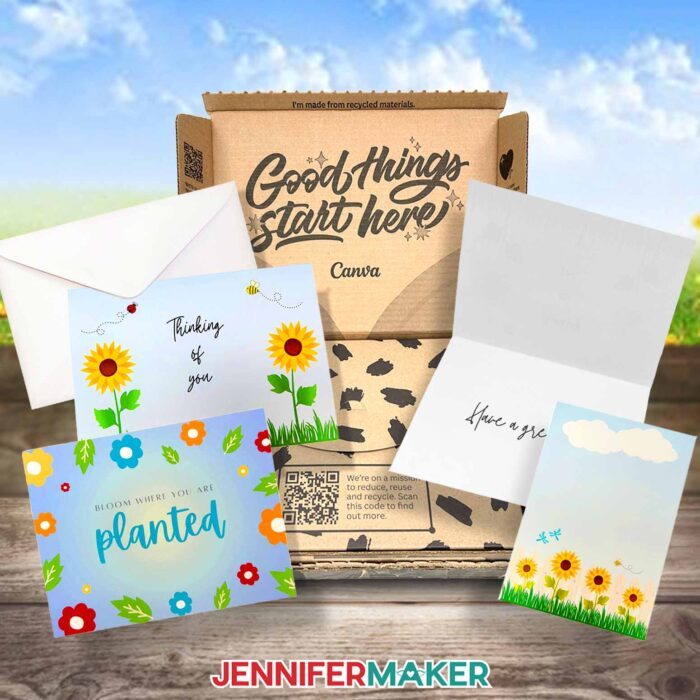
3. Make Cards in Canva
Cards are a wonderful next project because they help you practice text, layout, colors, templates, and printing. In this tutorial, you’ll learn how to make three different card designs with a free Canva account, including designs made from free templates, design elements, and text.
Best shortcut practice:
- T to add text
- Command/Ctrl + Shift + C to center text
- Command/Ctrl + Option/Alt + C to copy text style
- Command/Ctrl + Option/Alt + V to paste text style
Try this next: How to Make Cards in Canva Using Free Templates
4. Create a Cut File in Canva
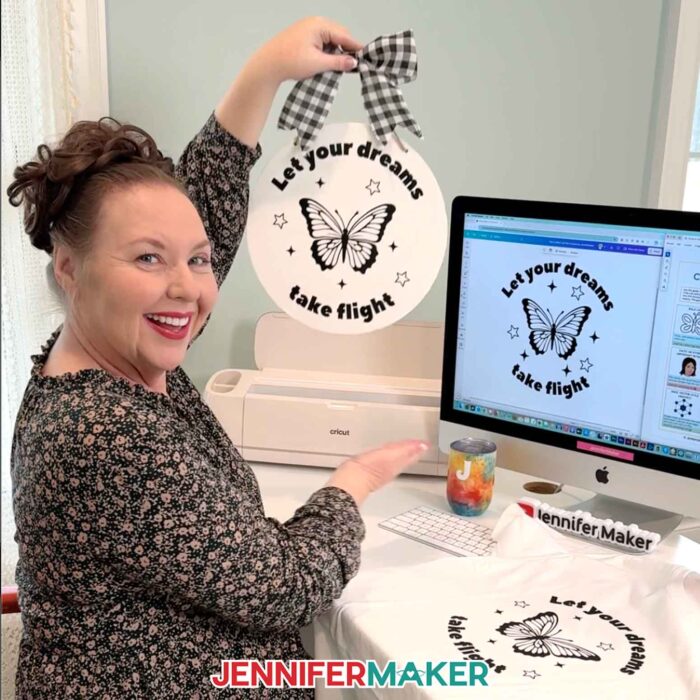
This is a great project if you want to use Canva with your Cricut. You’ll learn how to choose Canva elements that work well as cut files, prepare a design, and save it so you can cut it from adhesive vinyl or iron-on vinyl. Simple shapes with clean lines and solid colors work best, so this project teaches you how to look at Canva graphics with a crafter’s eye.
Best shortcut practice:
- T for text
- Shift + Click to select multiple elements
- Command/Ctrl + D to duplicate elements
- Command/Ctrl + G to group your finished design
Try this tutorial: How To Create A Cut File In Canva for Custom Vinyl Projects
5. Make a Seamless Pattern in Canva
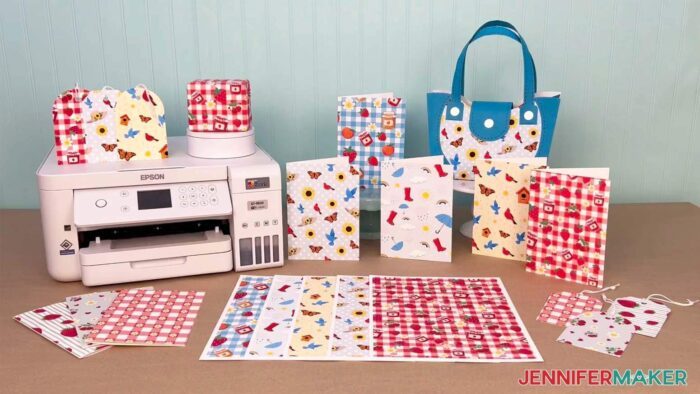
A seamless pattern is a perfect Canva practice project because it teaches you how to duplicate, align, group, layer, and repeat elements carefully. You’ll create a repeating tile that can turn into digital paper, printable backgrounds, gift tags, cards, wrapping paper, and more.
Best shortcut practice:
- Command/Ctrl + D to duplicate elements
- Shift + Click to select multiple pieces
- Command/Ctrl + G to group
- Arrow keys to make tiny placement adjustments
Try this next: How to Create a Seamless Pattern in Canva
6. Edit Photos in Canva for Craft Projects
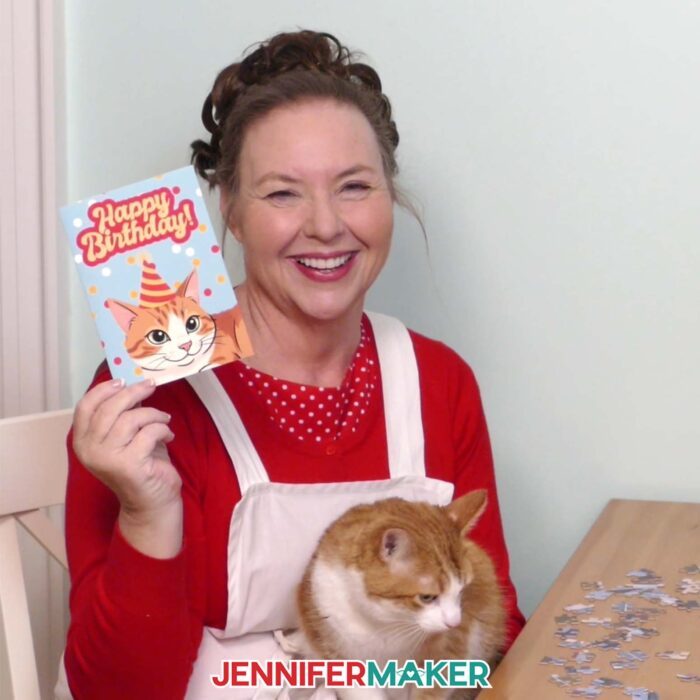
If you use photos in your crafts, this is a really useful Canva skill. This tutorial shows how to fix dark or crooked photos, adjust brightness, contrast, and white balance, resize images, and turn photos into craft-ready images for puzzles, cards, magnets, coasters, and keepsakes.
Best shortcut practice:
- Command/Ctrl + + to zoom in while checking photo details
- Command/Ctrl + Z to undo edits you don’t like
- Command/Ctrl + D to duplicate a photo before trying a new effect
- / to find Canva tools faster
Try this tutorial: Canva Photo Editing: Free Tools for Picture-Perfect Projects
Where Can Canva Beginners Get More Help?
If you’re still feeling a little wobbly in Canva, that’s completely normal. Every new tool has that awkward stage where you know what you want to make, but your hands haven’t caught up yet. The good news is, you don’t have to figure it out alone. Here are a few useful resources I recommend:
JenniferMaker tutorials: My step-by-step Canva blog posts are a great place to start because you can pause, reread, zoom in on photos, and follow along at your own pace.
JenniferMaker YouTube channel: If you like to follow videos, short videos and full tutorials can help you see exactly what each step looks like in real time.
Canva community groups: There are lots of Canva Facebook groups where Canva friends share tips, answer similar questions, and show what worked for them. Just remember that advice can vary, so when in doubt, check the tutorial instructions or the official Canva help pages for guidance. I’d love for you to join us in the JenniferMaker Canva Group!
Free workshops: Workshops are a very special place to get more guided help because they give you a focused project and a clear path to follow.
Official Canva support: If you have questions about your account, Canva Pro, or technical problems, Canva’s official help desk has loads of articles to help you find the answers. I’d use official online chat or support links instead of random phone lines or free phone numbers you find elsewhere online.
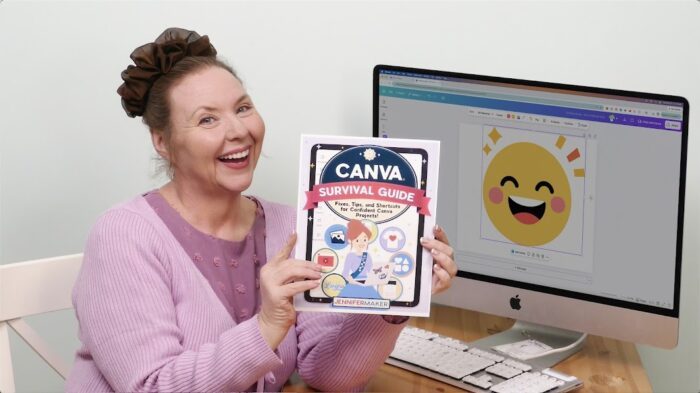
JenniferMaker Canva Survival Guide: I’ve put all my best Canva troubleshooting processes and tips into one resource for you!
Between tutorials, videos, community help, and expert help when you need it, you don’t have to figure everything out alone.
Frequently Asked Questions About Canva Keyboard Shortcuts
Q: What is the shortcut for text in Canva?
A: The shortcut for adding text in Canva is T. Click on your Canva design page, press T, and Canva will add a new text box.
Q: What is the shortcut to duplicate in Canva?
A: The shortcut to duplicate in Canva is Command + D on Mac or Ctrl + D on Windows. Select the element first, then press the shortcut to make a copy.
Q: What is the shortcut to group elements in Canva?
A: The shortcut to group elements in Canva is Command + G on Mac or Ctrl + G on Windows. Select two or more elements first, then press the shortcut.
Q: What is the shortcut to ungroup elements in Canva?
A: The shortcut to ungroup elements in Canva is Command + Shift + G on Mac or Ctrl + Shift + G on Windows.
Q: What is the Canva shortcut for Quick Actions?
A: The Canva Quick Actions shortcut is /. Press the slash key while you are in Canva, then type what you want to find or do.
Q: How do I copy and paste in Canva?
A: To copy in Canva, press Command + C on Mac or Ctrl + C on Windows. To paste, press Command + V on Mac or Ctrl + V on Windows.
Q: How do I undo in Canva?
A: To undo in Canva, press Command + Z on Mac or Ctrl + Z on Windows.
Q: How do I redo in Canva?
A: To redo in Canva, press Command + Shift + Z on Mac or Ctrl + Shift + Z on Windows.
Q: How do I zoom in and out in Canva?
A: To zoom in, press Command + + on Mac or Ctrl + + on Windows. To zoom out, press Command + – on Mac or Ctrl + – on Windows.
Q: Why are my Canva keyboard shortcuts not working?
A: Canva shortcuts may not work if your cursor is inside a text box, the wrong element is selected, your browser is using the same shortcut, your keyboard layout is different, or Canva has updated the feature. Click outside the text box, select the element again, and try the Mac or Windows version of the shortcut.
Q: Do Canva keyboard shortcuts work on iPad or mobile?
A: Most Canva keyboard shortcuts are designed for computers using a physical keyboard. If you use Canva on iPad with a keyboard, some shortcuts may work, but the experience can be different from desktop Canva.
Q: Are Canva shortcuts the same on Mac and Windows?
A: Many Canva shortcuts do the same thing on Mac and Windows, but the main key is different. Mac usually uses Command, while Windows usually uses Ctrl.
Get My Free Canva Keyboard Shortcuts Cheat Sheet
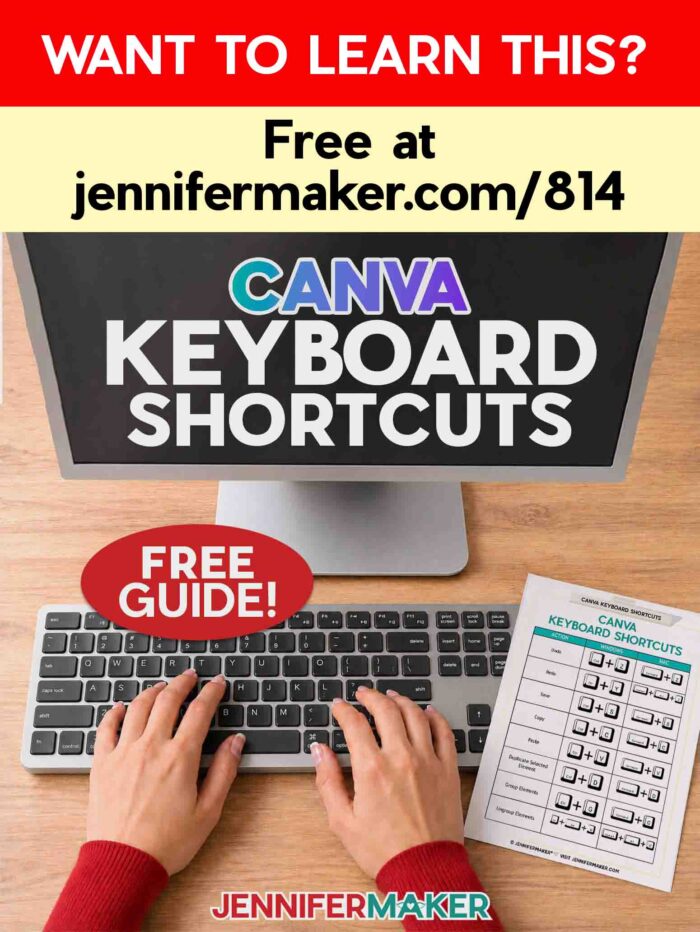
Want to keep these Canva shortcuts handy while you design? I made a free printable Canva Keyboard Shortcuts Cheat Sheet you can keep beside your computer.
It includes the most useful Canva shortcuts for Mac and Windows, including shortcuts for adding text, duplicating elements, grouping, arranging layers, zooming, and opening Quick Actions.
Click below to get my free printable Canva Keyboard Shortcuts cheat sheet:
Final Thoughts: Start Small and Learn the Shortcuts as You Go
I hope these Canva keyboard shortcuts help you design faster, click less, and feel more confident in Canva.
You don’t need to memorize them all today. Start with just a few, like
- T for text,
- Command/Ctrl + D for duplicate,
- Command/Ctrl + G for group, and
- / for Quick Actions.
Then, as you make cards, stickers, labels, sublimation designs, photo books, and more, add one new shortcut at a time. That’s how shortcuts become natural instead of overwhelming.
And once you try them, I’d love to hear which Canva shortcut saves you the most time! Share your Canva projects in our Facebook group or tag me on social media with #jennifermaker so I can cheer you on.
Love,

Want to remember this? Save this Canva Keyboard Shortcuts guide to your favorite Pinterest board!