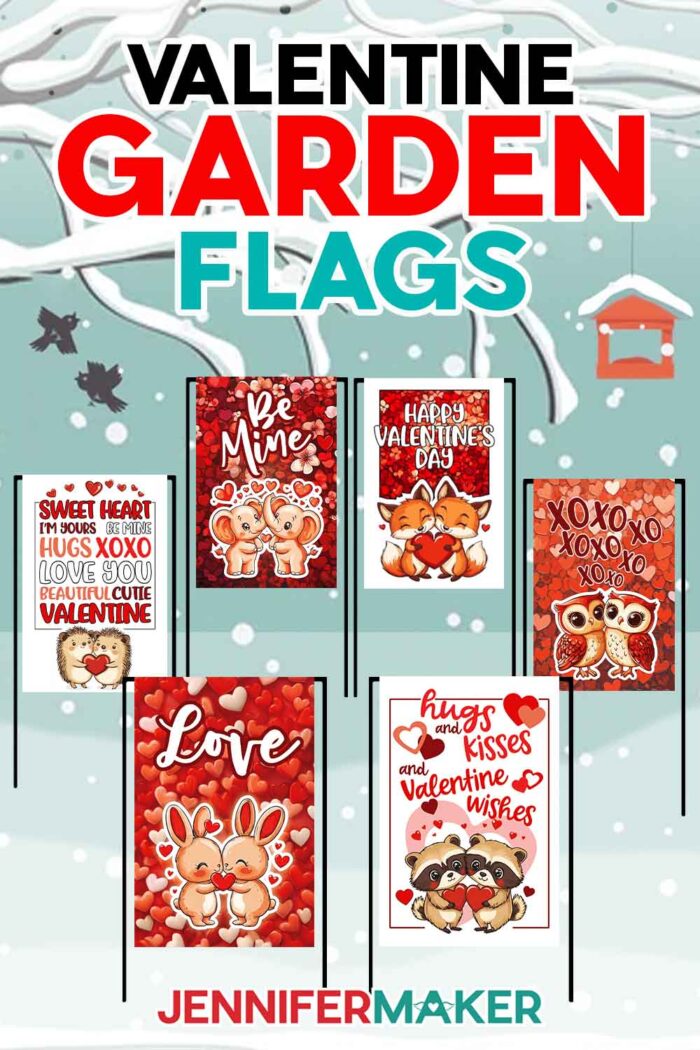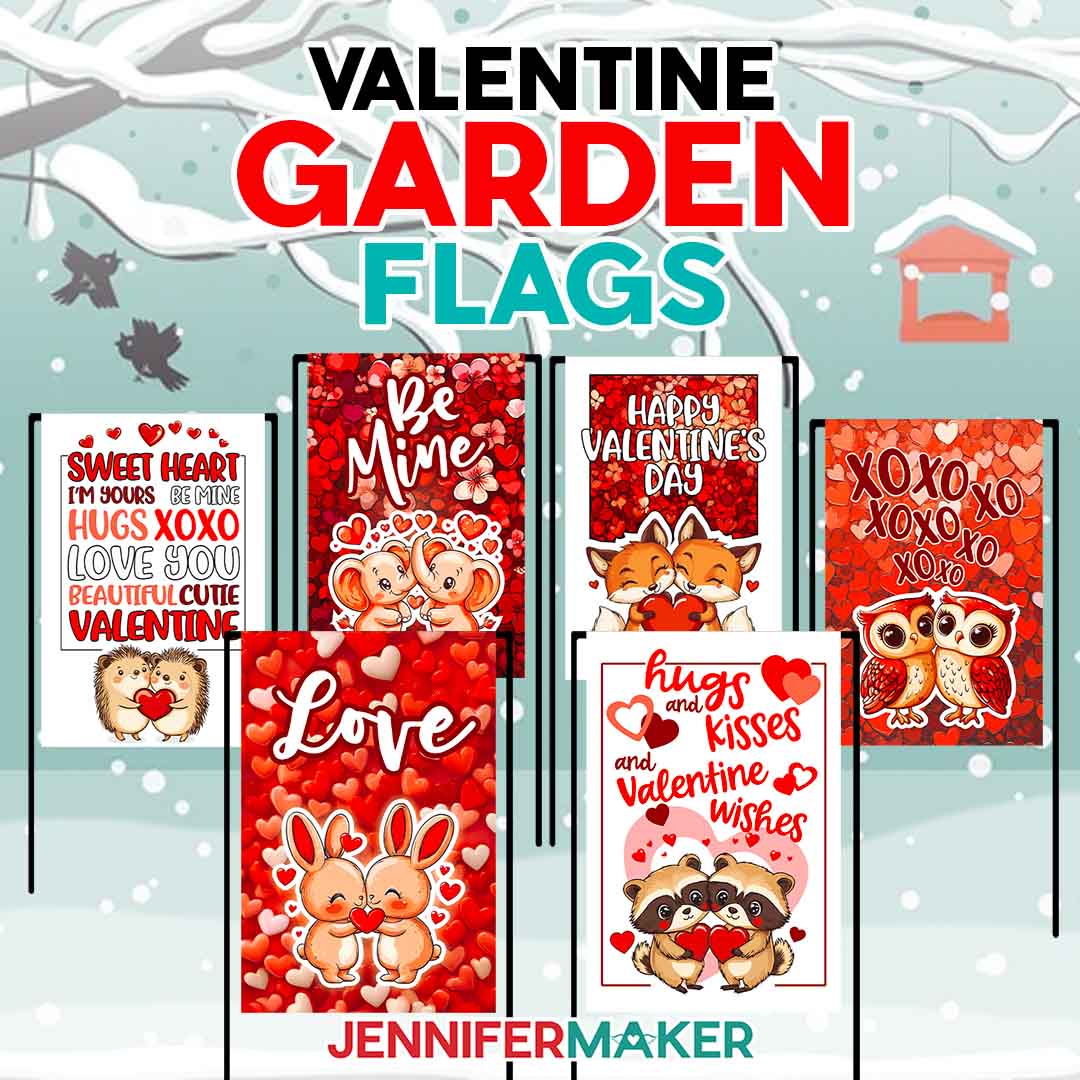
Learn how to make lovely Valentine flags for your garden!
Watch the full step-by-step sublimated garden flags tutorial to make items from either design collection:

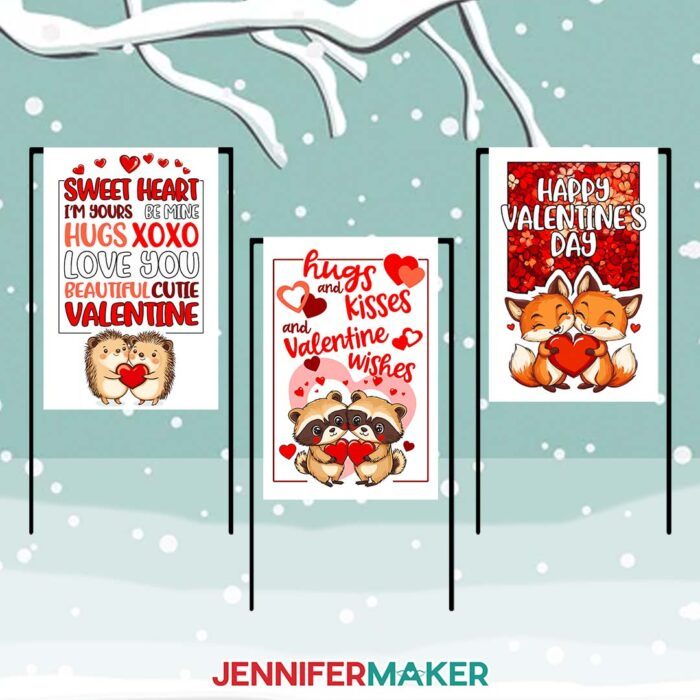
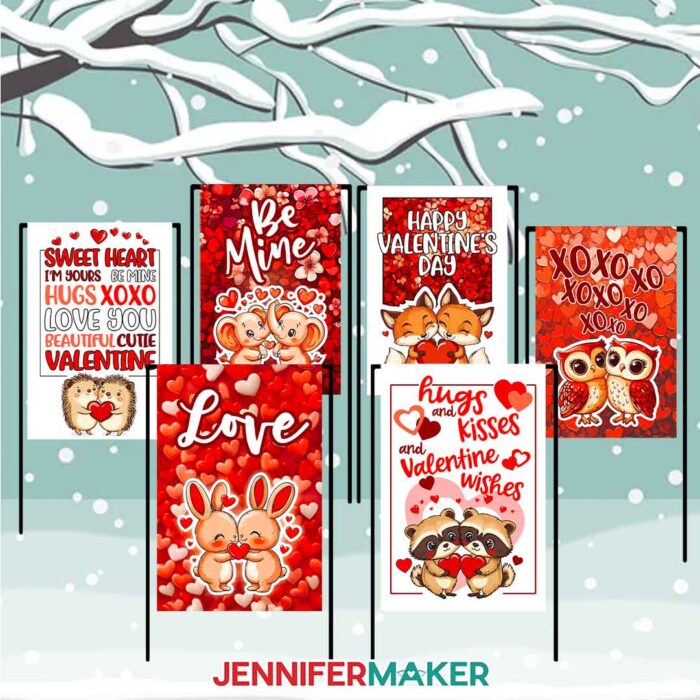
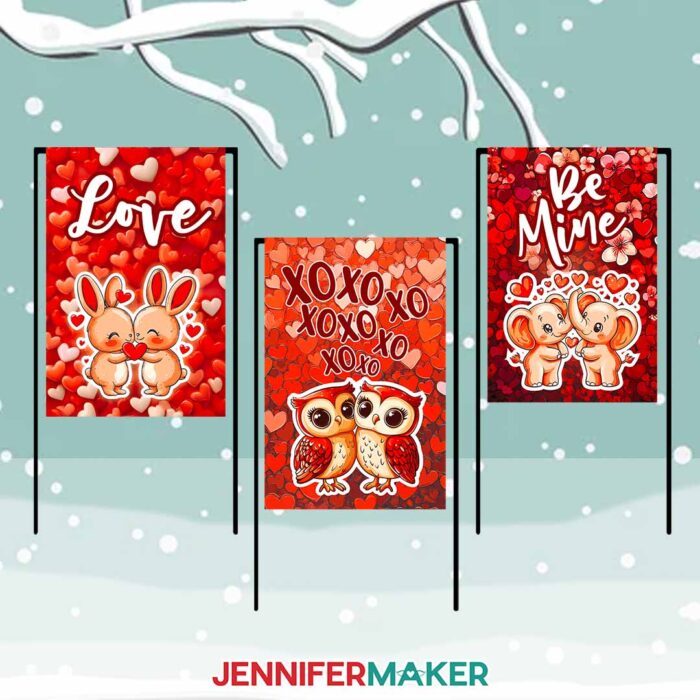
My Valentine flags are a great way to add some color to your yard this winter, even though it might be too early to plant flowers. Whether you’re crafting a love garden flag for your own yard or creating a Valentine house flag for gifting or selling, you’ll adore my new heart-filled designs. Happy Valentine’s Day, and happy crafting!
Let me show you how easy it is to sublimate valentine flags! This post contains some affiliate links for your convenience (which means if you make a purchase after clicking a link I will earn a small commission but it won’t cost you a penny more)! Read my full disclosure policy.
Materials to Make Sublimation Valentine Flags
View my Amazon shopping list with the exact items I used.
-
- Single-sided Sublimation Garden Flag OR Double-sided Sublimation Garden Flag
- Garden Flag Pole to display your flag in your back or front yard
- 12″ x 18″ Heavy Weight Cardstock
- Paper Trimmer
- Lint Roller to prepare your flag for sublimating
- Adobe Acrobat Reader (get the free trial!)
- Google Account (we’ll use Google Drawings — also free)
- Sublimation Printer – I used a converted Epson EcoTank ET-2800
- Sublimation Ink
- Sublimation Paper – I used 8.5″ x 11″ A-SUB Sublimation Paper
- White Uncoated Butcher Paper
- White 65 lb Cardstock 12″ x 12″
- Heat Press – I used the Cricut EasyPress
- Pressing Mat
- Heat-Resistant Tape
- Scissors
- Ventilation – I used this Fan
-
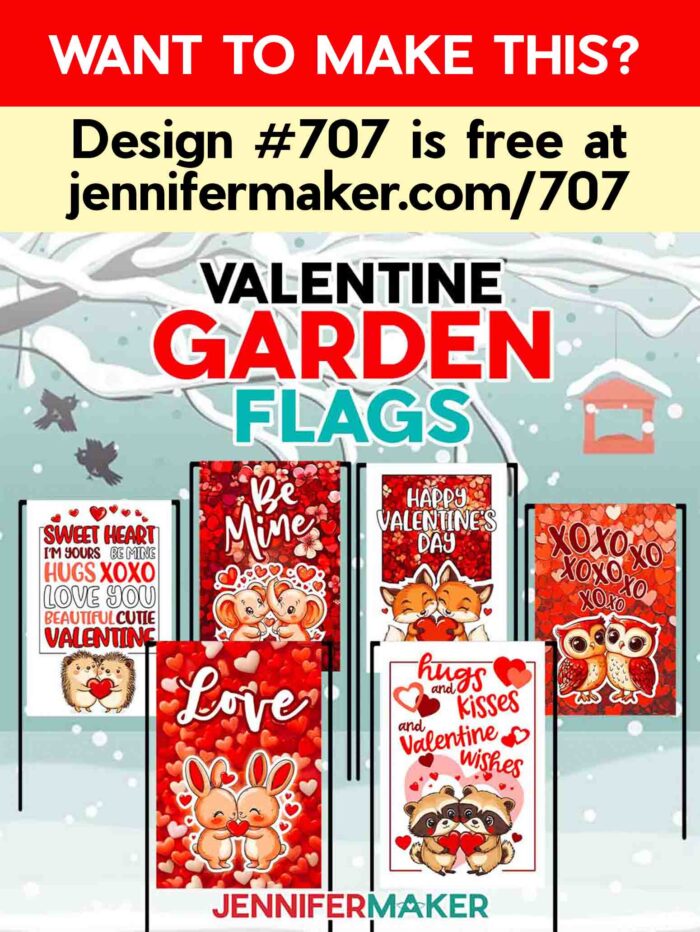
- Design #707 (My free PNG design files are available in my free resource library – get the password by filling out the form at the bottom of this page)
How to Sublimate Valentine’s Day Flags for the Garden
How to Sublimate Garden Flags
Learn how to sublimate a single OR double-sided garden flag AND how to personalize them with words or names!
Materials
- Sublimation Garden Flag
- Double-sided Garden Flags
- Sublimation Printer Paper
- Heat resistant tape
- White Butcher paper
- Heavy weight cardstock 12 x 18 inch
- Garden Flag Holder
- Design #483] (My free PDF/PNG design files are available in my free resource library - get the password by filling out the form at the bottom of this page)
Tools
- I used my Epson ET-2800
- Hippo Sublimation Ink
- Heat Press - I'm using the EasyPress but it can be made with any model as long as it’s 9x9 inch or larger
- Paper Trimmer
- Ventilation I used this fan
- Pressing Mat
- Lint Roller
- Adobe Acrobat Reader
- Google Account
Instructions
STEP 1: GET OR PREPARE A SUBLIMATION DESIGN
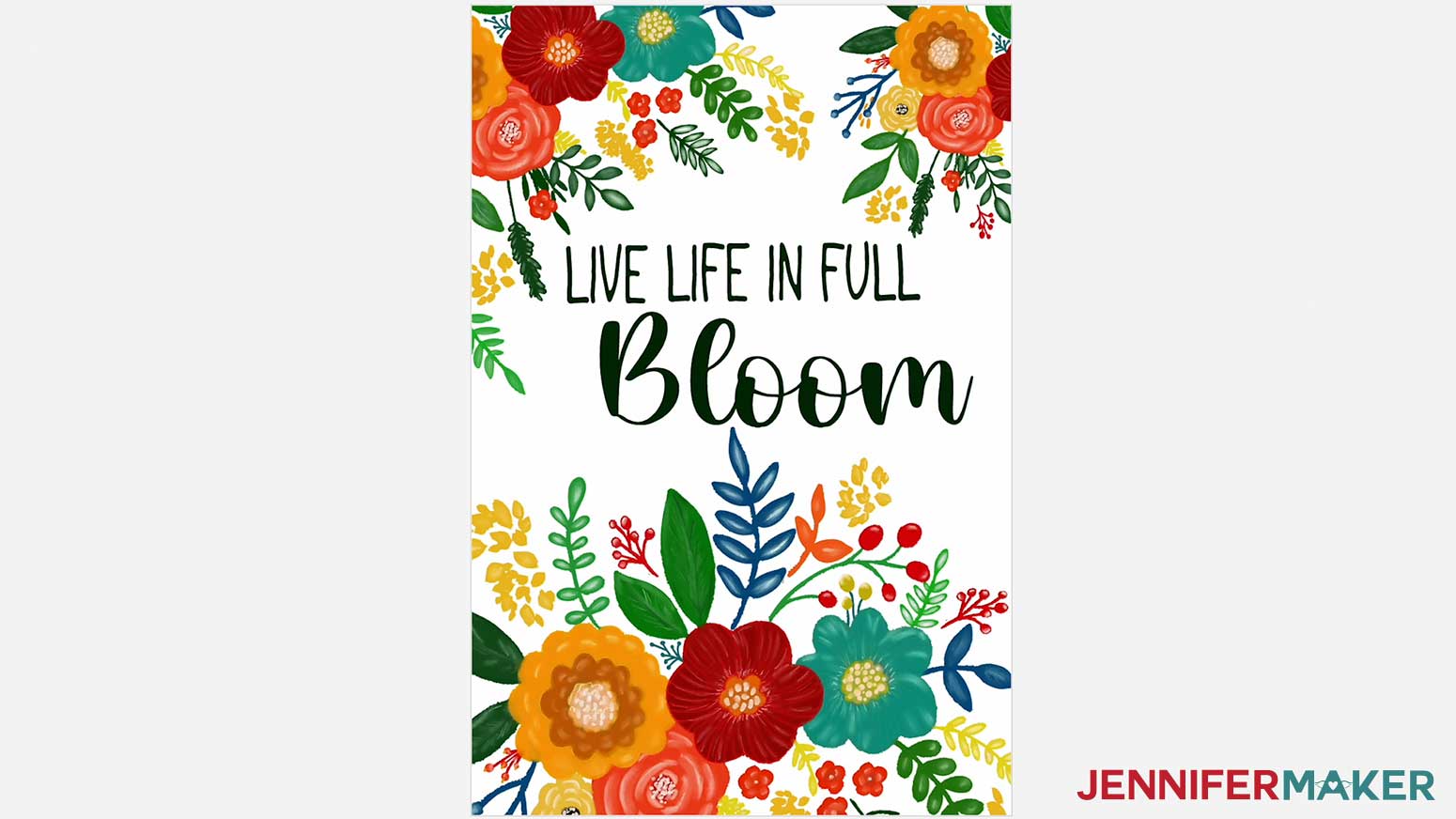
You can use either of my Sublimation Garden Flag design files from my resource library, Design #483. You can also make your own design.
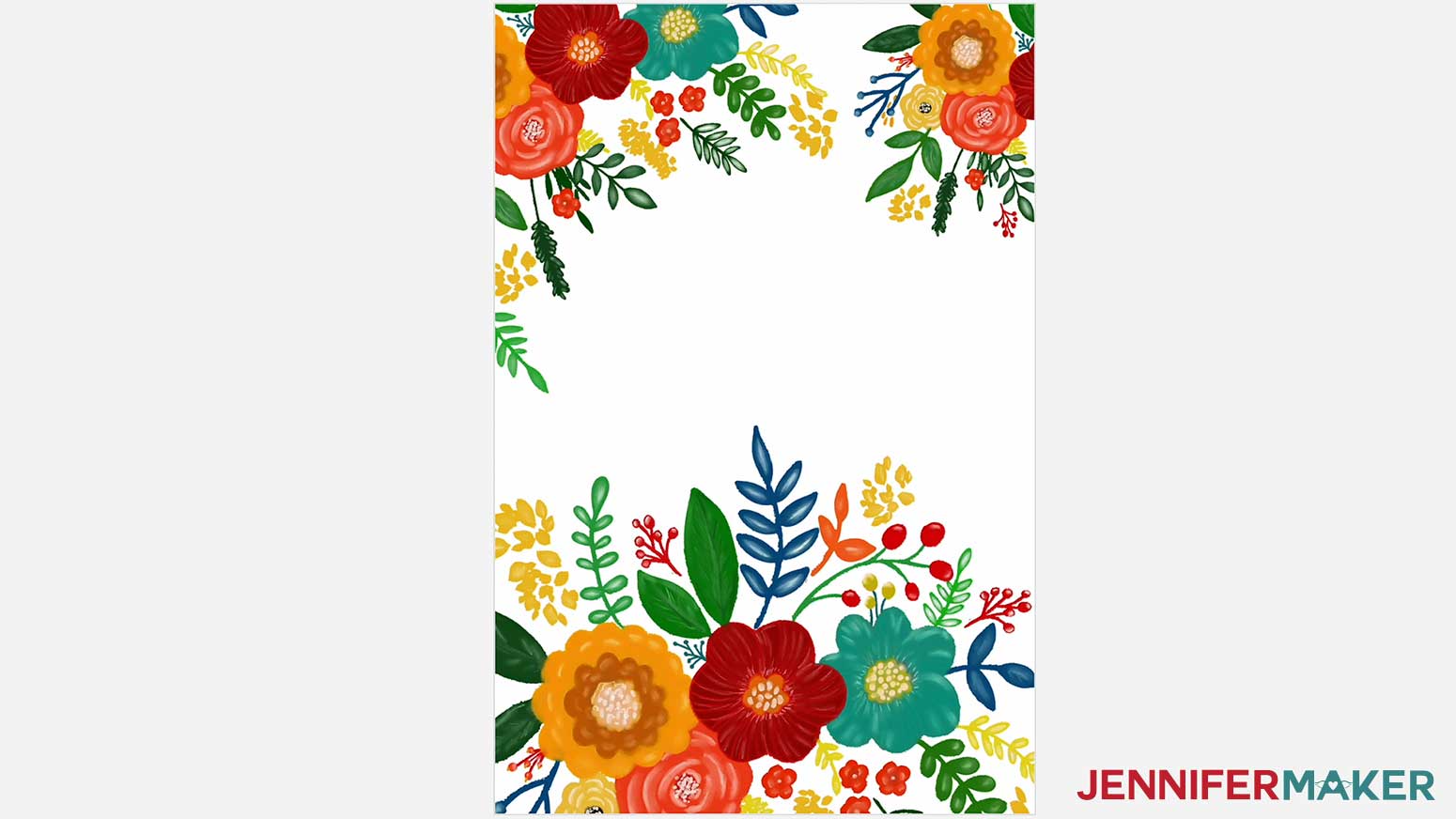
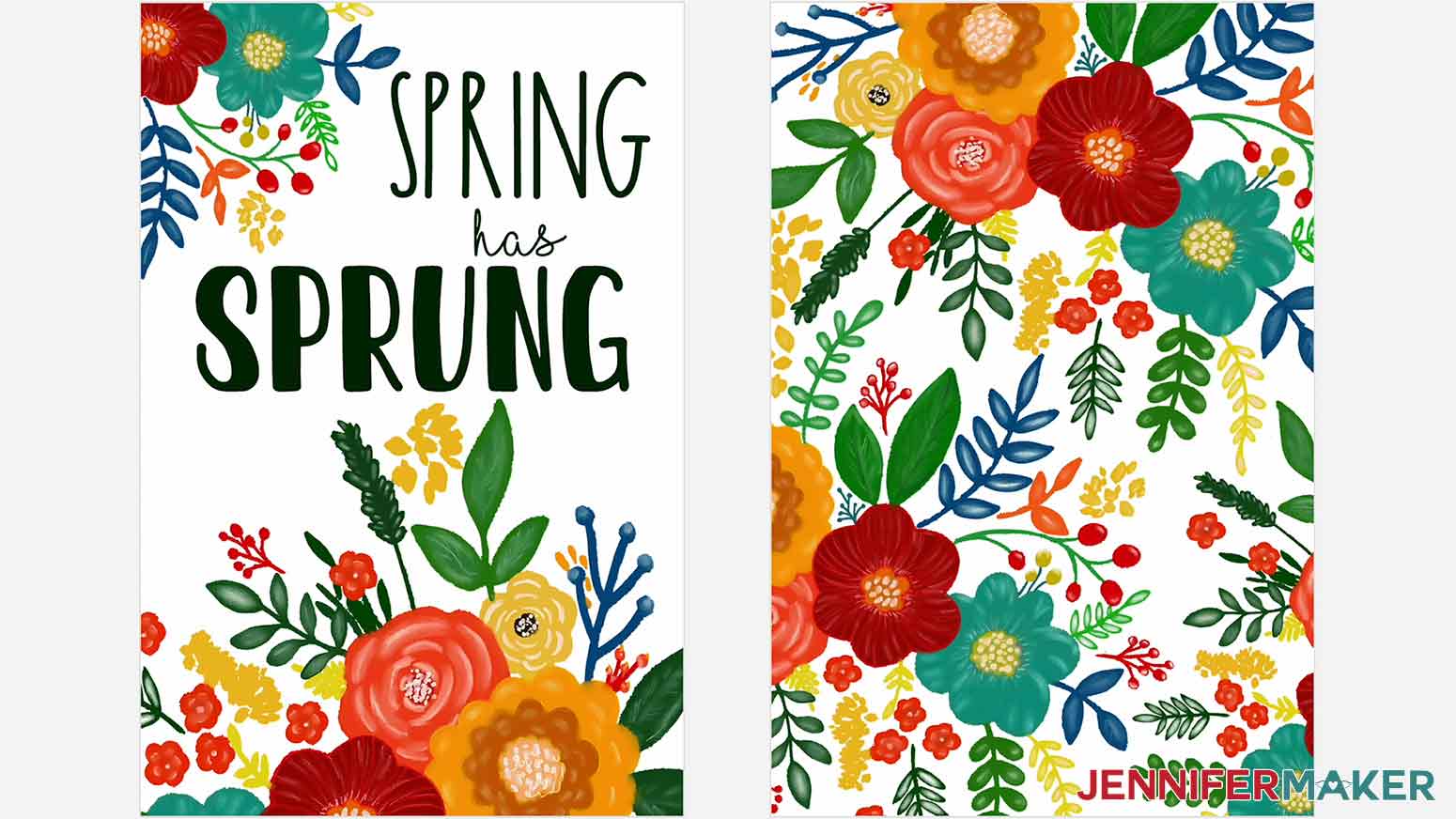
Download the files and pick your design. There are four designs - two including text and two left blank so you can personalize the saying.
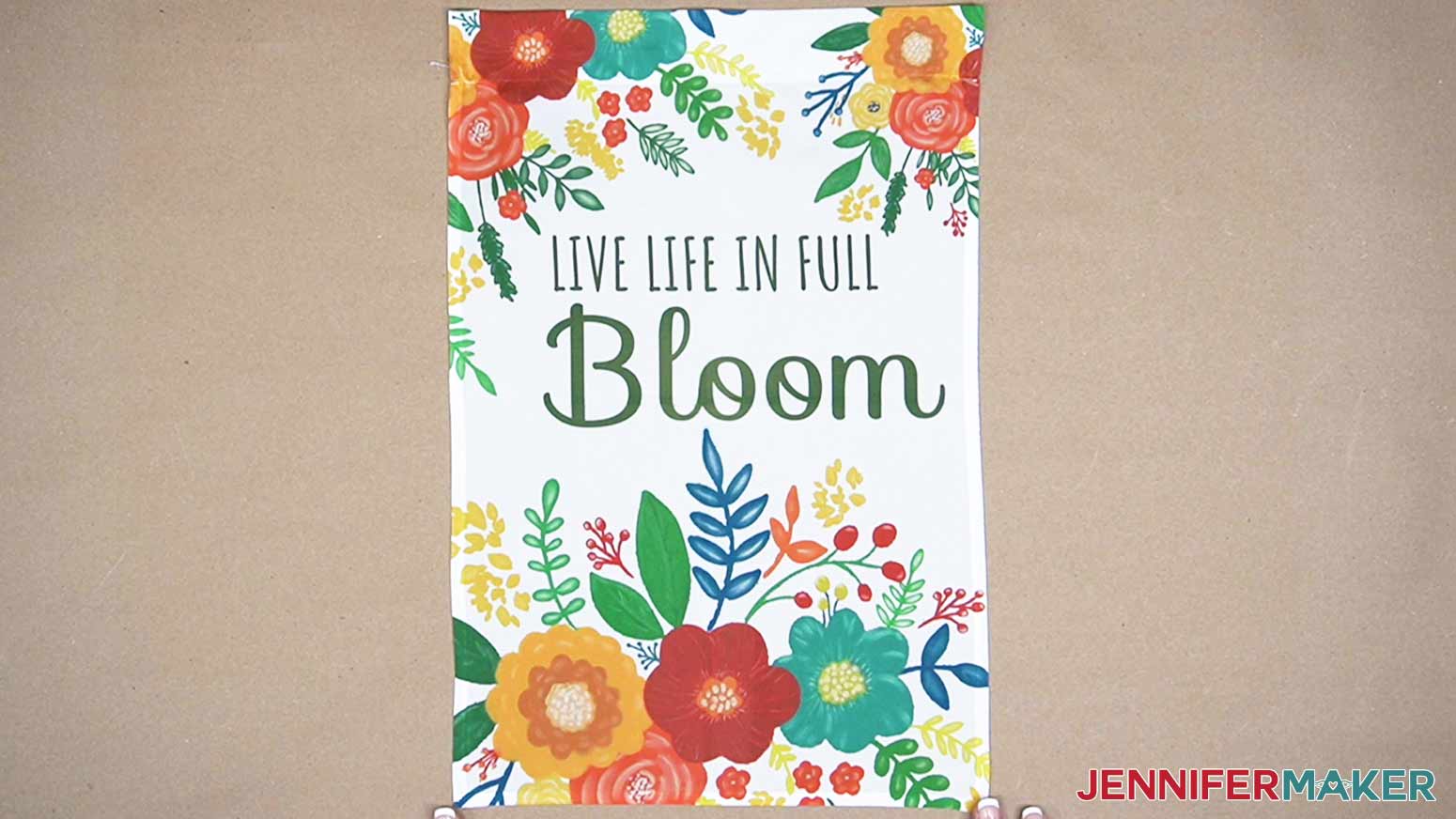
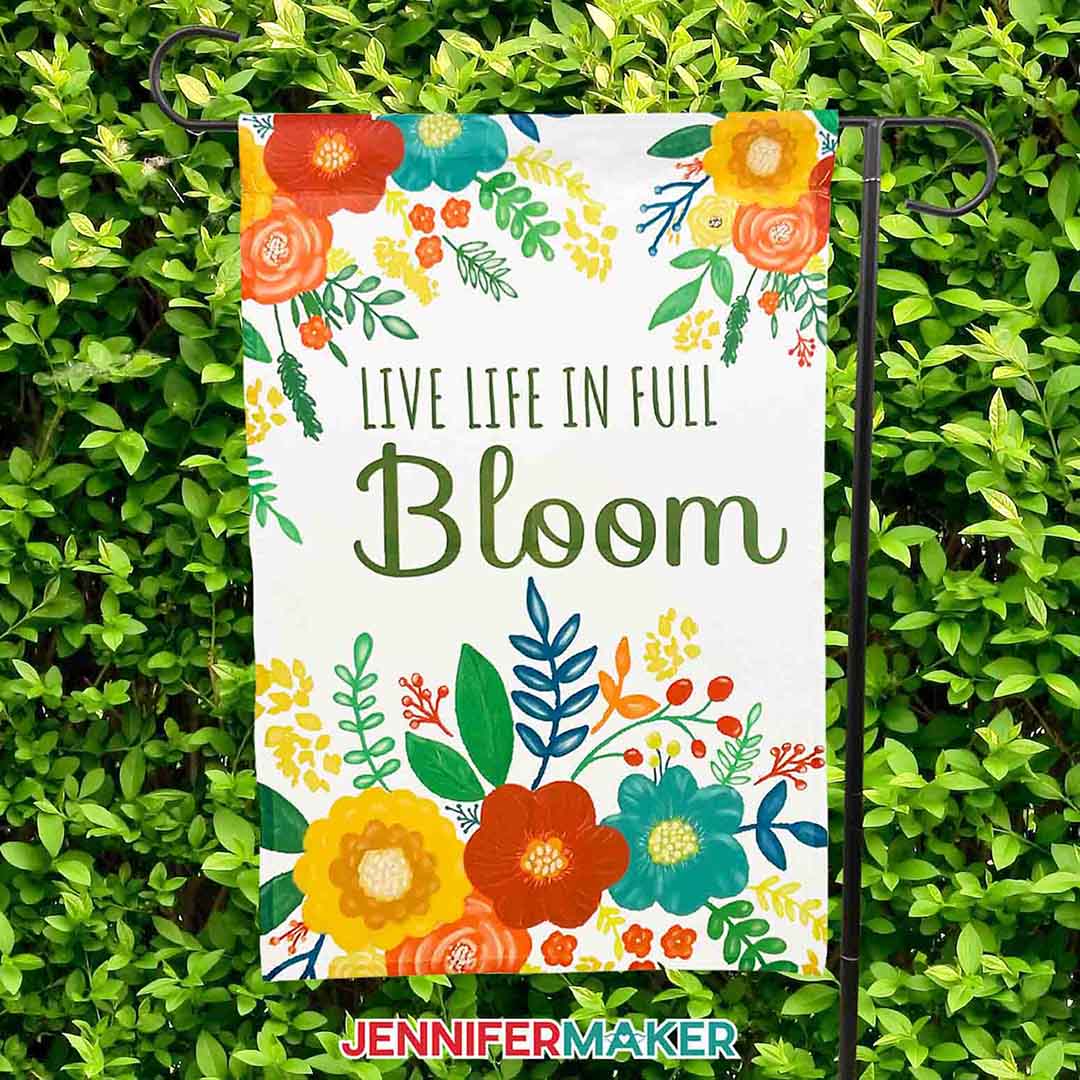
The Full Bloom one-sided design
The Full Bloom one-sided design for personalization
The Spring Has Sprung double-sided design
The Spring Has Sprung double-sided design for personalization
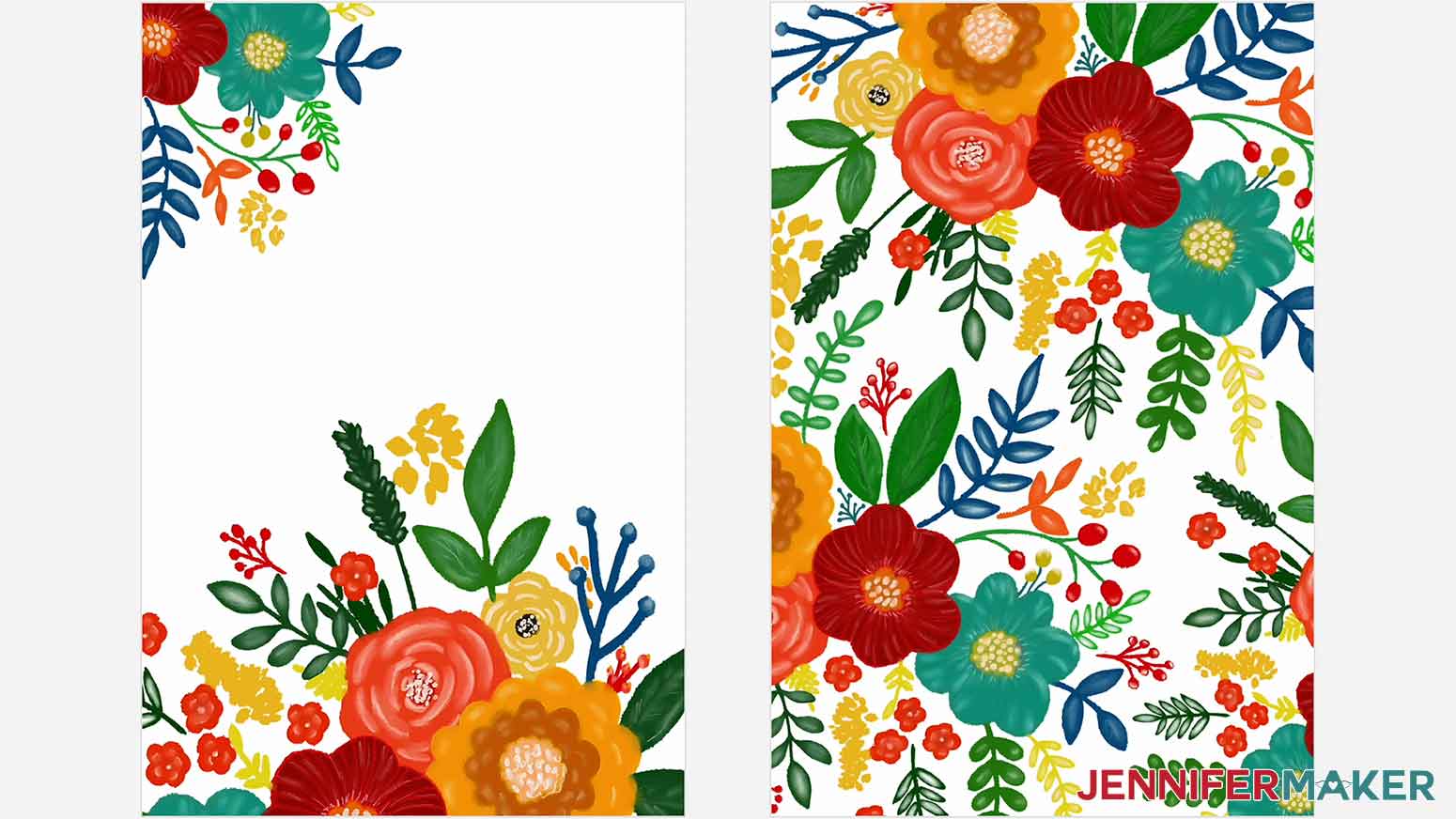
Today, I’m going to show you how to make the Full Bloom design with personalized text, and how to make the Spring has Sprung double-sided design. You'll be able to use these steps for any of the options in the design collection.
PERSONALIZATION
If you would like to personalize one of the blank garden flag designs, follow these steps.
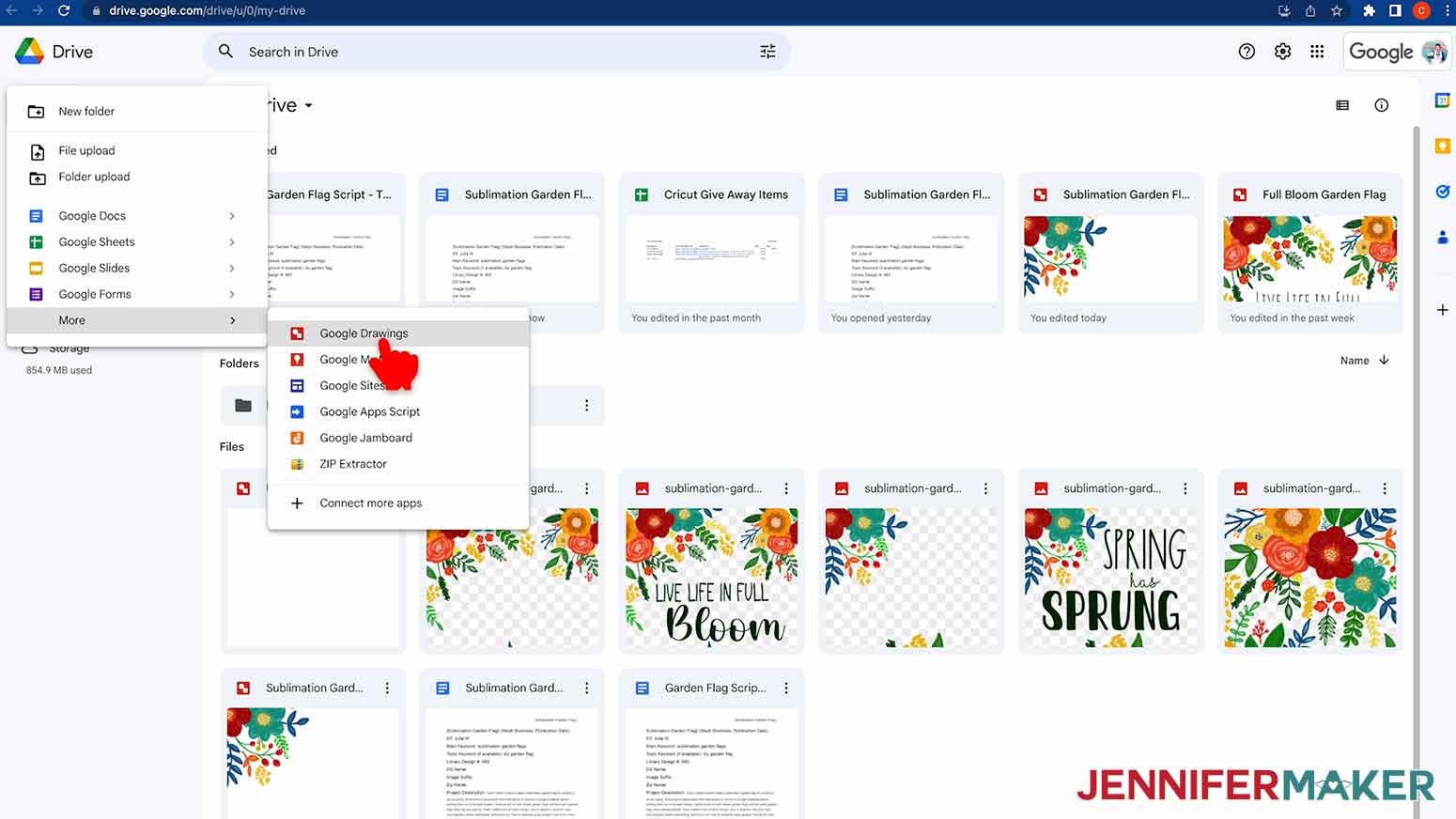
Open Google Drive and in the upper left corner click on New, go to More, and select Google drawings.
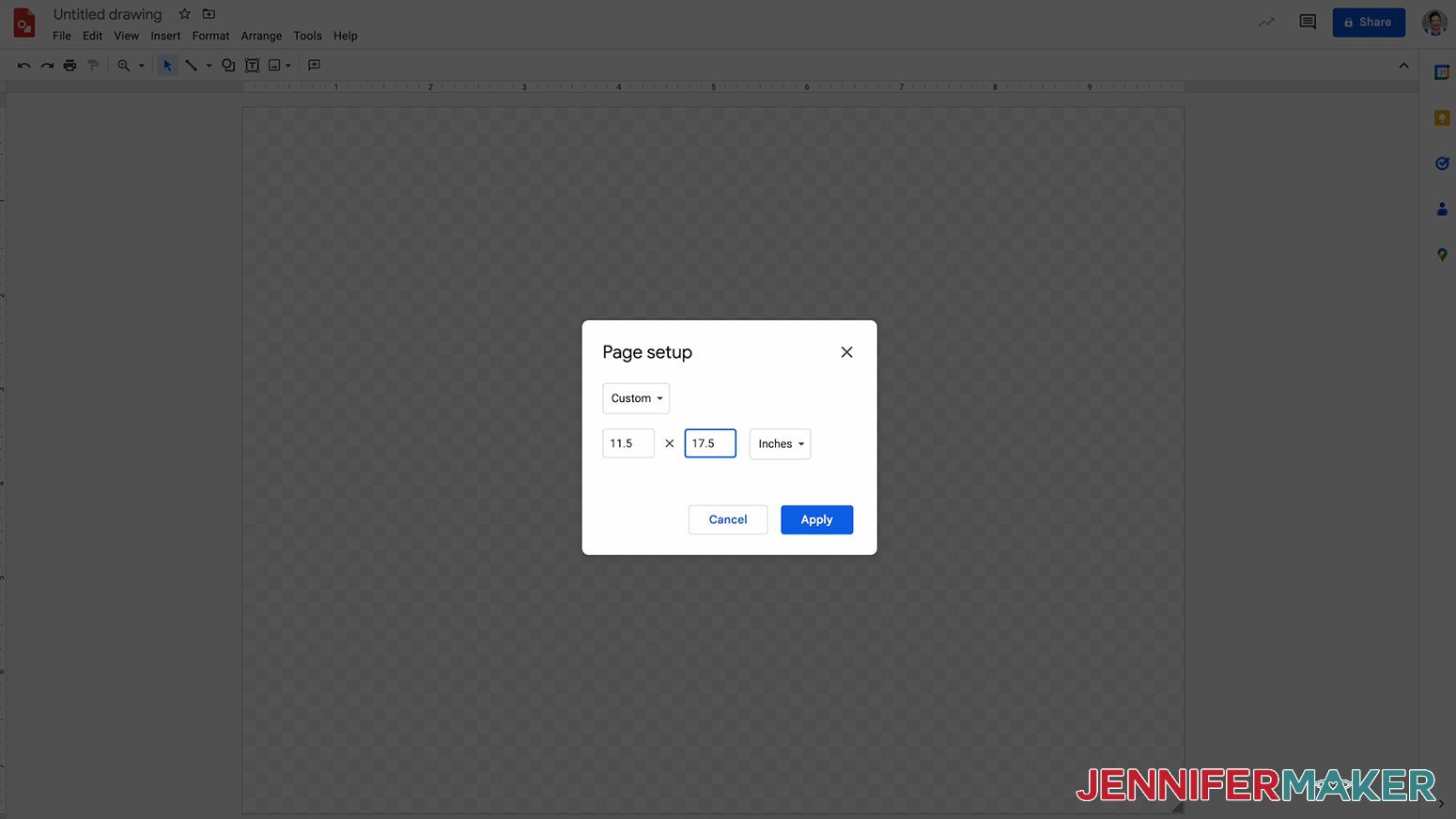
Once Google Drawings is open, select Page Setup under the File menu. In the Page Setup dialog box, select custom and input your flag dimensions. My flag is just smaller than 12" x 18", so I'll use 11.5" x 17.5". Click apply.
Next, under the Insert menu, select Image and Upload From Computer. Find your file and click Open.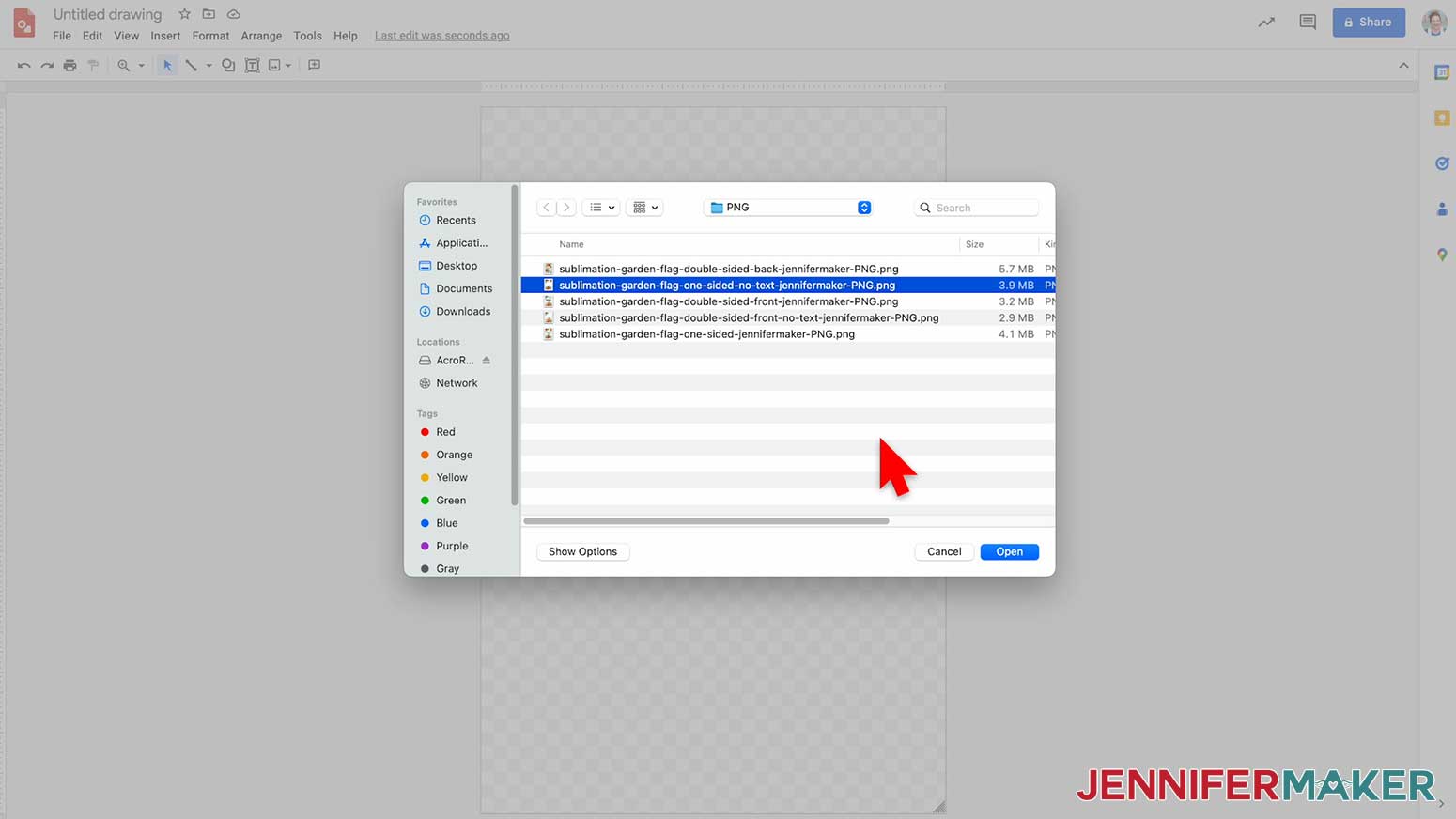
Here's what my PNG image looks like in Google Drawings. You can move the image anywhere on the page. You will also notice that the image is slightly smaller than the page, so we need to adjust the image size so that it fits.
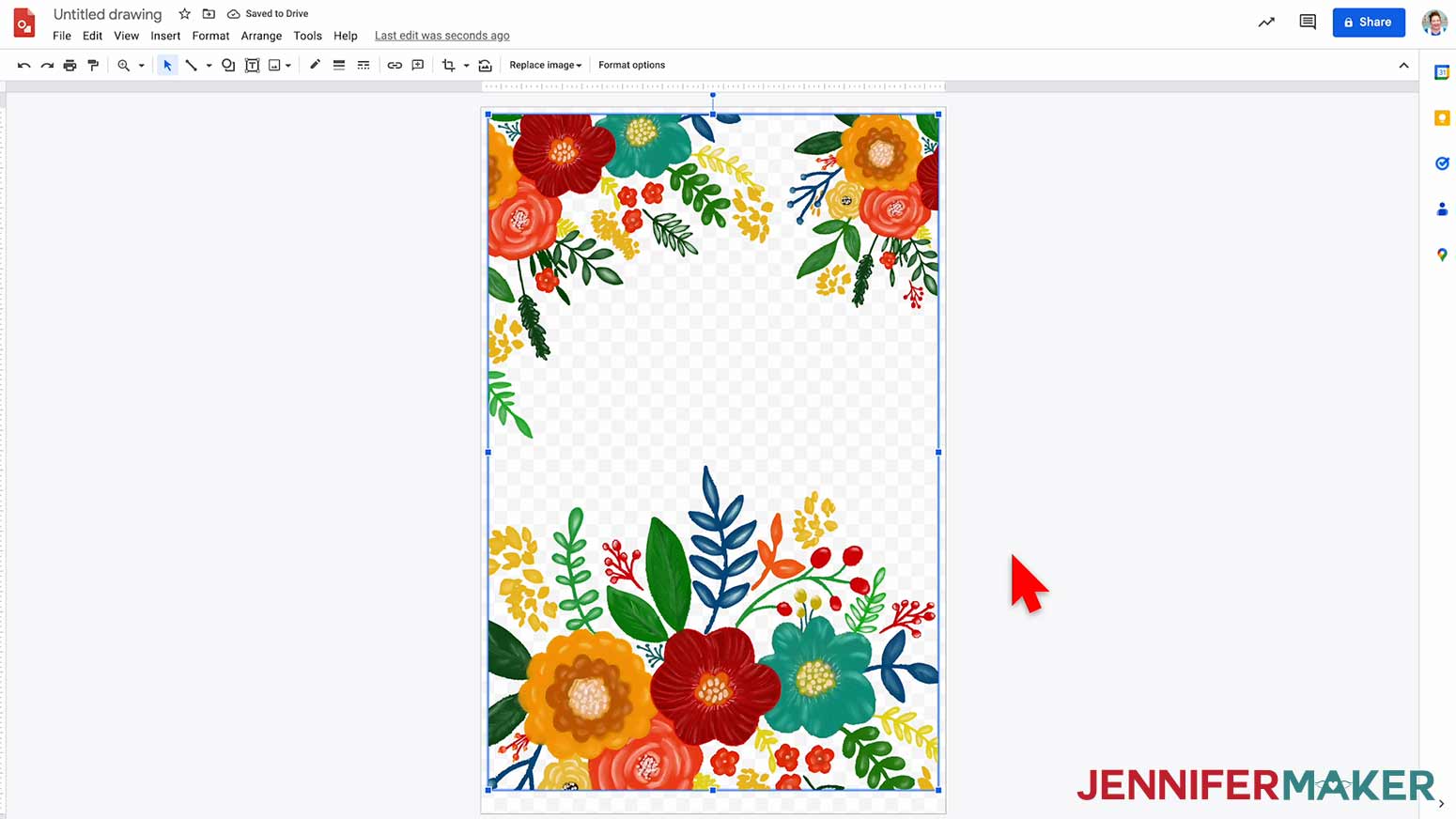
Click Format Options from the Toolbar.
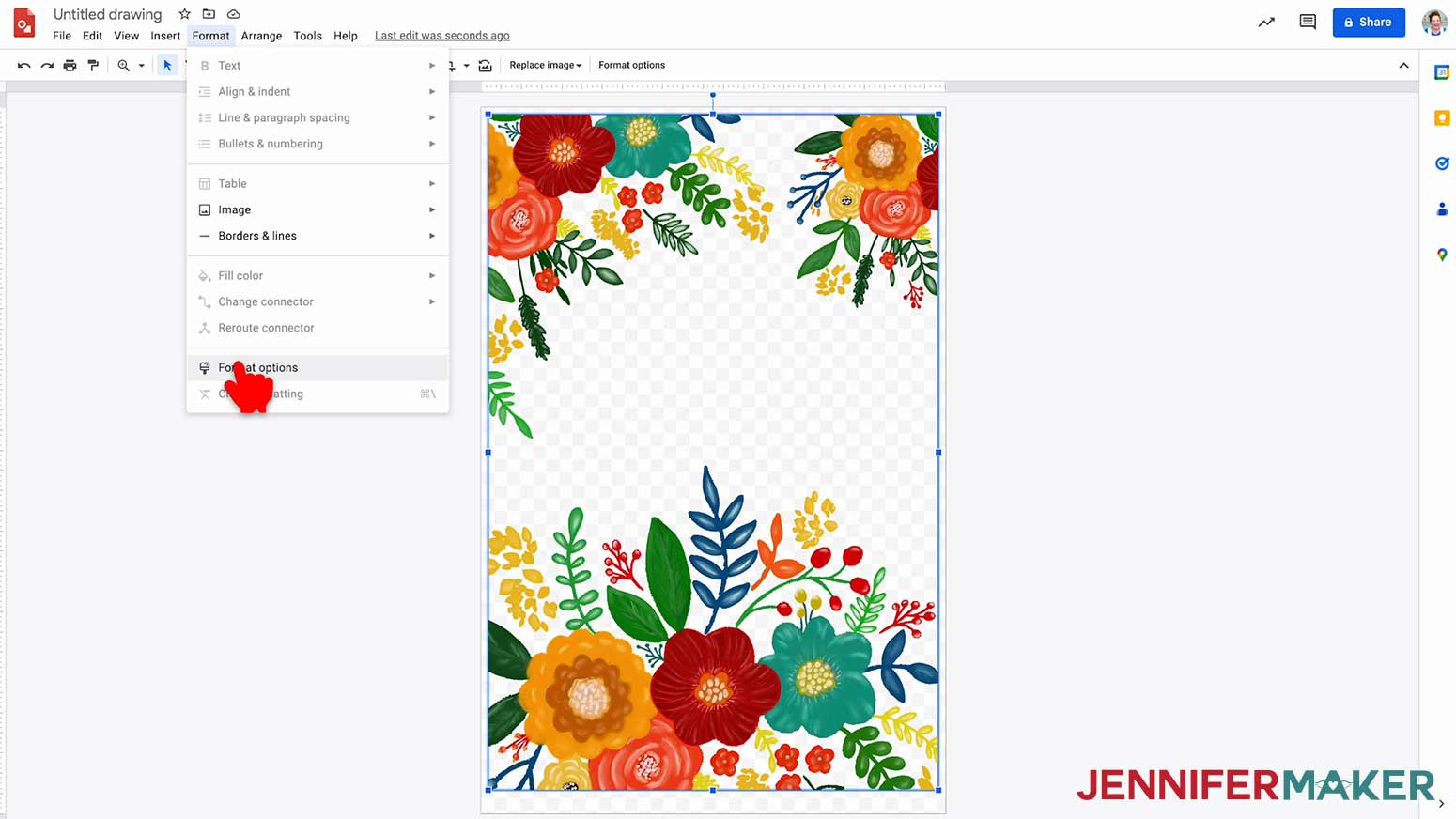
This will open a panel on the right side of the screen. Expand Size & Rotation, and you will see the image properties.
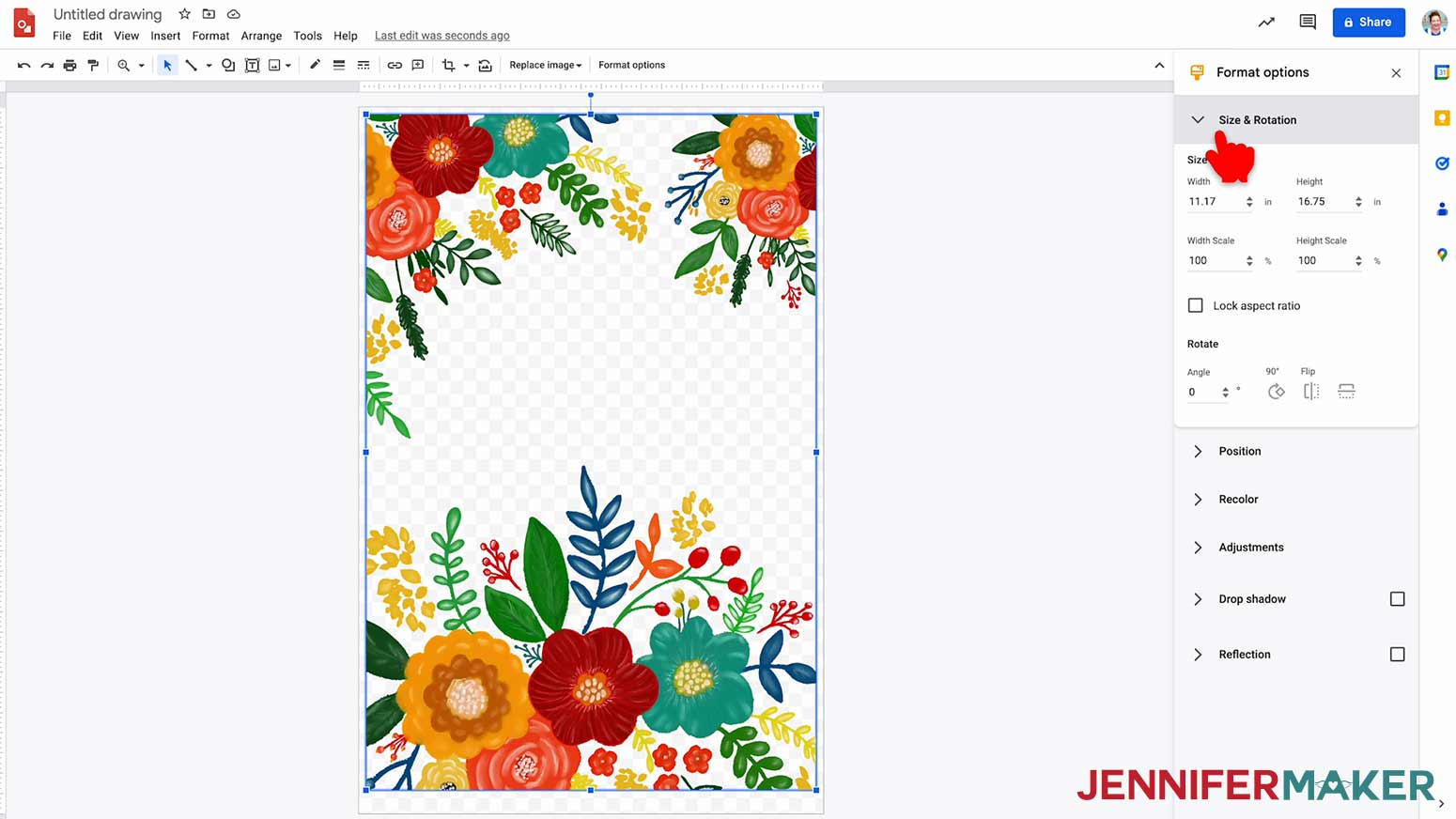
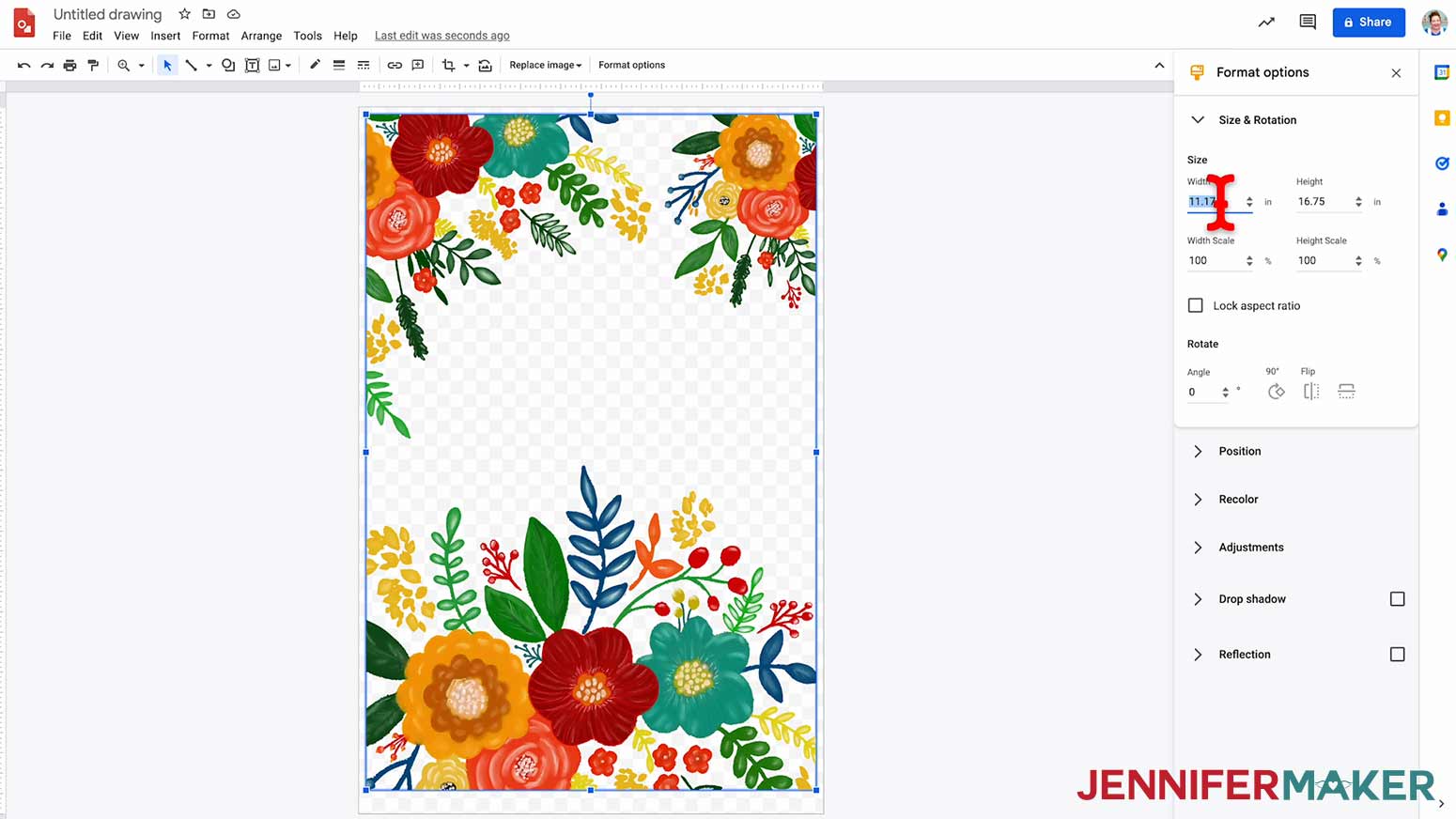
Make sure the Lock Aspect Ratio box is unchecked and then change the width to 12". The Height will auto-adjust to 18".
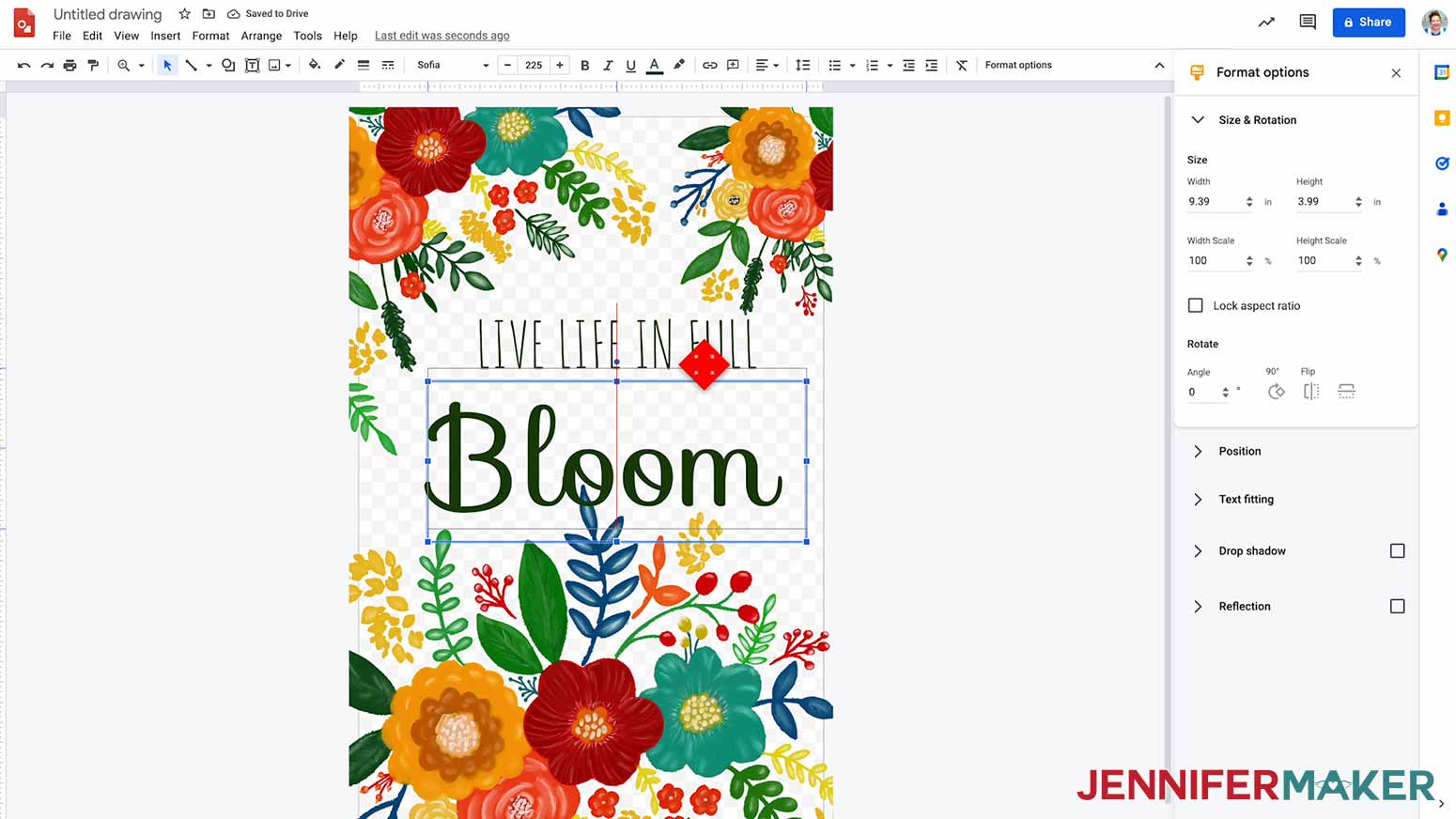
I will center my image. A thin red line appears when your image is centered.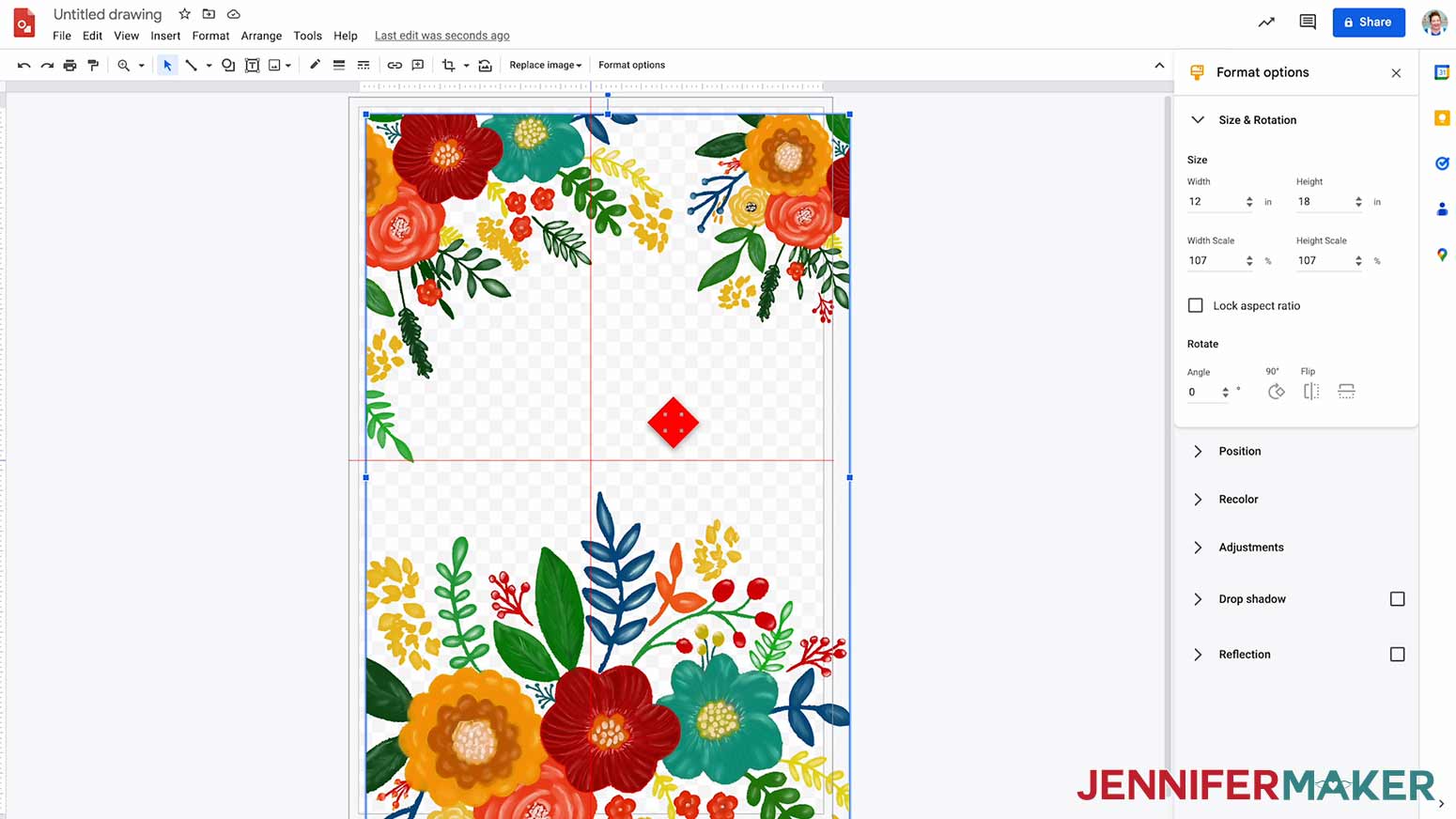
Now we need to add text. Go to the Insert menu and select Text Box. Use your curser to draw a rectangle in the upper section of the blank area of the design.
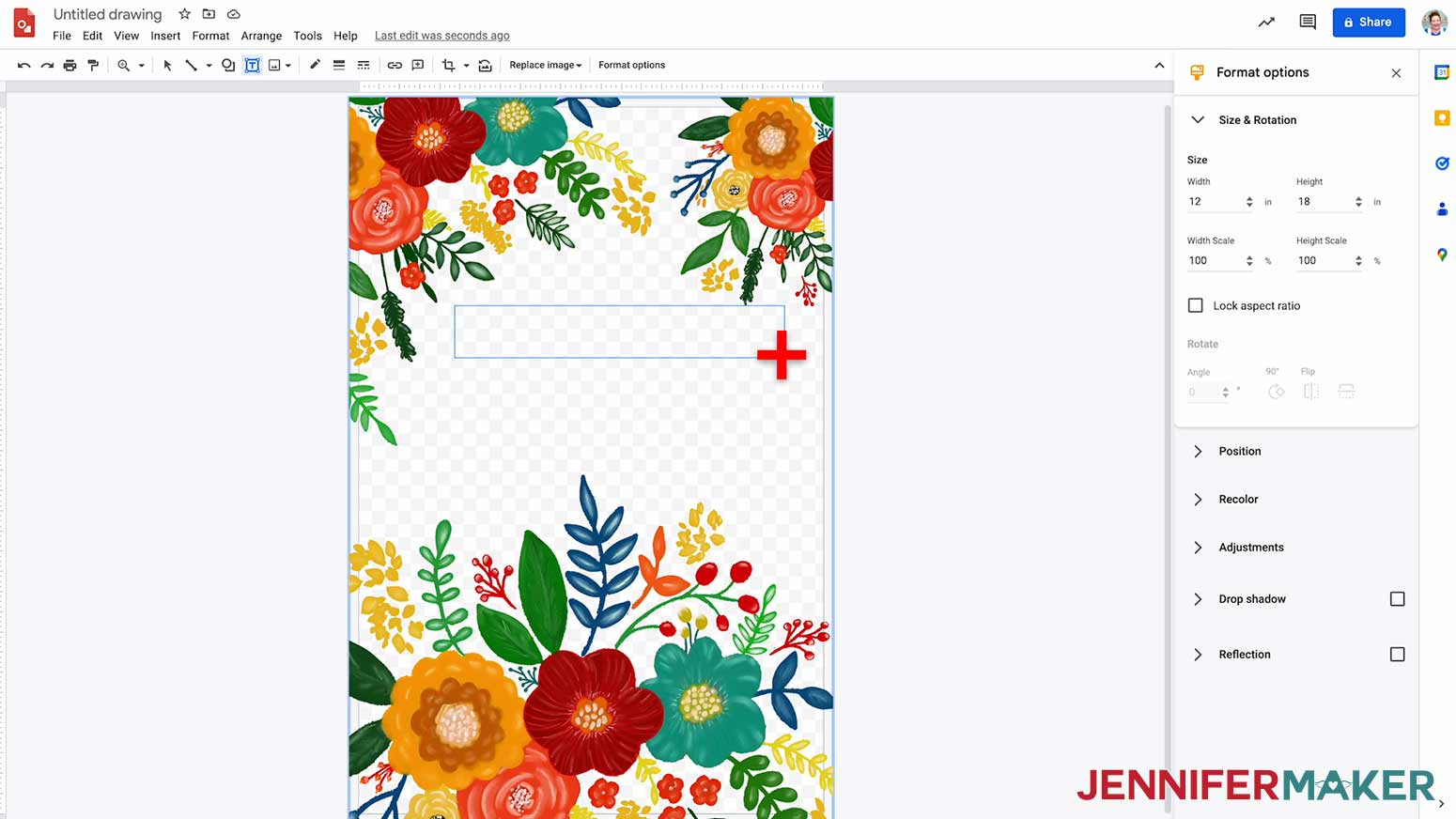
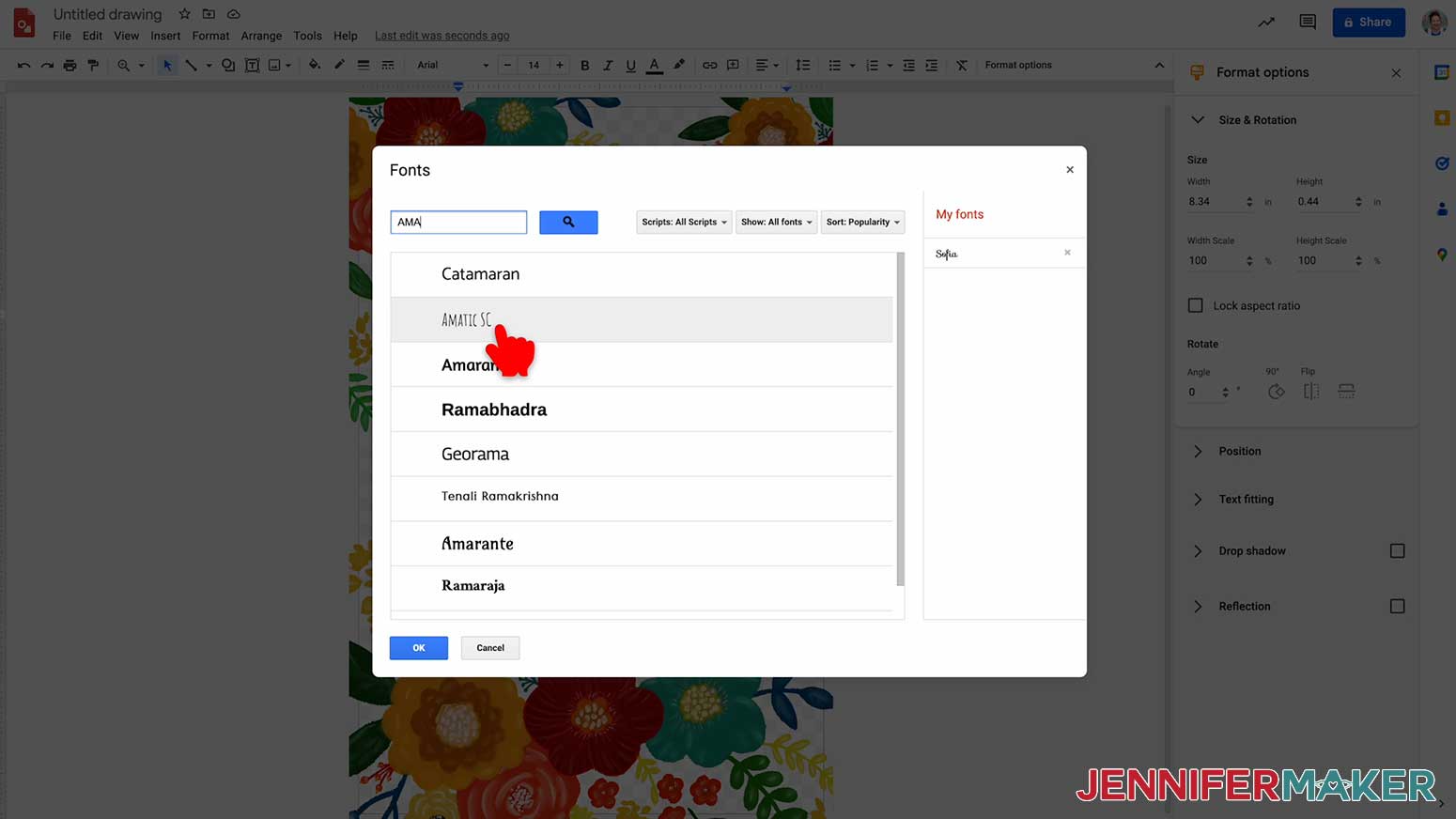
For my flag, I want it to say "Live Life In Full Bloom". Type "LIVE LIFE IN FULL" and select/highlight the text. You can now change the size and font. In the toolbar, look for the Font box. It should say Arial. You can use any of the typefaces listed or select More Fonts and browse Google's collection - these are all free to use. I will select Amatic S.C.
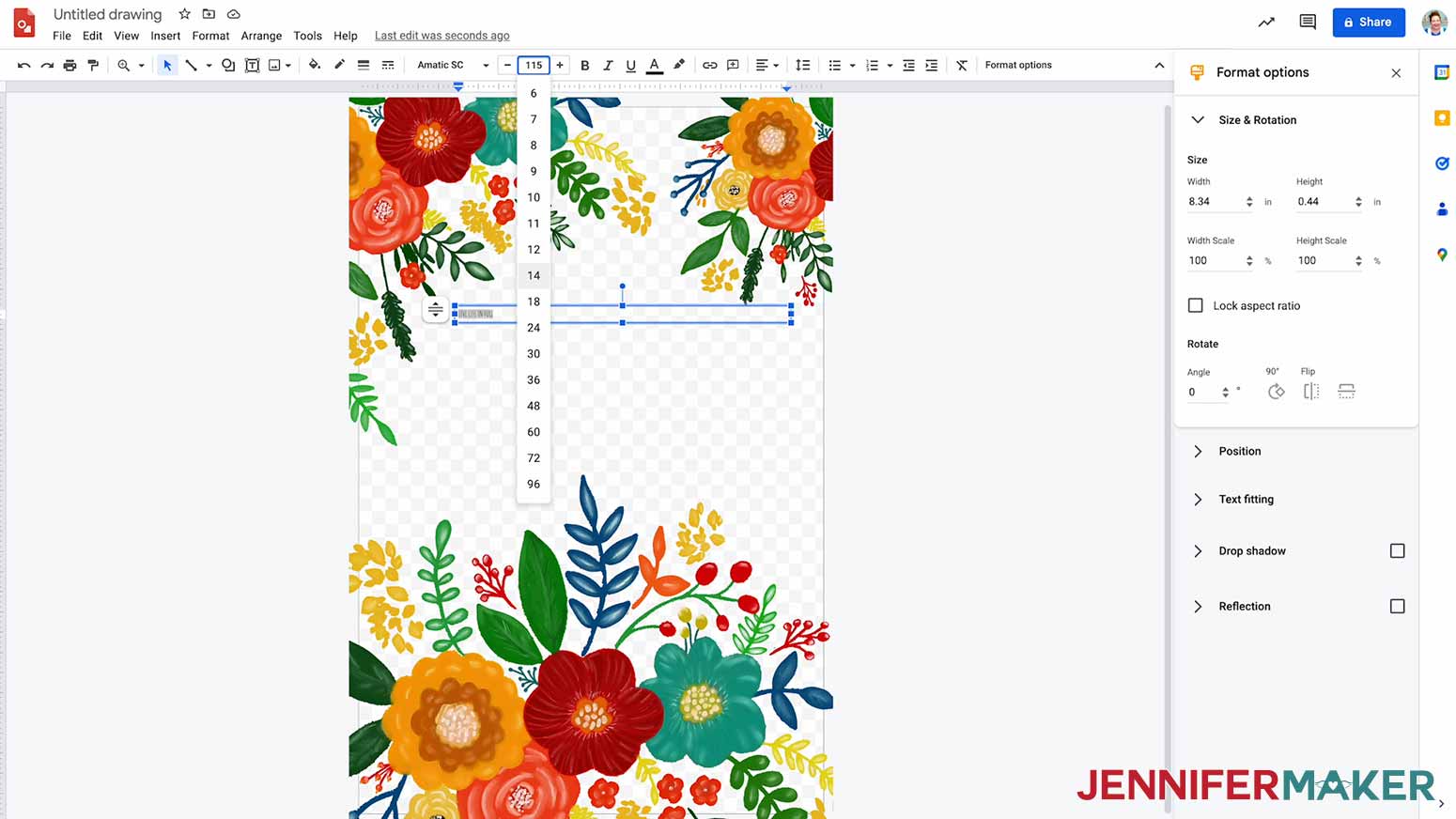
The box just to the right is the Font Size. I found that 115 was a good size for my text; you may find you like yours bigger or smaller.
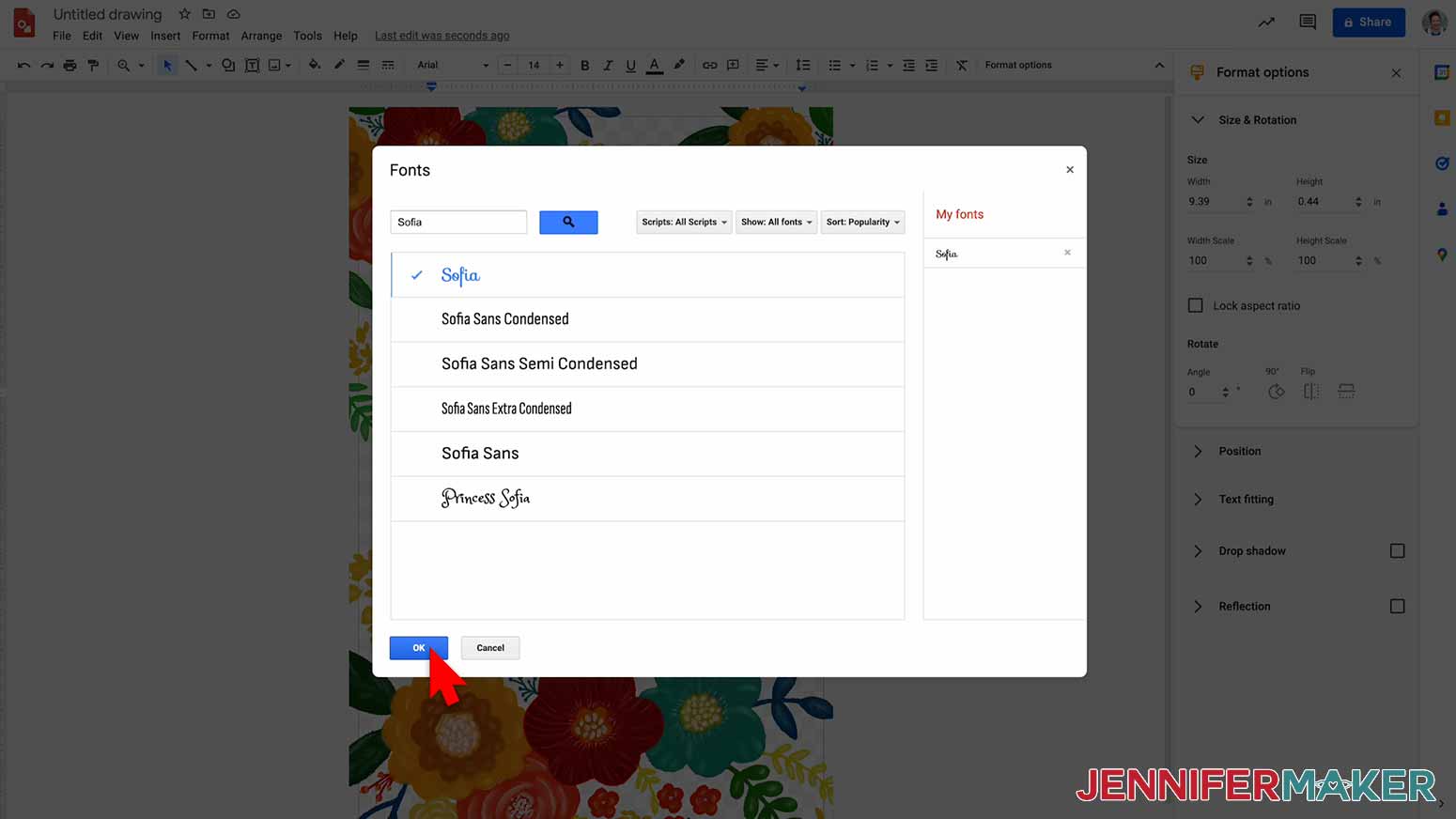
Repeat the steps above to create a second text box below the first. I will type in "Bloom", select the font Sofia, and change the size to 225.
I'll also change the color of my text. With the text selected, click the Text Color icon from the menu bar and select the color of choice. I will select the darkest green.
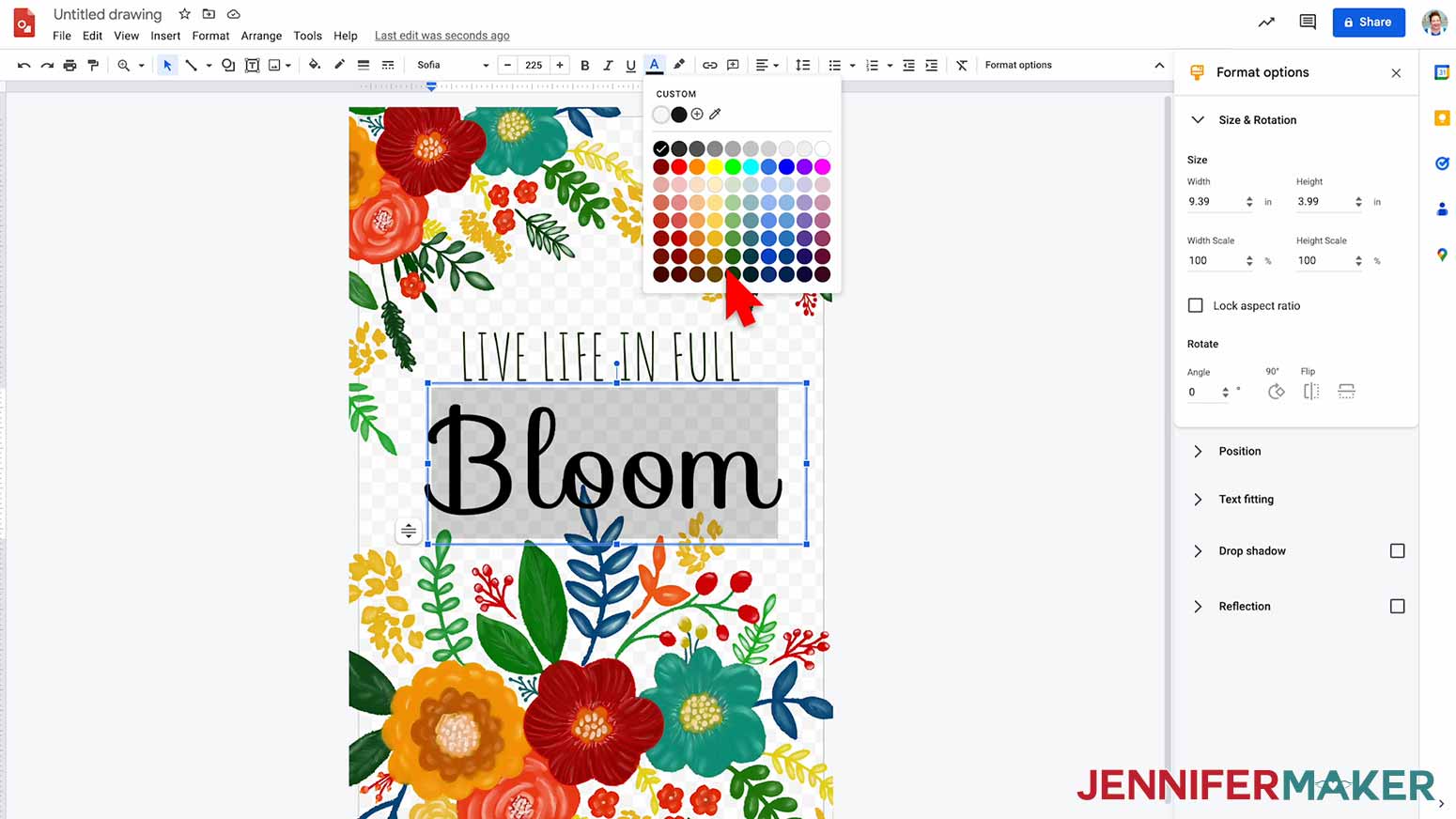
You can also center the text by using Align found in the toolbar.
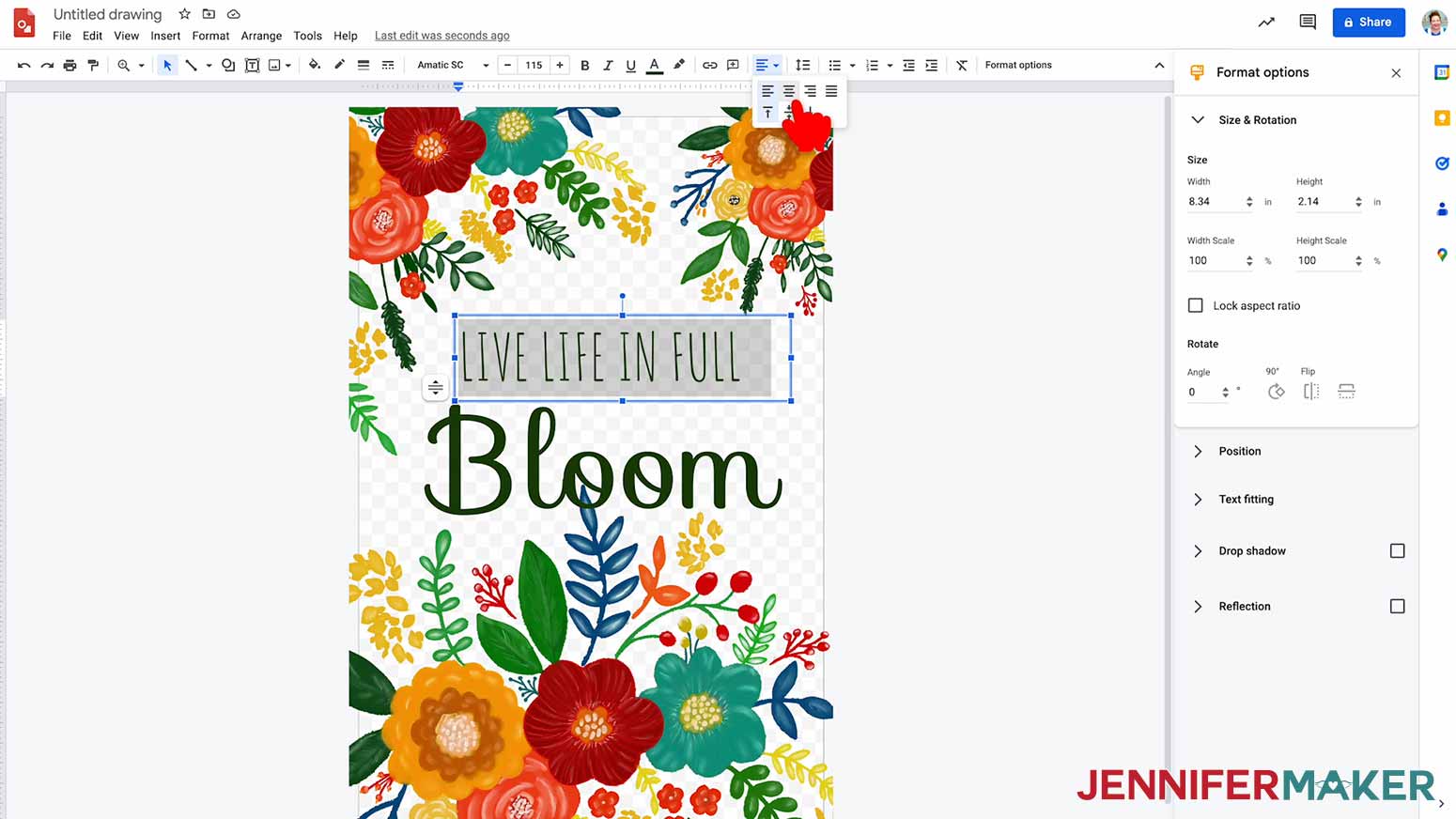
Now I'll rearrange my text boxes until I am happy with the placement.
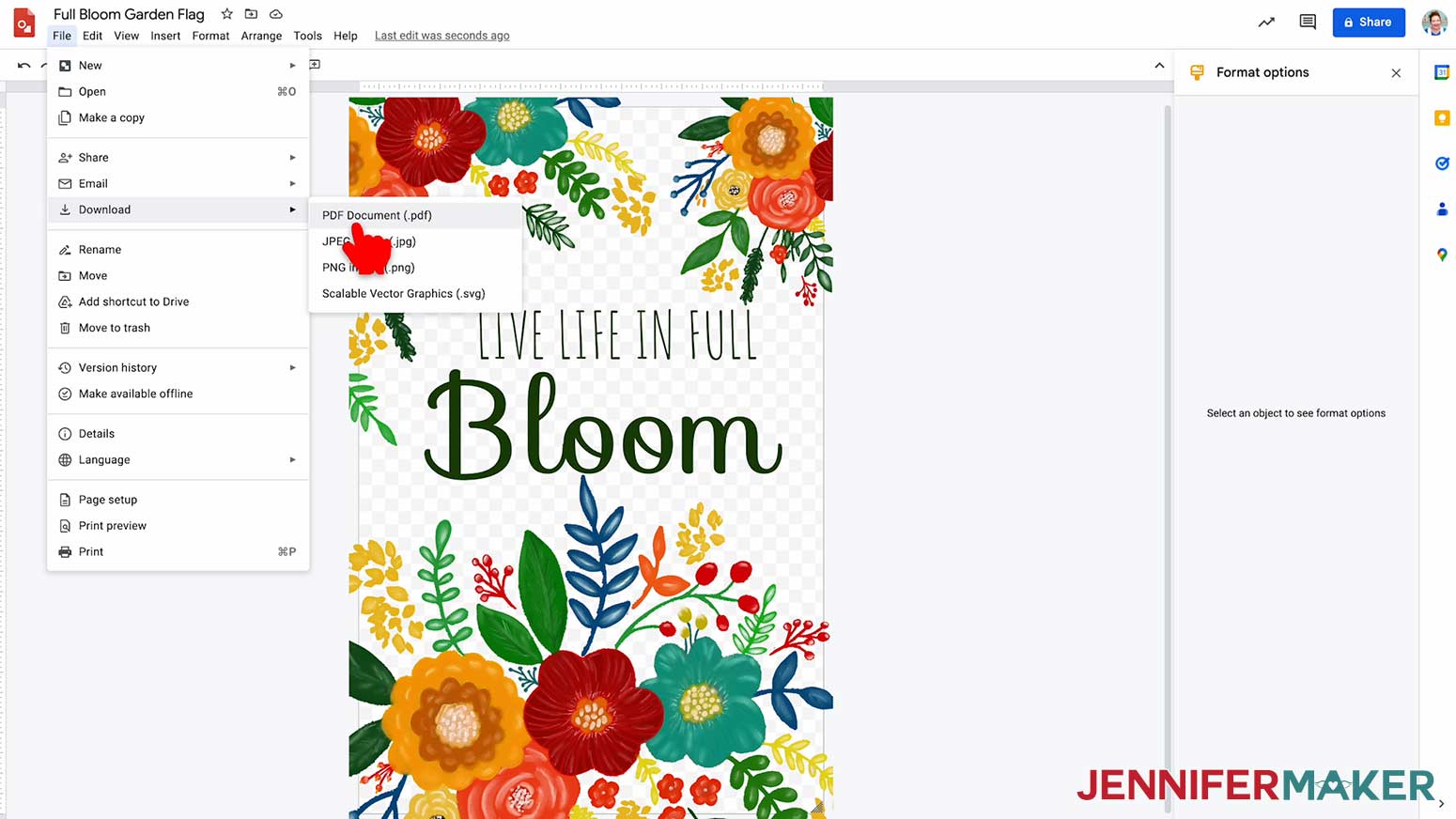
To save the file to your computer, click “Untitled Drawing” and change the name to something you’ll remember, like “Full Bloom Garden Flag”. Then be sure to download the file as a PDF.
STEP 2: PRINT YOUR SUBLIMATION DESIGN
Download the free version of Adobe Acrobat Reader.
Open the garden-flag-one-sided-no-text-jennifermaker-PDF.pdf.
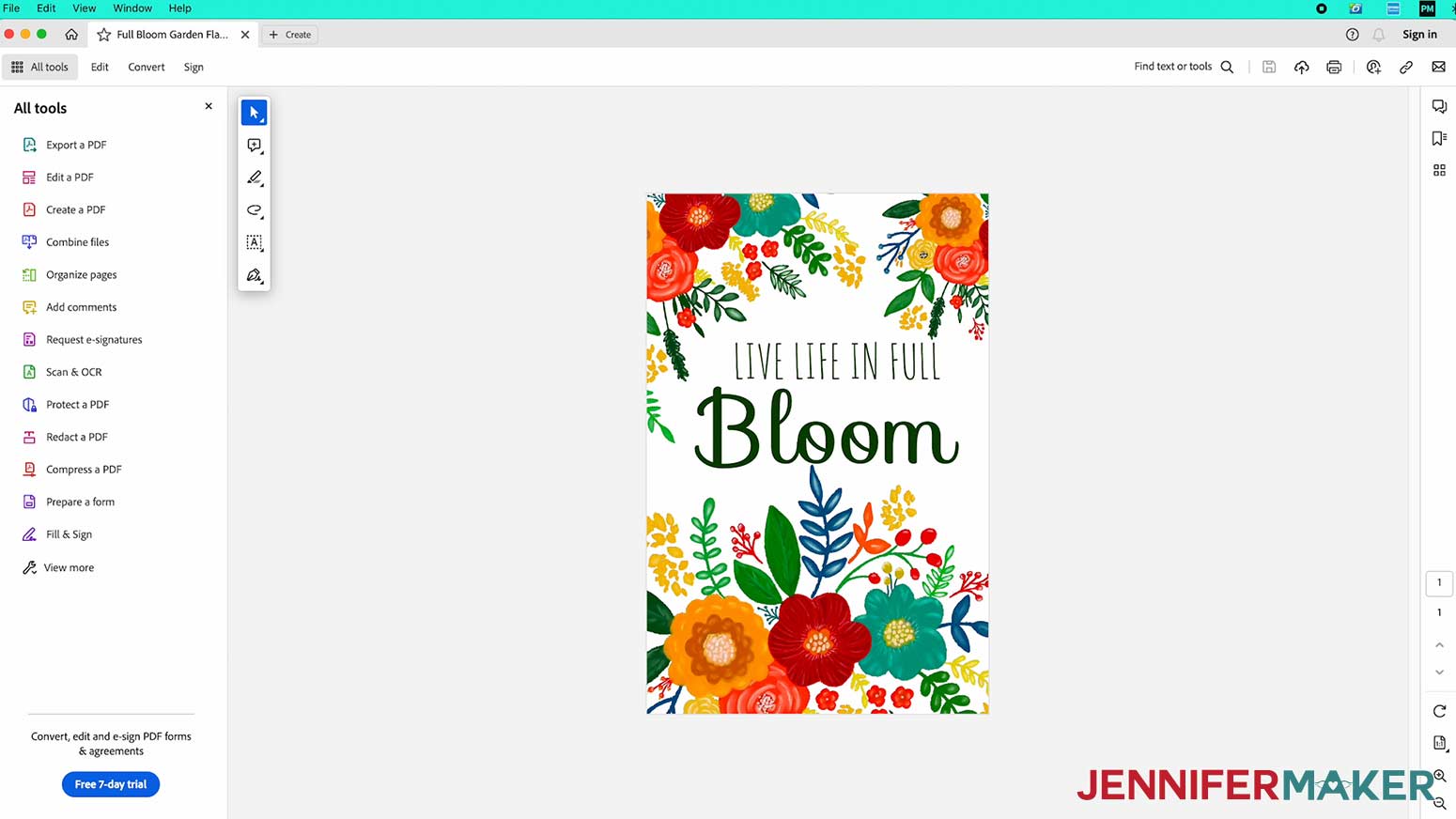
Select print from the file menu. In the print dialog box select Poster, set the Overlap to 0.2, and check the Cut Marks box. Using the Poster setting will print multiple 8 1/2 x 11" sheets of paper, for this design it will print out four sheets of paper.
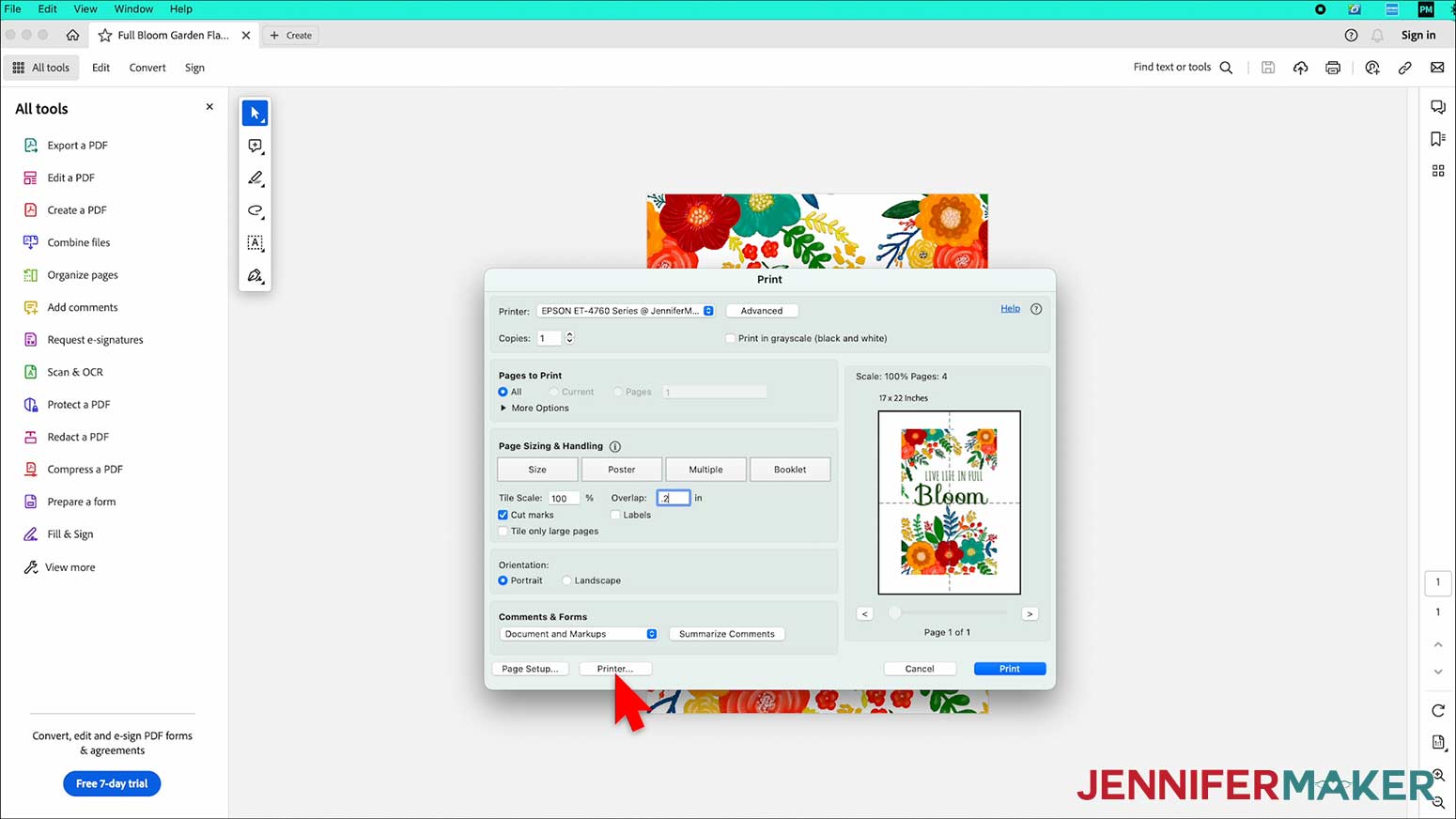
Next, click the Printer button in the lower left corner. This lets you set up for sublimation printing. Under Layout make sure Flip Horizontally is checked. If you have an ICC profile installed, select Color Matching, click ColorSync and select your ICC profile. And lastly, for Print Settings select Premium Presentation Paper Matte and High Quality.
NOTE: Due to variances between printers, computers, and operating systems, your settings might not look exactly like mine. The most important things to keep in mind are mirroring your design and selecting the highest print quality.
Make sure you have sublimation paper loaded correctly into your printer and click Print.
STEP 3: PREPARE YOUR PRINT FOR SUBLIMATION
Tiling your pages
Let's first lay out the pages on a flat surface, face up, and take a look at them. You should notice the Cut Marks, they look like two corners with a straight line in the middle. We are going to trim the middle straight lines. If we start with the upper left page tile we're going to number our pages 1 - 4 going clockwise.
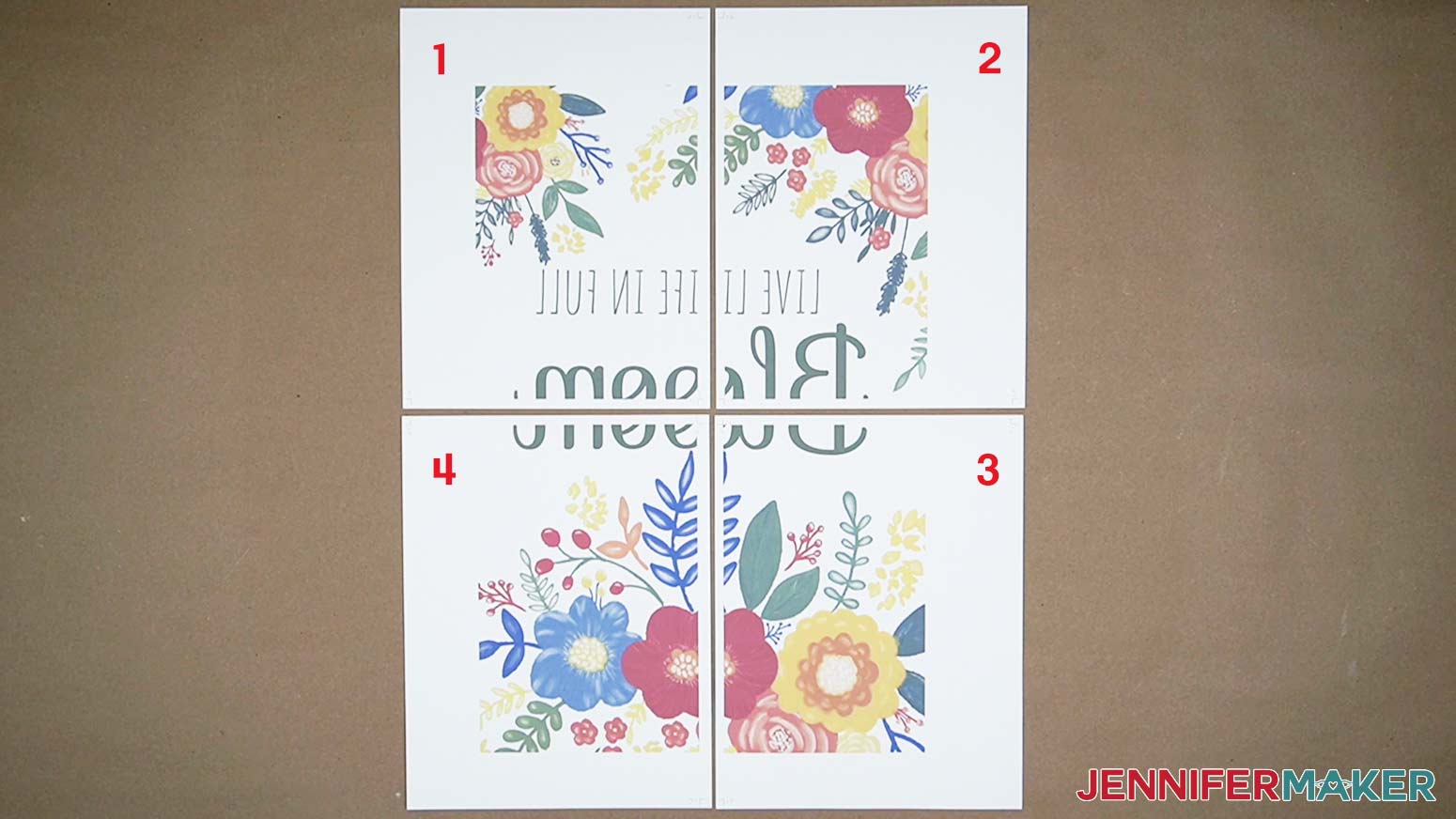
Take panel 1 and trim both the long and short edges of the paper. Repeat this on all four panels. By trimming the edges, you are trimming the printed crop marks so that they don’t transfer when sublimated. The design will still have about a .2” overlap so that it’s easy to align and tape together.
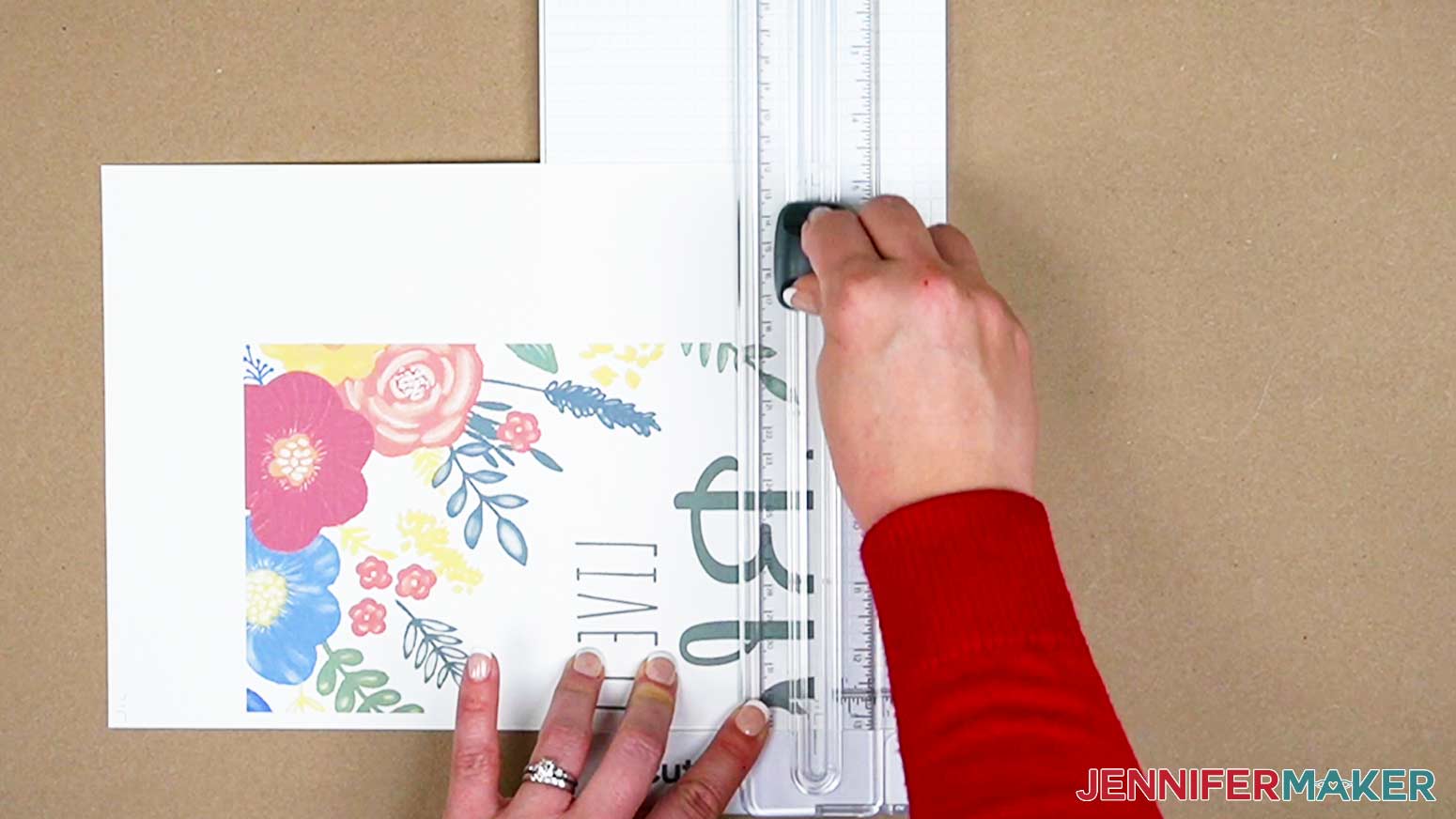
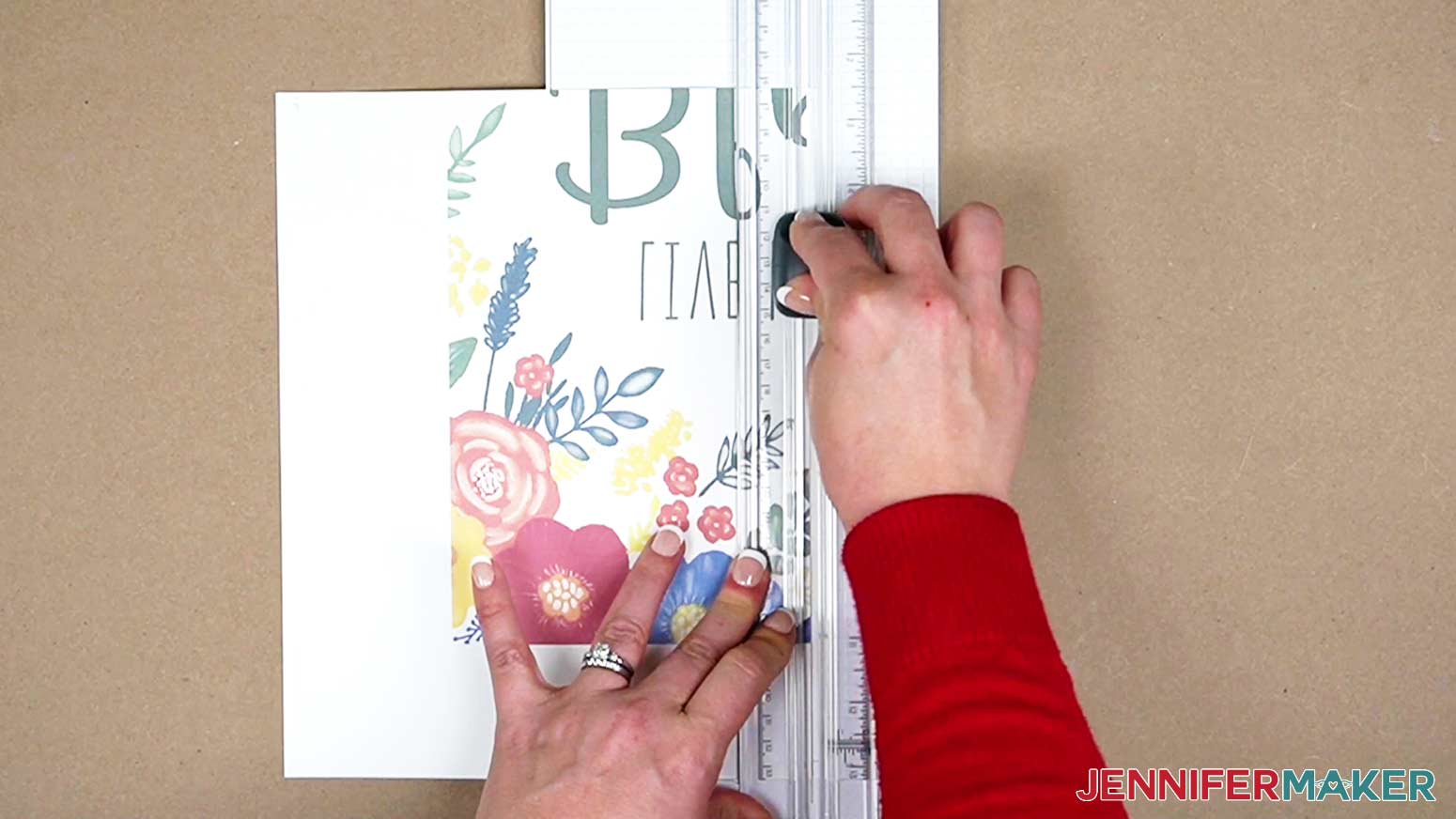
Place a piece of heat-resistant tape under the center corner of the first panel, so the sticky side is face up. This will help tack your panels in place and keep them from shifting as you're aligning them.
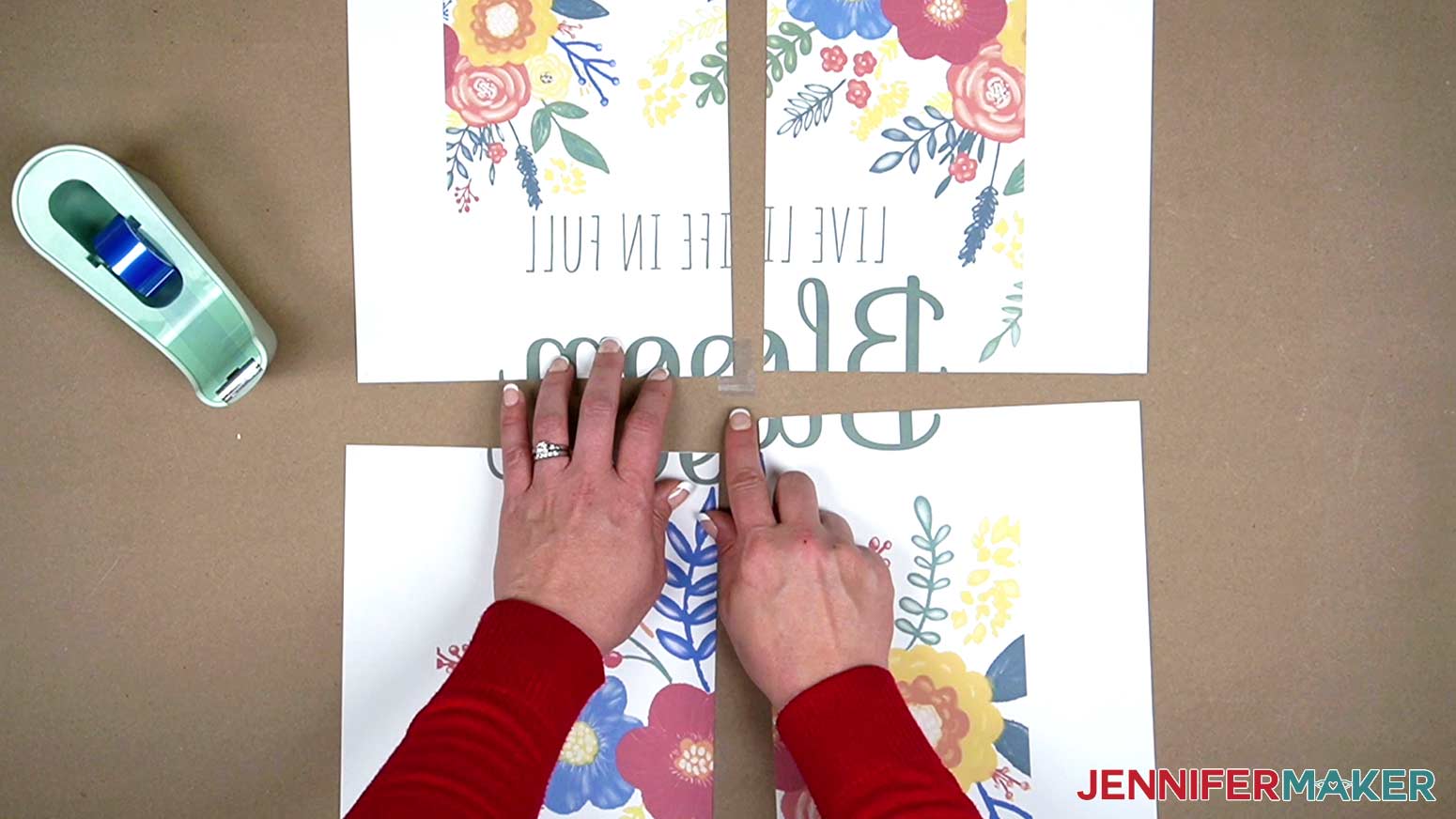
Using heat-resistant tape as you go, place panel 2 on top of panel 1, lining up the design. This takes some patience so take your time! Be careful not to tape over any sublimation ink.
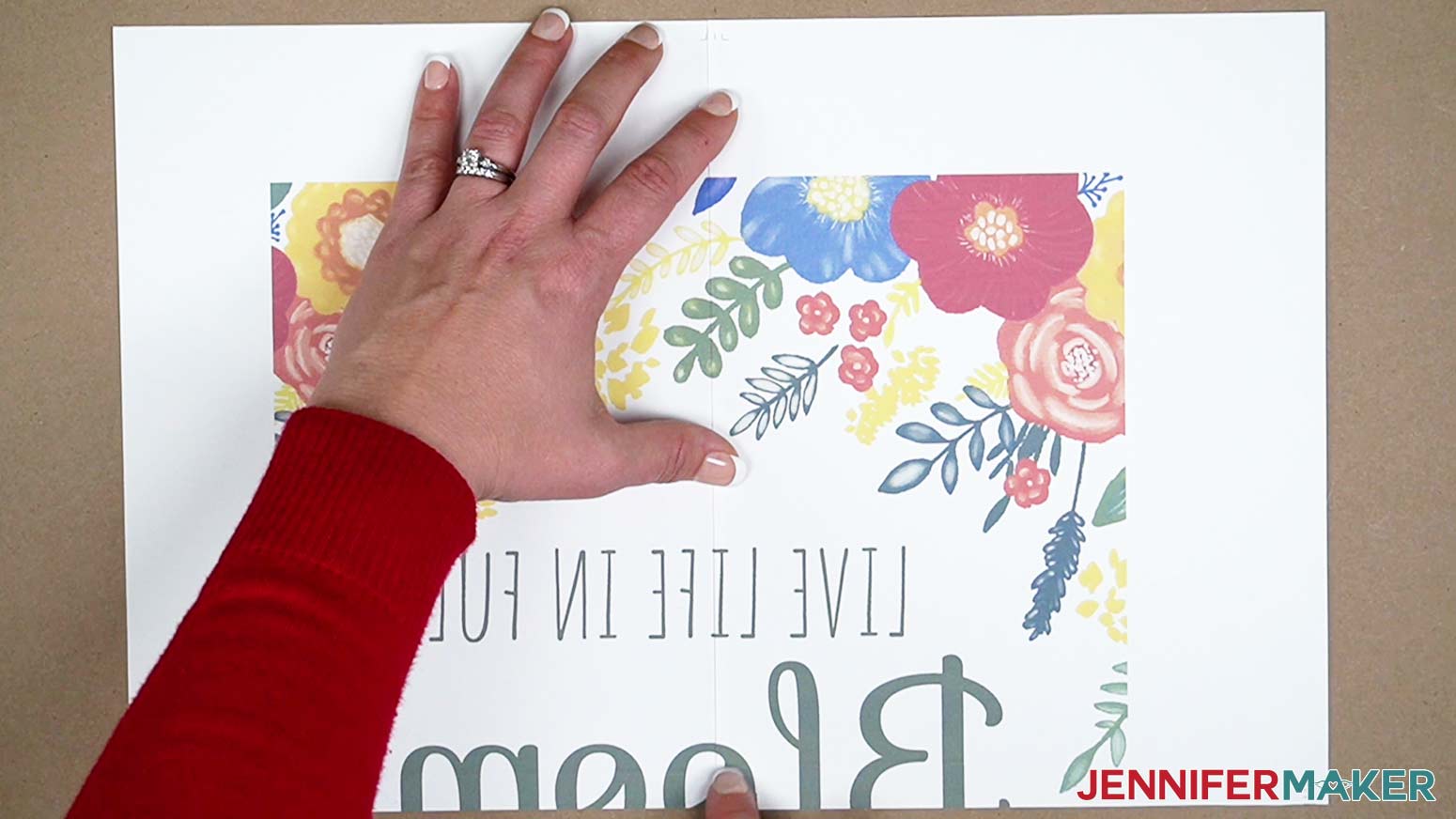
Continue this for the remaining panels - placing panel 3 on top of panel 2, then panel 4 on top of panel 3. Again, remember to use patience when lining everything up.
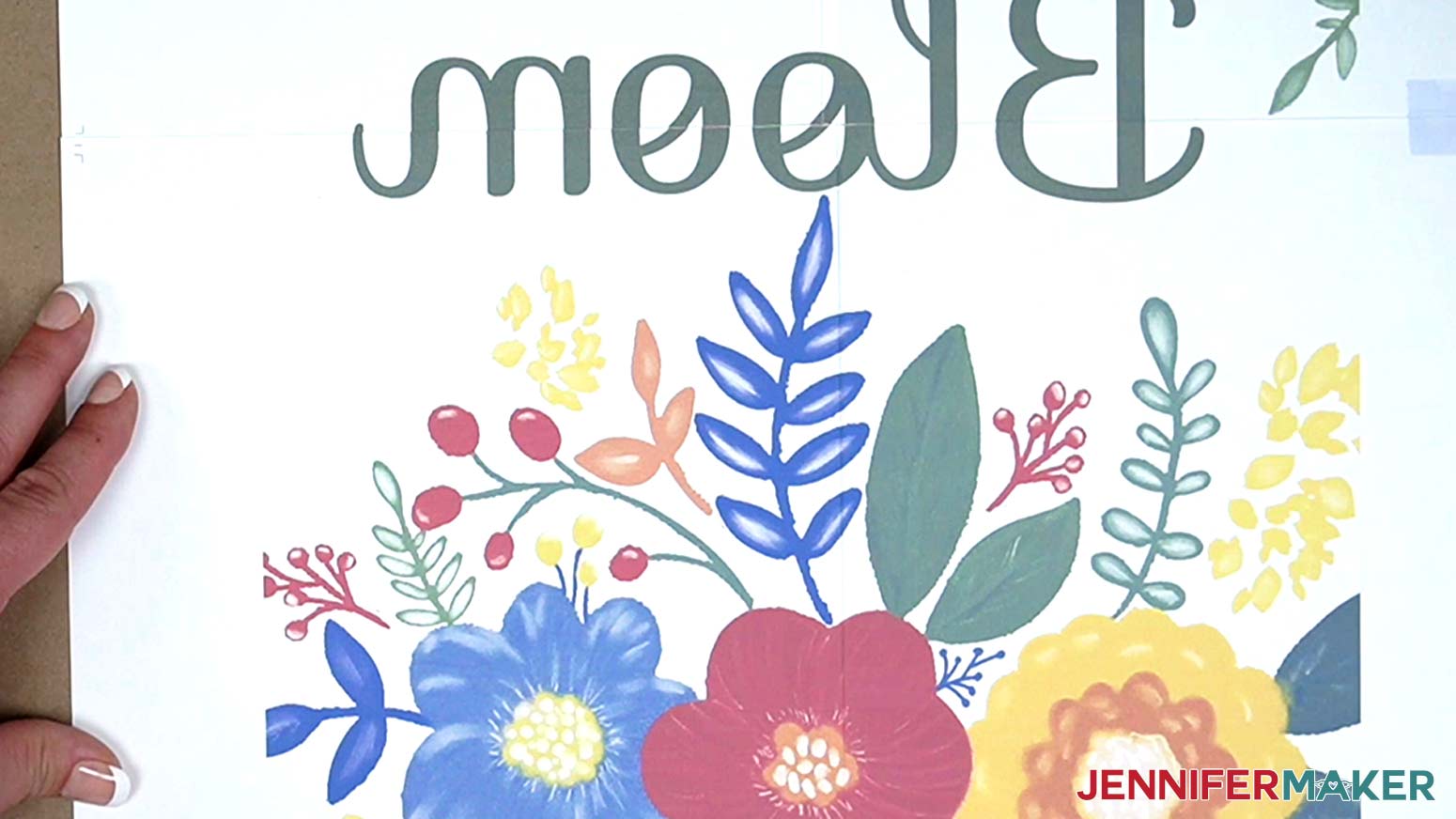
NOTE: Be careful not to tape over any sublimation ink. If you have a full coverage design, you can add small amounts of tape to the back to keep it together without shifting, but be aware that it adds another layer and sometimes leaves an impression mark, so avoid it if possible or only use a little bit. Try to tape in non-ink areas if possible.
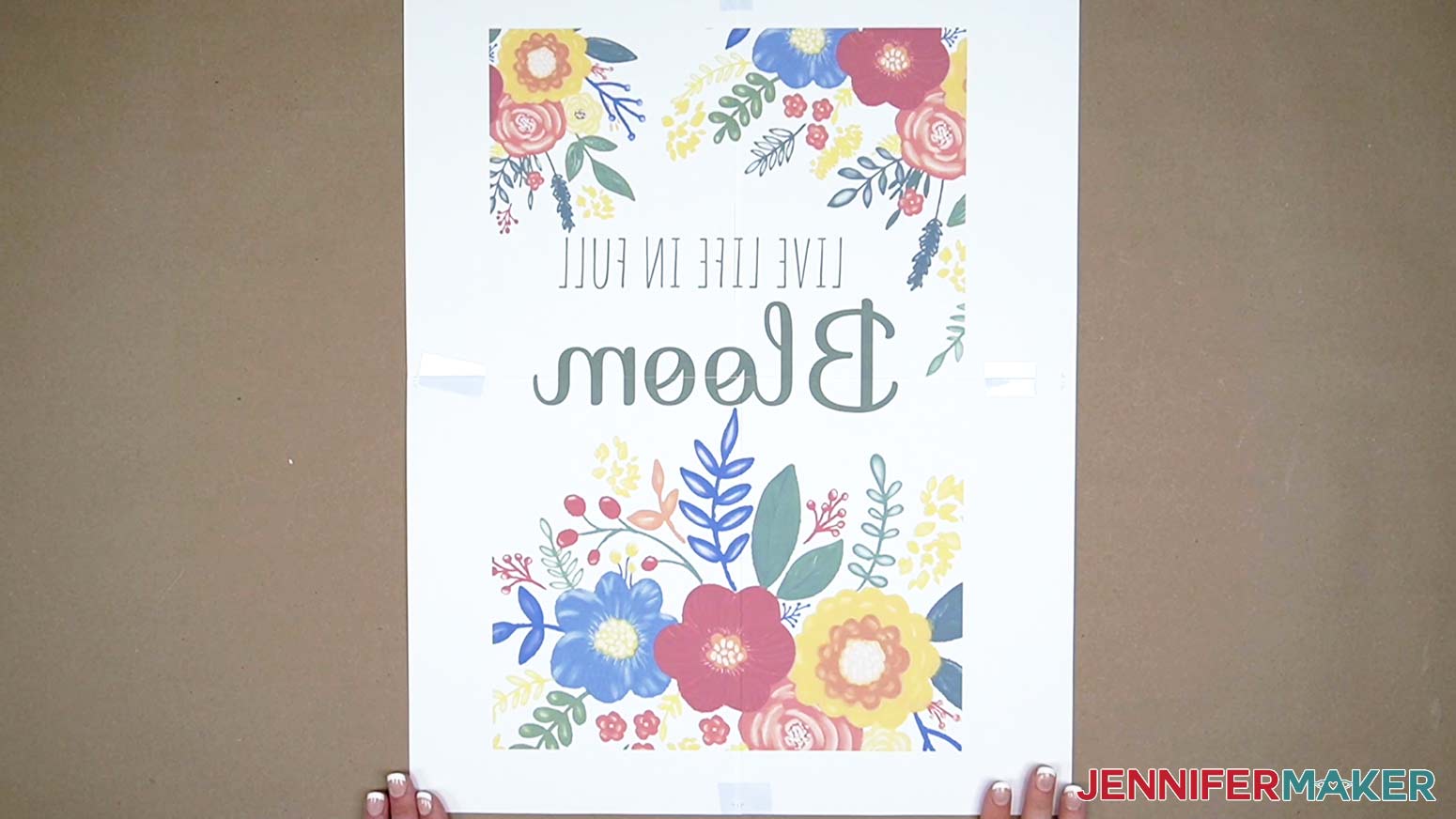
For this tutorial, I'll be showing you how to use the EasyPress 2 to sublimate your garden flag.
Place a heat-resistant mat on a flat surface. I used a Cricut Heat resistant mat.
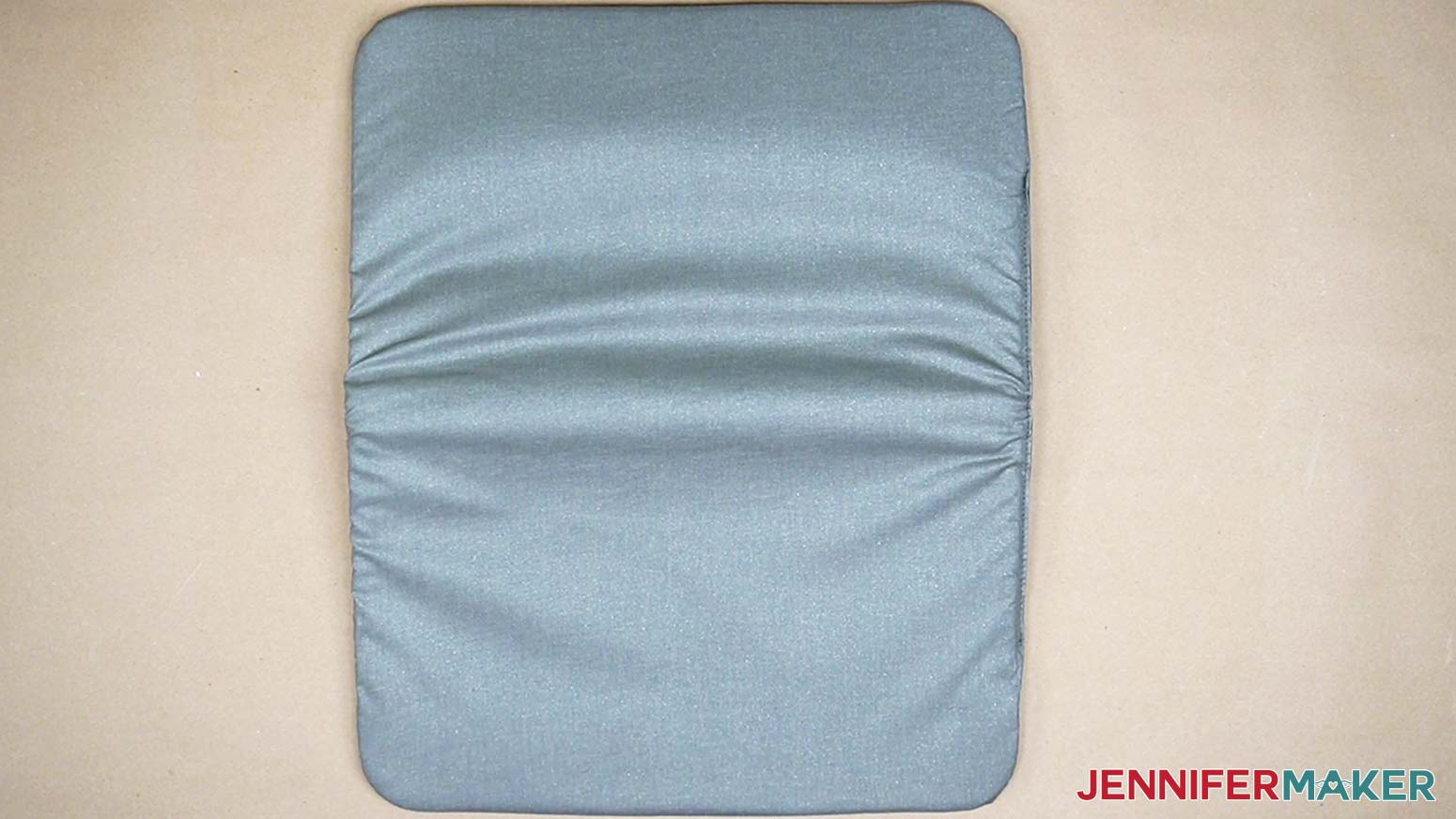
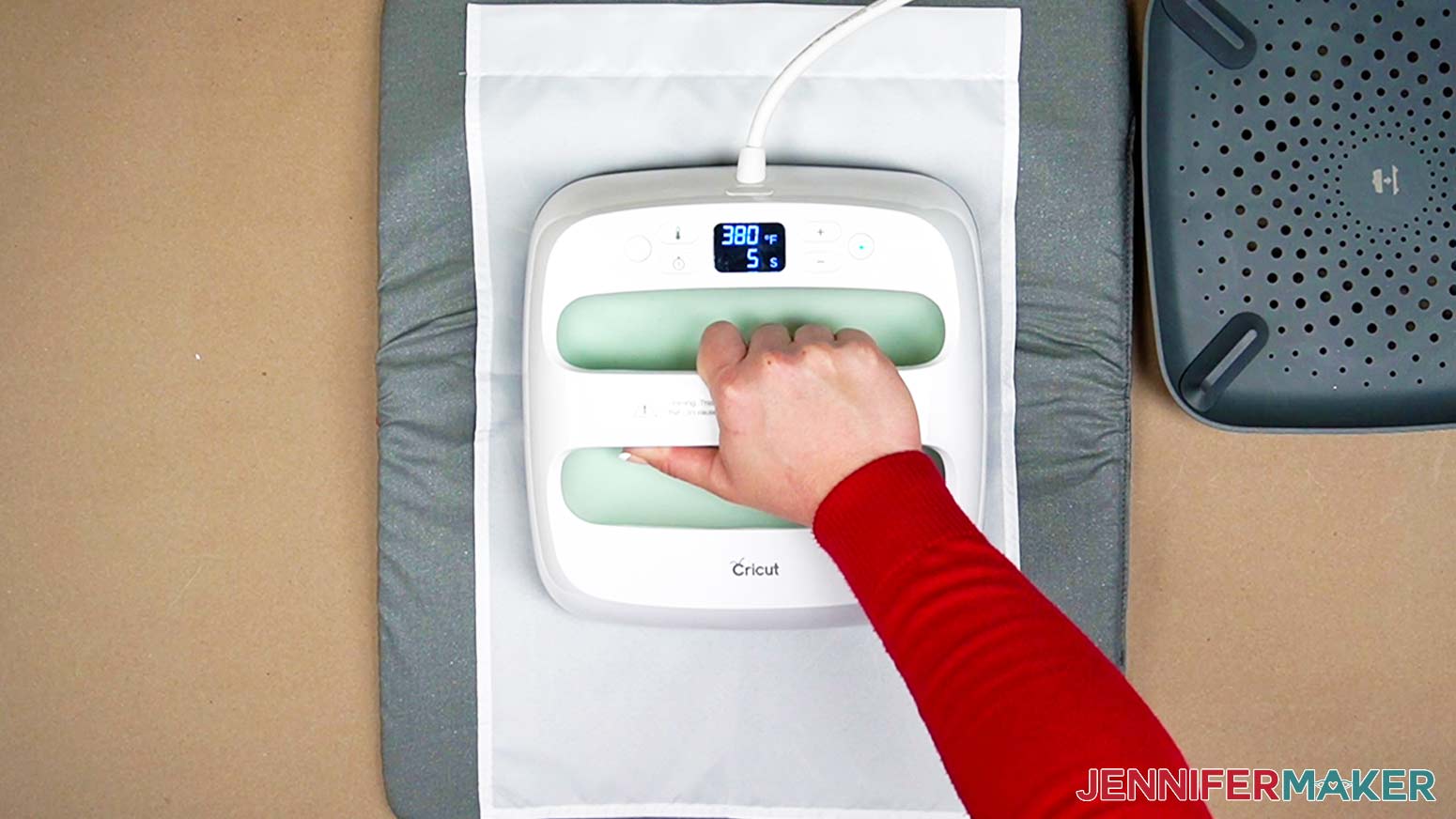
Preheat your EasyPress 2 to 380 degrees Fahrenheit/193 degrees Celsius and preheat the entire flag for 10 seconds to remove moisture.
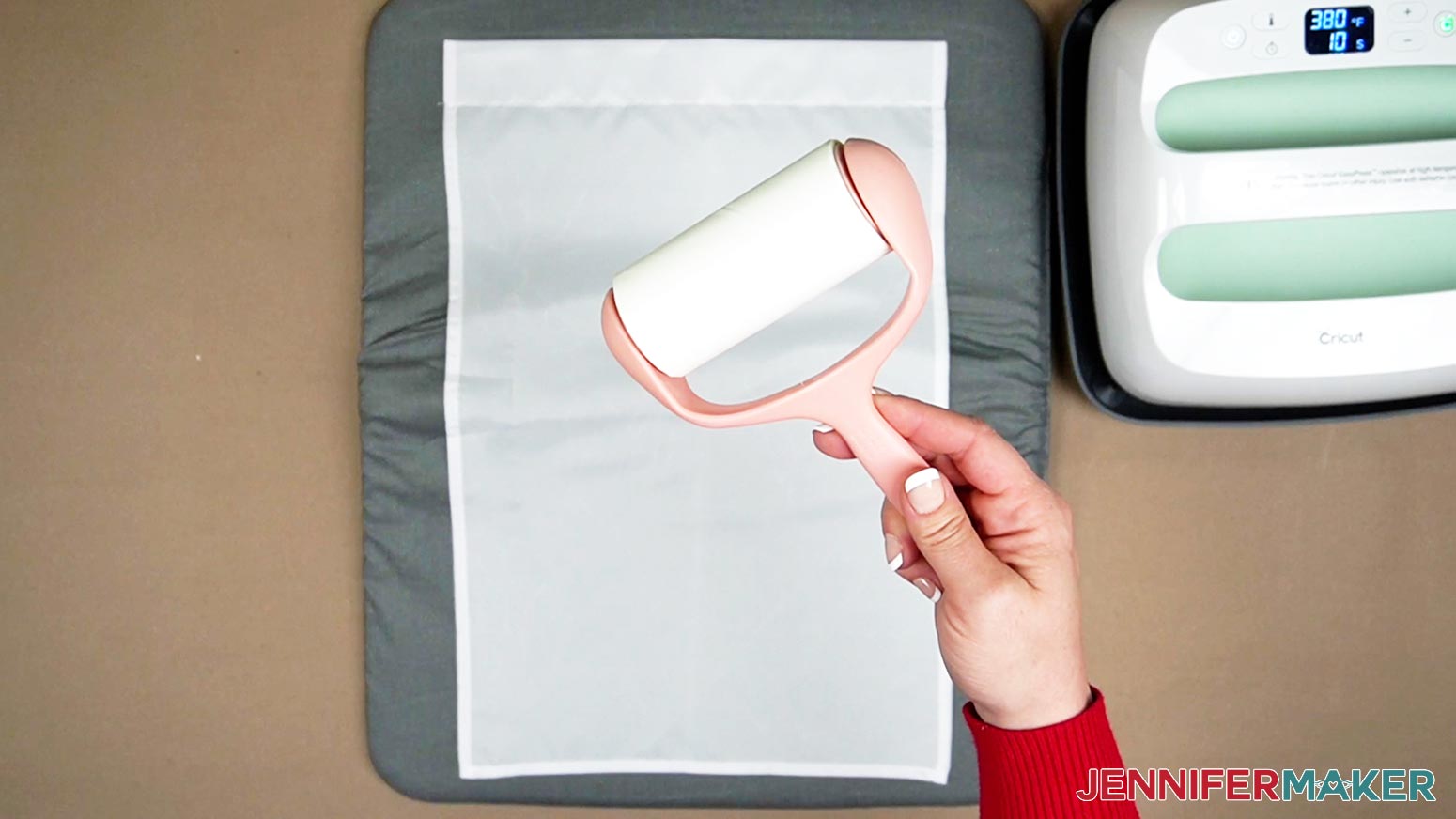
Take your garden flag blank and go over it with a lint roller to remove any lint or debris.
Place it face down on your tiled design. The design will be just a bit larger than your flag. This is to ensure the design covers the entire surface of the flag. Align the flag blank with the design until you are happy with the placement and secure it with heat-resistant tape. Be generous with the heat-resistant tape to prevent any shifting when transferring it to the pressing mat.
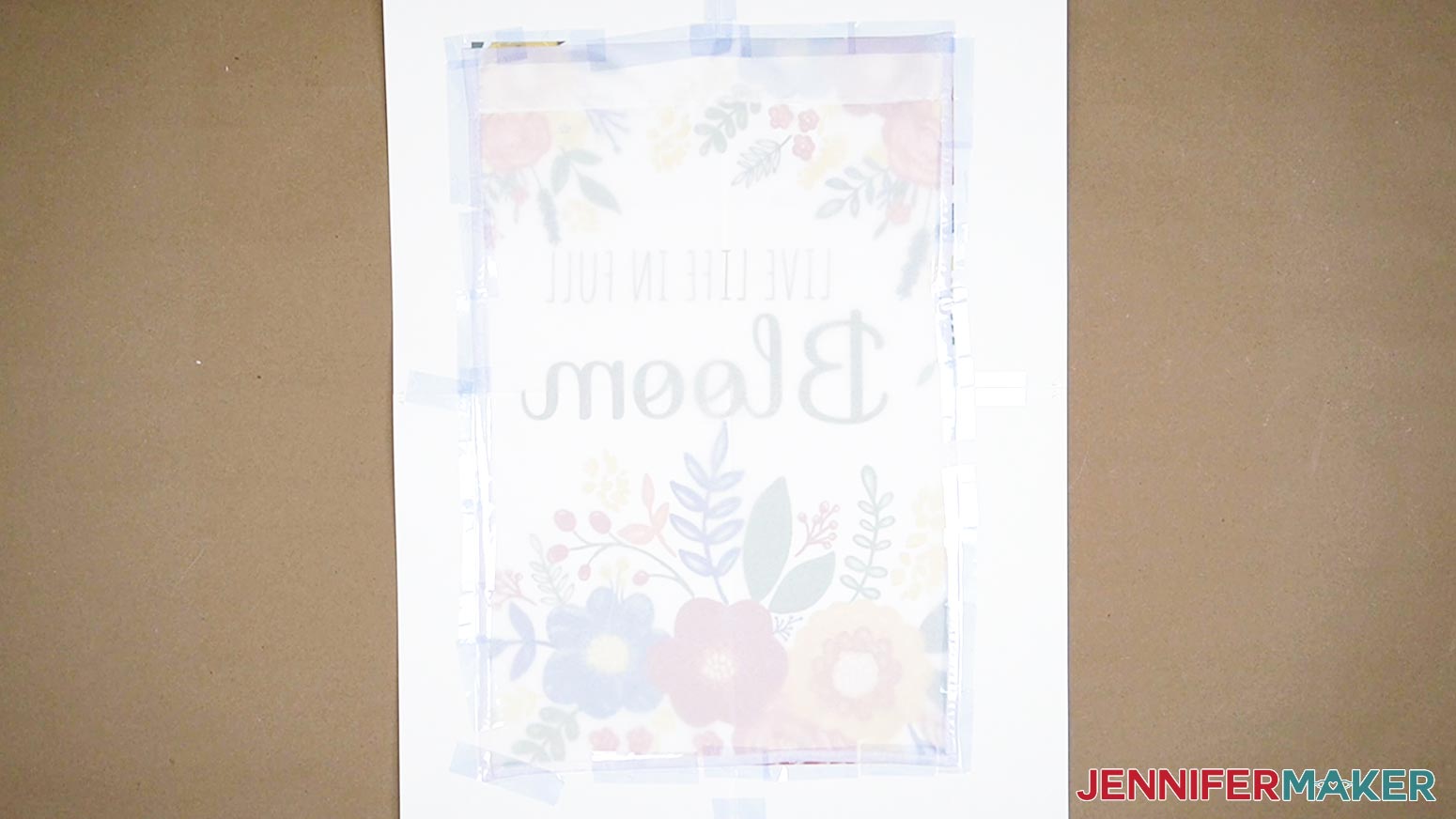
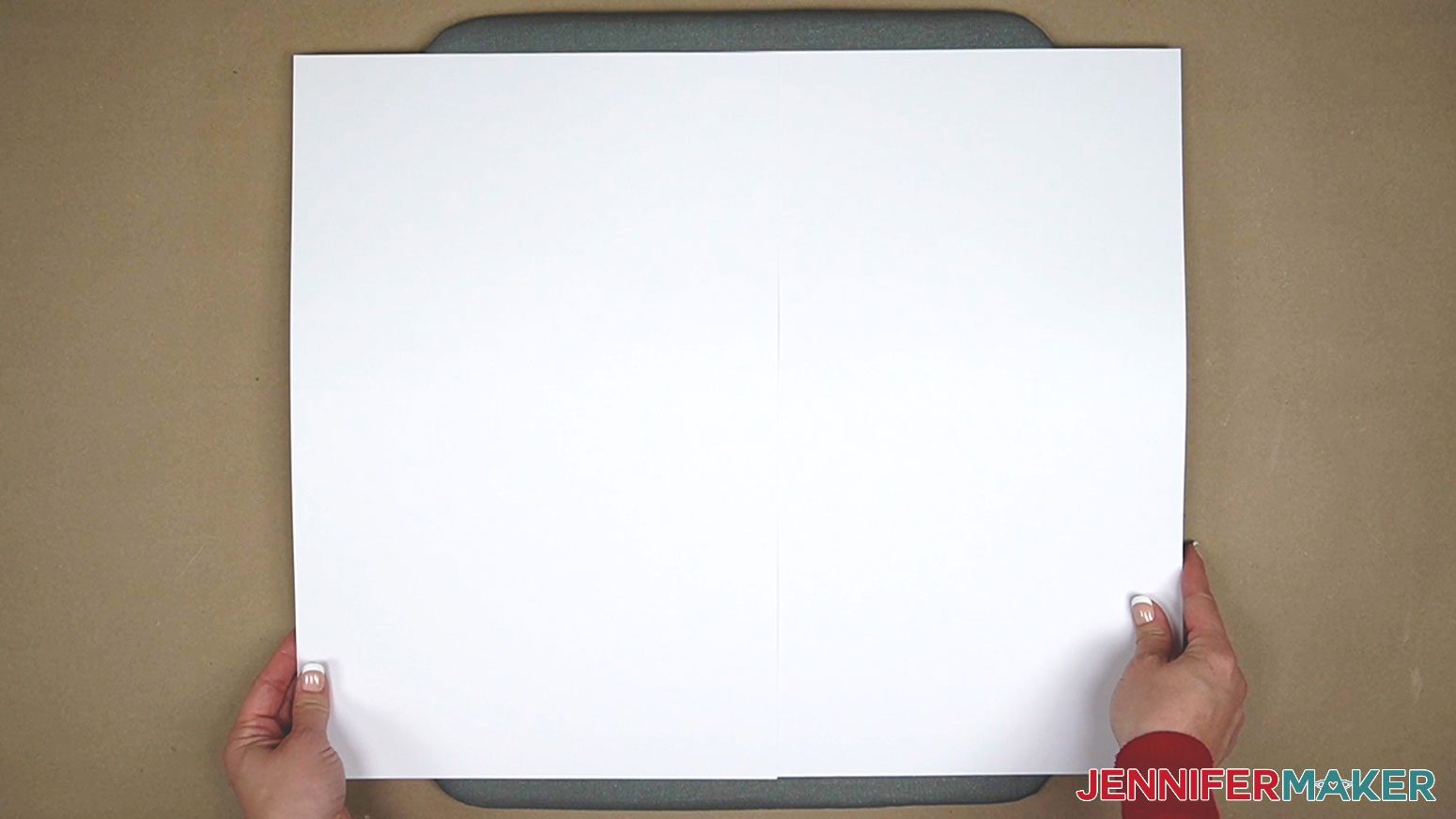
Take a large piece of white heavy-weight cardstock and lay it on the pressing mat. Be sure it's completely covering the mat to protect it from potential blowout.
Carefully turn over your prepared flag blank and design and place it on top of the cardstock on the pressing mat. The print is now face down.
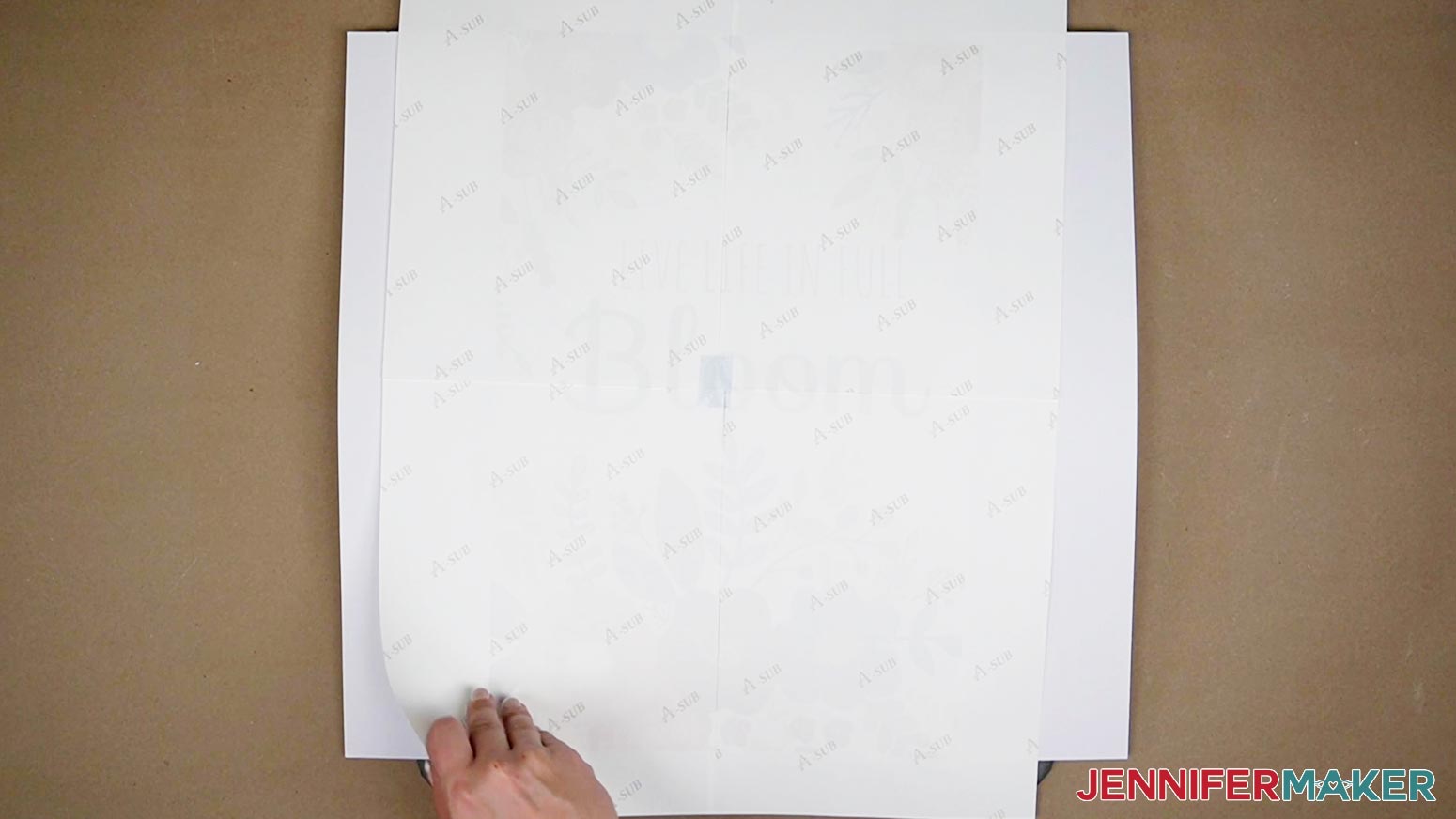
Place a piece of large, clean butcher paper on top of the print. Ensure the butcher paper covers the entire design to protect your heat press from any blowout.
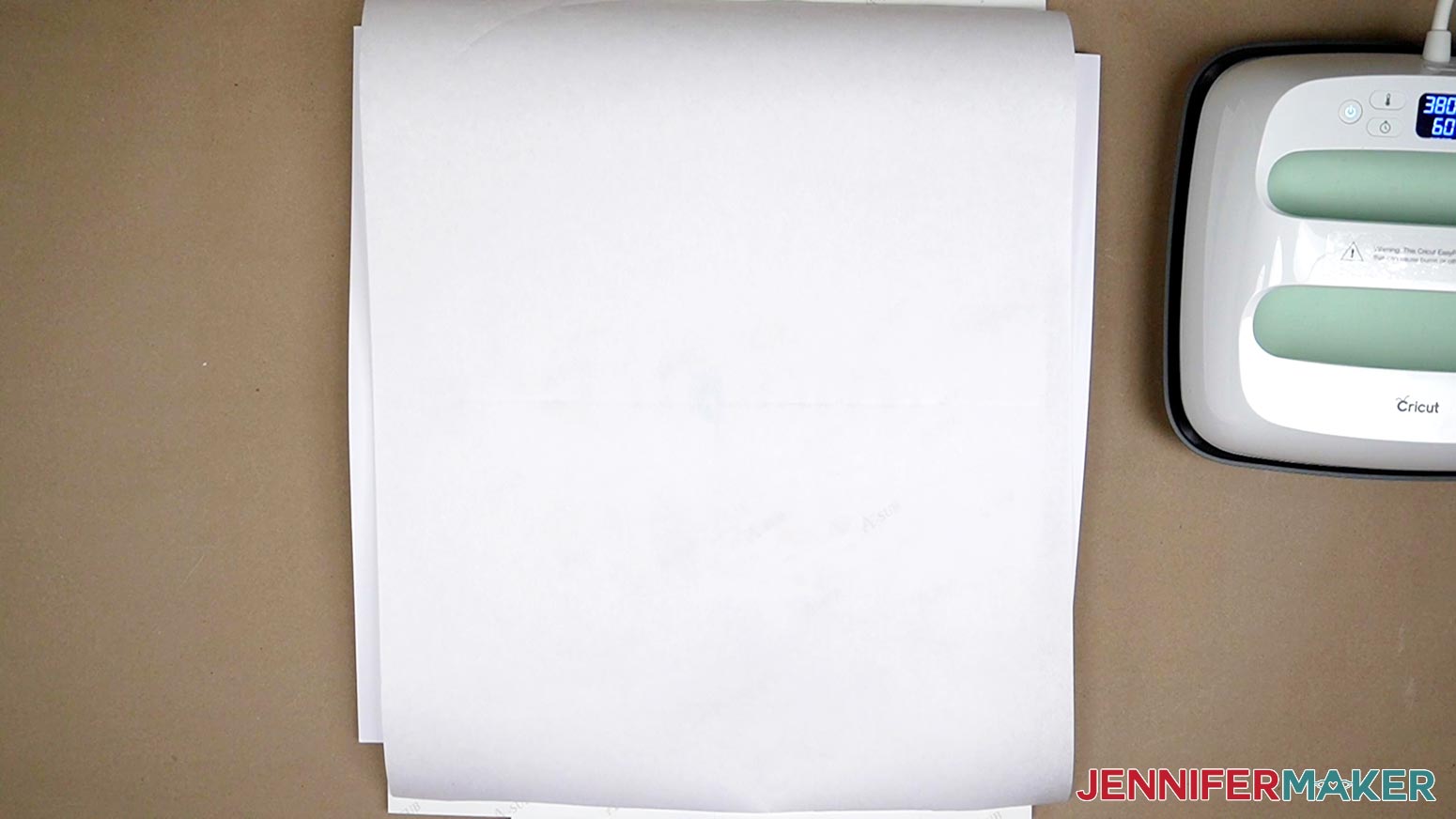
Now it's time to press.
STEP 4: PRESS YOUR SUBLIMATION PRINT
Before you start, open a window or set up a fan to improve your ventilation. Since we’re heating up sublimation dye, you don’t want to breathe in any of the fumes!
Make sure your press is heated to 380 degrees Fahrenheit/193 degrees Celsius.
Referring to how we tiled the design, we are going to press in a similar fashion. Starting with the top left corner, place your Cricut Easy Press on top of the design for 60 seconds.
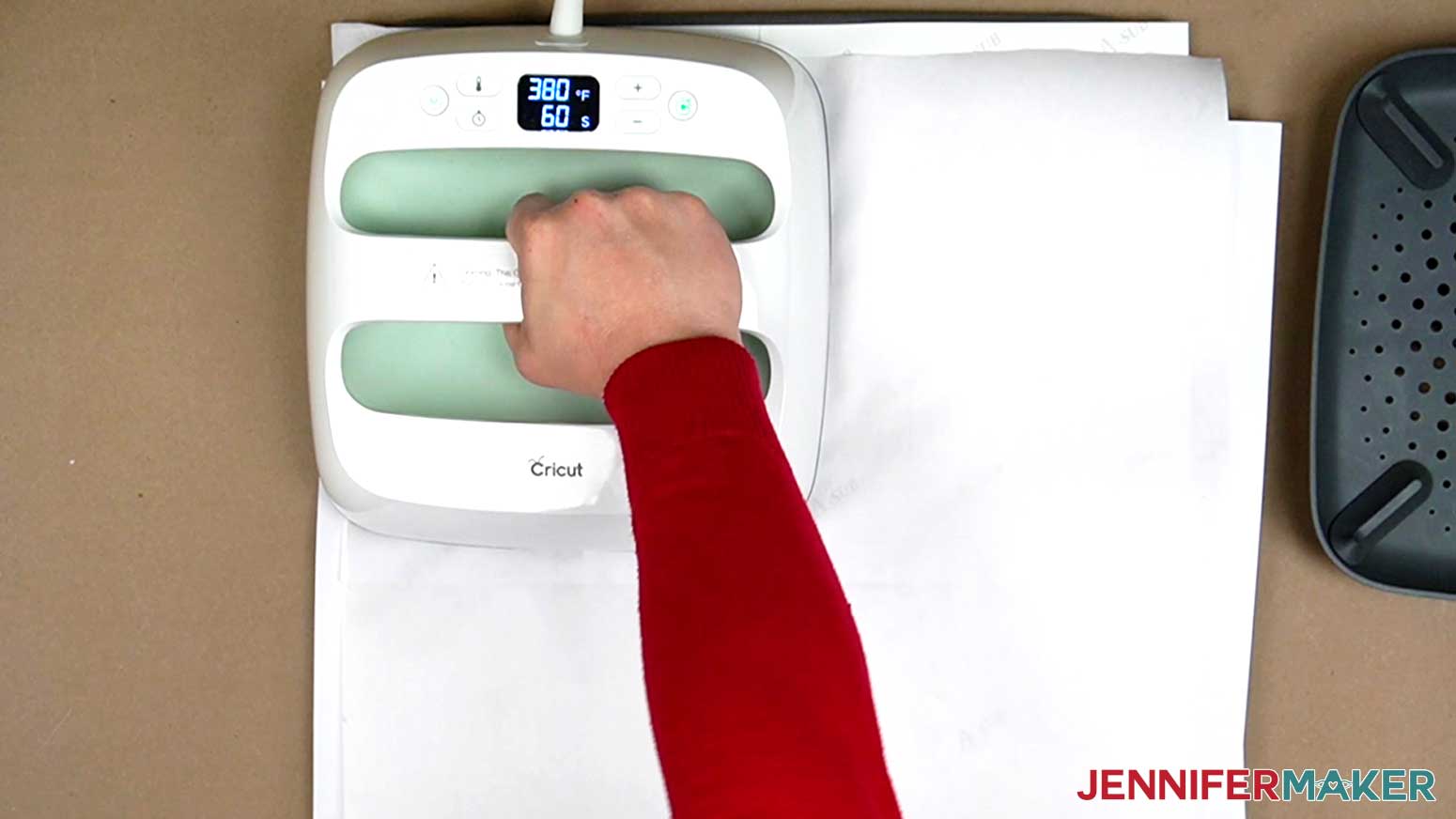
When the timer goes off, lift the heat press straight up and place it down on the top right corner, and press for another 60 seconds. Repeat this process with the lower right corner, then the lower left corner. After the four corners have been pressed, place the Easy Press in the center of the flag and press for 60 seconds.
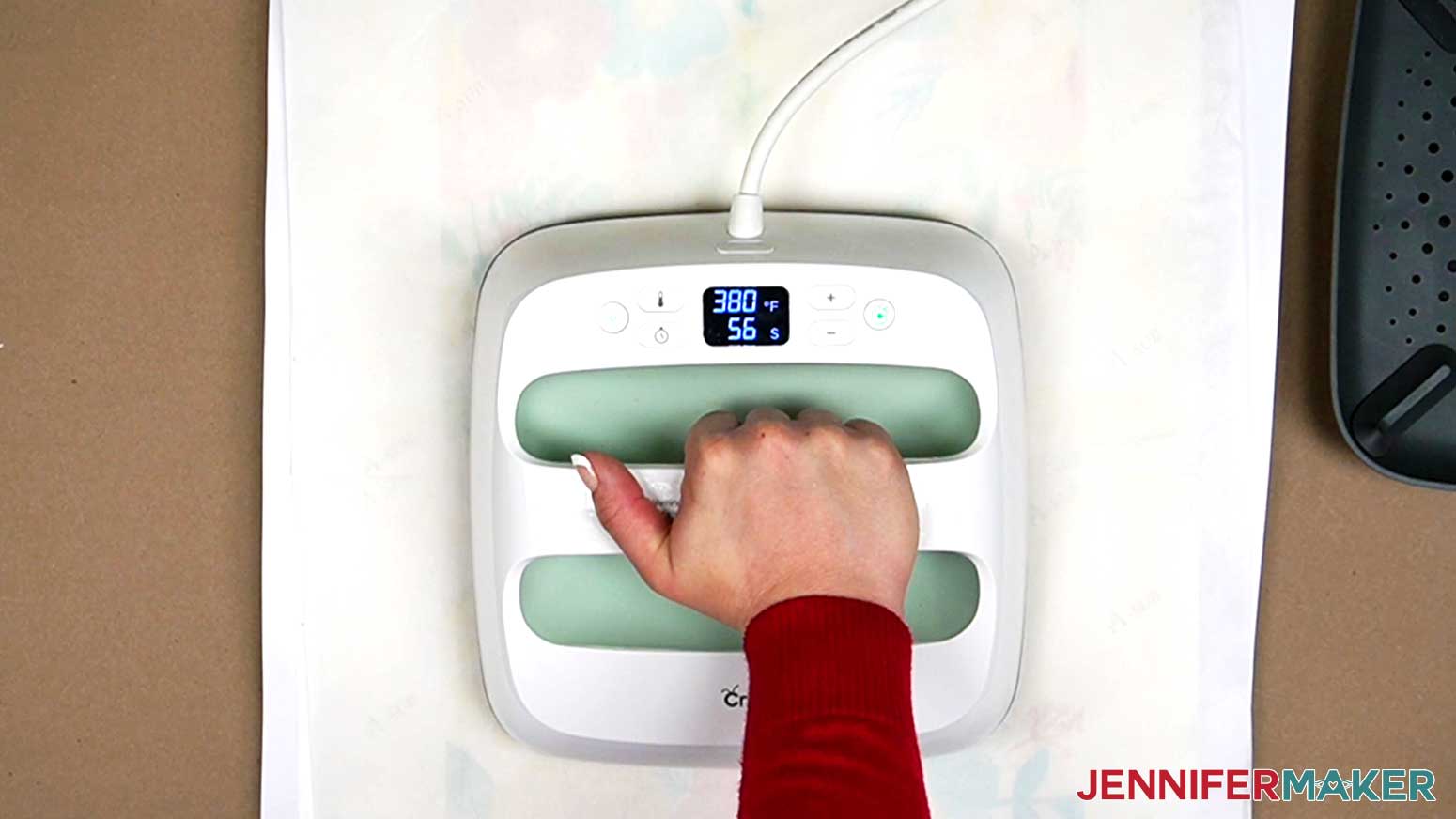
You will have pressed the mat five times in total.
Once the last section has been pressed, let it cool before removing the paper. You want to make sure the sublimation process has been completed.
VARIATION:
DOUBLE-SIDED GARDEN FLAG DESIGN
Now I'll show you how to sublimate on a double-sided garden flag! For this example, I will be using the Spring Has Sprung double-sided design.
TIP: If you'd like to personalize the front side of the design, use the garden-flag-double-sided-front-no-text-jennifermaker-PNG and follow the one-sided flag steps above.
The steps are very similar to the single-sided design we just made, except we will do everything twice.
Download the free version of Adobe Acrobat Reader. Make sure to use Adobe Acrobat to open the garden-flag-double-sided-front-jennifermaker-PDF and the garden-flag-double-sided-back-jennifermaker-PDF files.
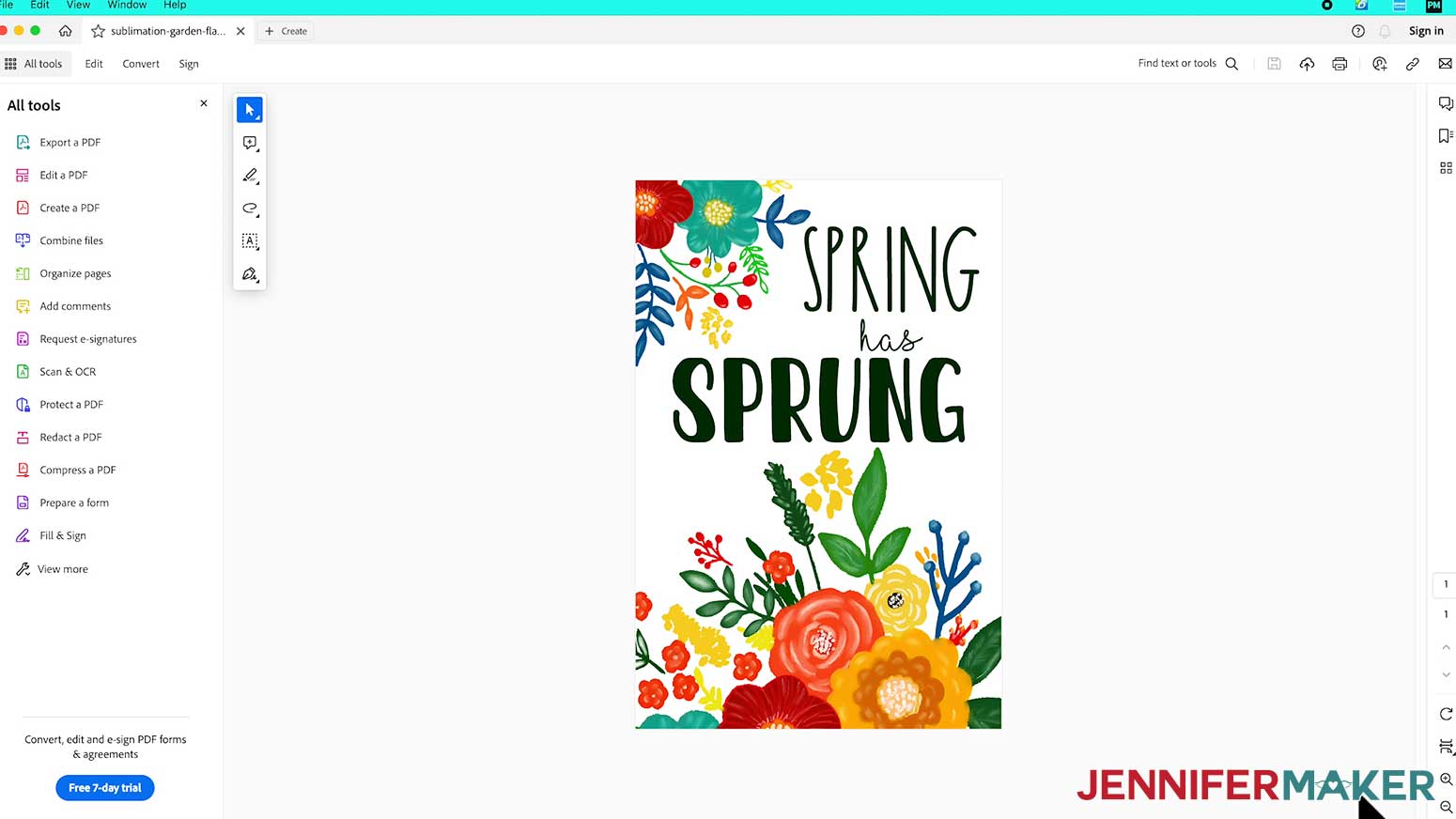
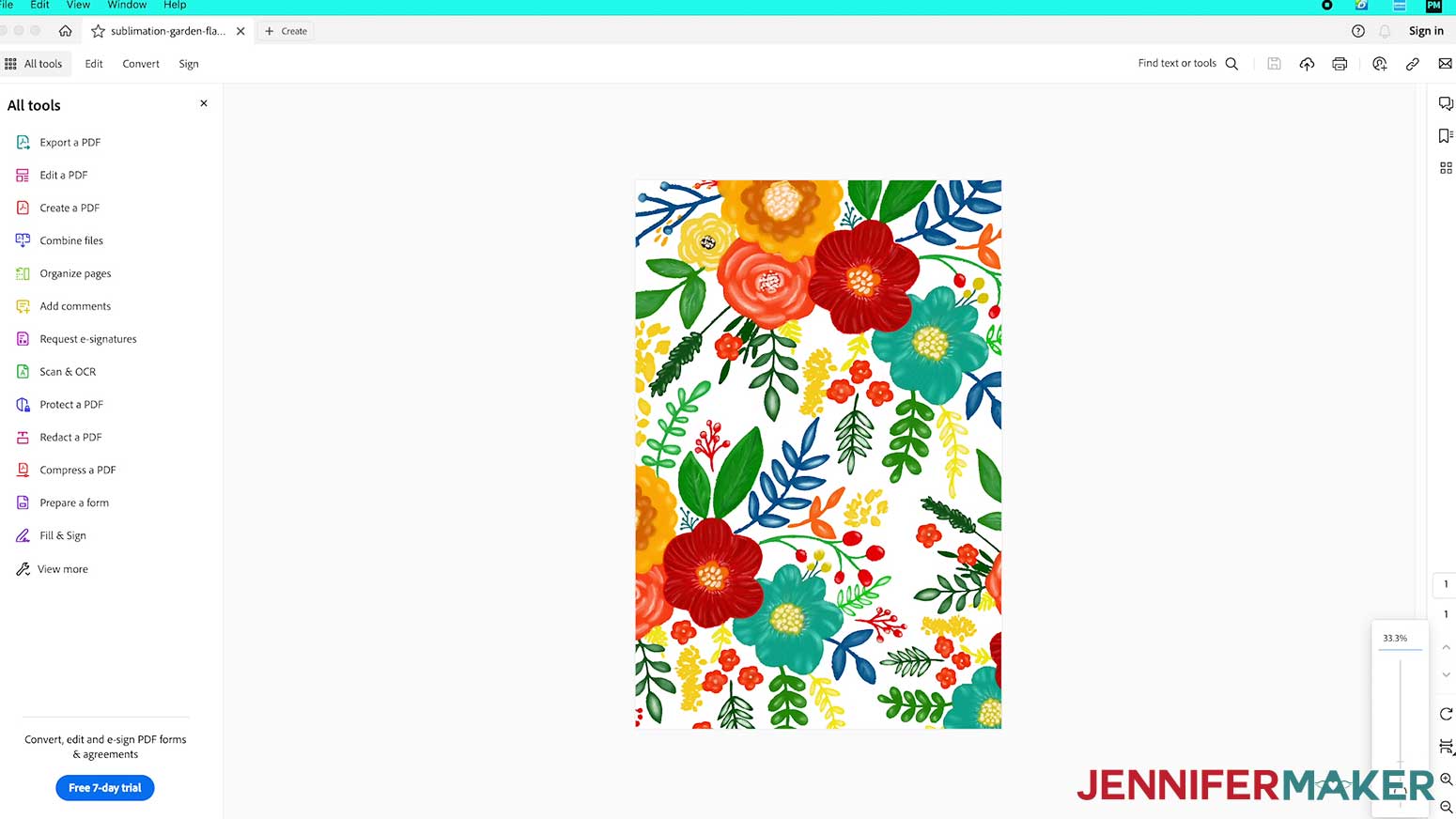
Follow the steps above to print and piece together both the front and back designs, and the steps above to sublimate the design onto the front of your flag.
Once pressed, let it cool completely before removing the paper. You want to make sure the sublimation process has been completed.
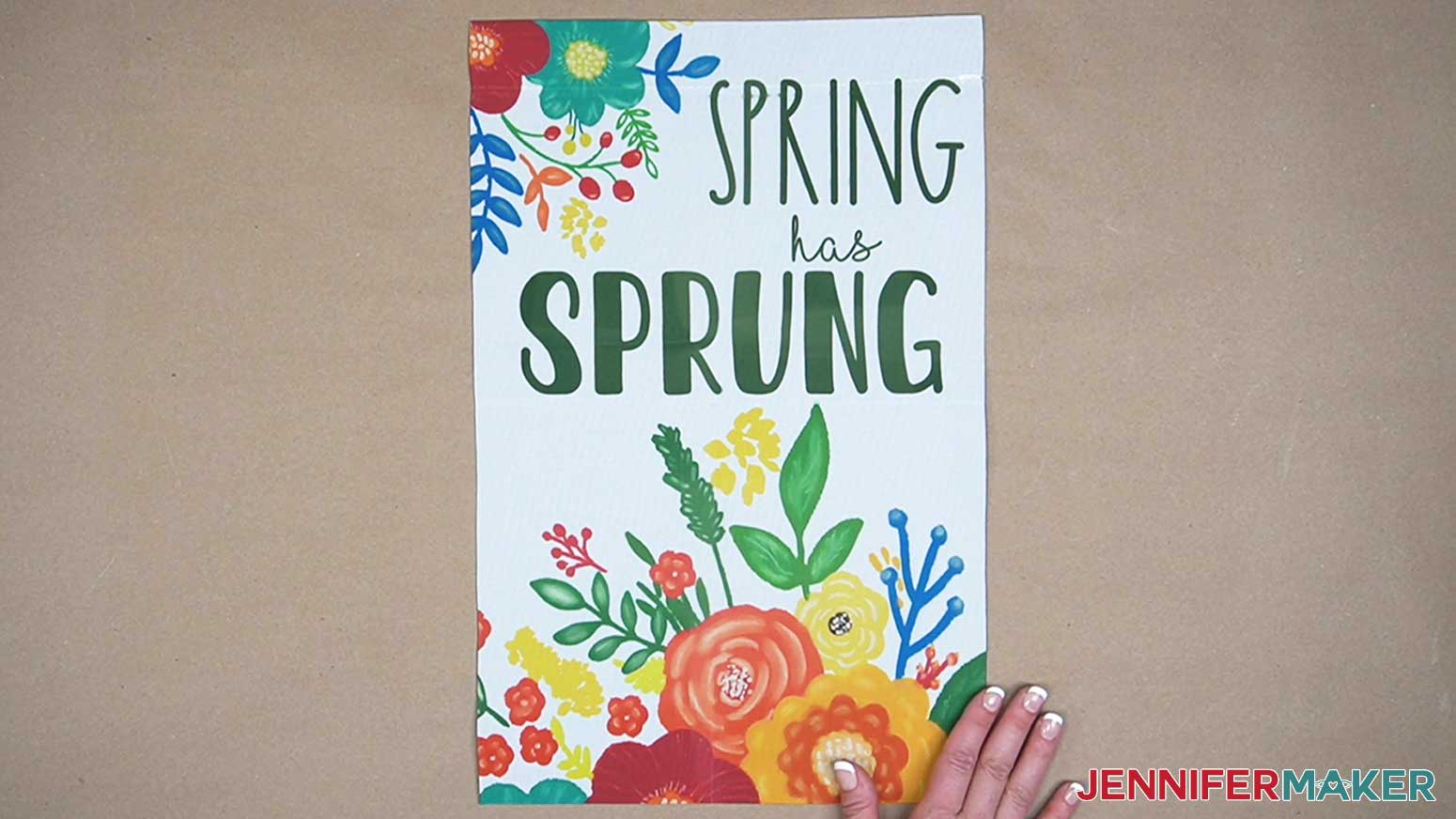
Now, repeat the steps above, starting with removing any lint from the back of the flag blank and aligning it face down onto the back side of the flag design.
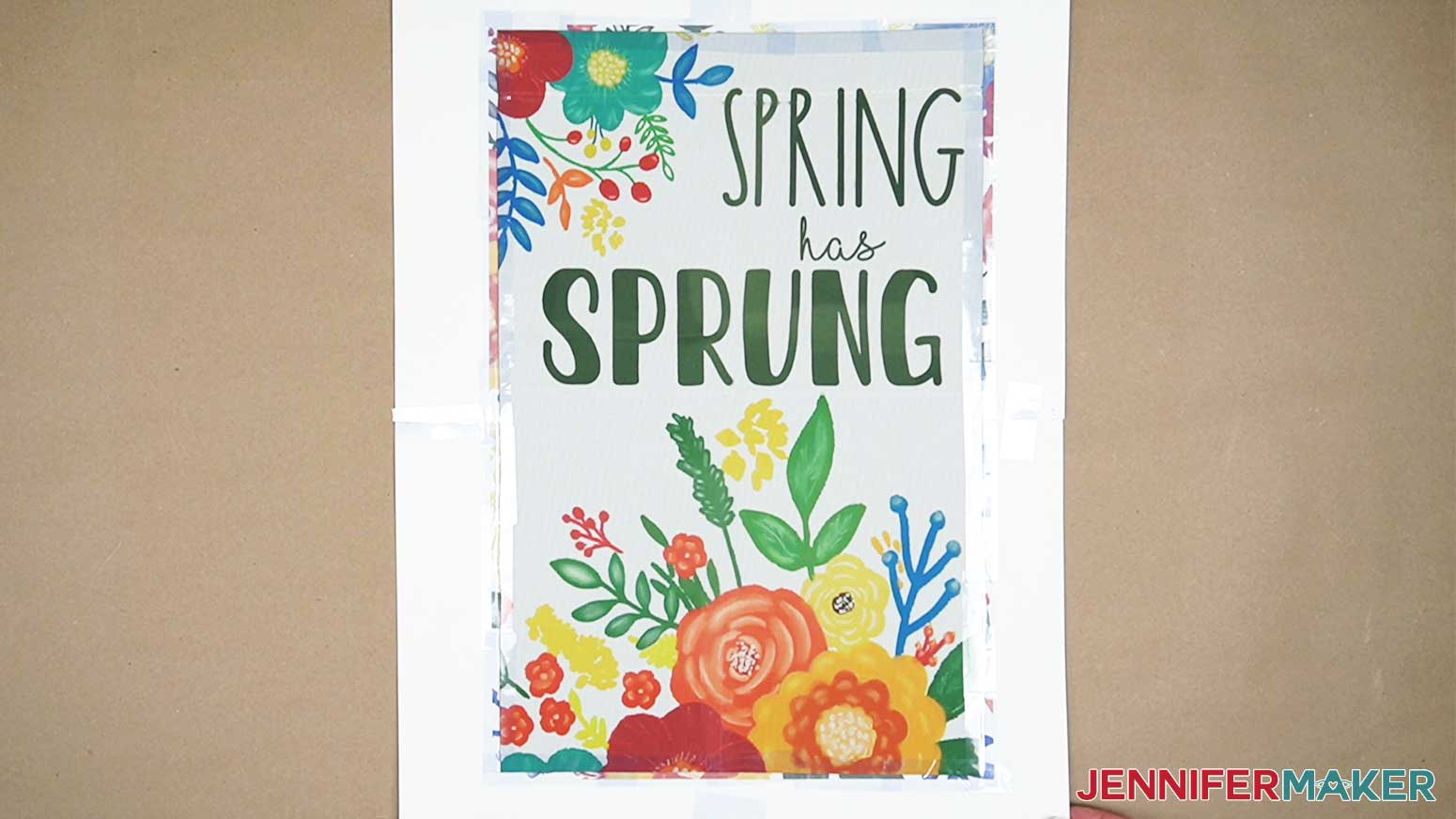
Continue by following the steps above to press the back side of your flag.
TIP: Make sure to use FRESH butcher paper and cardstock for each side to ensure there is no residual ink transfer.
Let the second side cool before removing the butcher paper.
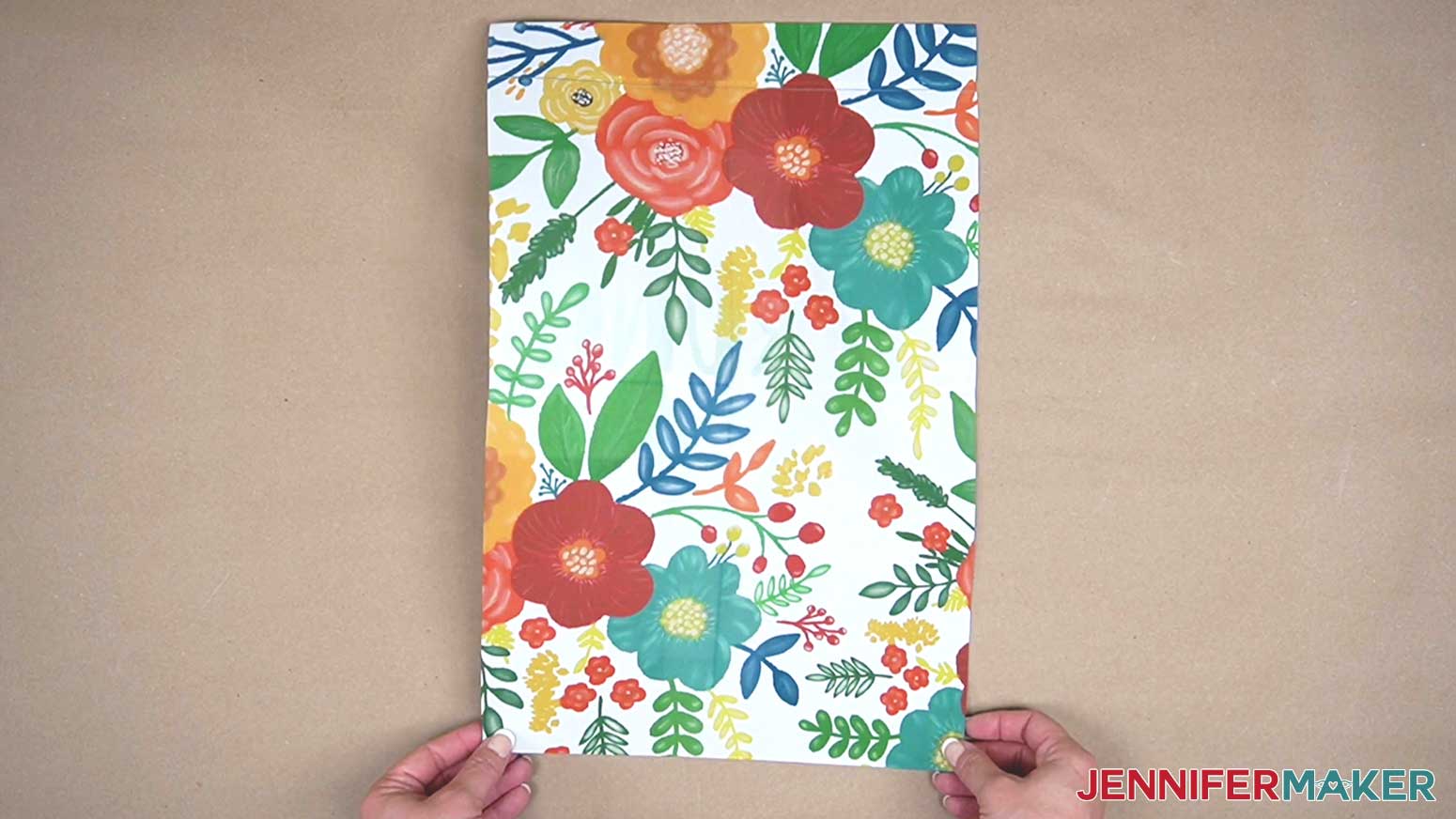
STEP 5: SHOW IT OFF!
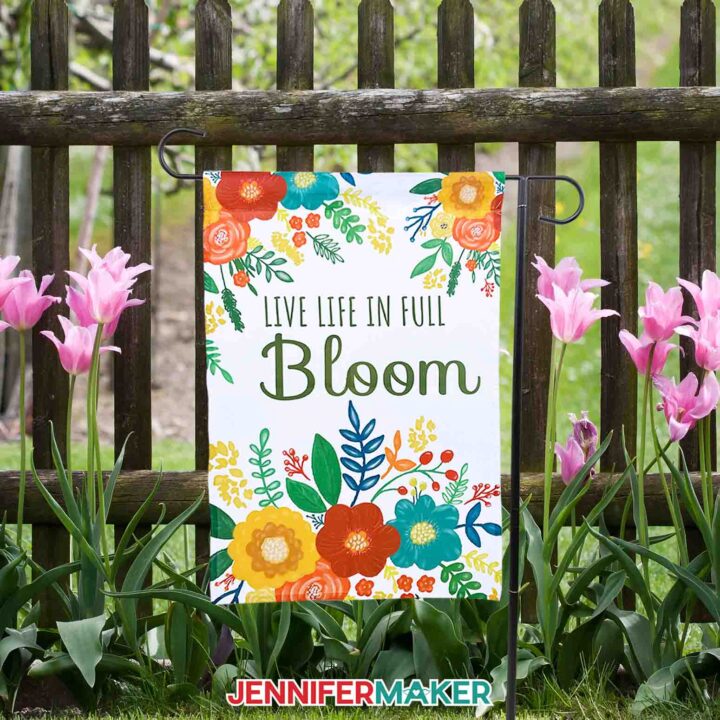
Add a garden flag holder and slide your flag onto the top pole. Secure with the side and top clips and/or stoppers to keep it in place. Here are what my one-sided and two-sided flags look like!
Care instructions: Hand Wash in cold water and hang dry or tumble dry low.
Notes
Typefaces Used: Simply Done Write Free Typefaces Used: Magical Feather, The Wanderer, Sunday Best, I Love Glitter
Free Alternatives: Paper Flowers, Amila Cuties
Google Fonts: Amatic SC, Sofia, Truculenta, Clicker Script, BenchNine
Answers to Your Questions About Sublimating Valentine Flags
Q: Can you sublimate on any garden flag?
A: Your flag should have at least 65% polyester content and be white so the translucent sublimation ink will show correctly.
Q: Why is my sublimation print color so dull?
A: Sublimation prints look much duller on the paper than they do after they’re sublimated, so don’t worry if your printed image looks faded or different colors than you expect. The vibrant colors of your Valentine flags will show when transferred to the sublimation blanks!
Q: Why is my sublimation not transferring evenly?
A: You may need to tweak your settings if you’re using materials other than the ones in my materials list. The sublimation printing process and transferring has a lot of variables, so follow my notes first on a test cloth, then try adjusting your temperature, time, or pressure if you need to.
Q: What does ghosting mean in sublimation?
A: Ghosting can occur when a freshly sublimated object is moved around too much while it’s still hot. If the object and the sublimation transfer is still hot, the image is still sublimating. To avoid this, simply wait until your sublimated item has cooled off before handling or removing the paper, and don’t move it around more than you need to while it’s sublimating. It’s a natural effect of the sublimation process because the ink is in a gaseous state until it’s cooled.
Q: Can you overheat sublimation?
A: It’s possible to overheat your sublimation garden flags and cause ghosting or browning of your design, but highly unlikely if you follow my steps and use reliable heat presses because they’re powerful tools.
Q: Do you peel sublimation hot or cold?
A: Always let your sublimation paper cool completely before removing it from your material. This will ensure a nice, crisp, fully sublimated design without any ghosting.
Q: Do you have any other decorative flags I can sublimate?
A: Besides making a love house flag for Valentine’s Day, you can check out these garden flag design collections:
Q: Can I use other images on garden flags?
A: Absolutely! As long as the image is high resolution like a PNG, it can likely be sublimated onto a blank garden flag. Look through my expansive library of PNG designs for images to make a custom flag of your own! Our crafting community has used their own photos, designs, and AI-generated images to create their own unique birthday garden flags, Christmas garden flags, military flags, religious flags, patriotic decorations, and more.
Want to learn how to create your own AI-generated art to use in crafts? Check out my AI Art Playbook and create your own flag with a unique, unforgettable design!
Q: Do you have any other porch or front door décor I can make?
A: I have so many porch, deck, and front door decorations you can make! Check out some of my favorites:
- Vertical Welcome Sign
- Custom Door Hanger
- Spring Wind Spinners
- Fall & Halloween Wind Spinners
- Patriotic Wind Spinners
- Painted Doormats
- Custom Sublimated Doormats
Get my free PNG files to sublimate your own Valentine garden flag!
(If you do not see the signup form above, click here.)
I love seeing what you make with my designs and how you use them! Inspire others and share a photo of your sublimated Valentine flags in our Facebook group or tag me on social media with #jennifermaker.
Love,

Want to remember this? Save this Valentine Flags Tutorial to your favorite Pinterest Board!