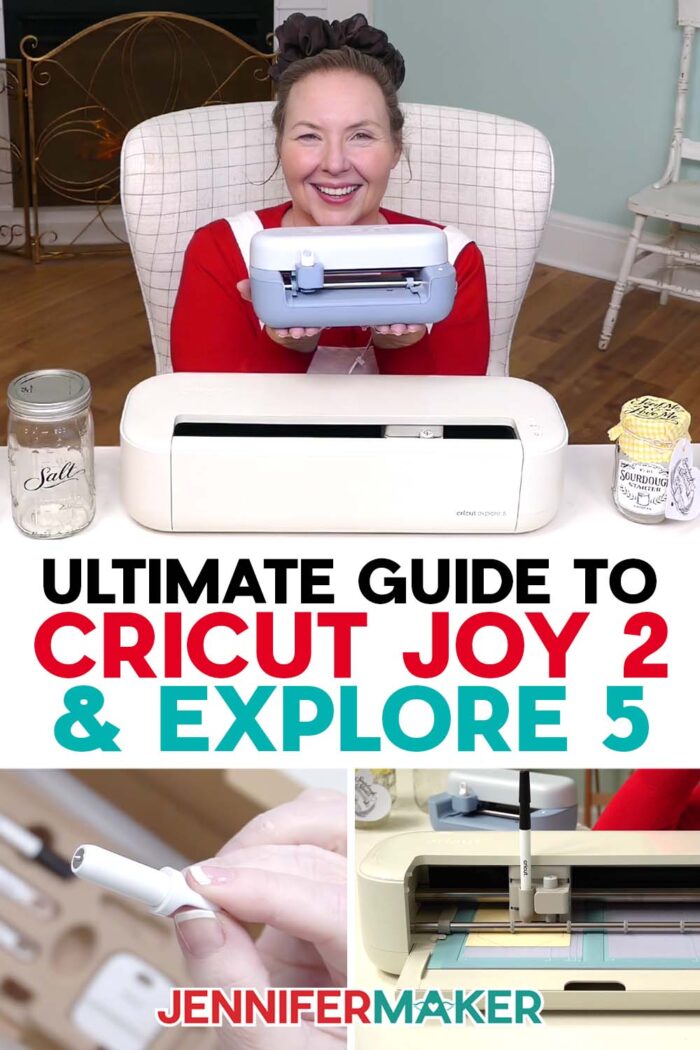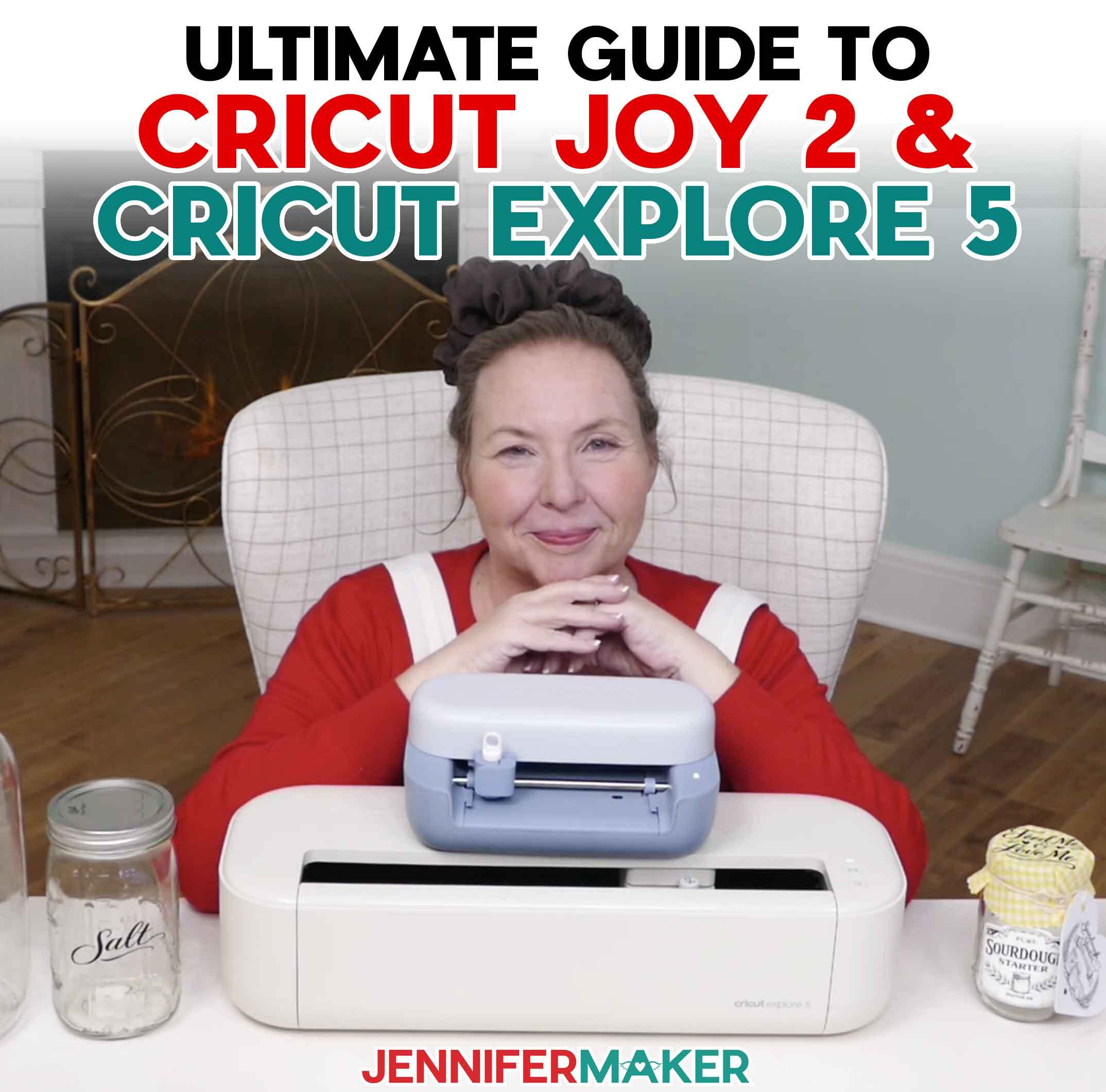
Learn all about the Cricut Joy 2 and Cricut Explore 5, the newest Cricut cutting machines!
If you’re wondering about the Cricut Joy 2 and Cricut Explore 5, which Cricut machine you should buy if you’re new, (or whether you should upgrade at all) this guide will walk you through everything you need to know. Both machines are part of Cricut’s newest generation, promise a simplified experience, and include more tools and materials in the box than previous launches.
But they are designed for different types of projects and different types of crafters.
In this complete comparison guide, I’ll cover:
- what I made using tools and materials included with the machine bundles I received,
- what each machine can (and can’t) do,
- compatible materials and project types,
- who each machine is best for, and
- whether upgrading is worth it.
By the end, you’ll know exactly which Cricut fits your crafting life. And you can download my free files (Design #811) to make them whenever you’re ready!
Watch my full first projects video all about Cricut Joy 2 and Cricut Explore 5:

This post contains some affiliate links for your convenience (which means if you make a purchase after clicking a link I will earn a small commission but it won’t cost you a penny more)! Read my full disclosure policy.
TIP: The Cricut Joy 2 and Cricut Explore 5 go on sale at midnight February 27th ET!
Note: Cricut graciously let me access the new machines in advance (thanks, Cricut!) so I could show you how they work and share my honest review. But as I do not accept free stuff, I am giving these away to someone, maybe you! Click here to go to the Cricut Joy 2 or Explore 5 giveaway form!
Quick Answer: Cricut Joy 2 or Cricut Explore 5?
If you mainly make smaller stickers, labels, and cards, or need a truly mobile crafting machine, the Cricut Joy 2 is likely your best choice.
If you regularly make shirts, large vinyl decals, or thicker material projects, the Cricut Explore 5 is the better fit.
The biggest differences are project size and material capability, so let’s look at those in detail.
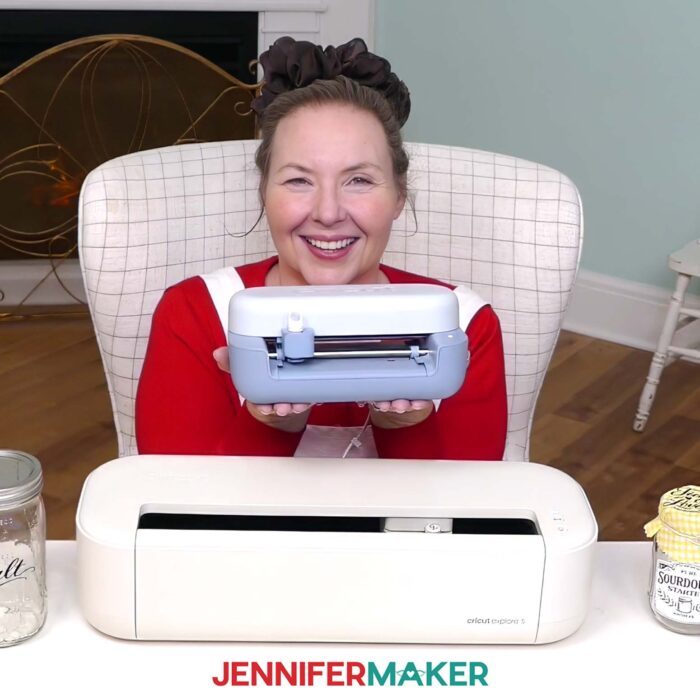
What Is the Cricut Joy 2?
The Cricut Joy 2 is Cricut’s most compact cutting machine. It measures just 9.1″ wide and weighs a little over 2 pounds, 30% smaller than the original Joy. It’s so easy to move and stow, it’s especially helpful if you need to pack up your crafting at the end of a project.
The Cricut Joy 2 is designed for quick, everyday projects like:
- custom labels
- greeting cards
- full-color stickers
- small vinyl decals
- gift tags and small organization projects
The Biggest Joy 2 Upgrades: Print Then Cut and Scoring
The Cricut Joy 2 now includes Print Then Cut capability, meaning you can print a design on your home inkjet printer and have the machine precisely cut around it. So you can make themed planner stickers, pantry labels with color, custom gift tags, small sticker sheets, and so much more! I love how my sourdough starter labels came out!
And yes, you read that right, the Cricut Joy 2 has scoring capability thanks to the new tool that comes with the machine! I’ve worked around the original Joy’s lack of scoring capability for years, and it can be a limiting factor for projects. Now, you can make structural paper projects with ease, from anywhere! With both of these upgrades, the Cricut Joy 2 is truly on par with its bigger Cricut cousins because now it can cut, score, draw, Print Then Cut, and foil.
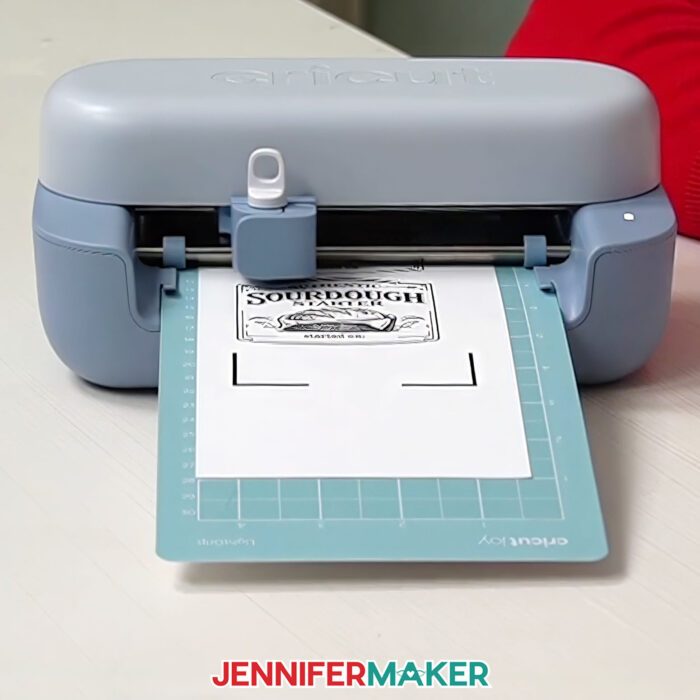
What Materials Can Cricut Joy 2 Cut?
Cricut Joy 2 works with 75+ materials, including:
- vinyl
- iron-on (HTV)
- cardstock
- printable materials
- Smart Materials (no mat required)
However, it does not cut thick materials like foam or magnet sheets.
What Is the Cricut Explore 5?
The Cricut Explore 5 is a full-size 12″ material cutting machine built for larger and more advanced projects. It is 30% smaller than previous Explore models while maintaining full cutting performance, making it ideal for:
- personalized apparel
- large vinyl wall decals
- full-size signs
- full-size and color sticker sheets
- making projects in multiples
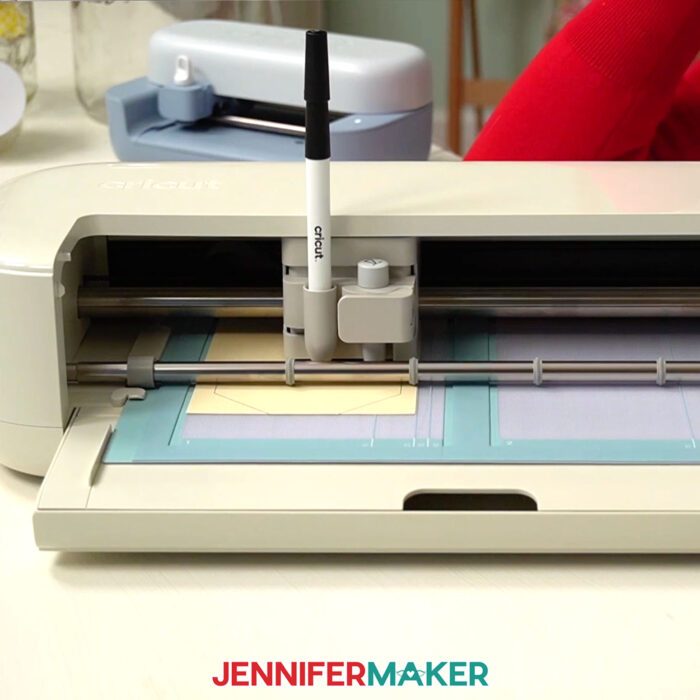
Updated Blade and Scoring: What’s Different?
For both the Cricut Explore 5 and the Joy 2, the blade is now an integrated unit, so when it’s worn out, you replace the entire housing instead of swapping a small blade. That means no handling sharp pieces — simpler, especially for beginners — though blade changes aren’t something most crafters do often.
The bigger shift is scoring on the Explore 5, as it uses the same clamp for cutting and scoring tools. So, you’ll need to swap tools during a project with cutting and scoring. I prefer the other way to avoid swapping, but it did let Cricut make the machine smaller and simpler. The older Scoring Stylus is not compatible with the new Explore 5.
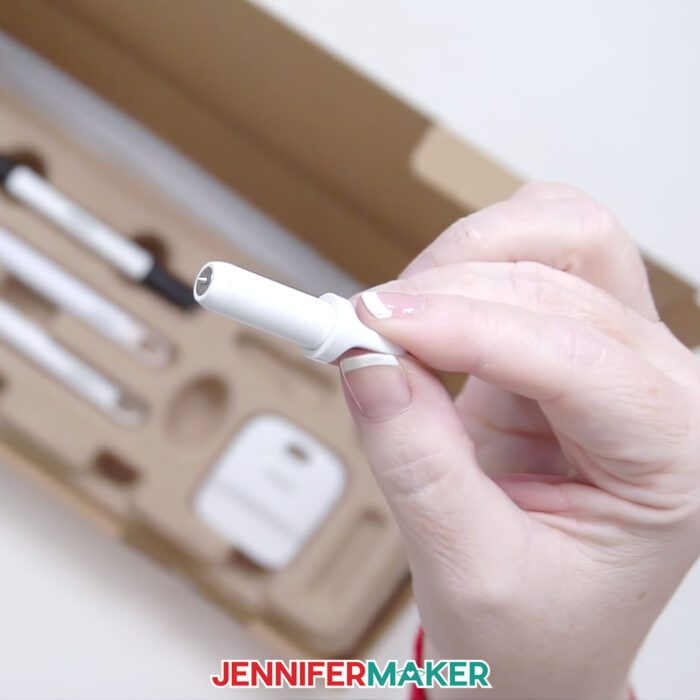
What Materials Can Cricut Explore 5 Cut?
Cricut Explore 5 works with 100+ materials, including all major Cricut materials, Smart Materials, and thicker materials than the Joy 2 can handle. With the Deep Cutting Tool (sold separately), Cricut Explore 5 can cut materials up to 1.5mm thick, including:
- poster board
- heavy cardstock
- foam
- magnet sheets
Which Machine Is Best for Beginners?
Both machines are beginner-friendly and use Cricut Design Space, Cricut’s free design software, which includes over 3,000 free images, 100+ typefaces, and 1,000+ projects to get you started. The new machines work well with the project flows in Design Space, as well as uploaded images like my sourdough set.
Choose Cricut Joy 2 if:
- you want something small and unintimidating,
- you craft at a kitchen table or small space, and
- you mostly plan to make labels and stickers.
Choose Cricut Explore 5 if:
- you already know you want to make shirts or large projects,
- you don’t want size limitations,
- you want long-term flexibility, or
- if you’re unsure, think about what you realistically plan to make in the next three months — not someday, but soon.
What tools do the new 2026 Cricuts use?
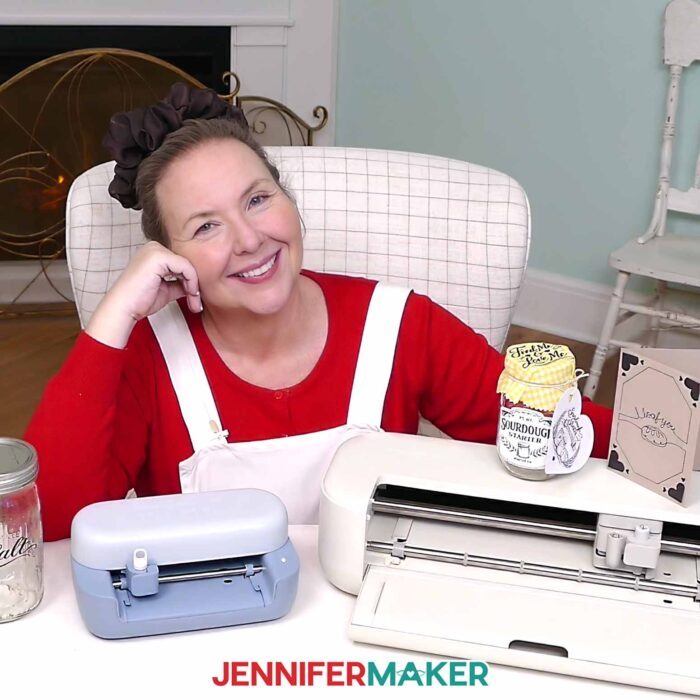
The Joy 2 and Explore 5 each come installed with a Premium Fine Point cutting tool, which is the default tool for most materials. The new machines use new tools with integrated blades and new pens and markers that work with all machine sizes (some need the universal adapter.
The Cricut Joy 2 can use these tools:
- Premium Fine Point Cutting Tool (included)
- Scoring Tool (included)
- Foil Tool
- Universal fit Cricut Pens and Markers
The Cricut Explore 5 can use these tools:
- Premium Fine Point Cutting Tool (included)
- Scoring Tool (included)
- Deep Cutting Tool
- Foil Tool
- Universal fit Cricut Pens and Markers
What comes in the box with the new 2026 Cricuts?
There are several bundles available for each of the new machines. In my testing, I used a Cricut Joy 2 Essentials Bundle and a Cricut Explore 5 Essentials Bundle, which include more tools and materials than the base bundles. From what I can tell, all bundles include the following:
- materials and information on setup, warranty, and safety
- a USB cable power adapter
- a Premium Fine Point Cutting Tool (already in the machines)
- blue LightGrip machine mat
- weeding tool (mini or full size, depending on the bundle)
- Smart Vinyl
- Smart Iron On vinyl
- sheets of cardstock
- sheets of transfer tape
- a black double-ended fine point Cricut pen
How big are the Joy 2 and Explore 5? How much space do I need to run them?
The new Cricut Joy 2 and Explore 5 are each 30% smaller than previous models. The Cricut Joy 2 is 9.1″ x 5.4″ x 2.8″ (23.1 cm x 13.7 cm x 7.1 cm) and weighs just over 2 lbs
(0.91 kg). while the Explore 5 is 19.8″ x 7.5″ x 4.7″ (50.2 cm x 19.05 cm x 11.9 cm) and weighs 10 lbs (4.5 kg).
Be sure to leave at least 10 inches of clear space behind your machine so your mat or Smart Material can feed in and out properly.
If you’re using Smart Vinyl — especially for longer designs — you may have quite a bit of material extending out the back as it cuts. The vinyl will naturally curl, and if your machine sits on the edge of a desk or cart, that excess material can drop to the floor.
To keep your vinyl clean and wrinkle-free, consider placing a plastic bin or container behind your machine to catch and support the material as it feeds through.
What is the new Cricut pen adapter?
The pen system has been streamlined so compatibility is less of a guessing game. New “universal fit” pens and markers will have a special icon indicating they will work with all Cricut machines as long as you have the universal adapter. An adapter will come with each pack of pens or markers and will be available for purchase separately. An adapter will be needed for all machines other than the original Joy, Joy 2, Joy Xtra, and the Explore 5.
How do Smart Materials work with Cricut cutting machines?
Both the Cricut Joy 2 and Cricut Explore 5 can cut without a mat when you use Smart Materials. These materials have a built-in backing, so you load them directly into the machine and it checks alignment before cutting.
Smart Materials come in Smart Vinyl (removable and permanent), Smart Iron-On (HTV), and Smart Paper Sticker Cardstock in various colors and finishes. They’re especially helpful for longer designs and repeated cuts.
How big can I make projects on the new Cricuts?
If you use Smart Materials, the new Explore 5 can cut a design up to 11.7″ wide and nearly the full material length — up to 11.2″ for cardstock, 4′ for adhesive vinyl, or 12′ for iron-on! If you put your material on a mat, the limit is still 11.5″ wide and 11.5″ or 23.5″ long depending on your mat.
How do you switch between Smart Material and machine mats?
All you have to do is select the correct “Material Load Type” on the Cricut Design Space Prepare screen from “On Mat” to “Without Mat” or vice versa and you’re ready to go!
Can You “Print Then Cut” on Colored Paper with Joy 2 and Explore 5?
Yes, the sensors on the new cutting machines allow for “Print Then Cut” projects on color paper.
And if you’ve ever struggled with Print Then Cut settings or other Cricut details, my Cricut Survival Guide is the answer! It’s a simple, troubleshooting-focused reference to address common Cricut issues.
What kinds of drawing tools work with the new Cricuts?
You can use different colors of markers and pens with the universal fit logo with the new machines.
How do I get a Cricut Joy 2 or Cricut Explore 5?
You can get your own Cricut Joy 2 or Explore 5 now!
TIP: If you get Cricut Access (or already have it), you’ll save by buying through the Cricut shop! This is a great time to sign up for Cricut Access because it can pay for itself very quickly with savings on tools and Smart Materials. Learn all about Cricut Access here.
How much do the Cricut Joy 2 and Explore 5 cost?
The Joy 2 costs $99 at retail price for the base option, while the Explore 5 is $199 for the base option.
What can I make with the bonus materials that come with the new Cricut machines?
It’s up to you, but I used the cardstock to make Print Then Cut tags, the heat transfer vinyl to make can top decorations, and the adhesive vinyl to decorate Mason jars. I’ll show you how to use my free designs to make your own!
Answers to Your Questions About the Cricut Joy 2 and Cricut Explore 5:
Q: Does the new Cricut mean Cricut won’t support the Cricut Explore Air 2, Explore 4, Maker 4, Joy, or other machines?
A: No, Cricut knows that their different machines work for different people and I anticipate they will all be supported for a long time for all Cricut users.
Q: Where can I buy a new Cricut?
A: The Cricut Joy 2 and Explore 5 will be available starting at midnight, February 27th from Cricut and Michaels. Click here to buy a new Cricut Joy 2. Click here to buy a new Cricut Explore 5.
Q: How much does a Cricut Joy 2 cost?
A: The Cricut Joy 2’s retail price is $99 USD for the base option. The Essentials Bundle I showed is $139.99.
Q: How much does the Cricut Explore 5 cost?
A: The Cricut Explore 5 is $199 USD for the base option. The Essentials Bundle I showed is $249.
Q: Does Cricut Joy 2 work with Cricut Design Space? Does Cricut Explore 5 work with Cricut Design Space?
A: Yes! You don’t need any additional software to control the new Cricut machines.
Q: Can I control the Cricut Joy 2 and Explore 5 with a mobile app?
A: Yes, you can design and cut with your Joy 2 or Explore 5 with the same Cricut Design Space mobile app for iOS or Android that are used for current Cricut cutting machines.
Q: Can I use the same power supplies for all my Cricut cutting machines?
A: No, do not interchange your power supplies, cords, or adapters.
Q: What kinds of markers are available for the new Cricuts?
A: You can use markers and pens with the universal fit icon with the updated machines!
Q: Can I use my existing mats on a Joy 2 or Explore 5?
A: Yes! The new Joy and Explore models both use the standard machine mats that the earlier ones do.
Q: Can I use other brands of vinyl or cardstock with the new machines?
A: Yes, you can cut any brand of adhesive vinyl, heat transfer vinyl, or cardstock with the new Cricuts.
Q: What if I don’t have enough Smart Material for a cut? Do I need to measure and cut my Smart Material before I load it?
A: You don’t have to worry about running out of material during a cut! The Cricut Joy 2 and Explore 5 will make sure you have enough Smart Material loaded by measuring it before beginning the project. If you don’t have enough, you’ll be told right in Cricut Design Space BEFORE you start.
Q: What color can I get the Cricut Joy 2 in? What color can I get the Cricut Explore 5 in?
A: At the time of release, Explore 5 is available in taupe and teal (Michaels exclusive) and I’ve seen the Joy 2 in blue, green (Michaels exclusive), and coral.
Q: Do all the current blades work in both new machines?
A: No, the new machines use tools with integrated blades. The Scoring stylus also does not fit in the Explore 5, but it comes with scoring tool, which uses the same clamp as the cutting tool.
Q: How do I link my cartridges?
A: Contact Cricut Member Care who can help you link your cartridges.
Q: How do I choose my material settings without a Smart Dial?
A: All material settings are now done within Cricut Design Space after you click “Make,” and that gives you access to a LOT more material settings than were ever available on the dial!
Q: Do I have to buy new mats for the Joy 2 and Explore 5?
A: No, the new Cricut cutting machines use the same machine mats that you’ve been using for earlier Joy and Explore machines.
Q: Do I have to use the Cricut Roll Holder if I use rolls of Smart Vinyl or Smart Iron On?
A: No, you do not NEED a roll holder to use the new rolls of Smart Vinyl, but if you want to use it to better manage all that vinyl, you can get the optional roll holder sold separately.
Q: Can the new Cricut machines cut any wider than the old ones?
A: If you use Smart Materials, the new Explore 5 can cut a design up to 11.7″ wide like the older machines. If you put your material on a mat, the limit is still 11.5″ wide. For the Joy 2, you can cut a design up to 4.5″ wide and 4′ long using Smart Materials.
Q: Can I use other brands of vinyl with the new Cricut machines?
A: Yes, but you need to put them on a machine mat just as you did before.
Q: Where can I purchase Smart Materials for my new machine?
A: You can buy them from Cricut.com and all the other places you buy your Cricut supplies.
Q: Which font or typeface did you use in your sourdough designs?
A: I looked at several vintage labels that fit the aesthetic I had in mind, then drew and adjusted designs in Illustrator and Photoshop to fit the look I wanted, so they didn’t use a specific font. However, I think Holly Jolly is a similar option. The “stared on” text uses a Google Font called Rye.
Q: How do I set up the new Cricut cutting machines?
A: Check out my FREE Cricut Kickoff classes, which have helpful tips for getting started with any machine!
How to Win a Cricut Joy 2 or Cricut Explore 5 Cutting Machine
Cricut sent me this Joy 2 and Explore 5 free of charge so I could review them. But I don’t accept free products as I feel it can influence my ability to give an unbiased review. Normally I’m able to just purchase everything I need on my own, so I always know its value compared to my hard-earned money, but I can’t do that for something that isn’t in the stores yet. So, I’m giving away the machines I received early from Cricut and will buy my own Joy 2 and Explore 5 as soon as they’re available.
To enter to win the Cricut Joy 2 or Explore 5 I received and demonstrated, you need to do BOTH of the following things before March 31, 2026 at 5:00 pm ET:
- Comment on my new 2026 Cricuts video and tell me what YOU would make if you had one of the machines. Get specific. I’m reading and watching everything.
- Enter your name and email into this entry form below:
(If you do not see the signup form above, click here.)
Note: The Cricuts are used, not new.
Winners will be contacted personally by email ONLY in the late evening of March 31, 2026. We will address you by name and it will come from our email address. We will not contact you about winning in any other way.
Get my free designs to make projects with a new Cricut Joy 2 or Explore 5!
As always, I’d love to see your new Cricut cutting machine projects! I know you’ll come up with some amazing ideas with the new mix of capabilities. Please share your ideas and photos in our Facebook group or tag me on social media with #jennifermaker.
Love,

Want to remember this? Save this Cricut Joy 2 and Cricut Explore 5 Ultimate Guide to your favorite Pinterest Board!